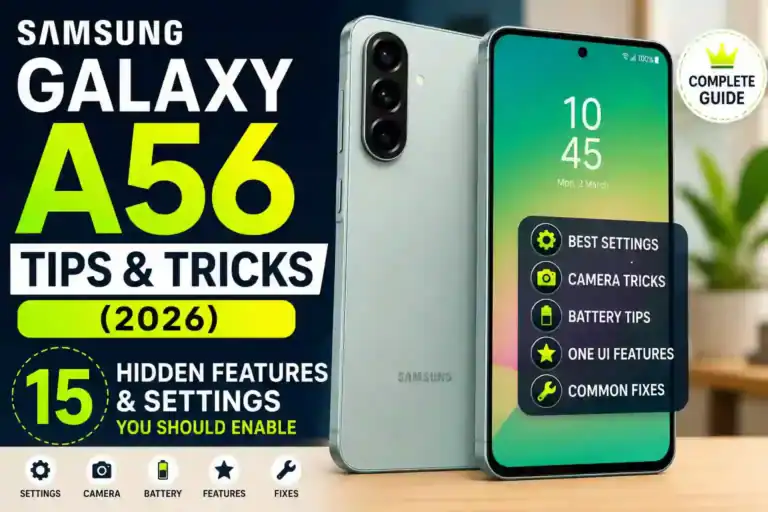
Samsung Galaxy A56 Tips and Tricks (2026): 15 Hidden Features & Settings You Should Enable
I dropped my old phone in a parking lot, the screen spider-webbed in about four directions, and I had maybe six hours to find a replacement before a work trip. That’s how I ended up with the Galaxy A56. Not some carefully researched decision — just panic-buying at a carrier store because it was in stock and the guy behind the counter said “this one’s actually really good for the price.”
Three months later, I’m genuinely glad it worked out that way. But it took me a couple of weeks of poking around, watching the battery drain weirdly, and accidentally triggering features I didn’t know existed before I felt like I actually knew this phone. So this is everything I’ve picked up — the useful stuff, the stuff that confused me at first, and a few mistakes that cost me time I didn’t need to lose.
Quick Specs Table
| Spec | Details |
|---|---|
| Display | 6.7″ Super AMOLED+, 120Hz, up to 1,213 nits (auto, outdoor) |
| Chipset | Samsung Exynos 1580 (4nm) with Xclipse 540 GPU |
| RAM / Storage | 8GB/128GB or 12GB/256GB (UFS 3.1) |
| Battery | 5,000 mAh, 45W wired charging |
| Rear Cameras | 50MP main (OIS), 12MP ultrawide, 5MP macro |
| Front Camera | 12MP |
| Build | Aluminum frame, Gorilla Glass Victus+ front and back, IP67 |
| Weight / Thickness | 198g, 7.4mm |
| OS Support | 6 years of OS and security updates (through 2031) |
| microSD | Not supported |
| Headphone Jack | No |
| Wireless Charging | No |
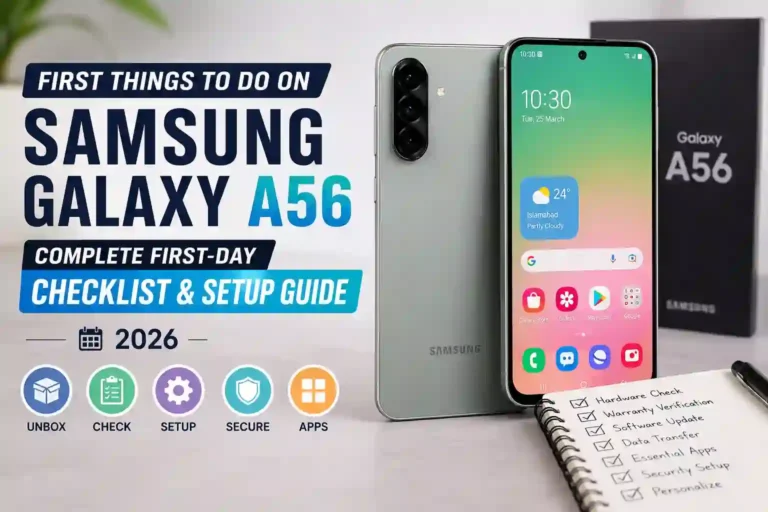
Setting It Up the Right Way (Not the Fast Way)
My first mistake was rushing through setup because I had a flight to catch. I tapped through everything, skipped the Smart Switch transfer, and just manually reinstalled apps from scratch. Big waste of time.
If you’re switching from another Android phone (or even an iPhone), use Smart Switch properly. Here’s the actual sequence that works:
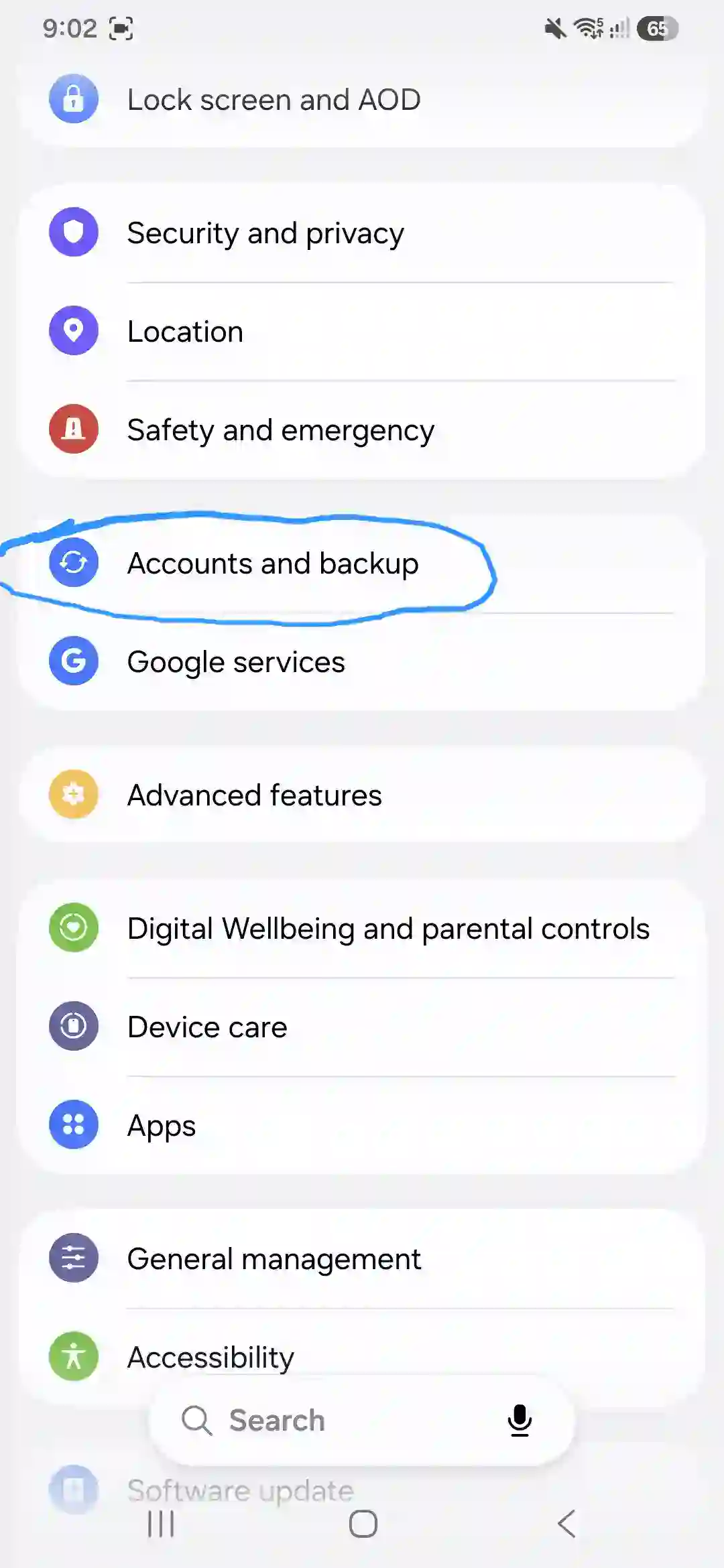
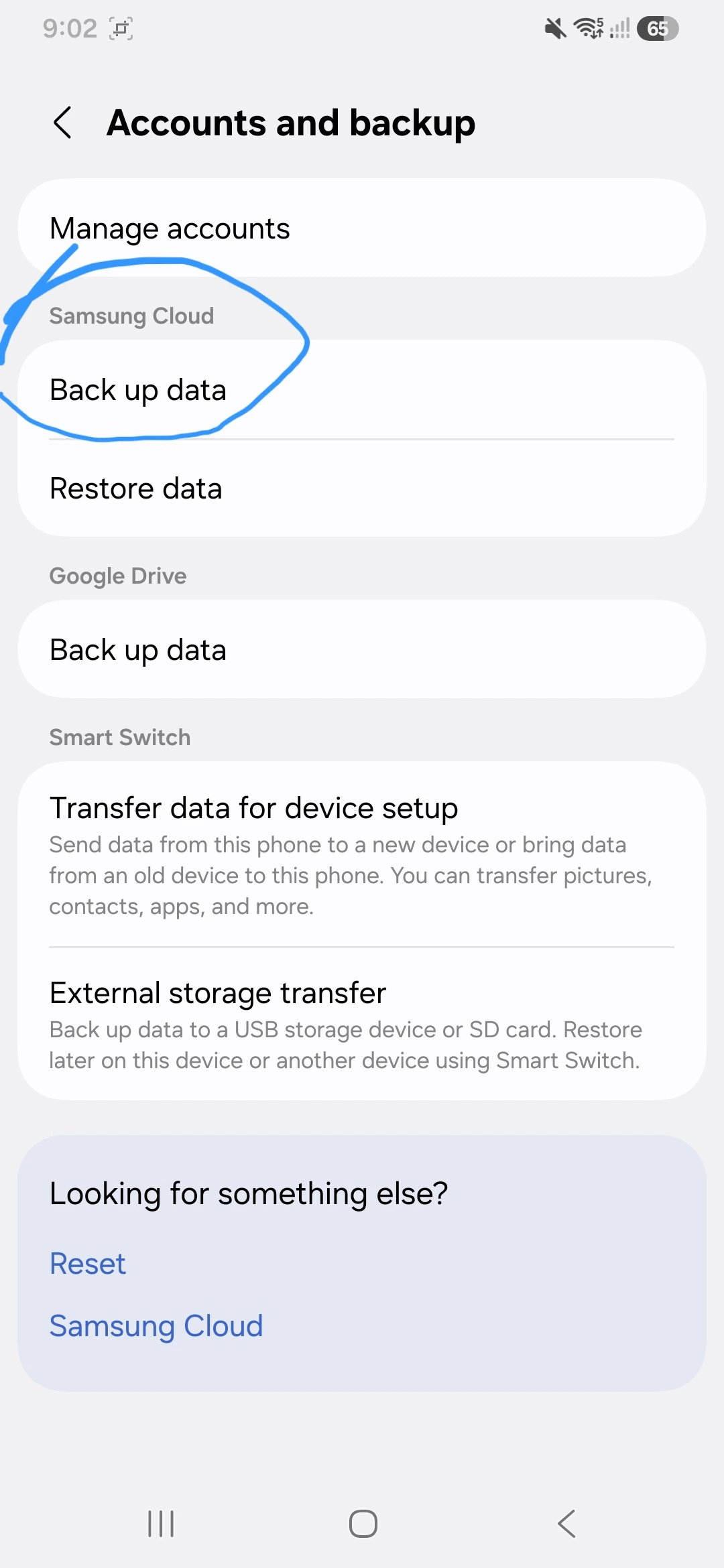
After completing the transfer, open Settings > Accounts and backup > Back up data to secure your files.
- Charge both phones to at least 50% before you start — transfers can stall on low battery.
- On the new A56, during setup, choose “Bring data from old device.”
- Connect both phones with the USB-C cable that comes in the box (yes, just the cable, no charger or case is included — that surprised me too).
- Let it run completely. It transfers contacts, photos, app data, and even tries to restore app layouts.
It’s not perfect — a couple of banking apps still needed manual login afterward — but it saved me from redownloading 60+ apps one by one like I did the first time.
Also: turn on Find My Mobile immediately, before you even finish setting up your home screen. I know it feels like a “later” task, but if the phone goes missing on day two, you’ll regret skipping it.
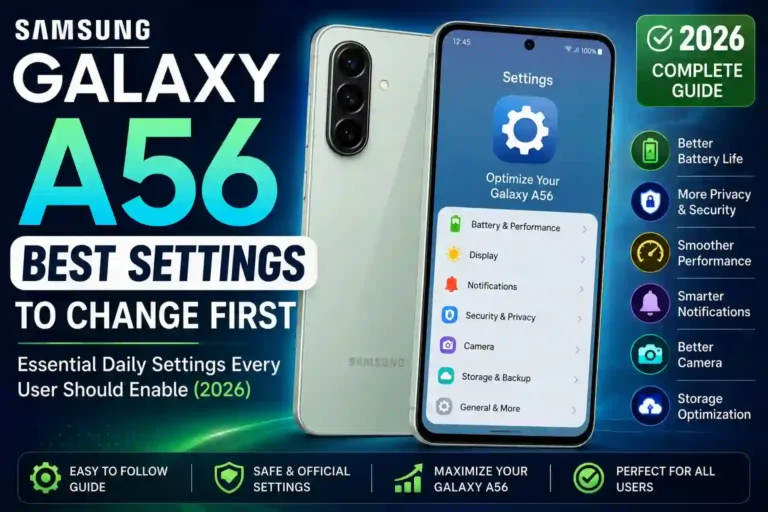
Battery Tricks That Actually Made a Difference
The 5,000 mAh battery is solid on paper, but my first week was rough. I was getting maybe 4 hours of screen time before hitting 20%, which felt off for a phone this size.
Turns out the culprit was adaptive battery and background app refresh running wild with apps I barely use. Here’s what fixed it for me:
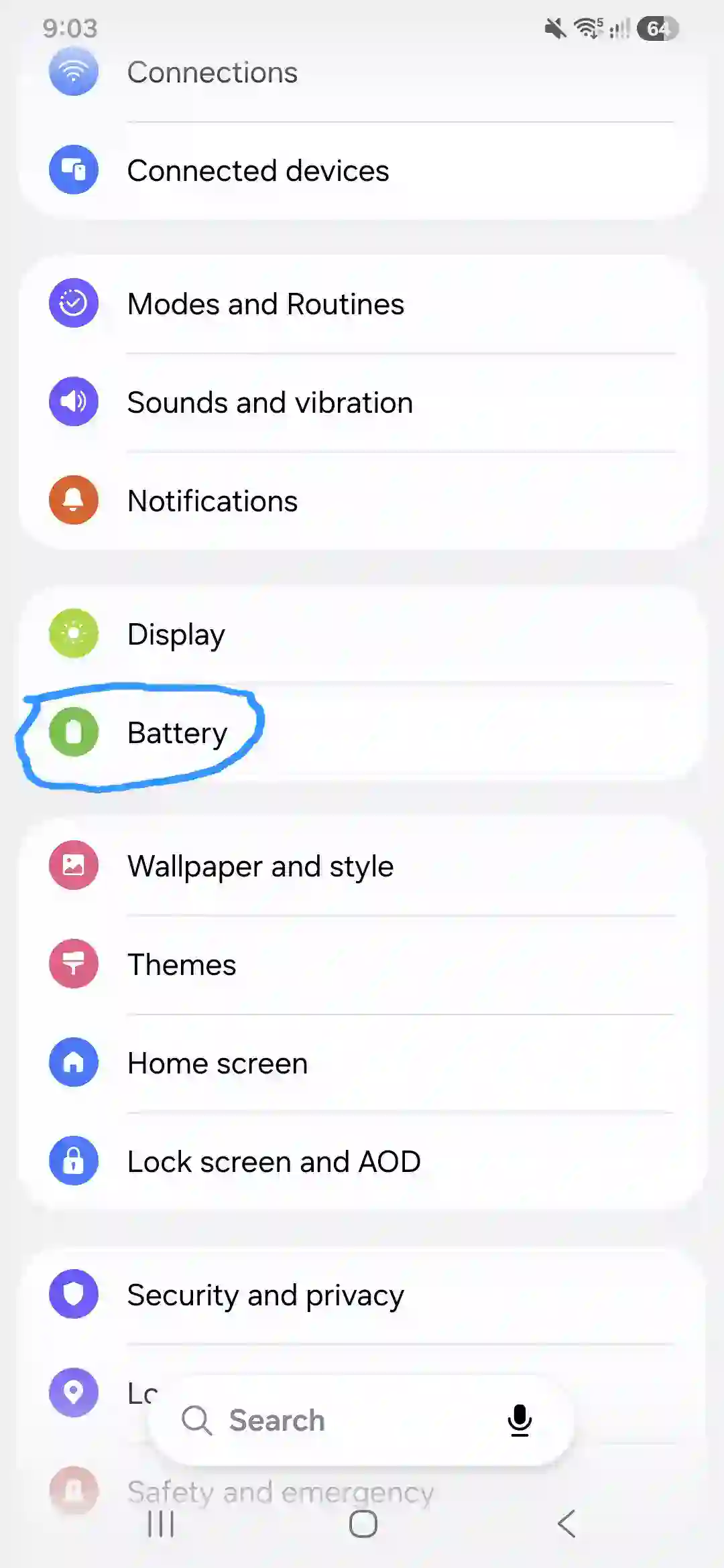
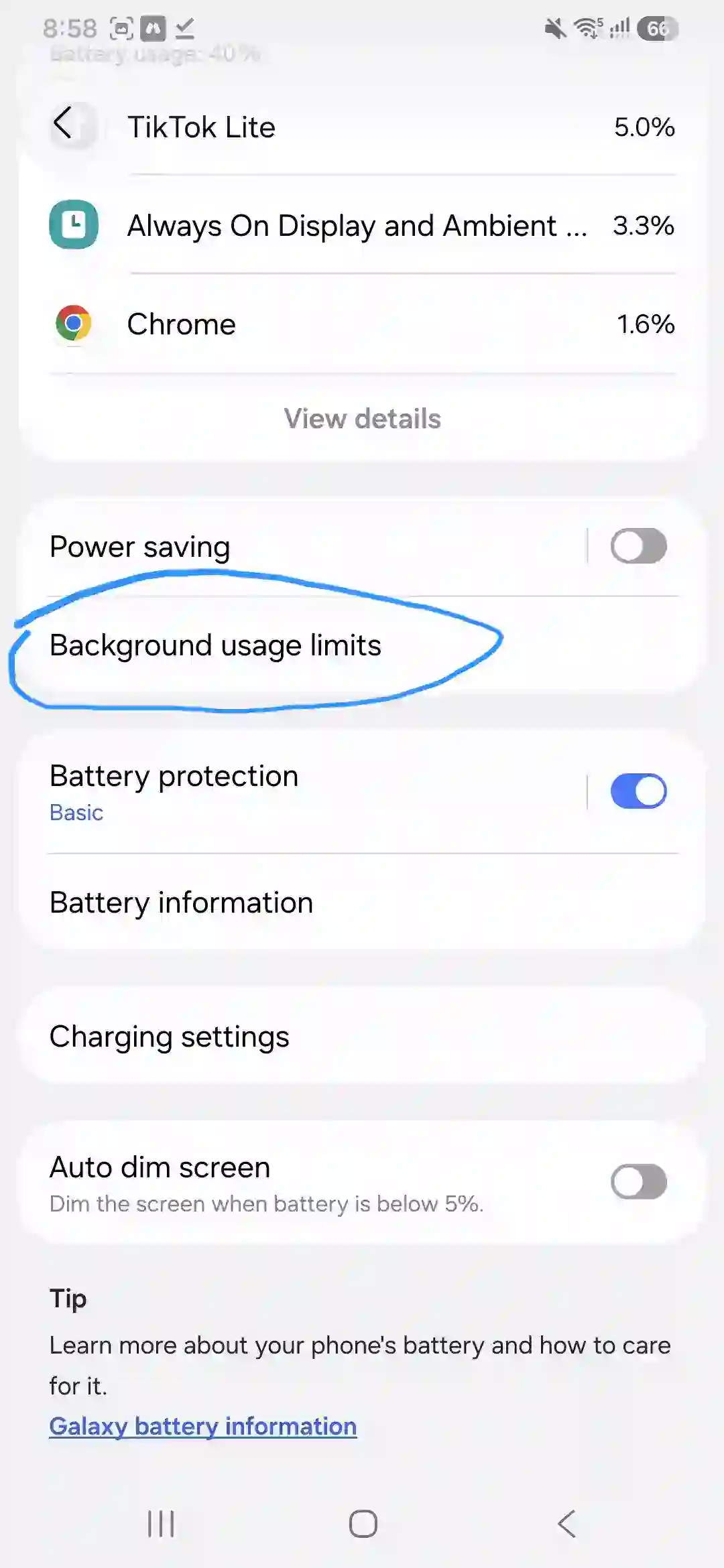
Step 1: Find the battery hogs. Go to Settings > Battery > Background usage limits. You’ll see categories like “Sleeping apps” and “Deep sleeping apps.” I moved almost everything except messaging apps and my alarm clock into deep sleep.
Step 2: Turn on adaptive power saving properly. Settings > Battery > More battery settings > Adaptive power saving. It automatically switches modes based on your usage pattern instead of you manually toggling power saver every time you’re at 30%.
Step 3: Check refresh rate vs. battery trade-off. The 120Hz screen looks great, but it does drink battery. If you’re traveling or know you’ll be away from a charger, dropping to Settings > Display > Motion smoothness > Standard (60Hz) genuinely extends the day. I only do this on travel days now.
Step 4: Charging habits matter more than I expected. The 45W charging sounds fast, and it is — roughly 0 to 65% in about half an hour with a compatible PPS charger (not included in the box, so budget for that separately). But I noticed the charging speed tapers off noticeably after that point, so don’t expect a full charge in 30 minutes. I also learned the hard way that cheap third-party cables sometimes won’t trigger fast charging at all — stick to PD/PPS-rated ones.
One thing that genuinely surprised me: the phone supports reverse wired charging, so I’ve used it to top off my Galaxy Buds in a pinch using a USB-C to USB-C cable. Small thing, but it’s saved me once or twice.
Camera Settings I Wish I’d Found Sooner
The 50MP main camera with OIS is honestly the star here for daytime shots — sharp, good colors, doesn’t oversaturate too aggressively like some Samsung phones used to. But I made the mistake of assuming the camera app’s default mode was doing everything it could. It wasn’t.
Turn on Scene Optimizer manually if it’s off. Settings inside the Camera app > Scene optimizer. This is what nudges colors and exposure based on what you’re shooting (food, sky, greenery, etc.). I didn’t have this fully enabled at first and wondered why my photos looked flatter than review samples I’d seen online.
Use Pro mode for anything tricky. If you’re shooting into bright windows or mixed lighting, swipe to Pro mode and manually drop the ISO. The auto mode tends to overexpose in backlit situations.
Skip the macro lens unless you really need it. I’ll be honest — the 5MP macro camera is the weakest part of the setup. It’s there, technically, but I rarely reach for it anymore. Detail drops off fast compared to the main sensor.
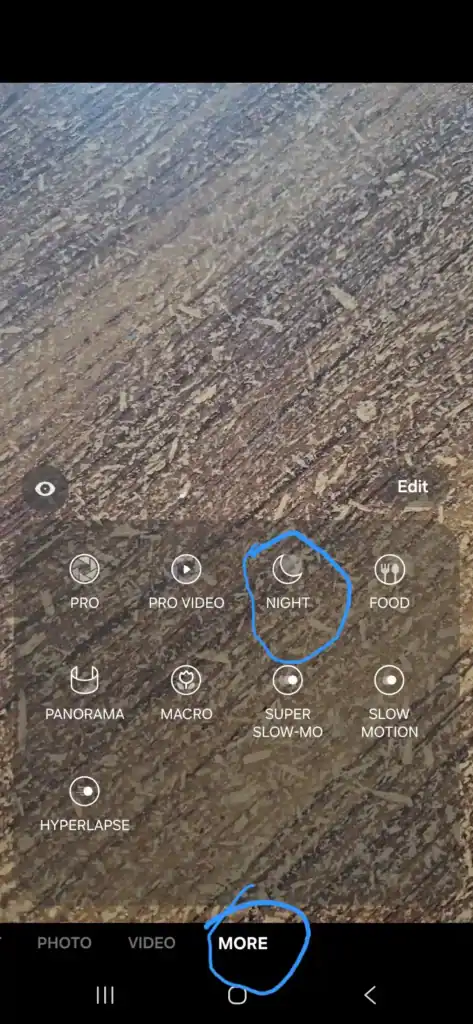
Be realistic about night shots. This is where I noticed the biggest gap compared to phones like the Pixel 9a. In low light — restaurants, evening walks, indoor events — images get noticeably noisier and softer. Night mode helps, but it can’t fully compensate. If nighttime photography is a priority for you specifically, this is worth knowing before you buy, not after.
Avoid the 2x “zoom” for anything important. There’s no dedicated telephoto lens, so zooming is just a digital crop from the main sensor. It’s fine for casual shots, but quality drops noticeably past 2x. I learned this trying to photograph my kid’s school play from the back row — don’t make that mistake.
Display and One UI Tweaks Worth Knowing
The screen is genuinely the best thing about this phone, and a few settings make it even better:
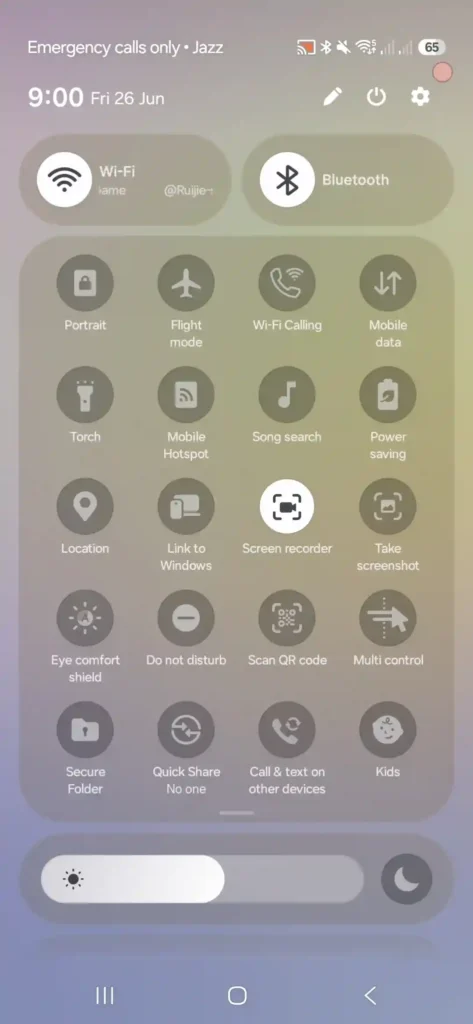
- Eye Comfort Shield (Settings > Display) reduces blue light without making everything look yellow-tinted, which older “night mode” features used to do. I leave this on basically all the time now.
- Edge panels are still here if you’re coming from an older Galaxy phone and liked quick app access from a swipe gesture. Settings > Display > Edge panels.
- HDR10+ content on Netflix and YouTube genuinely looks noticeably better than I expected for this price range. Worth checking your streaming app’s video quality settings are set to high/auto so you’re not capping it accidentally.
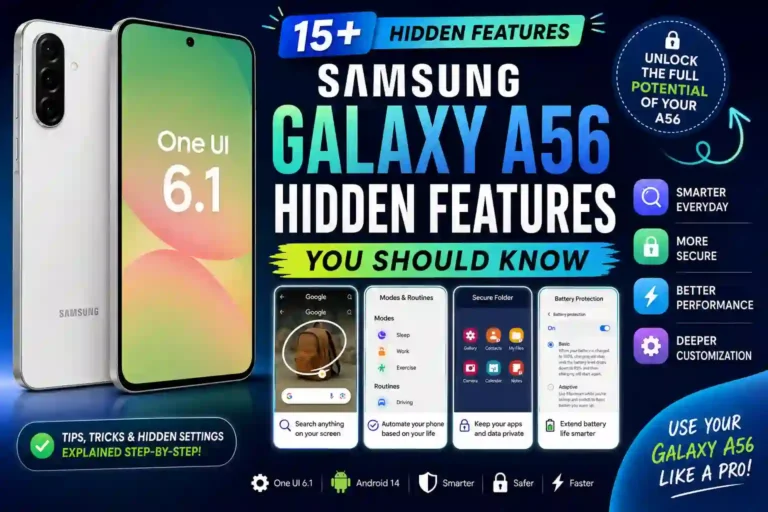
One feature I didn’t expect to use as much as I do: Circle to Search. Long-press the home button or navigation bar, then circle anything on your screen — a product, a place, text — and it searches it instantly. I’ve used it to identify furniture from a friend’s Instagram story and to translate a menu while traveling. It’s one of those features that sounds gimmicky until you actually use it.
Samsung Galaxy A56 One UI Hidden Features: 35 Tips & Settings
Storage: The Thing That Caught Me Off Guard
Here’s a mistake I made that I want to save you from. I assumed, based on older A-series phones, that I could just pop in a microSD card later if I ran low on space. The A56 does not support expandable storage — it dropped that feature compared to the A55.
So if you’re someone who shoots a lot of video or downloads movies for flights, seriously consider paying the difference for the 256GB model upfront. I went with 128GB thinking I’d manage, and within two months I was already getting “storage almost full” warnings from photo backups and app caches.
My workaround now: I use Google Photos set to back up and free up space automatically, and I clear out WhatsApp media monthly through Settings > Apps > WhatsApp > Storage > Clear cache.
Performance and Gaming Tips
The Exynos 1580 chip isn’t going to compete with flagship processors, and Samsung isn’t pretending otherwise. For everyday stuff — browsing, social media, streaming, even moderately demanding apps — it’s smooth. Where it shows its limits is sustained gaming.
I tested this with a couple of rounds of a graphically heavier mobile game, and performance is fine at medium-high settings, but I noticed warmth building up in the upper half of the phone after about 20 minutes of continuous play. Nothing alarming, just a sign this isn’t built for marathon gaming sessions.
If you do game on it:
- Use Settings > Game Booster to cap unnecessary background processes during play.
- Lower in-game graphics settings one notch below max — visually it barely matters, but it noticeably reduces heat and battery drain.
- Avoid charging while gaming for long periods; it does run warmer doing both at once.
Common Mistakes to Avoid
- Skipping the Smart Switch transfer because it “seems faster” to start fresh. It isn’t, especially with app data and settings.
- Buying the 128GB model if you regularly shoot video or keep a lot of offline media, since there’s no microSD backup option anymore.
- Assuming the charger is in the box. It isn’t — just a USB-C cable. You’ll need your own PD/PPS-compatible charger to hit the full 45W speed.
- Ignoring background app limits, which quietly drains battery far more than the screen does for most people.
- Relying on 2x zoom or the macro lens for anything you actually care about keeping. Both are noticeably weaker than the main camera.
- Forgetting this is a 60Hz-capable display too. If your battery is struggling on a long day, dropping to standard refresh rate buys real extra hours.
Pros & Cons
Pros:
- Excellent 120Hz Super AMOLED display, genuinely bright enough for outdoor use
- Strong build quality with Gorilla Glass Victus+ and IP67 water/dust resistance
- Six years of OS and security updates — among the best software longevity in this price range
- Fast 45W charging (with your own compatible charger)
- Reliable everyday performance, smooth multitasking
- Solid main camera for daytime and well-lit photography
Cons:
- No expandable storage (microSD removed compared to predecessor)
- Weak low-light camera performance compared to rivals like the Pixel 9a
- No wireless charging despite the premium-feeling design
- No telephoto lens; digital zoom degrades quickly past 2x
- 5MP macro camera adds little real value
- Charger not included in the box
FAQs
Does the Galaxy A56 support a microSD card?
Unlike the Galaxy A55, the A56 dropped expandable storage entirely. If storage matters to you, buy the 256GB variant from the start.
Does the A56 come with a charger in the box?
The box includes only a USB-C to USB-C cable. You’ll need to buy a PD/PPS-compatible charger separately to get the full 45W charging speed.
Is the Galaxy A56 good for gaming?
3. It handles casual and moderate gaming well at medium-high settings, but it’s not built for demanding, sustained gaming sessions. Expect some warmth after extended play.
How long will the Galaxy A56 receive software updates?
Samsung has committed to six years of OS and security updates, putting it on track for support into 2031 — among the longest in the mid-range segment.
Is the camera good in low light?
It’s the weakest part of the camera system. Photos get noisier and softer after dark compared to competitors like the Pixel 9a. Daytime and well-lit shots are much stronger.
Does the Galaxy A56 support wireless charging?
No, despite its premium build and design, wireless charging isn’t included on this model.
Is the Galaxy A56 waterproof?
It’s IP67 rated, meaning it can handle being submerged in up to 1 meter of water for around 30 minutes under lab conditions. That covers rain, splashes, and accidental dunks, but it’s not designed for swimming or prolonged submersion
Should I buy the 8GB or 12GB RAM version?
For most everyday users, 8GB is genuinely enough. If you multitask heavily or plan to keep the phone for the full six years of updates, the 12GB version offers a bit more breathing room long-term
Final Thoughts
I didn’t choose this phone carefully, and honestly, that made it a more honest test. No hype, no research rabbit hole, just living with it day to day. It’s not flashy, and it won’t win any camera awards, but the screen alone makes scrolling through photos and watching videos feel better than it has any right to at this price.
The software support is the real sleeper feature here — most people don’t think about updates until their three-year-old phone stops getting them, and Samsung’s commitment on the A56 means that’s just not a worry for a long while. If you go in knowing what it’s not good at — low light shots, zoom, wireless charging — and set it up the way I described above instead of rushing through it like I did, you’ll probably end up liking it more than the spec sheet alone suggests.