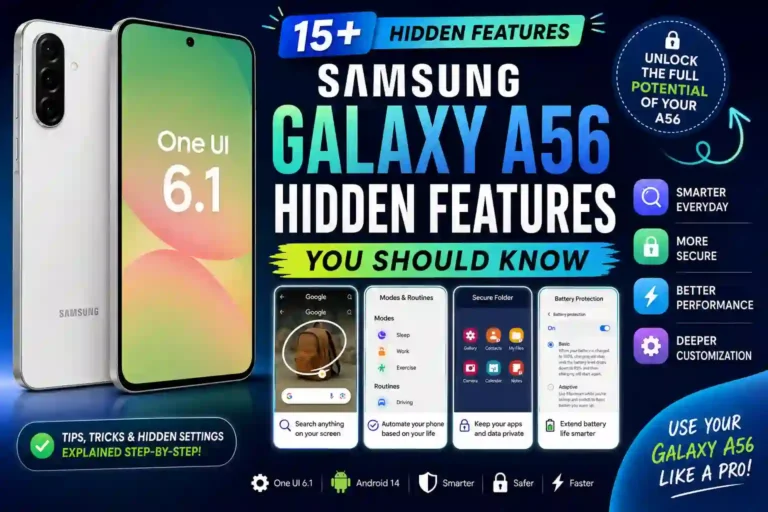
Samsung Galaxy A56 Hidden Features (2026): 15 Secret One UI Features You Should Turn On
I picked up my Galaxy A56 about four months ago, mostly because my old phone’s battery had turned into a liability and I needed something that wouldn’t die by 3pm. I didn’t research it much — saw decent reviews, decent price, grabbed it from a local shop in Rawalpindi, and went home expecting just another mid-range phone.
What I didn’t expect was how much stuff is buried inside this thing that nobody mentions in the box, the setup wizard, or even the sales pitch. Samsung’s One UI has gotten so packed with features over the years that half of them just sit there quietly until you stumble onto them by accident — which is exactly how I found most of what I’m about to share.
This isn’t a spec sheet rehash. It’s the actual list of things I either discovered by poking around, broke by accident, or only learned about after a friend who’s been using Samsung phones for a decade pointed them out to me.
Quick Specs Table
| Spec | Detail |
|---|---|
| Display | 6.7″ FHD+ Super AMOLED, 120Hz, up to 1,200 nits |
| Chipset | Exynos 1580 (4nm, with Xclipse 540 GPU) |
| RAM / Storage | 8GB/128GB or 12GB/256GB |
| Rear Cameras | 50MP main, 12MP ultra-wide, 5MP macro |
| Front Camera | 12MP |
| Battery | 5,000 mAh, 45W fast charging |
| Build | Aluminum frame, Gorilla Glass Victus+, IP67 rated |
| OS | Android 15 with One UI (Samsung promises 6 years of OS + security updates) |
| Weight | 198g |
Nothing exotic, but solid for the price bracket. The real story is what’s hiding inside the software.
The Side Button Trick I Wish I Knew Day One
For the first two weeks, I kept double-pressing the side button by accident to launch the camera. Annoying, because half the time I just wanted to lock the phone. Turns out you can completely remap that.
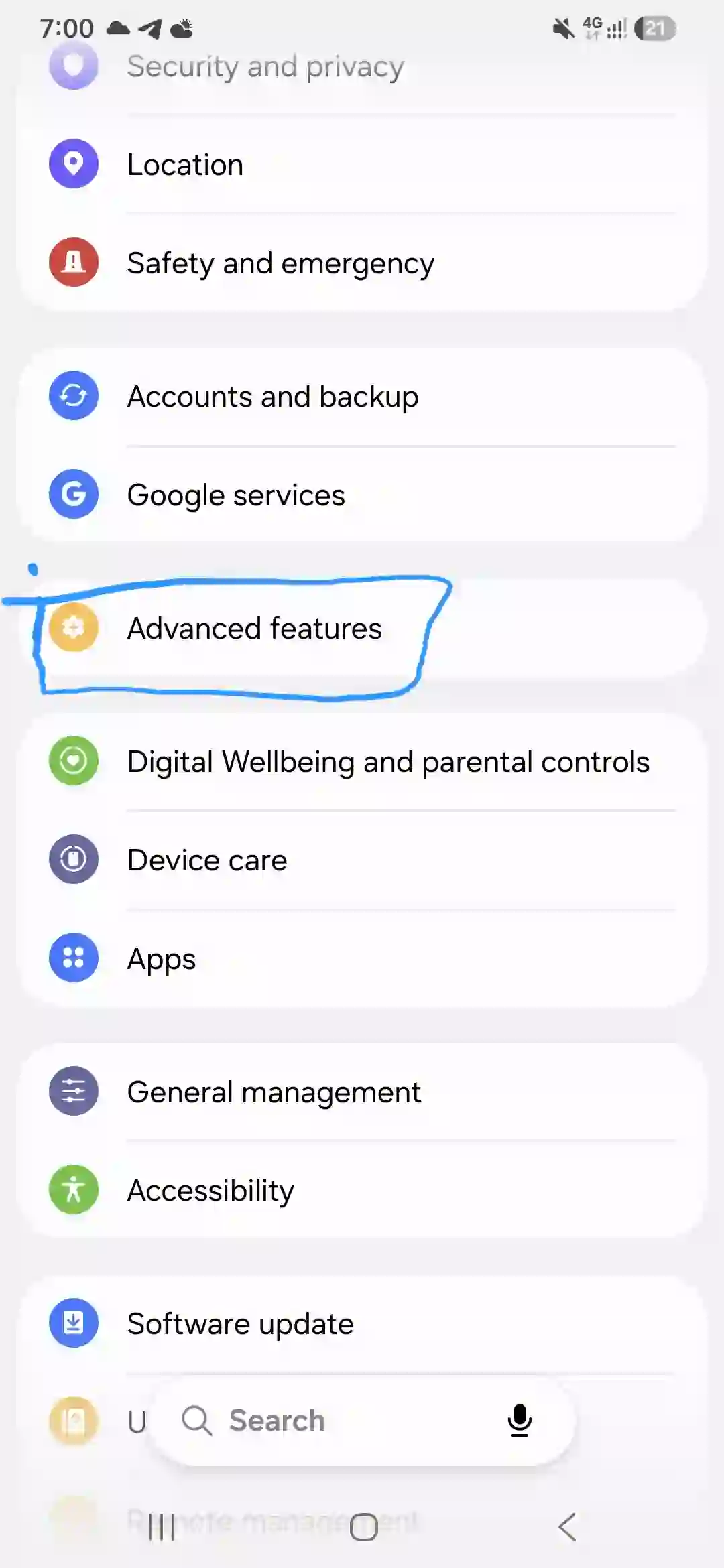
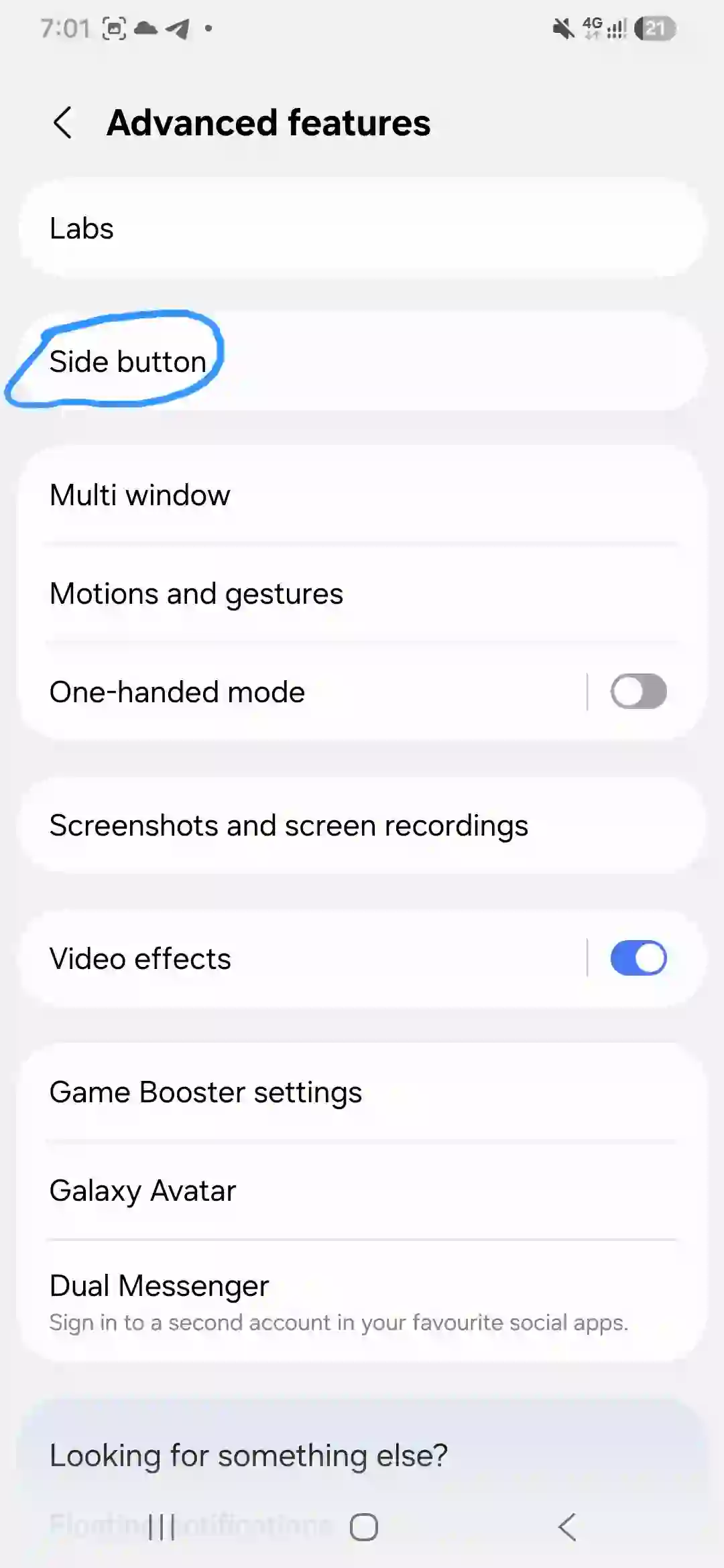
Go to Settings > Advanced Features > Side Button. From there you can set what a single press, double press, and press-and-hold each do. I changed mine so a double press opens Spotify instead of the camera, since I already swipe down for the camera shortcut anyway.
Small change, but it removed a tiny daily annoyance I didn’t even realize was bothering me until it was gone.
Circle to Search Is Genuinely Useful (Not Just a Gimmick)
I was skeptical about this one. It sounded like a flashy feature Samsung borrowed from the Galaxy S line just to put on the spec sheet for marketing reasons. It’s not. I use it more than I expected.
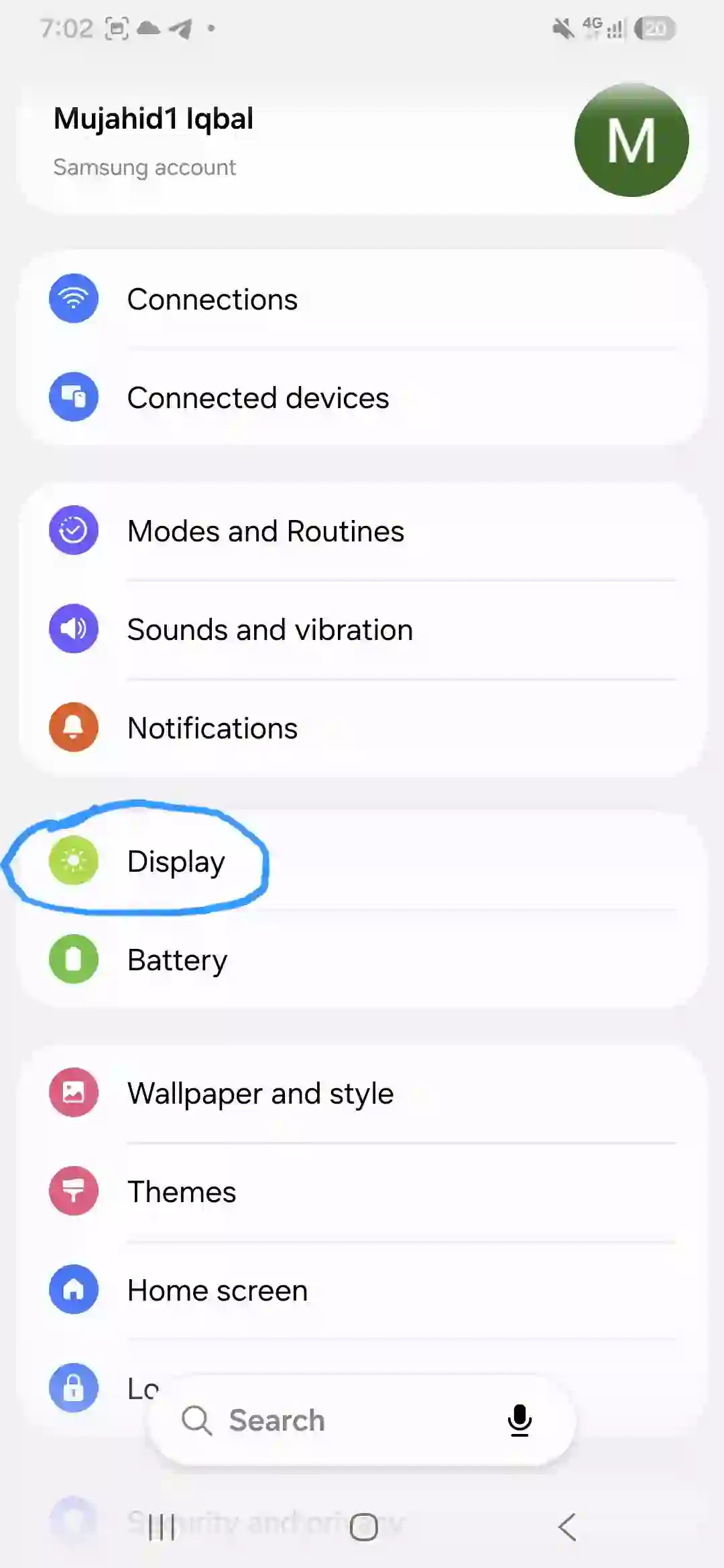
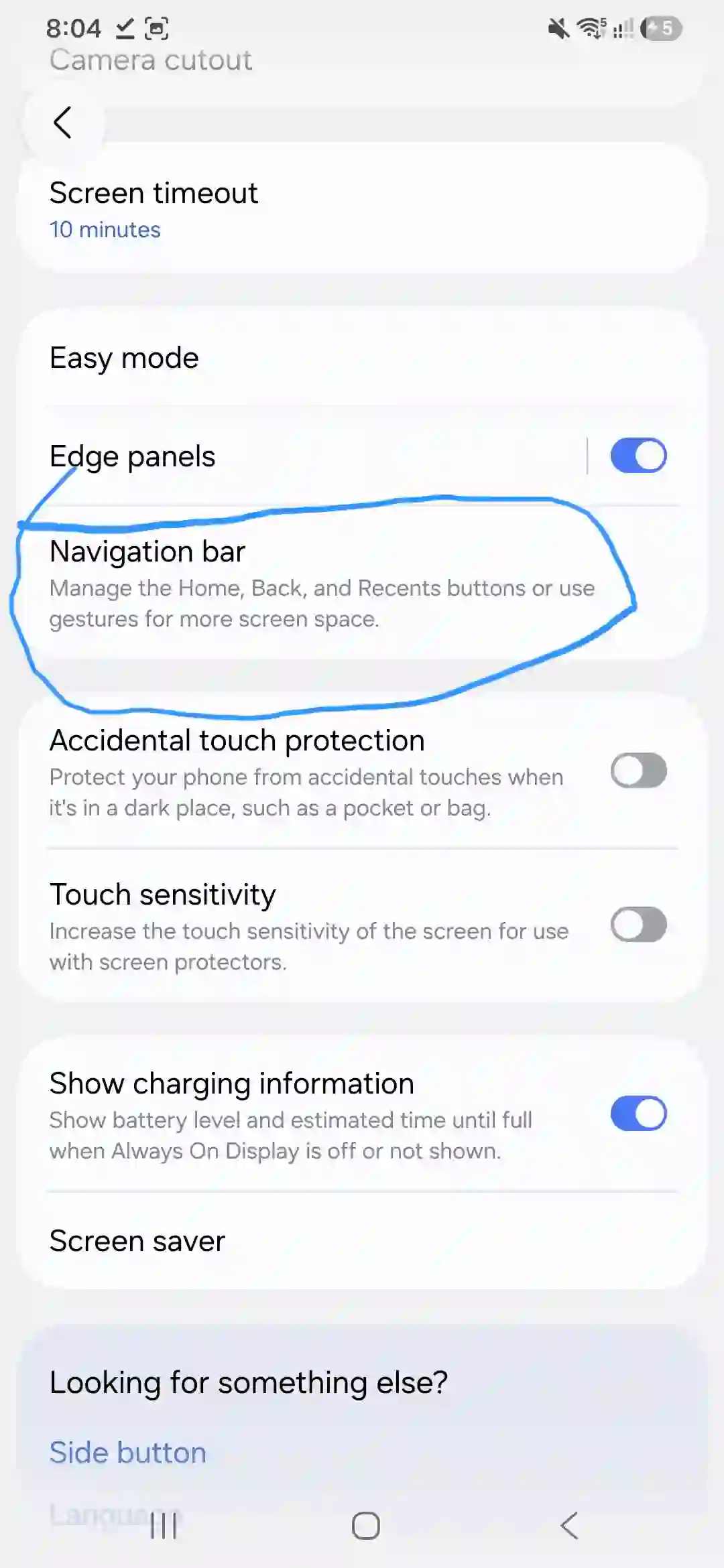
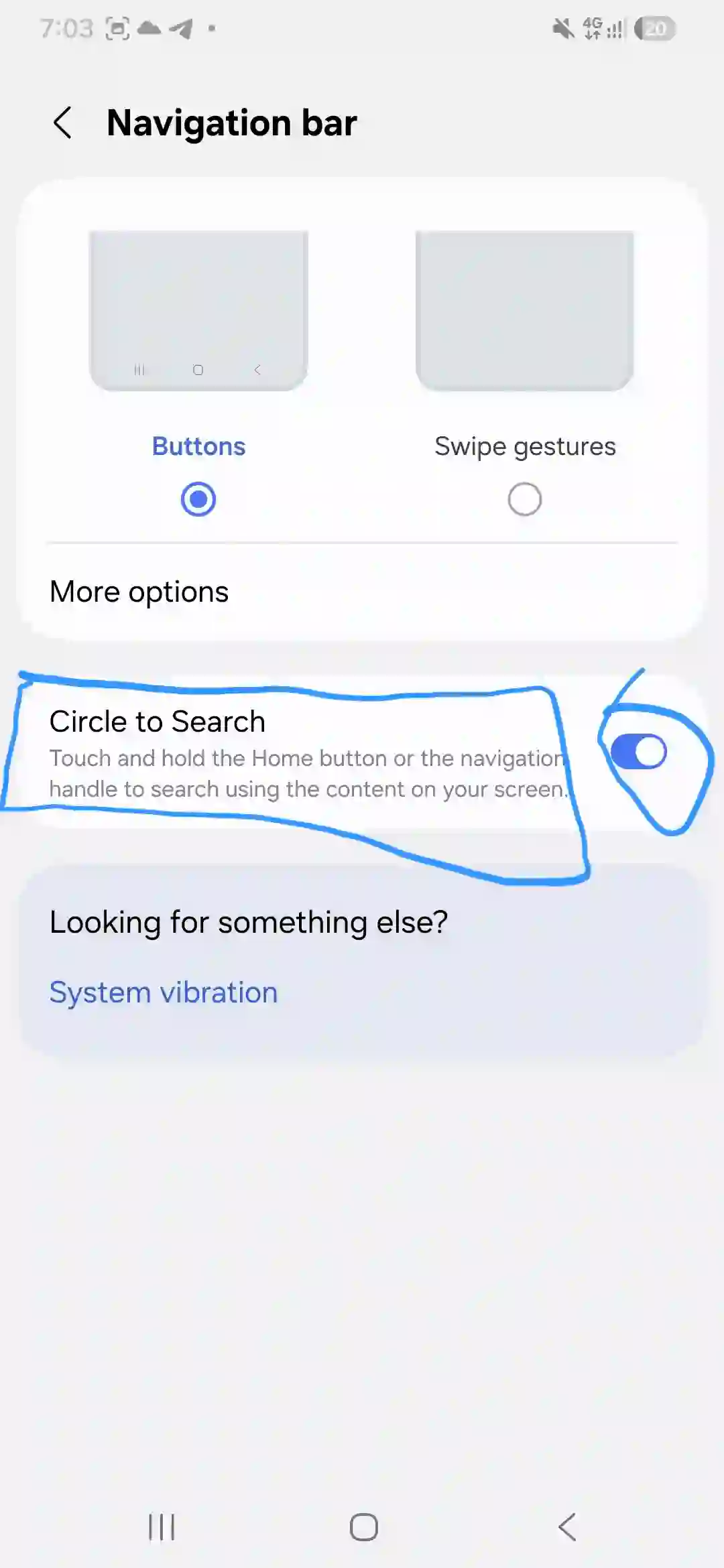
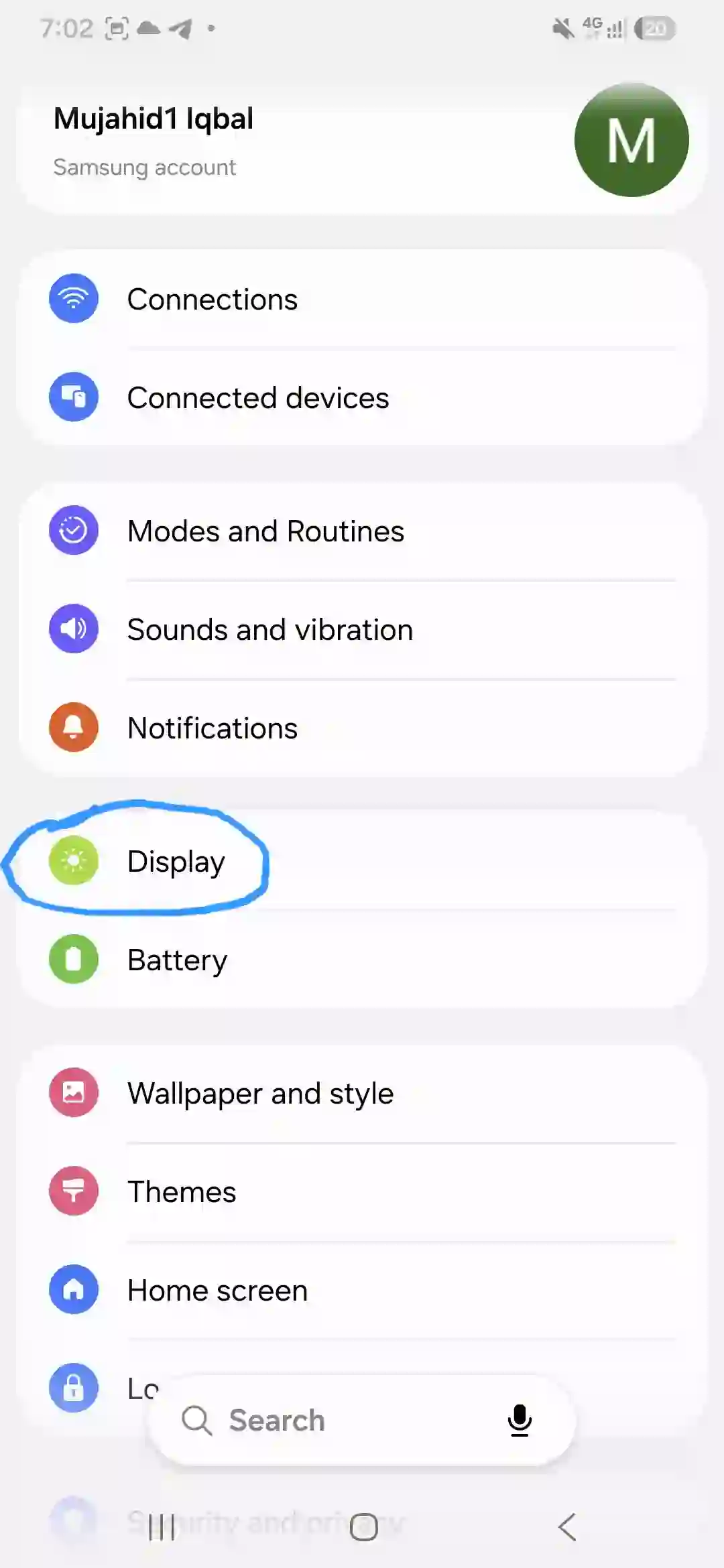
How to find it: Go to Settings > Display > Navigation bar and ensure Circle to Search is toggled on.
Long-press the home button or navigation bar, then literally circle or scribble over anything on your screen — a product in an Instagram post, a weird word in an article, or a location in a video. It pulls up Google results instantly without switching apps. I used it on a WhatsApp photo to identify a plant I didn’t recognize, and it works shockingly well.
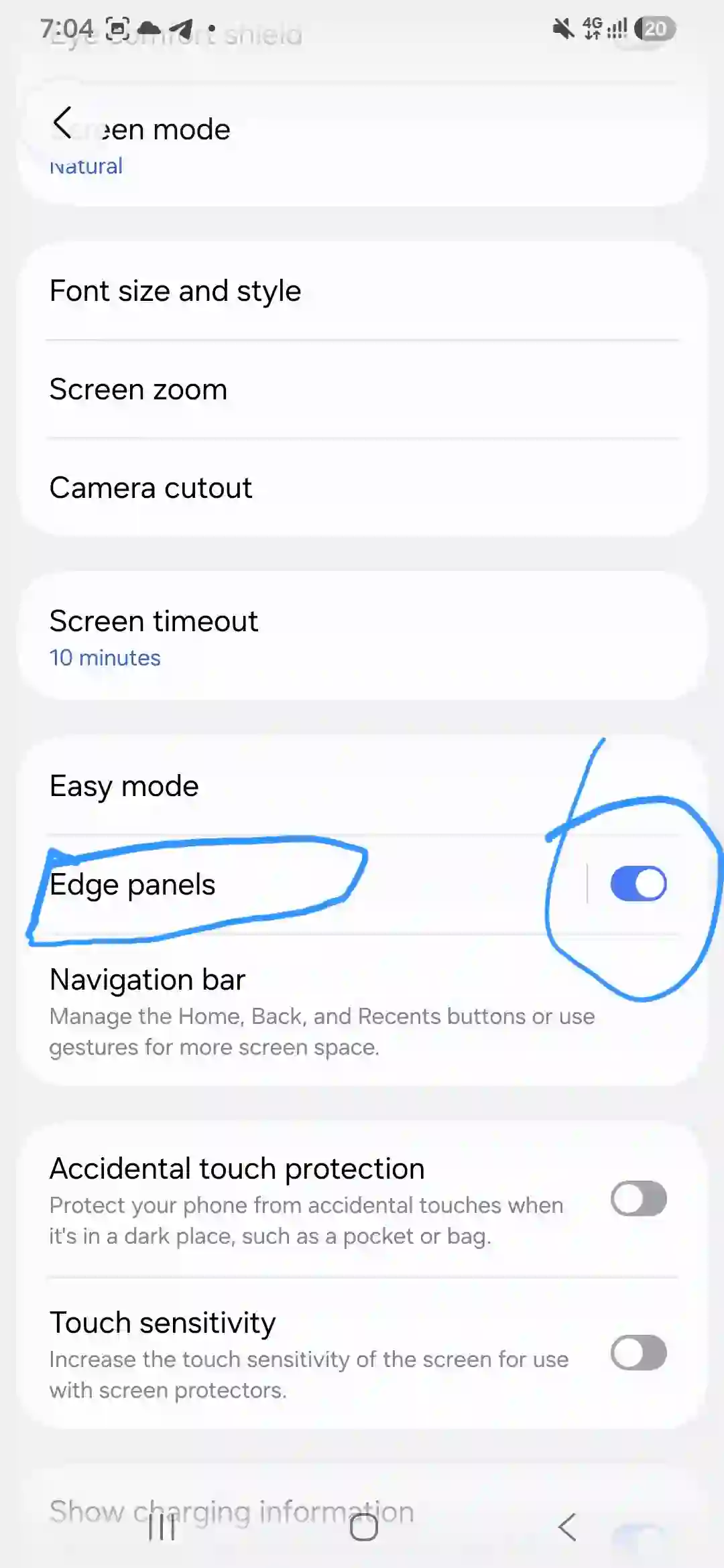
Edge Panels: The Feature I Almost Never Found
This one’s been in Samsung phones for years, but I genuinely didn’t know it existed until my cousin showed me on his older Galaxy.
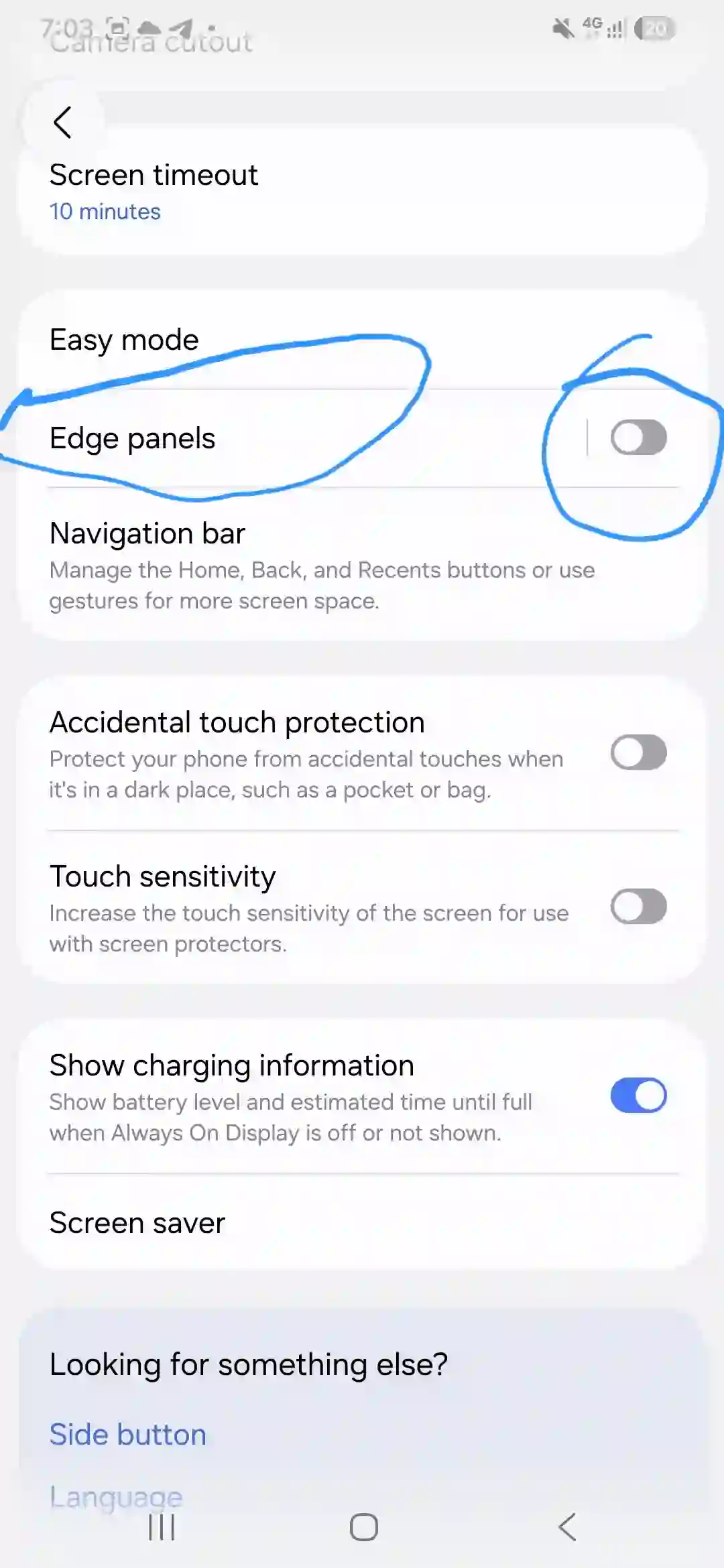
Go to Settings > Display > Edge Panels, turn it on, then swipe in from the right edge of the screen (there’s a small handle there once it’s enabled). You get a pop-out tray with shortcuts to apps, contacts, tools like a clipboard manager, even a weather widget.
I set mine up with my five most-used apps so I don’t have to go hunting on the home screen when my hands are full or I’m in a hurry. It sounds minor, but it shaves real time off daily use once it becomes muscle memory.
Good Lock: The App Samsung Doesn’t Advertise Enough
If there’s one thing I’d tell every new A56 owner to do immediately, it’s this: download Good Lock from the Galaxy Store. It’s a free Samsung app, not third-party, and it unlocks customization that isn’t in the regular settings menu at all.
Inside Good Lock there are plugins. The ones I actually kept using:
- Sound Assistant – lets you change the volume bar’s design and even set per-app volume levels, which is great if you want notifications quieter than music.
- Keys Cafe – customizes your keyboard’s look, color, and even typing sound effects. Sounds silly, felt oddly satisfying.
- Wonderland – lock screen animations and effects, if you want your unlock screen to feel a bit more alive than the stock options.
None of these plugins are necessary, but they make the phone feel like yours instead of a default-everything device fresh out of the box.
Camera Tricks That Actually Saved Me Editing Time
I’m not a photography person, but a few camera features genuinely changed how I shoot videos and group photos.
Auto Trim — record a long video (a birthday, a trip, whatever), open it in Gallery, tap edit, and there’s an Auto Trim option that picks out the best moments and turns it into a short highlight clip automatically. I used this after a 20-minute video of my niece’s birthday and got a 40-second reel without touching a single editing app. It’s not perfect — it sometimes picks a slightly awkward moment — but it saves an enormous amount of manual scrubbing.
Best Face — for group photos where someone always blinks. Take a burst of shots, and this feature lets you swap in the best expression for each person individually, merging them into one clean photo. Used it at a family dinner where my brother blinks in literally every photo ever taken of him. Worked better than I expected.
Custom filters — you can build your own filter from a reference photo instead of relying on presets. I made one based on a photo with warm evening light and now apply it to most of my outdoor shots.
Multitasking With Split Screen and Pop-Up View
I didn’t use split screen for the first month because I genuinely forgot phones could do this anymore.
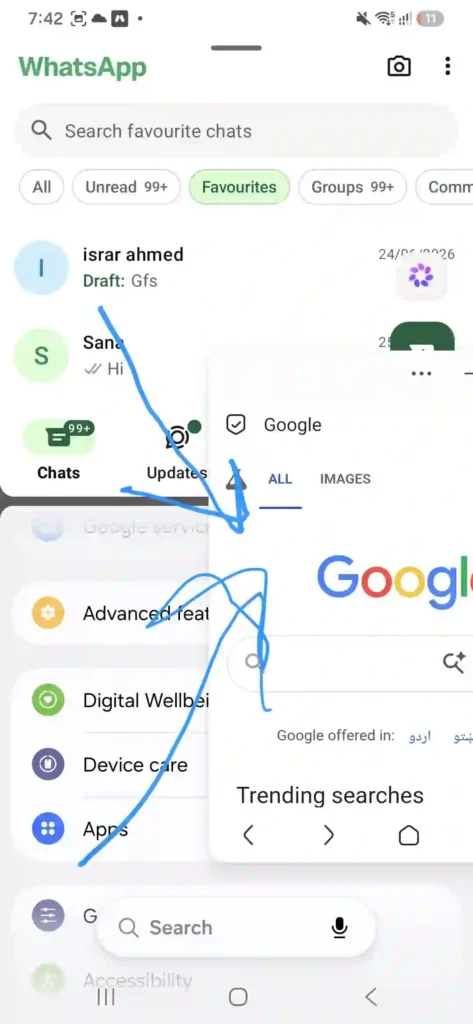
To try it: swipe up to see recent apps, long-press an app’s icon at the top, and you’ll see options for Split Screen or Open in Pop-Up View. Split screen runs two apps side by side — handy for following a recipe while texting someone, or taking notes while watching a tutorial. Pop-up view floats one app in a small resizable window over whatever else you’re doing.
I use pop-up view constantly for YouTube while replying to messages. It’s genuinely one of those features that, once you start using it, makes you wonder why you went so long without it.
Battery and Performance Tweaks That Made a Real Difference
A few things that actually moved the needle on battery life, beyond the obvious “lower your brightness” advice:
- Settings > Battery > Background usage limits — put rarely-used apps to sleep so they stop draining battery in the background. I had three apps quietly eating battery that I barely opened.
- Game Booster (shows up automatically when you open a game) — lets you prioritize performance or battery depending on what matters more that day. Useful if you’re gaming on a low battery and need it to last till you find a charger.
- Adaptive battery / Power saving modes under Settings > Battery — I keep mine on “Optimized” daily and only switch to a stricter power-saving mode when I’m traveling and can’t charge for a while.
None of this is revolutionary, but combined, I noticed a real difference between how the phone felt at the two-week mark versus once I’d actually dug into these settings.
Mistakes I Made (So You Don’t Have To)
I’ll be honest about a few things I got wrong early on:
- I disabled Bixby key actions thinking I’d cut down on accidental triggers, but ended up turning off voice assistant access I actually wanted later. Check what you’re disabling before you do it.
- I ignored Notification History for weeks, which meant every notification I accidentally swiped away was gone forever. Turns out it’s a toggle under Settings > Notifications > Advanced Settings, and turning it on means you can recover a dismissed notification instead of panicking trying to remember what it said.
- I assumed Dual Messenger was some third-party trick requiring an app. It’s built in. Settings > Advanced Features > Dual Messenger lets you run two instances of WhatsApp or Messenger with separate accounts, no extra app needed. I wasted time looking for cloning apps before realizing this.
Common Mistakes to Avoid
- Don’t install random “hidden feature unlocker” apps from outside the Play Store — everything mentioned here is built directly into One UI or available through Samsung’s own Good Lock app.
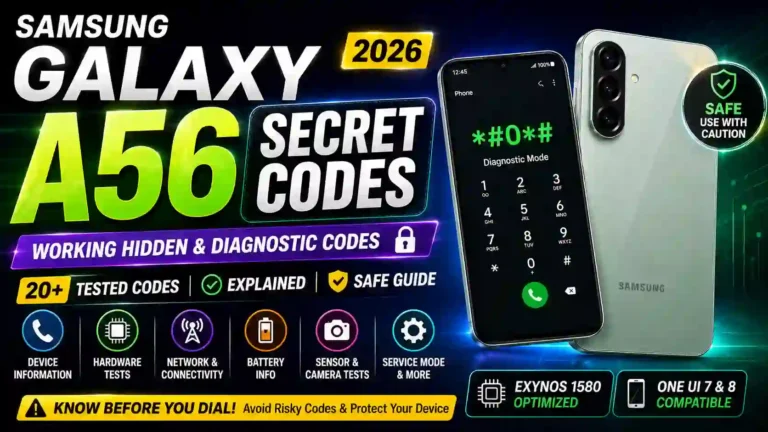
- Don’t mess with secret dialer codes (like
*#0*#for the diagnostic test menu) unless you actually know what you’re checking — some menus can change network or hardware settings if you’re not careful. - Don’t enable every Good Lock plugin at once. I did this initially and it slowed things down slightly. Pick two or three you’ll actually use.
Pros & Cons
Pros
- Genuinely deep customization through Good Lock without needing root access
- Circle to Search and AI camera tools feel premium for a mid-range phone
- Split screen and pop-up view make multitasking smoother than expected
- Strong battery life once background app limits are configured
- Six years of promised software updates is rare at this price point
Cons
- A lot of these features are buried in submenus with zero in-app explanation
- Good Lock plugins occasionally need updates from the Galaxy Store separately, which isn’t obvious
- Auto Trim and Best Face aren’t always accurate — still need manual review sometimes
- No expandable storage, so plan your storage tier carefully at purchase
FAQs
Is the Galaxy A56 good for gaming?
It handles casual to mid-tier gaming fine thanks to the Exynos 1580 chip, and Game Booster helps manage heat and performance. Don’t expect flagship-level frame rates on the heaviest titles, but for most games people actually play daily, it’s solid.
Does Circle to Search work in every app?
Mostly yes — it works system-wide, including in social apps, photos, and browsers. There are occasional apps with screen-capture restrictions (some banking or streaming apps) where it won’t trigger.
Can I run two WhatsApp accounts on this phone?
Yes, through the built-in Dual Messenger feature under Advanced Features. No separate app required.
Is Good Lock safe to install?
Yes — it’s an official Samsung app distributed through the Galaxy Store, not a third-party tool, so there’s no security risk.
Will these hidden features drain my battery faster?
Most don’t have a noticeable battery impact. The ones with always-on visual effects, like certain Good Lock lock-screen animations, use slightly more power, but it’s minor enough that I haven’t had to turn mine off.
Does the A56 support wireless charging?
No — it supports 45W wired fast charging, but there’s no wireless charging coil in this model.
How much storage should I actually get?
If you take a lot of photos/videos or plan to keep the phone for several years, get the 256GB version. There’s no microSD slot, so you can’t expand it later.
Is the camera good enough to replace a basic point-and-shoot?
For everyday use, social media, and casual photography, yes. For low-light or fast-action shots, it’s decent but not flagship-tier.
Final Thoughts
Honestly, the thing that surprised me most about the A56 wasn’t any single feature — it was how much Samsung quietly packs into a mid-range phone and just… doesn’t tell you about. No onboarding tutorial walks you through Good Lock. No popup tells you Dual Messenger exists. You either stumble onto it, ask someone who’s owned a Samsung longer than you, or read an article like this one.
If you just bought this phone, give yourself a weekend to actually dig through the settings menu instead of leaving everything on default. It’s not flashy work, but it’s the difference between a phone that just works and one that actually feels built around how you use it.