How to Improve Samsung Galaxy A56 Battery Life: Battery Drain Fixes, Best Settings & Charging Tips 2026
I remember the exact moment I got annoyed at my A56. It was day three of owning it, I was at a wedding, phone was at 61% by 6 PM after barely touching it, and by the time the reception photos started rolling in, I was hunting for a wall outlet like everyone else with a dying phone. Not exactly the “all-day battery” experience I was promised in the marketing.
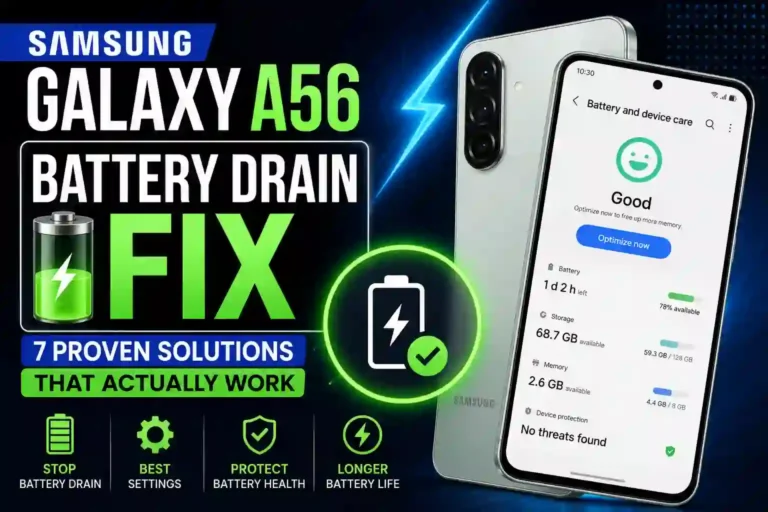
Turns out, that samsung galaxy a56 battery problem wasn’t the phone’s fault. It was mine. After a few weeks of testing, tweaking, and honestly being a little obsessive about it, I figured out how to improve samsung galaxy a56 battery life to comfortably last a full day with 6-7 hours of samsung galaxy a56 screen on time. Sometimes even into a second day with lighter use.
This guide is everything I learned along the way — the samsung galaxy a56 battery settings that actually matter, the ones that are basically placebo, the samsung galaxy a56 charging tips that protect long-term battery health, and the dumb mistakes I made so you don’t have to.
Quick Specs Table
| Spec | Detail |
|---|---|
| Battery Capacity | 5,000mAh |
| Charging Speed | 45W wired (fast charging) |
| Wireless Charging | Not supported |
| Software | One UI 7 / 8 (Android 15/16 based) |
| Display | 6.7″ Super AMOLED, 120Hz adaptive refresh |
| Processor | Exynos 1580 |
| Estimated Screen-On-Time (real use) | 6-8 hours with optimization |
| Battery Health Guarantee | Samsung rates it for extended lifespan with software care features |
Why Your A56 Battery Drains Faster Than Expected
Here’s the thing nobody tells you when you unbox this phone: the 5,000mAh samsung galaxy a56 battery backup is genuinely solid on paper, but the 120Hz AMOLED screen and Exynos chip are hungry if you let them run wild. If you are noticing severe samsung galaxy a56 battery drain, it is likely due to how the out-of-the-box configuration handles performance.
Out of the box, Samsung sets things up to look impressive in demos — high brightness, always-on display, background app refresh everywhere. That’s great for a store display, but it is the main reason why your samsung galaxy a56 battery draining fast.
The other big culprit I found was app permissions. I had maybe a dozen apps with location access set to “always allow” that I never even use for navigation. Facebook, some shopping apps, even a flashlight app I downloaded once and forgot about. Each one pinging GPS in the background adds up to a noticeable idle drain.
Best Settings to Improve Battery Life
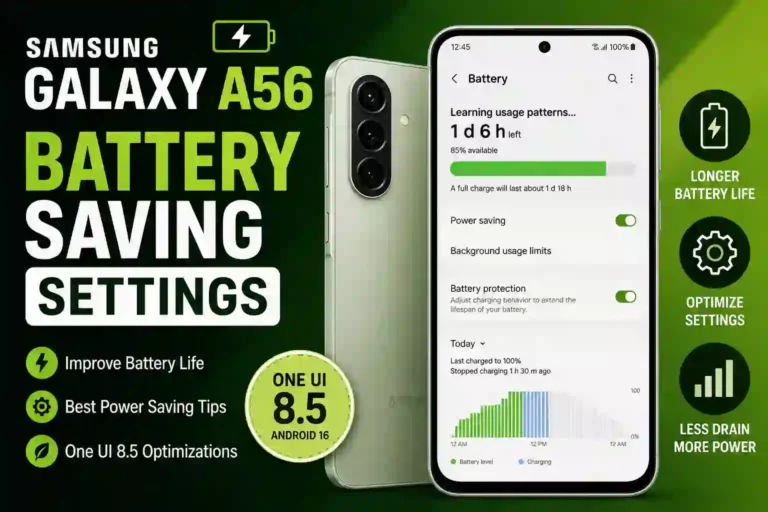
I’m not going to tell you to just “lower your brightness” and call it a day. If you want a complete samsung galaxy a56 battery optimization, here is what actually moved the needle for me.
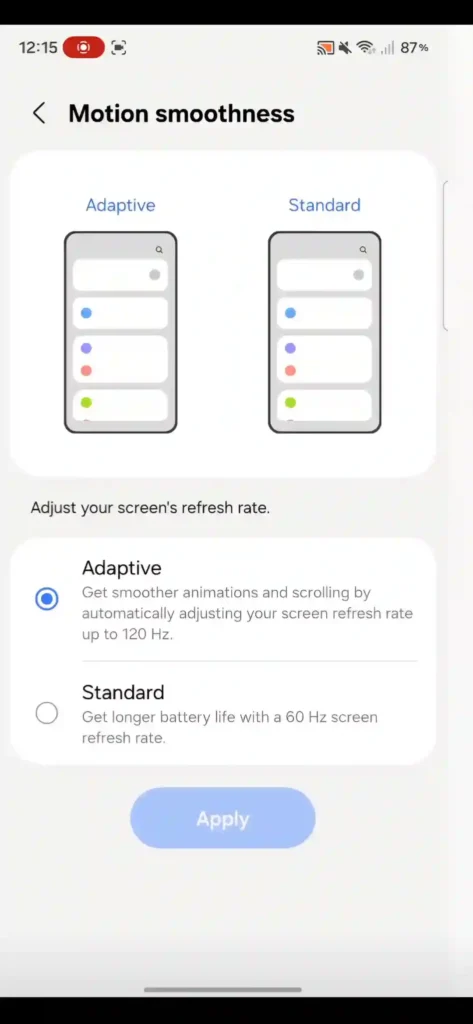
1. Switch to Adaptive Refresh Rate (not Standard 120Hz Fixed)
Go to Settings > Display > Motion smoothness and make sure it’s set to Adaptive, not locked at 120Hz. Adaptive lets the screen drop down to 60Hz or even lower when you’re just reading text or looking at a static screen, then ramp up for scrolling or gaming.
2. Turn Off Always-On Display (or Set It to Tap to Show)
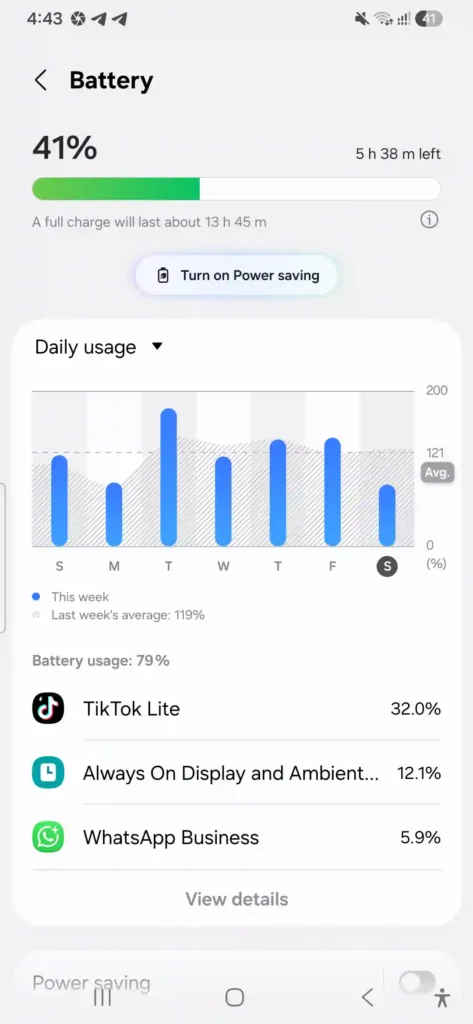
I loved the always-on clock for about a week. Then I checked my daily samsung galaxy a56 battery usage and realized my screen was technically “off” but still drawing power 24/7. Go to Settings > Lock screen > Always On Display and either turn it off or switch to “Tap to show for 10 seconds.”
3. Use Adaptive Battery and Power Saving Modes Properly
Samsung’s built-in samsung galaxy a56 adaptive battery feature (under Settings > Battery > More battery settings) actually learns your usage patterns over about a week and limits background activity for apps you rarely open. Leave it on — it’s not gimmicky, it genuinely works once it has enough data.
4. Cap Your Brightness and Use Adaptive Brightness
I used to manually crank brightness to max outdoors and forget to lower it indoors. Adaptive brightness (Settings > Display > Adaptive brightness) handles this automatically and, once it’s trained a bit, gets pretty accurate.
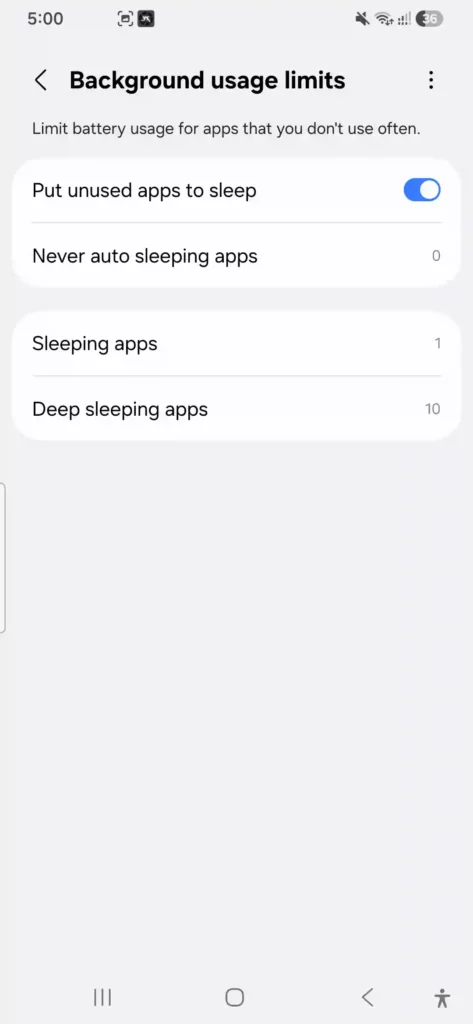
5. Check Background App Usage Weekly
Go to Settings > Battery > Background usage limits. Put apps you rarely use into “Sleeping apps” or even “Deep sleeping apps.” Applying these samsung a56 battery saving tips helped me catch three social media apps quietly draining 15% of my daily battery combined, just running in the background doing nothing useful for me.
One UI Optimization Tips
One UI has genuinely good battery tools buried in menus most people never open. Exploring these alongside other samsung galaxy a56 hidden features can drastically change your daily endurance.
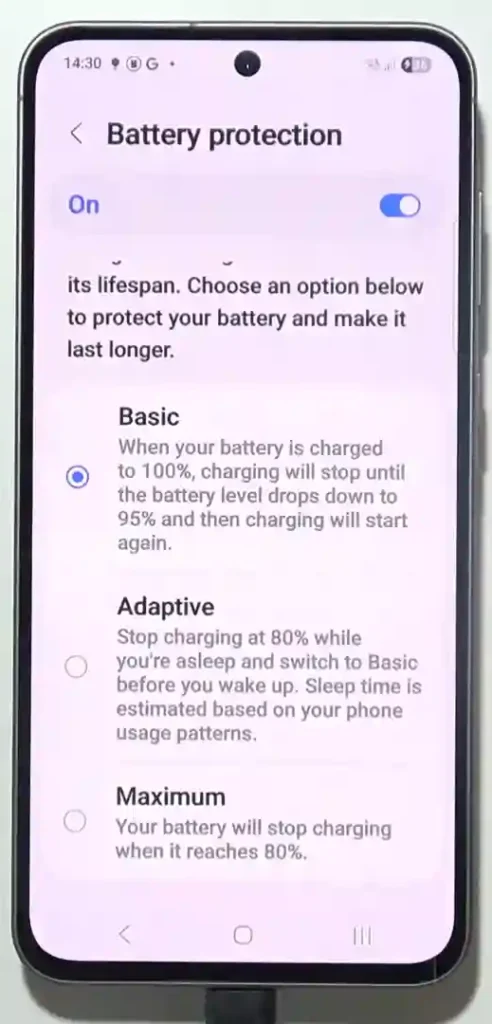
- samsung galaxy a56 battery protection (Settings > Battery care > Battery protection): This caps charging at 80-85% to protect your overall samsung galaxy a56 battery health and slow down long-term battery wear. I keep this on except before long travel days.
- Auto Restart Apps: Turn off “auto restart apps after force stop” for apps you deliberately close.
- Game Booster: If you play mobile games, Game Booster lets you cap frame rate and reduce visual effects specifically during gaming sessions, which is where I noticed the fastest drain (like 20% in 30 minutes of Genshin Impact before I adjusted it).
- Routines (Settings > Advanced features > Modes and Routines): I set up a simple routine that automatically switches to power saving mode when battery hits 20%. Small thing, but it removes the “oh no I forgot” moment. You can check more configurations in our guide on samsung galaxy a56 one ui hidden features.
Charging Tips for Long-Term Battery Health
This is the part most guides skip, and it’s honestly the most important for keeping your samsung galaxy a56 battery life healthy over 2-3 years, not just today.
- Avoid charging to 100% every single night. Lithium batteries degrade faster when kept at full charge for long periods. Samsung’s Battery Protection feature capping at 85% is there for a reason — use it.
- Don’t let it drop to 0% regularly. Deep discharges stress the battery cell. If you want to avoid a manual samsung galaxy a56 battery calibration down the road, try to plug in around 20%, not wait until it dies completely.
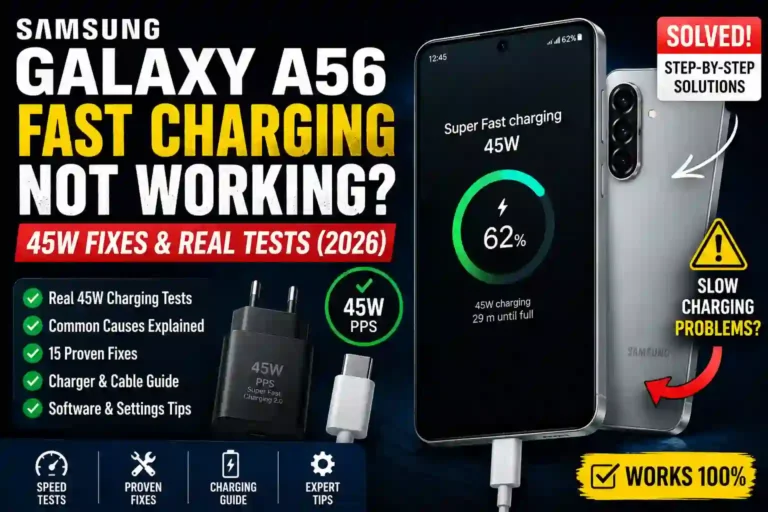
- Use a certified 45W PD charger. I made the mistake early on of using a random 20W charger I had lying around from an old phone. It charged fine, just painfully slow, taking almost 2 hours for a full charge instead of about 60-65 minutes.
- Avoid charging overnight every night if you can. It’s not going to destroy your battery immediately, but consistently topping up to 100% and holding it there for 6-8 hours does add cumulative wear.
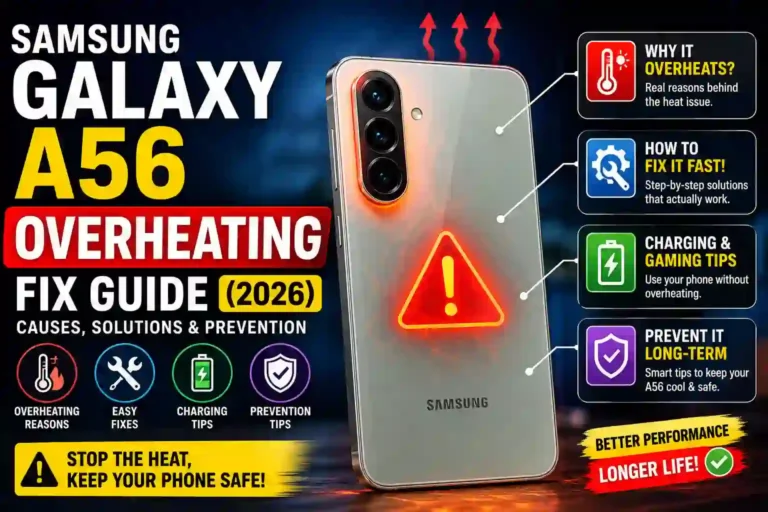
- Keep it cool while charging. Heat is the real enemy of lithium batteries, not charge cycles. Keep an eye on your device if you use a thick samsung galaxy a56 back cover, and avoid charging your phone under a pillow.
Common Battery Drain Fixes
If your A56 battery suddenly seems worse than usual, here’s my troubleshooting order:
- Check Settings > Battery > View battery usage and sort by app. Look for anything unexpected eating more than 10% that you didn’t actively use.
- Restart the phone. Sounds too simple, but a stuck background process after a software update genuinely fixed my sudden drain once. If a basic restart fails to fix recurring system glitches, you might need to perform a clean samsung galaxy a56 reset after backing up your data.
- Check for a pending software update. Settings > Software update. Samsung occasionally pushes fixes specifically for battery bugs after firmware issues.
- Disable unused connectivity. Bluetooth, NFC, and Wi-Fi scanning left on constantly when you’re not using them adds small but steady drain. Unoptimized carrier configurations can also drain power, so make sure to check your cellular setup if you utilize samsung galaxy a56 esim support.
- Check widget-heavy home screens. Live weather widgets, news feeds, and constantly-updating widgets refresh in the background more than you’d think.
- Address connectivity drops. Network drops can rapidly eat away at your capacity. If your phone struggles with connections, check out our quick guide on tackling samsung galaxy a56 wi-fi problems to stop network-related looping from killing your power.
Mistakes I Made (So You Don’t Have To)
- I left “Enhanced processing” and max resolution recording on for the camera. This quietly increases power draw even when I’m not actively filming because the camera app stays resident in memory. Tweaking your samsung galaxy a56 camera settings to close properly avoids this.
- I ignored app permission requests and gave location access to apps that had no real reason to need it.
- I used a cheap third-party charging cable that couldn’t actually deliver 45W, so I thought fast charging was broken. It wasn’t — the cable was the bottleneck.
- I kept Always-On Display running with a fancy animated wallpaper style, which is basically the worst combination for battery.
Pros & Cons of A56 Battery Performance
Pros:
- 5,000mAh capacity genuinely lasts a full day with reasonable optimization
- 45W fast charging gets you to a usable charge quickly
- Adaptive Battery and Battery Protection tools work well once configured
- One UI gives granular control over background app behavior
Cons:
- No wireless charging, which some competitors in this price range offer (especially when deciding between the samsung galaxy a56 vs a36)
- Default settings out of the box are not battery-friendly
- 120Hz display can be a drain if left on fixed refresh rate
- Takes a bit of manual setup to get the best results — it’s not “optimized” from day one
FAQs
Q:
How long should the Galaxy A56 battery actually last on a full charge?
With moderate use and the optimizations above, expect 6-8 hours of screen-on time and comfortably a full day of mixed use.
Is it bad to charge my A56 overnight every day?
Occasionally it’s fine, but doing it every single night without Battery Protection enabled will speed up long-term capacity loss. Turn on Battery Protection to cap charging around 80-85%.
Does 120Hz refresh rate really drain that much battery?
Yes, noticeably, especially at fixed 120Hz. Adaptive mode gives you the smooth feel when you need it without the constant power draw.
Why does my A56 battery drain fast even when I’m not using it?
Usually background app activity, location services running constantly, or Always-On Display. Check Settings > Battery > Background usage limits first.
Should I close apps manually to save battery?
Not really necessary with Adaptive Battery active. One UI manages background apps fairly well on its own; manually force-closing everything can sometimes cause apps to restart and use more power reloading.
Does the Exynos 1580 chip affect battery life compared to Snapdragon variants?
There can be minor efficiency differences between chipsets in different regional variants, but real-world impact is small compared to the effect of software settings like refresh rate and screen brightness.
Is 45W the fastest charging the A56 supports?
Yes, 45W wired is the max supported speed, and you’ll need a compatible 45W PD charger and cable to actually hit that speed.
Will battery health percentage go down no matter what I do?
Yes, some degradation over time is unavoidable with any lithium battery. Good charging habits just slow the rate significantly, they don’t stop it completely.
Final Thoughts
The Galaxy A56 isn’t a bad battery phone. I was wrong about that in the first week. It just needed some setup work that Samsung honestly should handle better out of the box.
Give it a weekend of tweaking these settings, pay attention to your charging habits, and check back on battery usage stats after a week. You’ll probably be surprised how much of a difference it makes, the same way I was.
If you’ve found other tricks that worked for your A56, I’d genuinely like to hear them — battery optimization is one of those things where real-world testing beats spec sheets every time.