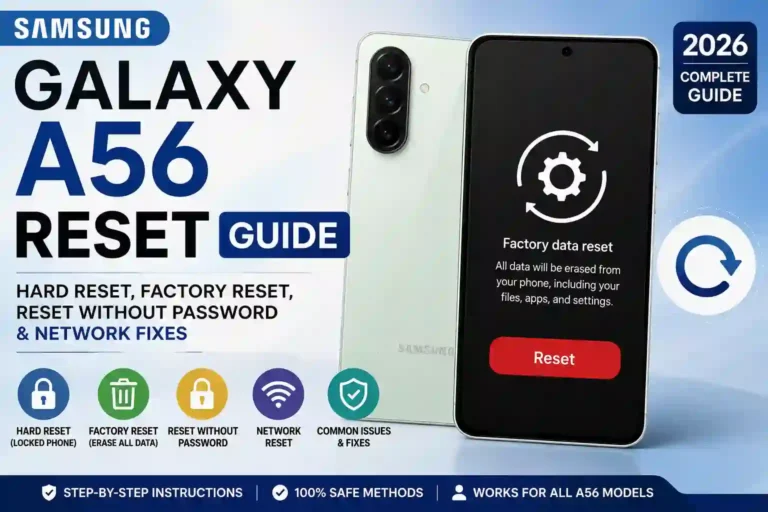
Samsung Galaxy A56 Reset Guide: Hard Reset, Factory Reset & Reset Without Password 2026
Last month, my cousin showed up at my door holding her Galaxy A56 like it had personally betrayed her. It was frozen on the Samsung logo, she’d forgotten the pattern lock after a screen replacement, and the shop guy told her, “You’ll lose everything, just buy a new phone.” She almost believed him.
I didn’t. I’ve reset more Samsung phones than I can count over the years—my own, my family’s, and random phones friends hand me at parties saying, “Can you just fix this real quick?” (Spoiler: It’s never a quick fix). So, I sat down with her device, and twenty minutes later, it was running completely fresh.
This comprehensive guide is basically everything I told her, plus everything I’ve learned the hard way from doing a samsung galaxy a56 reset on multiple devices. No fluff, no “in today’s digital world” nonsense—just what actually works to restore your phone.
Quick Specs Table
| Feature | Details |
|---|---|
| Model | Samsung Galaxy A56 5G |
| OS Version | Android 15 / 16 with One UI 7 / 7.5 |
| Reset Menu Location | Settings > General Management > Reset |
| Hardware Key Combo | Volume Up + Power (Requires USB connection to PC) |
| FRP Security Lock | Yes — Tied to your active Google Account |
| Data Preservation | Only Network & System Settings resets keep files safe |
| Time Required | 5 to 20 minutes depending on the method chosen |
What “Reset” Actually Means (and Why It’s Not All the Same Thing)
Here’s the thing nobody explains properly: “reset” isn’t just one single button. It’s a whole family of options, and picking the wrong one either wastes your time or wipes out precious data you wanted to keep.
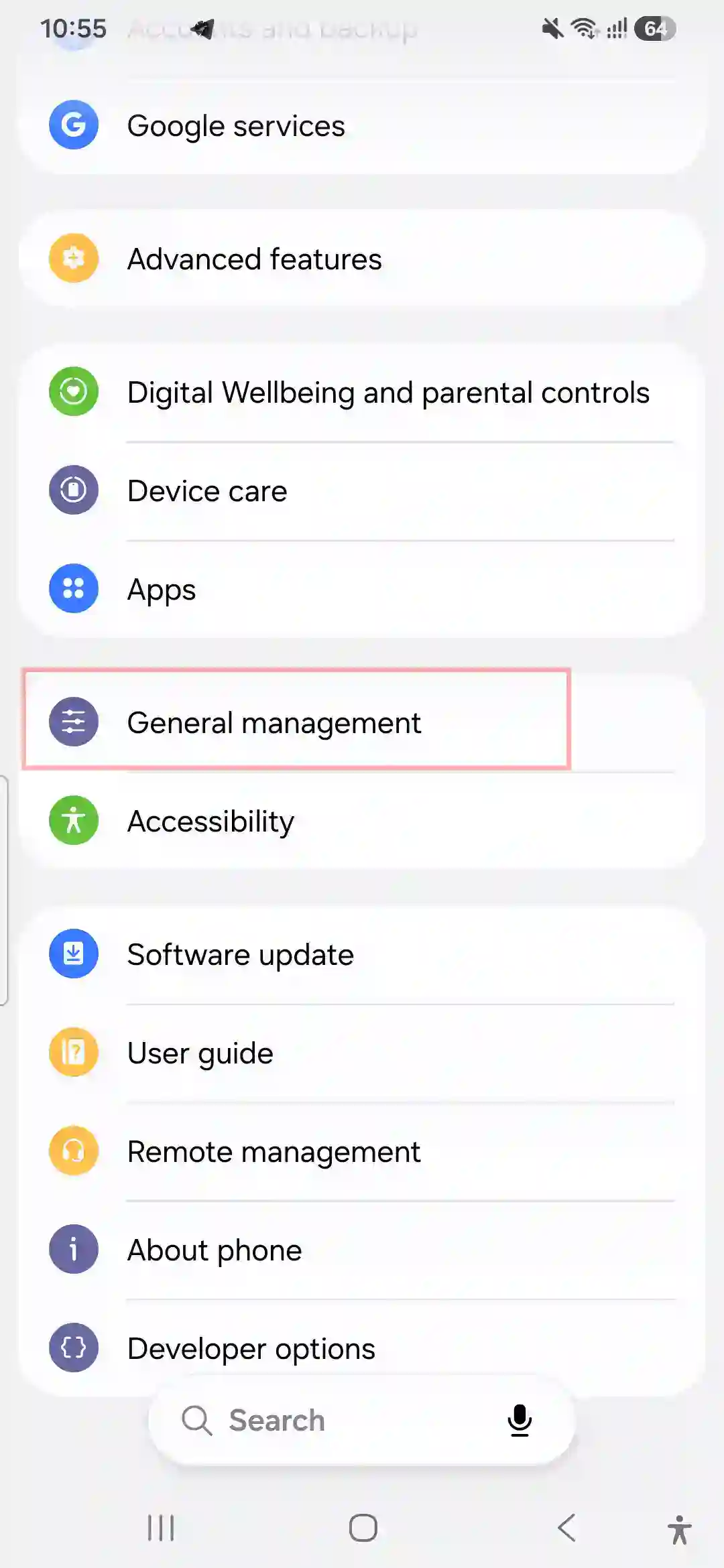
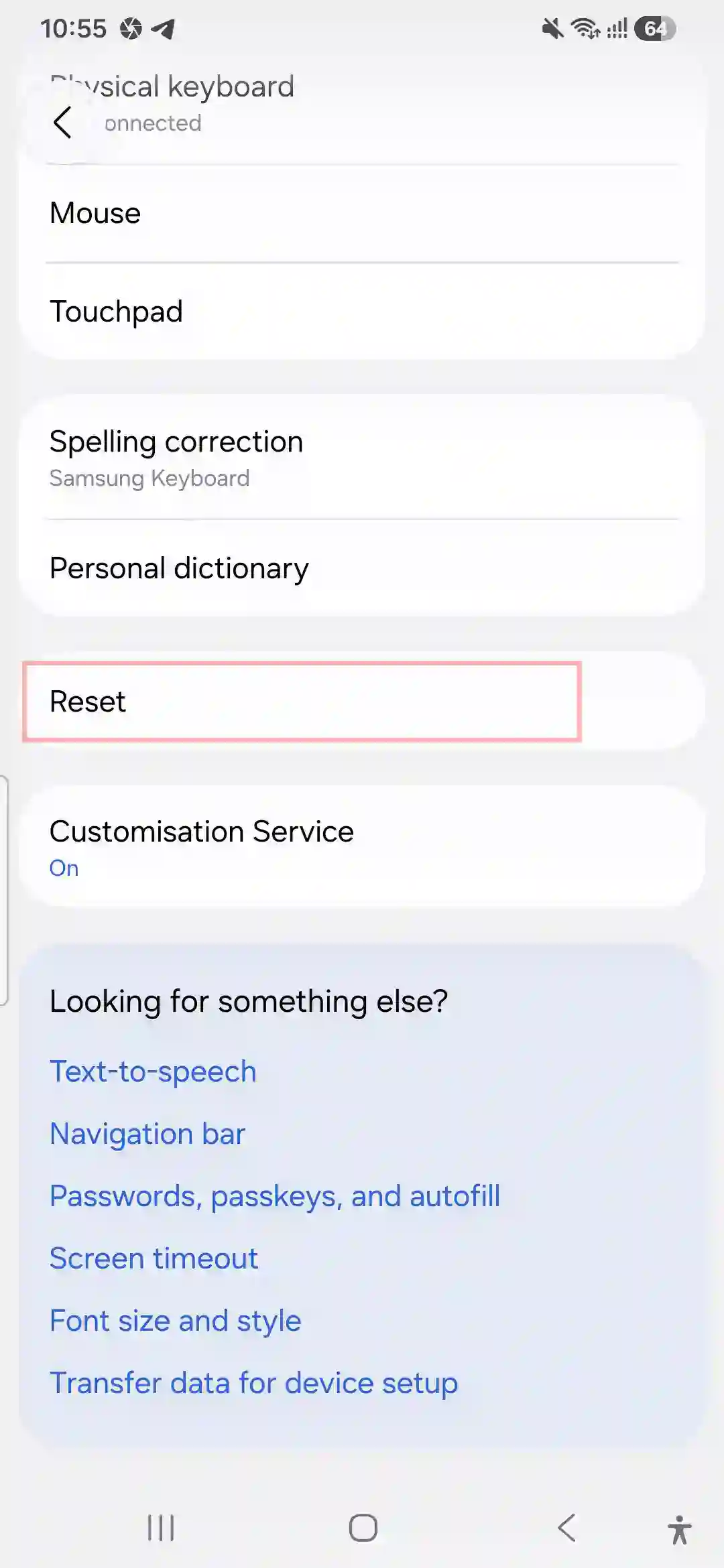
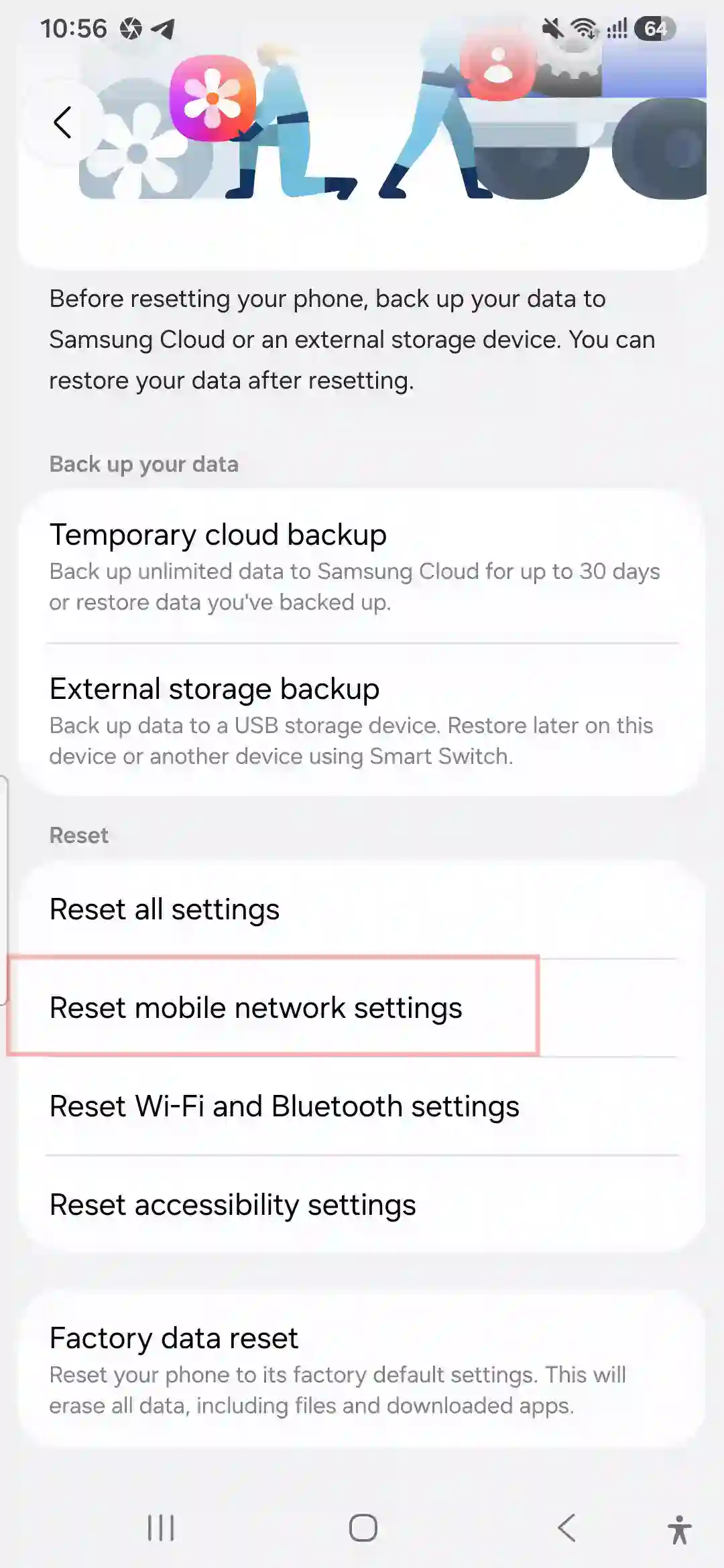
When you learn how to reset samsung galaxy a56, you need to navigate to Settings > General Management > Reset, where you’ll find four distinct choices sitting right next to each other:
- Reset settings: Puts your display, sound, and system preferences back to default. Your photos, apps, and messages stay completely untouched.
- Reset network settings: Wipes saved Wi-Fi passwords, Bluetooth pairings, and custom cellular data settings only.
- Reset accessibility settings: Reverts visibility and hearing configurations back to factory settings.
- Factory data reset: The big one. This triggers a full samsung galaxy a56 factory reset, erasing everything to bring the phone back to its clean, out-of-box condition.
People mix these up constantly. I’ve seen someone execute a full data wipe just because their wireless connection kept dropping, when a simple network refresh would have sorted it out in less than a minute.
How to Do a Soft Reset (Force Restart)
Before jumping into anything drastic that clears your storage, always try a soft reset first. It sounds simple, but it genuinely fixes more than half the “my phone is acting weird” complaints I get.
- Press and hold the Power (Side) + Volume Down buttons together for a few seconds.
- When the power utility menu pops up, tap Restart.
- If your screen is completely frozen and won’t respond to touch, keep holding the Power + Volume Down buttons for about 10 seconds.
The phone will force-restart automatically. No data loss, no drama. I do this on my own device once every couple of weeks as basic maintenance. Check out our Samsung Galaxy A56 Tips and Tricks for more clean maintenance habits.
How to Do a Factory Reset (With Password/PIN)
This is your go-to “clean slate” option. Use it if you are selling the device, gifting it to a family member, or if the system has become so laggy that general optimization tools aren’t helping.
⚠️ Critical Step: Back up everything important first via Samsung Cloud, Google Drive, or by manually shifting your photos to a PC.
Step-by-Step Software Reset:
- Open the Settings app.
- Scroll down and select General Management.
- Tap Reset and then choose Factory data reset.
- Review the accounts that will be removed, scroll to the bottom, and click Reset.
- Enter your secure PIN, pattern, or device password to confirm ownership.
- Tap Delete all.
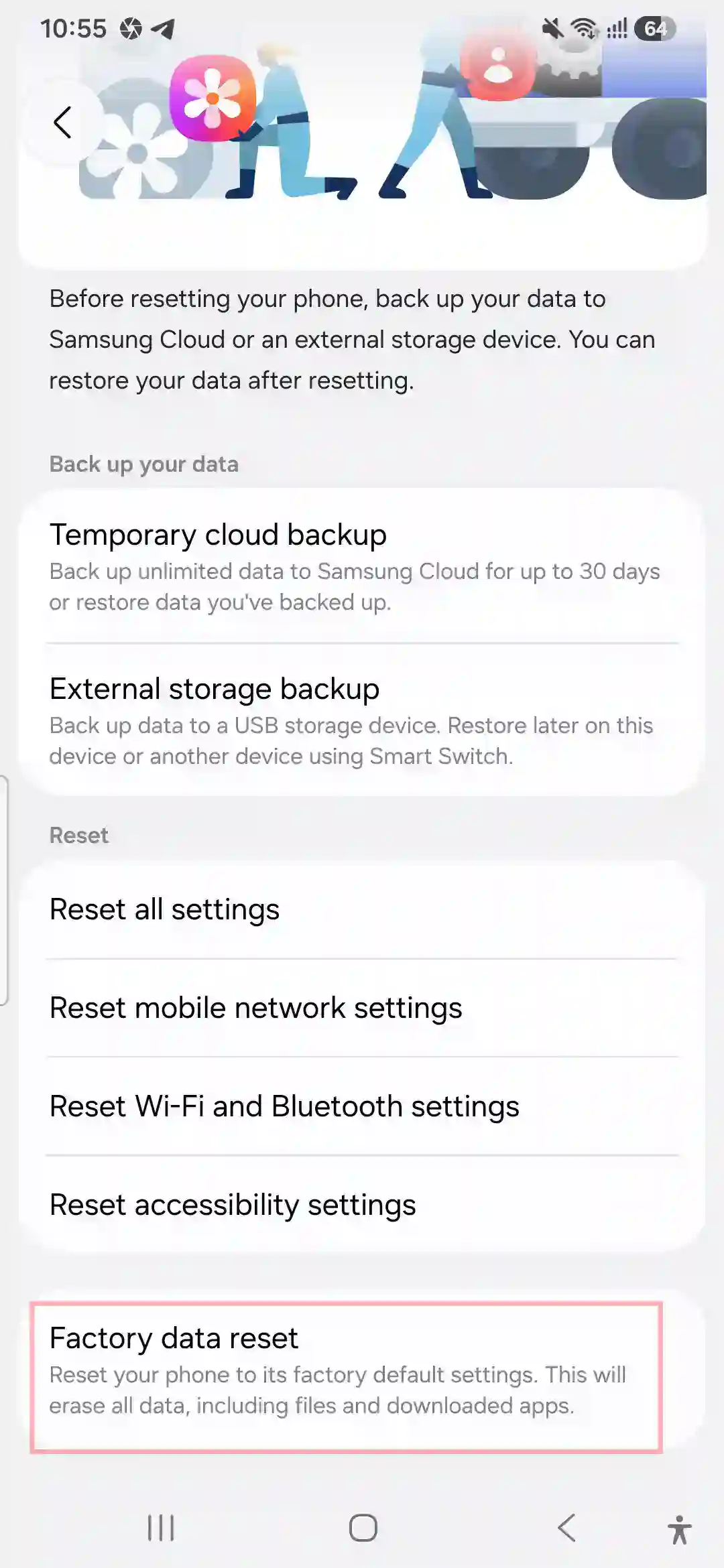
The device will reboot, clear its internal storage, and take you back to the initial Android setup wizard screen. If you are preparing to hand the phone off to a new owner, make sure to completely remove your accounts beforehand to avoid triggering Factory Reset Protection.
How to Hard Reset When You’re Locked Out
This is the exact scenario my cousin found herself in: a forgotten pattern, an locked screen, and no software access. A samsung galaxy a56 hard reset relies on physical hardware keys to trigger a wipe from the backend system.
💡 The Secret Trick: On newer One UI updates, Samsung has blocked entry to Recovery Mode using buttons alone to prevent unauthorized wipes. You must connect your Galaxy A56 to a PC, laptop, or Type-C headphones via USB cable before trying this, or the menu won’t appear.
- Connect to a Computer
Required for Recovery Access
Plug your Galaxy A56 into a PC or laptop using a working USB data cable. Wait until you see the battery charging indicator graphic appear on the screen. - Trigger Shut Down
If frozen or locked
If you can’t turn the phone off normally, hold the Power + Volume Down buttons until the screen goes completely black, then immediately move your fingers. - Hold the Recovery Combo
Volume Up + Power
Press and hold the Volume Up + Power keys simultaneously. Keep them held down firmly. - Release at the Logo
Accessing Android Recovery
The moment the official Samsung Galaxy logo vibrates onto the screen, release the Power button but continue holding the Volume Up key for another two seconds. - Select Wipe Data
Hardware Keys Only
Use the Volume Down button to highlight Wipe data/factory reset. Press the Power button to select it. Confirm by choosing Factory data reset on the next prompt.
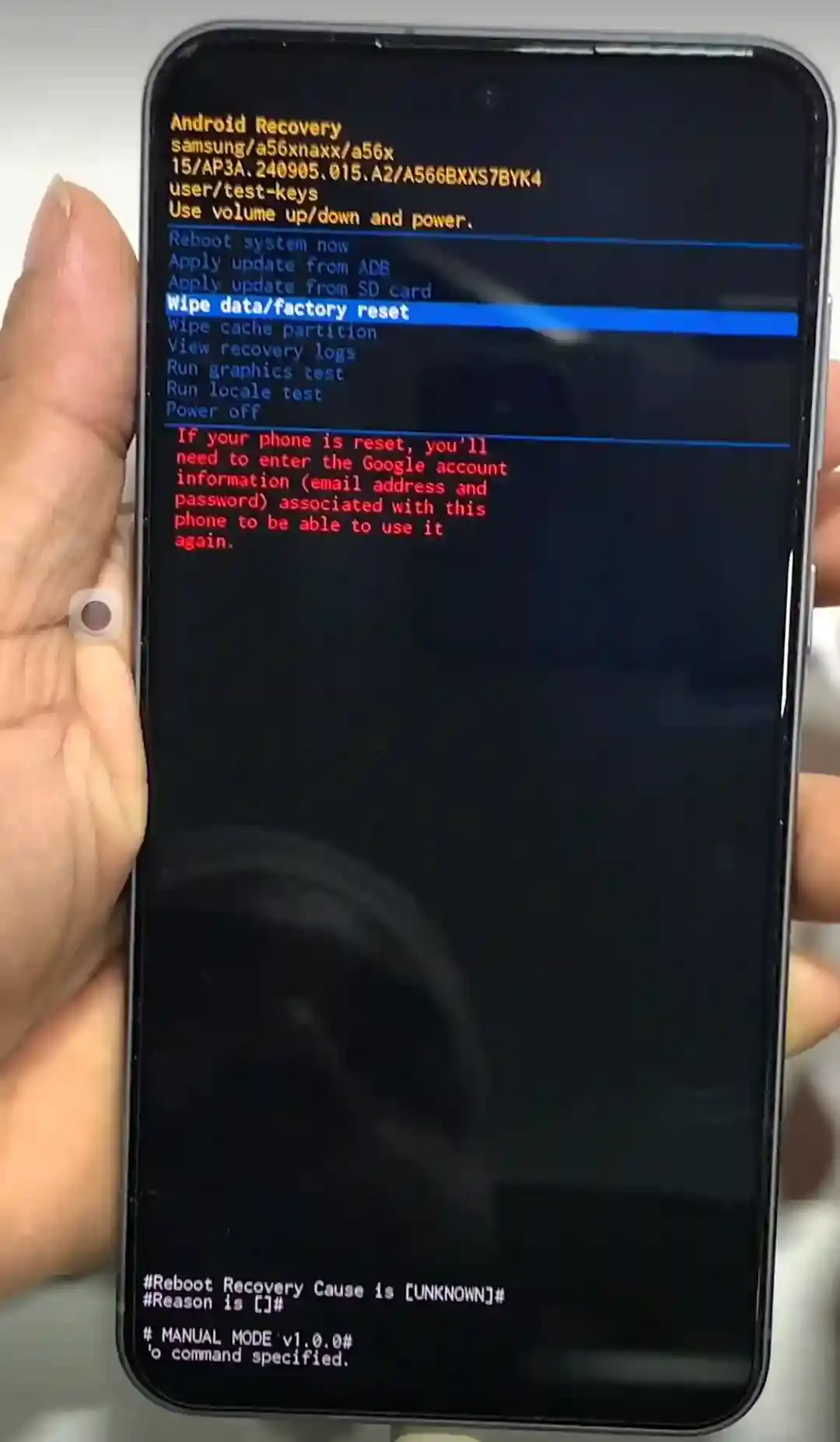
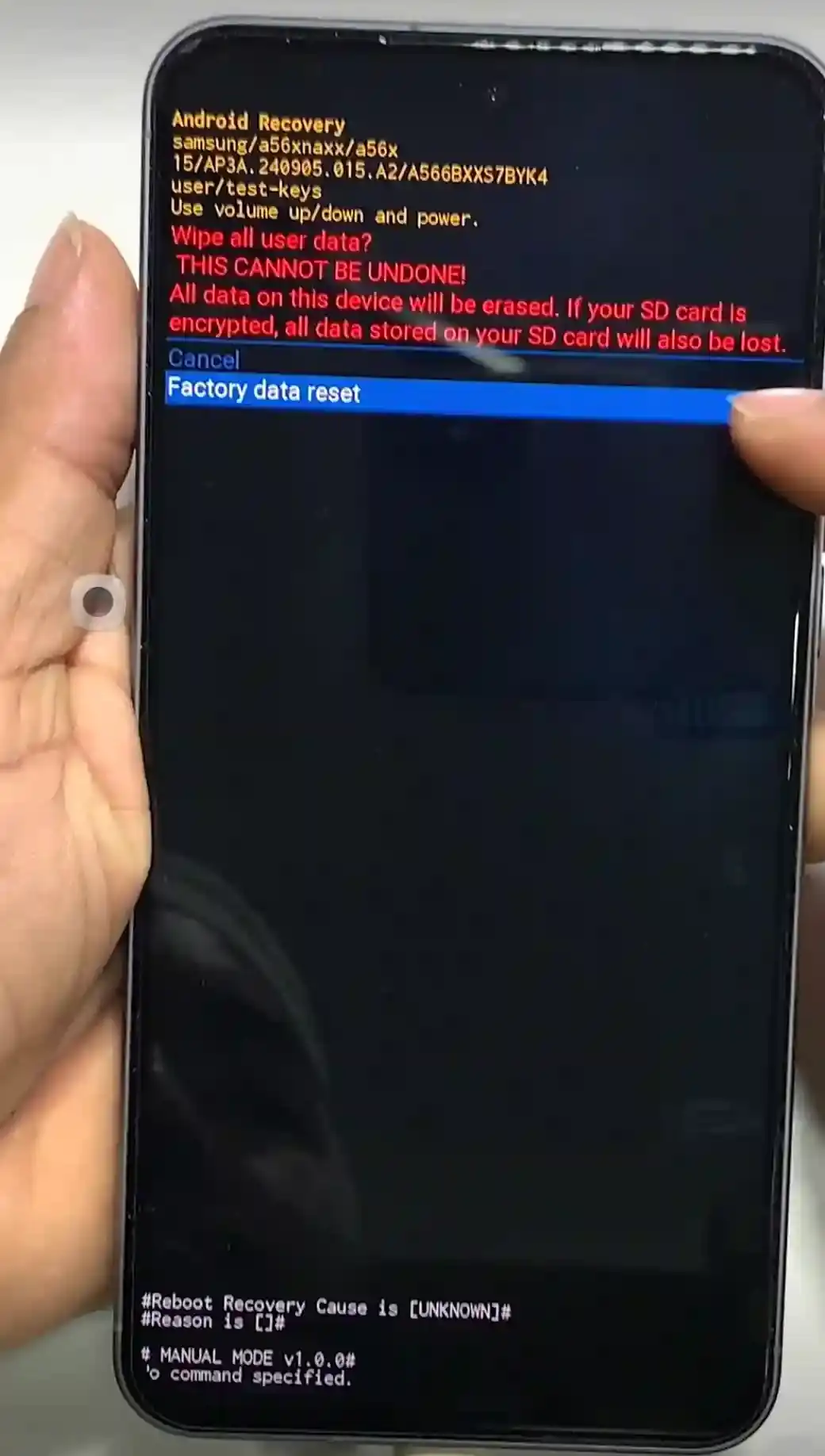
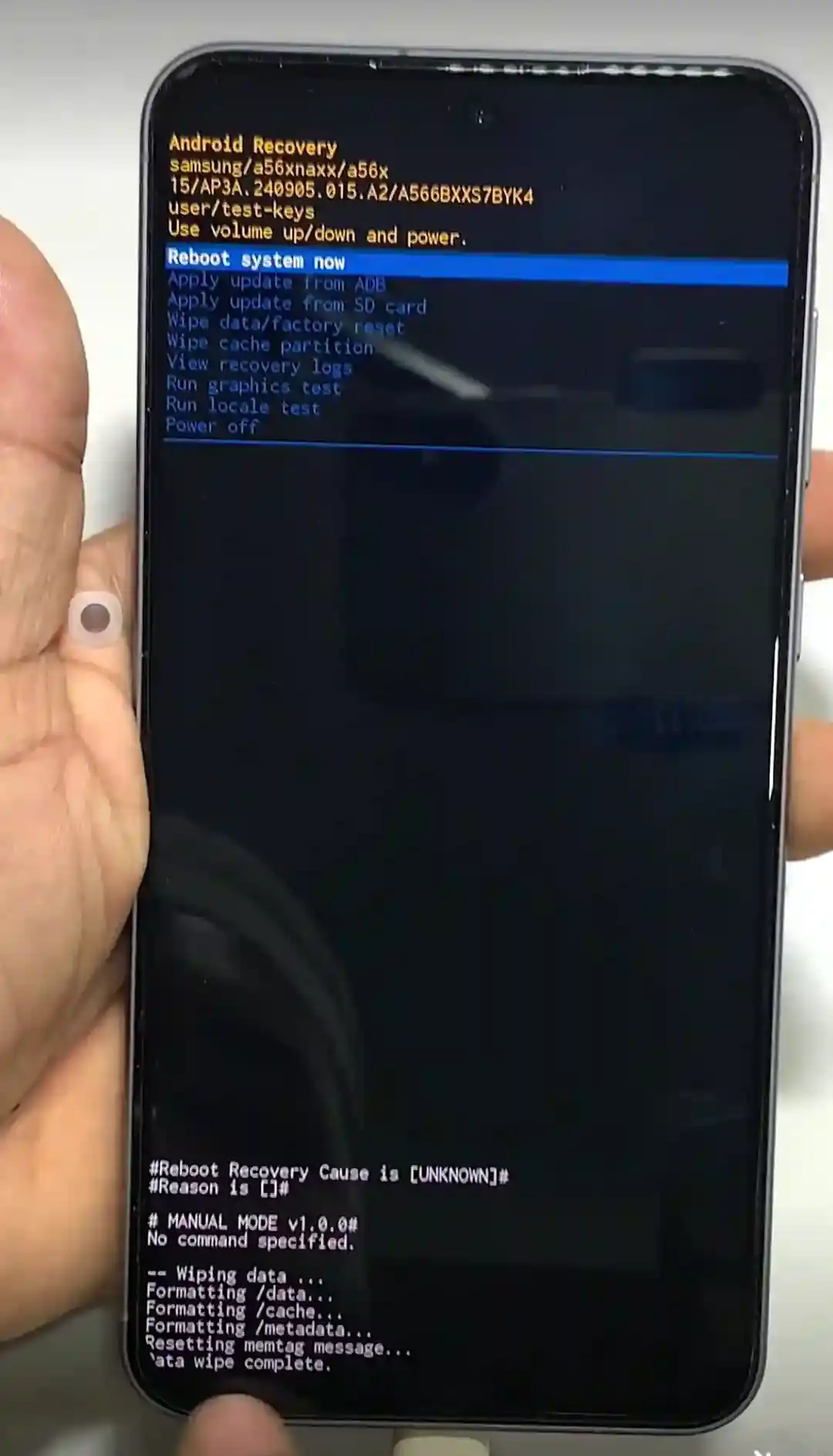
Once completed, select Reboot system now. Fair warning: this completely flattens the device storage. There is no magical way around this if you’re locked out; Samsung’s internal Knox security is engineered specifically so a stranger can’t bypass your lock screen without losing the underlying data.
Reset Without Password (FRP-Safe Method)
Many people search for terms like samsung a56 factory reset without password hoping to find a loop-hole tool that unlocks their device while keeping their data. Let’s be completely transparent: if you are locked out with no recovery PIN and no registered Samsung Account to unlock it remotely via the official Samsung SmartThings Find Portal, you cannot bypass the lock without a total wipe. Anyone claiming otherwise online is usually trying to get you to download malicious software.
What you can do is protect yourself against getting permanently bricked by FRP (Factory Reset Protection).
Before executing a hard reset:
- If you still have partial access to the settings, remove your profile by going to Settings > Accounts and backup > Manage accounts, tapping your Google ID, and choosing Remove account.
- After performing a manual hardware key wipe, the initial setup screen will request your previous credentials. You must log in with the exact same Google account that was synchronized to the device right before the wipe occurred. It’s a security wall built by Google to deter smartphone theft.
Network Settings Reset
This is easily one of the most underutilized troubleshooting steps available. If your phone keeps dropping cellular data connections, Bluetooth gear refuses to sync, or you face wireless drops, running a samsung galaxy a56 5g reset network settings process fixes it instantly without changing your apps.
- Navigate to Settings > General Management > Reset.
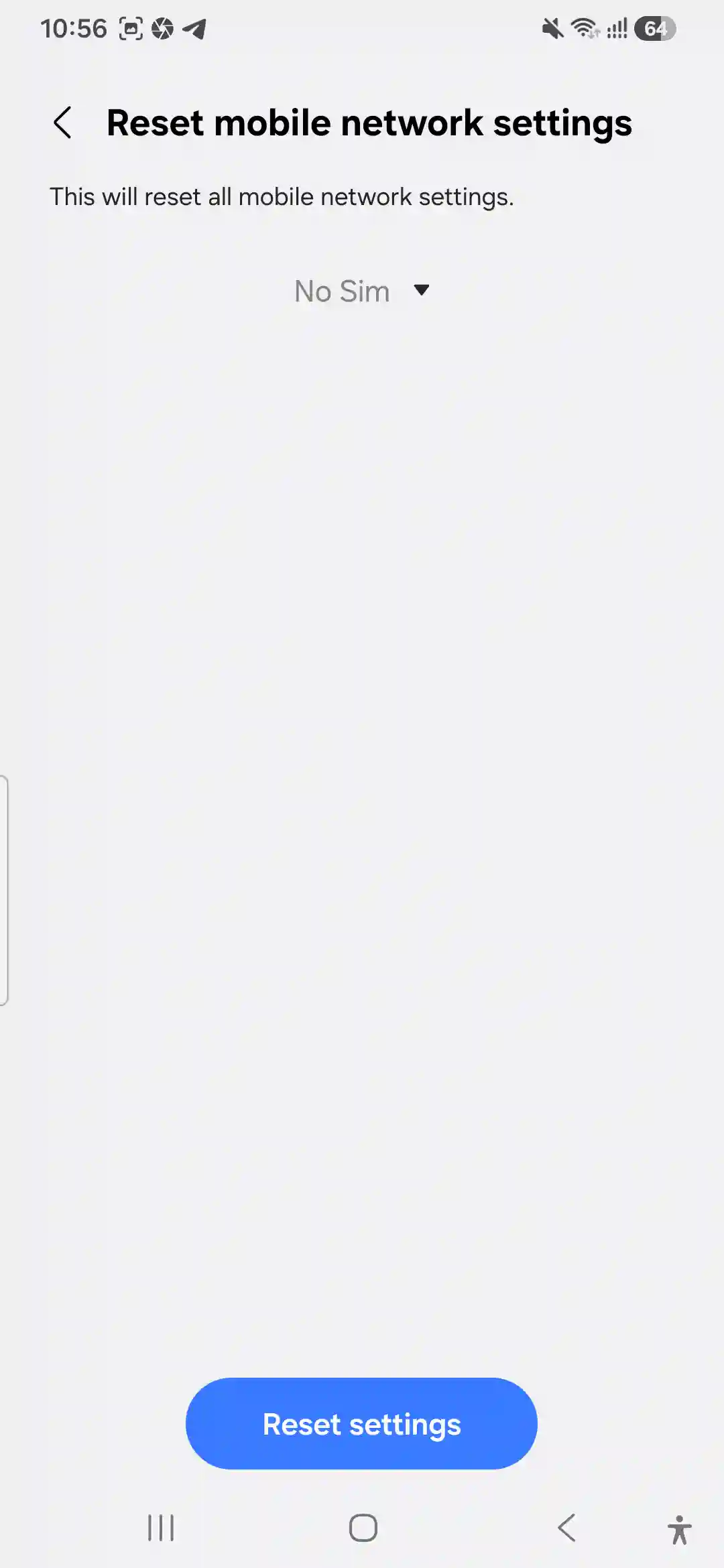
- Select Reset network settings.
- Tap the blue Reset settings button to confirm.
I had to use this exact fix after a major OS update when my device refused to hold an active line. It clears cached radio configurations and refreshes your network stack in 30 seconds. If your network issues persist beyond this, check out our comprehensive Samsung Galaxy A56 Wi-Fi Problems Troubleshooting Guide for a deeper technical breakdown.
Common Problems After Resetting
- Phone stuck on the Samsung boot logo: First boots take much longer because the OS is rebuilding system file paths. Give it up to 20 minutes. If it loops indefinitely, try the hardware key process again.
- FRP lock asking for unknown credentials: If you bought the phone used and it’s asking for a previous owner’s ID, you cannot skip it manually. You will need to contact the seller or utilize the official Google Account Recovery Tool if you own the email address.
- Battery draining faster than normal right after setup: This is entirely normal behavior for the first 48 hours. Your device is actively re-indexing system files, updating internal apps, and downloading sync caches in the background. You can check our dedicated Samsung Galaxy A56 Battery Drain Fix Guide to optimize your battery settings once everything settles.
- Unresponsive touchscreen in Recovery Menu: Remember, touch drivers aren’t loaded in the basic core recovery environment. You must use the physical volume rocker to scroll up or down and the side button to choose an action.
Mistakes I’ve Made (So You Don’t Have To)
I once performed a hardware reset for a friend without checking if their personal Google accounts were logged out beforehand. Guess what? The phone rebooted, entered locked protection mode, and we had to track down an old password they hadn’t used in two years just to get past the setup wizard.
Another mistake is assuming a hard reset preserves more files than a standard settings menu reset. It doesn’t. A hardware key wipe and a software menu wipe result in the exact same clean state—the only difference is the method you use to activate it.
Pros & Cons of Resetting
Pros
- Eradicates persistent performance lag, rogue applications, and deep system freezing.
- Safely uninstalls undetected adware or background script exploits completely.
- Completely purges corrupted system caches and bloated temporary files.
- An absolute requirement to secure your identity before selling or trading in your phone.
Cons
- Completely wipes local media files, unbacked messages, and stored authentication files.
- Misplacing your core email credentials can leave you locked out due to modern FRP parameters.
- Restoring cloud backups and logging back into every individual application takes manual effort.
Frequently Asked Questions
Will a factory reset delete photos stored on my microSD card?
No. External storage expansions are treated as separate partitions. However, as an industry rule of thumb, always physically eject your memory card before wiping a phone to prevent accidental data corruption.
How long does the entire factory reset procedure take?
The core wiping process takes about 3 to 5 minutes. The initial bootup setup wizard and data restoration from a cloud backup can take anywhere from 15 minutes to an hour depending on your internet link speed
Is there a way to do a hard reset without losing personal data?
No, it’s technically impossible. The system architecture of a hard data wipe is explicitly built to clear the entire user directory. If you want to keep your data, use the regular Reset settings instead.
What should I do if my device refuses to boot into Recovery Mode?
Ensure your device has at least 30% battery life remaining. Most importantly, ensure you are using a verified USB data cable plugged into an active computer port—simply plugging the cable into a basic wall brick charger will not work on newer Samsung firmwares.
Final Thoughts
My cousin’s phone turned out completely fine, by the way. We backed up what we could, performed the hardware key combination with a laptop cable, logged back into her Google profile to verify ownership, and had it running beautifully within half an hour.
Resetting a smartphone isn’t scary once you understand exactly what each system setting does. The only risky part is going into it blind without verified backups, or falling for sketchy online ads claiming they can remove lock pins without removing data.
If you are dealing with an unstable or locked system right now, take a deep breath, pick the specific method that fits your scenario from our breakdown, and take it step-by-step. For more tricks on configuring your newly refreshed device, jump over to our guide on Samsung Galaxy A56 One UI Hidden Features.