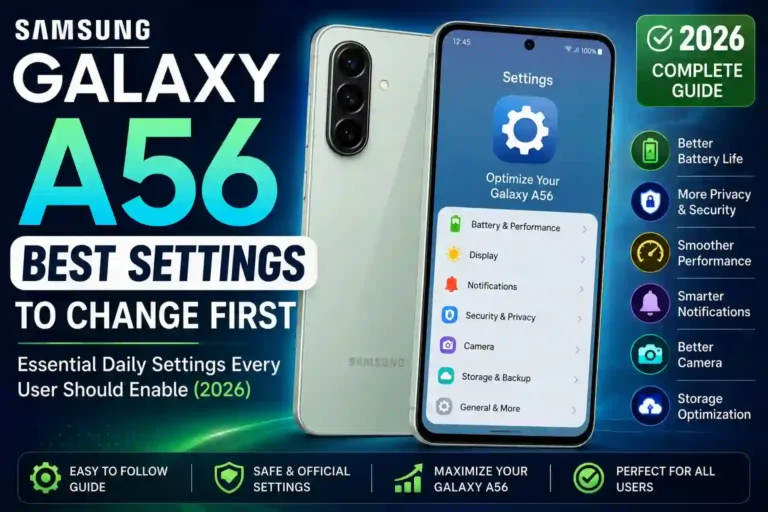
Best Samsung Galaxy A56 Settings to Change First for Better Battery, Privacy & Performance 2026
I set up my Galaxy A56 on a Sunday afternoon, coffee in hand, thinking it’d take ten minutes like every other phone I’ve owned. Three hours later, I was still poking around menus, annoyed that my battery had already dropped to 78% just from downloading apps and signing into accounts.
That’s when it hit me — this phone is genuinely good, but Samsung ships it with a bunch of default configurations that either drain your battery, spam you with notifications, or just don’t make sense for how most people actually use their phone day to day.
So I did what I always do with a new device: I spent the next week tweaking, testing, undoing mistakes, and figuring out the best settings for Samsung Galaxy A56 optimization. This guide is everything I wish someone had handed me on day one. If you just picked up an A56, or you’ve had it for a while and it still feels “off” somehow, this is for you.
Quick Specs Table
| Spec | Detail |
|---|---|
| Display | 6.7″ Super AMOLED, 120Hz |
| Processor | Exynos 1580 |
| RAM Options | 8GB / 12GB |
| Storage Options | 128GB / 256GB (expandable via microSD) |
| Battery | 5,000mAh |
| Charging | 45W wired |
| Rear Cameras | 50MP main + 12MP ultra-wide + 5MP macro |
| Front Camera | 12MP |
| Software | One UI (based on Android) |
| Water Resistance | IP67 |
Note: Small variations exist depending on your region, so double-check your exact model number in Settings if something looks slightly different from what I describe here.
Why Default Settings Aren’t Enough
Samsung, like most manufacturers, sets up phones to look impressive out of the box. Bright screen, tons of background syncing, every notification turned on, animations everywhere. That’s great for a five-minute demo in a store, but it’s terrible for actual daily use.
Within the first week, my battery life was mediocre, random apps kept popping up notifications I didn’t ask for, and the phone felt busier than it needed to be. None of that was a hardware problem. If you are experiencing similar issues, it’s just a matter of applying a quick Samsung Galaxy A56 battery drain fix by adjusting a few core menus.
Battery & Performance Settings to Fix First
This is where I noticed the biggest difference, so start your Samsung Galaxy A56 settings overhaul right here.
1. Turn on Adaptive Battery
Go to Settings > Battery > More battery settings > Adaptive battery. This lets the phone learn your usage patterns and limit background activity for apps you barely open. I ignored this for the first few days and my battery dropped noticeably faster than after I turned it on.
2. Limit Background App Activity
Head to Settings > Battery > Background usage limits. Add apps you rarely use to the “Sleeping apps” list. I found three apps I’d forgotten I even installed were running in the background constantly.
3. Cap Your Refresh Rate Intelligently
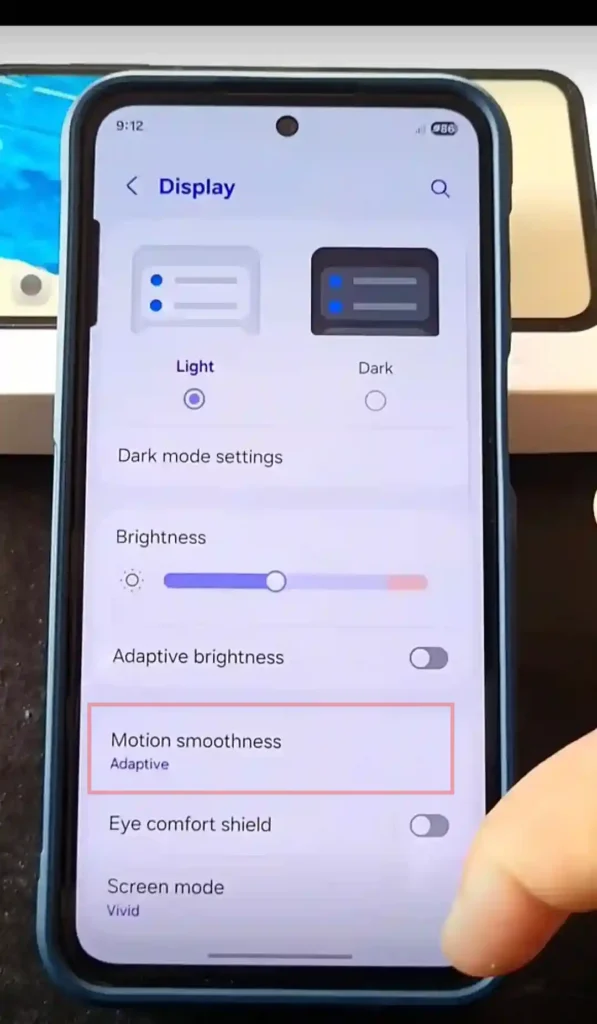
The 120Hz screen looks amazing, but it does eat battery. Go to Settings > Display > Motion smoothness and choose Adaptive instead of forcing it to Standard (60Hz) or High (120Hz) all the time. Adaptive switches automatically based on what you’re doing, which is the best middle ground I’ve found.
4. Optimize Game Booster
If you’re into mobile gaming, navigating to Settings > Advanced features > Game Booster lets you control performance vs battery balance per game. I set mine to balanced mode for casual games and performance mode only for anything competitive.
Display Settings That Actually Matter
Fine-tuning your display is a major part of uncovering the samsung galaxy a56 hidden features that improve daily comfort.
1. Adjust the Color Tone
Default screen color on Samsung phones tends to be oversaturated (called “Vivid” mode). Go to Settings > Display > Screen mode and try switching to Natural if colors feel too punchy. I switched back and forth for a few days and landed on Vivid with a slightly cooler tone — but it’s genuinely personal preference.
2. Turn on Eye Comfort Shield
Found under Settings > Display > Eye comfort shield. I schedule mine for sunset to sunrise. It reduces blue light without making everything look yellow like older “night mode” features used to.
3. Reduce Always-On Display Frequency
If you use Always On Display, set it to Tap to show instead of “Always show” under Settings > Lock screen > Always On Display. This alone made a noticeable dent in my daily battery drain.
Notification & Sound Settings
This is the area most people skip during setup and regret later.
1. Prune App Notifications Individually
Go to Settings > Notifications > App notifications. Turn off notifications for apps that don’t need to interrupt you — think games, random shopping apps, and pre-installed bloatware you never open.
2. Enable Notification History
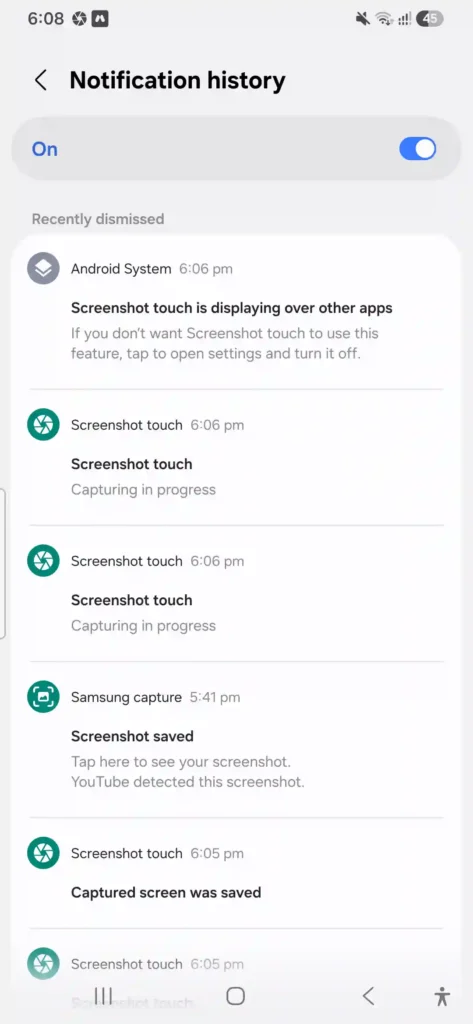
This is weirdly useful. Go to Settings > Notifications > Notification history. I turned this on after missing an important text that got dismissed accidentally. Now I can scroll back and find anything I swiped away by mistake.
3. Set Up Do Not Disturb Properly
Don’t just leave it as a manual toggle. Go to Settings > Notifications > Do Not Disturb and schedule it for your sleep hours, adding exceptions for calls from starred contacts. I learned this the hard way after missing a genuinely urgent call because DND was blocking everything.
Security & Privacy Settings
1. Optimize Fingerprint Biometrics
Fingerprint unlock on the A56 works well, but only if you register your finger at multiple angles. Go to Settings > Lock screen > Fingerprints and add the same finger two or three times from different angles. This fixed constant failed unlock attempts for me.
2. Review App Permissions
Go to Settings > Security and privacy > Permission manager. I found a flashlight app with access to my contacts and location. There was zero reason for that. Take fifteen minutes to go through camera, microphone, and location permissions especially.
3. Turn on Auto Blocker
Newer One UI versions include Auto Blocker under Security and privacy, which stops app installs from unknown sources and blocks unauthorized software commands. It is highly worth switching on unless you specifically sideload apps often. If you run into connectivity issues while setting up security profiles, check out this guide on samsung galaxy a56 wi-fi problems to get back online.
Camera Settings Worth Changing
To get the absolute most out of your camera hardware, you’ll want to adjust a few deeper toggles. For a full breakdown, see our comprehensive guide on samsung galaxy a56 camera settings.
1. Use RAW Capture Judiciously
Under camera settings, there’s an option for RAW file format. Unless you’re actually planning to edit your photos in something like Lightroom Mobile or Snapseed, leave this off. It eats your internal storage incredibly fast for no real benefit in casual shooting.
2. Balance the Scene Optimizer
It’s on by default and generally helps, but I noticed it can oversaturate greens in outdoor shots. If your photos look a little too “processed,” toggle it off directly from the camera app settings interface and compare the results.
3. Enable Grid Lines
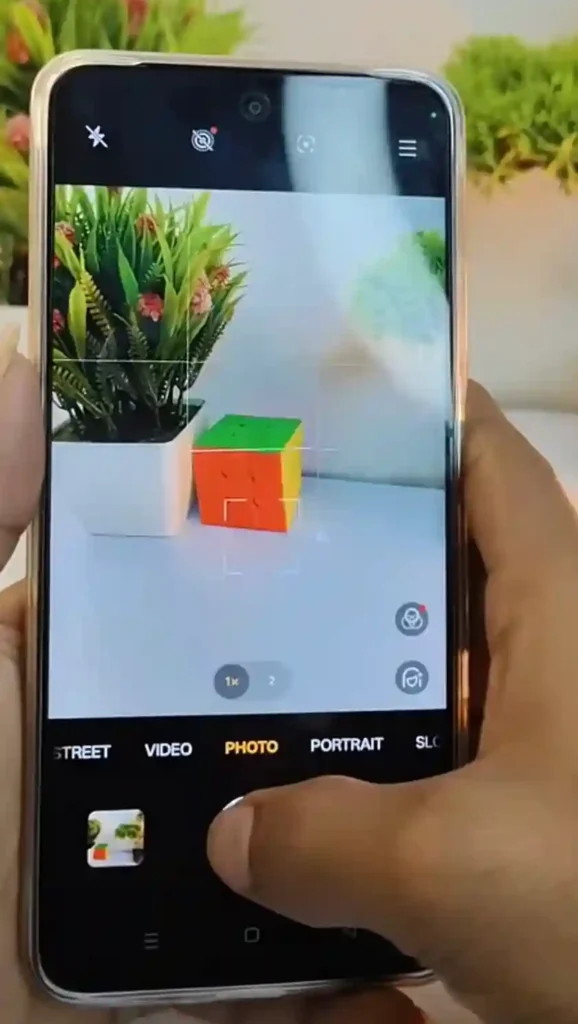
Simple but genuinely improves your photos. Go to Camera settings > Grid lines. Applying basic rule-of-thirds composition rules made a massive difference in the quality of the shots I was posting.
Storage & Backup Habits
1. Automate Your Cloud Backups
Don’t wait until you lose your photos to start caring about backups. I set Google Photos or Samsung Cloud to back up on Wi-Fi only, ensuring it doesn’t chew through precious mobile data while I’m out.
2. Monitor Storage Monthly
Head over to Settings > Battery and device care > Storage. While the device handles system resources well, cached data from web browsers and social media apps adds up quickly. A quick monthly clean keeps the interface performing smoothly. If your phone ever feels completely bogged down beyond a simple cleanup, you can always refer to how to perform a samsung galaxy a56 reset to start fresh.
Common Mistakes I Made (So You Don’t Have To)
- Leaving Vivid Mode Maxed Out: I left the display color profile at maximum intensity for two weeks and wondered why my battery life felt short. Screen brightness and color saturation intensity genuinely matter.
- Ignoring Background Limits: I ignored the background usage limits menu early on and had a random weather app refreshing its data every ten minutes in the background for no reason.
- Setting AOD to “Always Show”: I turned on the Always On Display in “Always show” mode and forgot about it until I checked my battery stats and saw how much standby power it was draining.
- Skipping Pre-Update Backups: I didn’t back up my data before a minor software update and had a brief scare when the phone restarted twice during the cycle. Lesson learned — always back up before updating your software.
Pros & Cons of the Galaxy A56
Pros
- Excellent Super AMOLED display for this price range.
- Long software update support window from Samsung.
- Solid battery life once you tweak the galaxy a56 best settings.
- Good camera versatility for everyday lifestyle shooting.
- IP67 dust and water resistance rating, which is rare in this mid-range tier.
Cons
- Default factory configurations are not battery-friendly out of the box.
- Some carrier-dependent bloatware comes pre-installed.
- The Exynos 1580 chip can run warm during heavier, extended gaming sessions.
- RAW photo files take up storage capacity extremely fast if left on by mistake.
FAQs
Do I really need to change these Samsung A56 settings, or is the phone fine as-is?
It’ll work completely fine out of the box, but you’ll experience noticeably better battery endurance and a much cleaner, less distracting software interface if you spend twenty minutes adjusting things early on.
Will turning off notifications for apps cause me to miss anything important?
Not if you are selective. Keep notifications enabled for essential communication tools like messaging, calls, and your banking applications. Turn them off for mobile games, shopping apps, and things you don’t need to check daily.
Does Adaptive Battery slow down my active apps?
No, it does not. It simply limits background CPU activity and data syncing for the apps you rarely ever open. The applications you use frequently remain completely unaffected.
Is 120Hz worth using, or should I just set it to 60Hz permanently?
Adaptive mode gives you the best of both worlds. It provides maximum smoothness when you actually need it (like scrolling or gaming) and drops down to save battery when you don’t (like reading static text or leaving the phone on standby).
How often should I clear my cached storage?
Once a month is plenty for most users. However, if you are a heavy social media scroller or web browser user, taking a look every two to three weeks is a reasonable habit.
Is Auto Blocker necessary if I only download from the Play Store?
Think of it as an extra layer of structural protection rather than an absolute daily necessity. If you never intend to sideload apps, it won’t get in your way at all, so there is little reason to leave it disabled.
Why does my fingerprint unlock fail sometimes?
Usually, it’s because only a single angle of your finger surface was registered during the initial setup. Re-adding your primary fingerprint two or three times from different, varied angles completely fixes this behavior in most cases.
Should I keep Scene Optimizer turned on for photos?
Try shooting with it both on and off for a week. Some users love the vibrant, punchier colors it renders automatically, while others prefer a more realistic look with it disabled. There is no universally right answer!
Final Thoughts
None of these adjustments are complicated once you know exactly where to find them in One UI, but Samsung doesn’t exactly make it obvious how much they impact your daily experience. I spent way more time than I should have figuring this out through trial and error, mostly driven by getting annoyed at rapid battery depletion and excessive notification alerts before realizing the fixes were right there.
If you want to dive even deeper into what this phone can do, check out our companion guides on samsung galaxy a56 tips and tricks as well as our breakdown of samsung galaxy a56 one ui hidden features. For those still on the fence about purchasing, see how it holds up in our samsung galaxy a56 vs a36 comparison.
Give yourself twenty minutes with this checklist, and your Galaxy A56 will genuinely feel like a completely different device — smoother, quieter when you want it to be, and lasting significantly longer between charges.