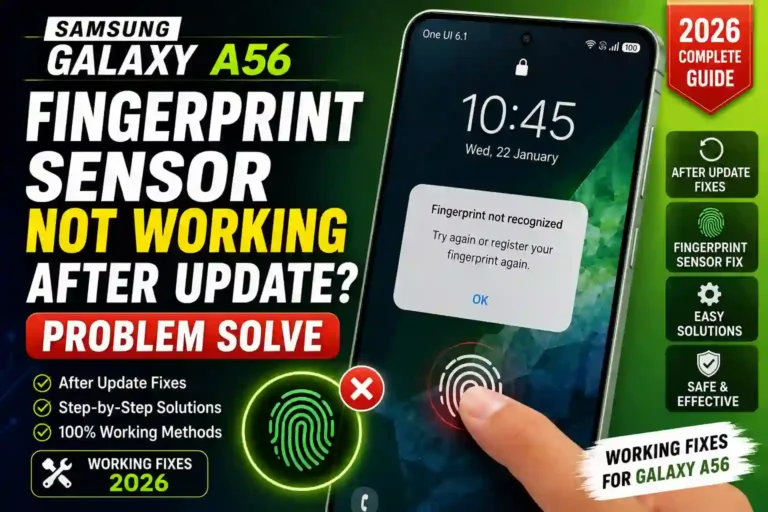
Samsung Galaxy A56 Fingerprint Sensor Not Working After Update Problem Solve 2026
Standing in line at a coffee shop with a phone in hand and trying to pay via Samsung Wallet is usually seamless—until your thumb hits the sensor once, twice, three times, and nothing happens. The line behind builds up while you awkwardly tap a PIN code. That was my first real encounter with a stubborn Galaxy A56 fingerprint sensor, and because the phone was barely two months old, it was frustrating.
You are definitely not alone if your Samsung A56 fingerprint is not working. After digging through tech forums, consulting repair shop technicians, and testing solutions hands-on, I’ve compiled every practical Galaxy A56 fingerprint sensor problem fix. Whether your scanner is lagging, throwing errors, or completely ghosting your thumb, this step-by-step guide covers how to resolve these Galaxy A56 fingerprint issues without unnecessary repair trips.
Quick Specs: Galaxy A56 Fingerprint Sensor
| Detail | Information |
|---|---|
| Sensor Type | Optical, In-Display |
| Location | Lower third of the screen |
| Unlock Speed | Under 1 second (when operating normally) |
| Storable Fingerprints | Up to 4 |
| Common Triggers for Failure | Thick screen protectors, wet/dirty skin, software updates |
| Software Success Rate | High (resolvable without physical repair) |
| Hardware Success Rate | Requires authorized repair technician |
Why Is Your Samsung Galaxy A56 Fingerprint Sensor Not Working?
The Galaxy A56 fingerprint sensor relies on optical in-display technology. Unlike the ultrasonic sensors found on flagship S-series phones, an optical sensor captures a high-resolution 2D photo of your fingerprint pattern using light bounced off your skin through the AMOLED glass.
While optical technology keeps the A56 competitively priced, it is inherently sensitive to external factors. The most frequent causes for a Samsung Galaxy A56 fingerprint not working include:
- Incompatible Screen Protectors: Glass that is too thick, poorly aligned, or lacks proper optical clarity.
- Post-Update Bugs: Temporary cache conflicts when a Samsung Galaxy A56 fingerprint is not working after update installation.
- Surface Residue: Oil, moisture, dirt, or dry skin altering light reflection.
- Poor Initial Registration: Incomplete scans registered at limited angles during initial setup.
- Physical Hardware Impact: Internal sensor misalignments or non-genuine display replacements.
Quick Fixes to Try First
Before diving deeper into system settings, try these immediate checks to solve minor Galaxy A56 fingerprint scanner not working errors:
- Clean the Sensor Area & Dry Your Hands: Wipe the screen with a clean microfiber cloth. Ensure your hands are dry and free of lotion or grease.
- Reboot the Smartphone: Press and hold the Power + Volume Down buttons simultaneously, then select Restart. A simple system restart clears temporary system glitches affecting biometrics.
- Inspect Your Screen Protector: If your Galaxy A56 fingerprint stopped working right after installing tempered glass, peel it off temporarily to test on bare glass.
- Apply Steady Pressure: Firmly hold your fingertip flat against the display for a full second rather than tapping quickly.
- Test Secondary Stored Fingerprints: Try an alternate registered digit to verify if the issue is global or limited to a single fingerprint profile.
How to Fix Fingerprint Sensor on Samsung Galaxy A56: Step-by-Step
If basic checks fail, refreshing your biometric calibration map offers the highest rate of success for any Galaxy A56 fingerprint sensor fix.
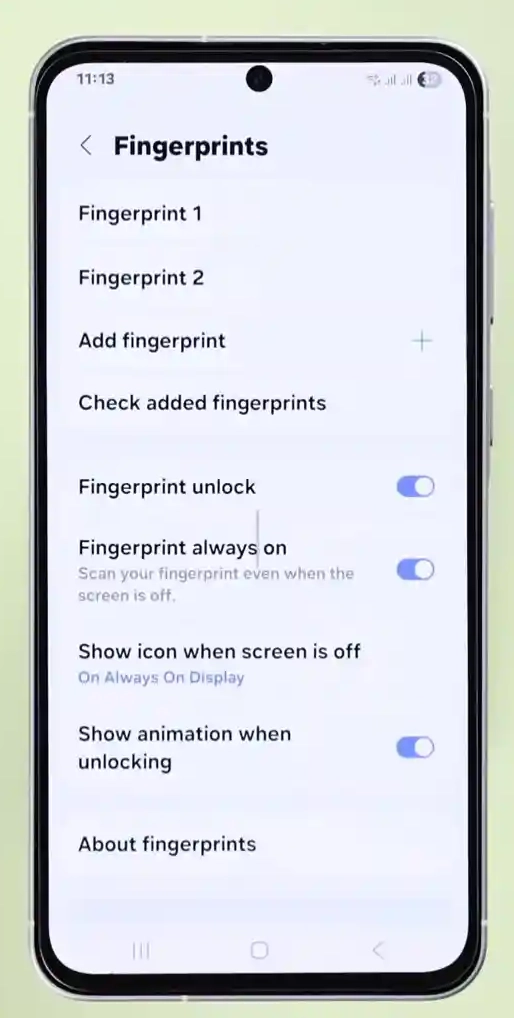
Settings > Security and privacy > Biometrics > Fingerprints
1. Delete Existing Fingerprint Profiles
Remove every saved fingerprint profile—even those that work intermittently. Stale or partially corrupted registration files can degrade global recognition accuracy.
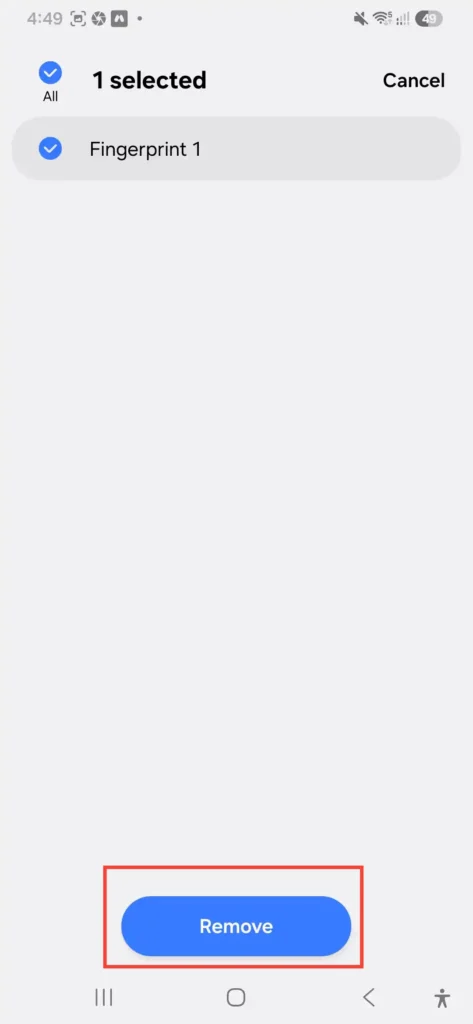
2. Clear System Biometric Cache
Before re-registering, restart your device to purge temporary hardware cache.
3. Re-Register Your Fingerprints Methodically
When adding your prints again, follow these tips to ensure optimal recognition:
- Vary the Holding Position: Hold the device naturally in one hand as you normally would when unlocking it.
- Rotate the Fingertip Angle: Tap using the center, top tip, sides, and lower joint area of your thumb across successive registration prompts.
- Register the Same Finger Twice: Save your primary unlocking thumb as both “Fingerprint 1” and “Fingerprint 2.” This doubles the scan dataset for that digit and drastically improves read consistency.
Once your primary print is re-added, consider exploring other essential Samsung Galaxy A56 settings to optimize overall system responsiveness.
Software-Related Fixes
When a Galaxy A56 fingerprint sensor is not recognizing fingerprint scans despite clean registration, software conflicts are usually the culprit.
Check for System Updates
Samsung regularly deploys patch updates to refine biometric performance. Navigate to Settings > Software update > Download and install to confirm your system firmware is current.
Clear System Cache
If your Samsung Galaxy A56 fingerprint is not working after update releases, clearing the biometrics cache fixes underlying bugs:
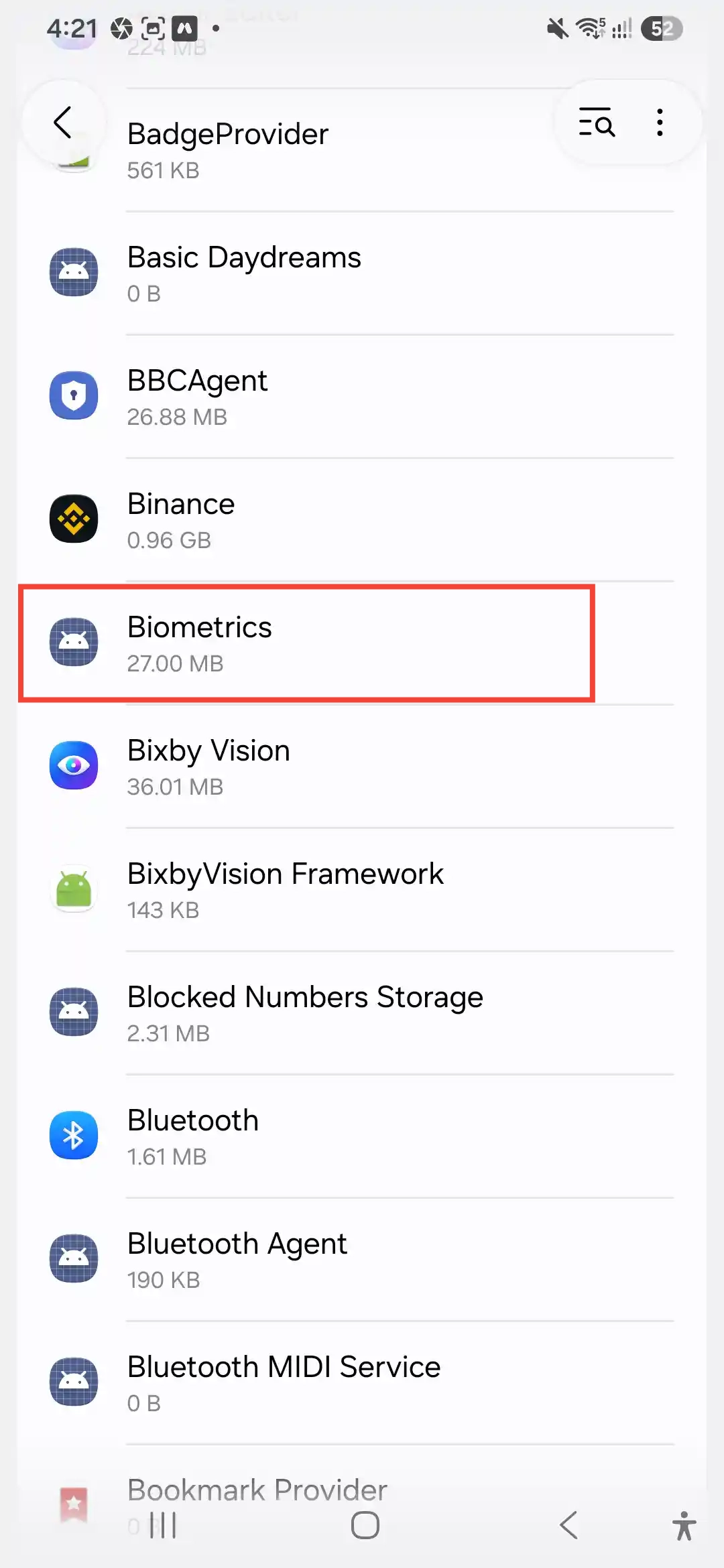
- Go to Settings > Apps.
- Tap the Filter/Sort icon and toggle on Show system apps.
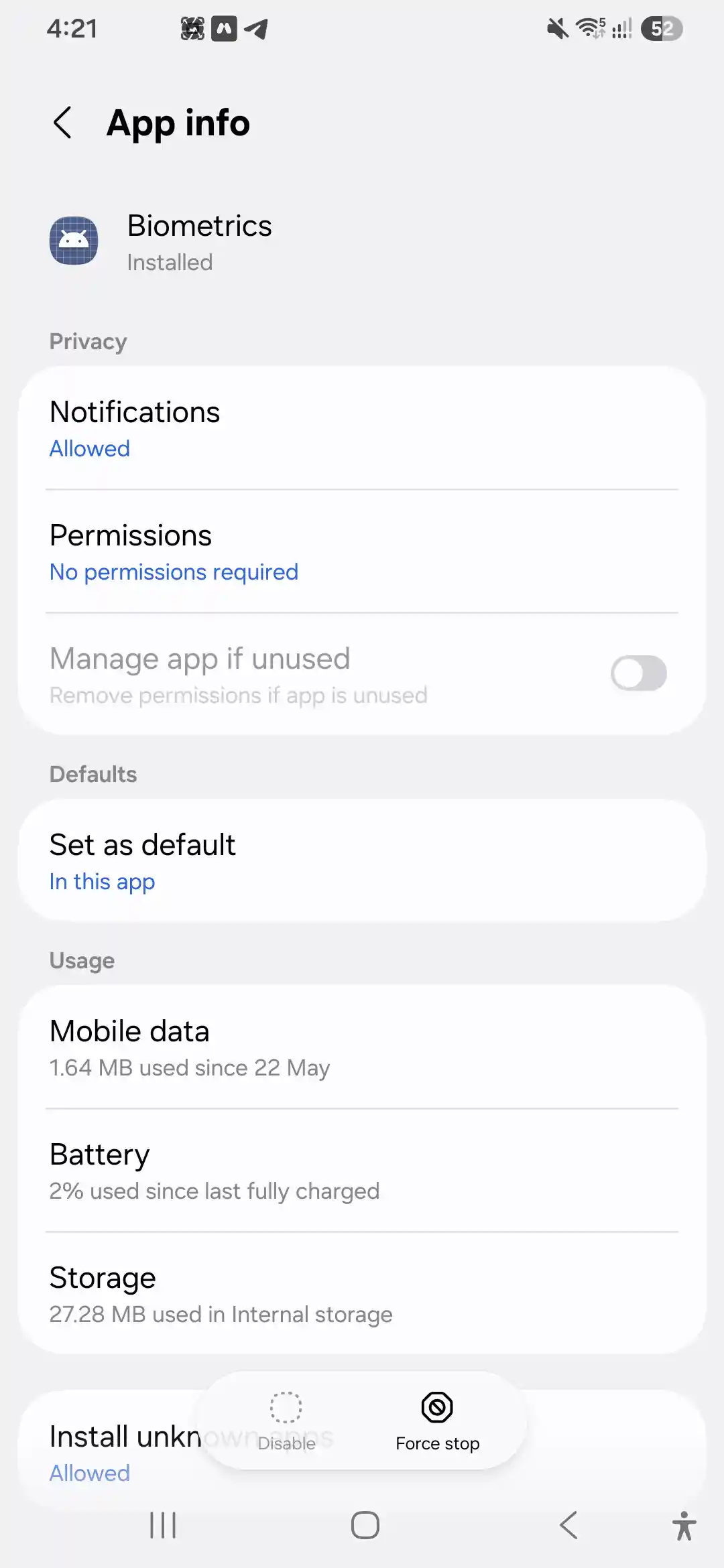
- Search for com.samsung.android.biometrics.app.setting (or Fingerprint).
- Tap Storage > Clear Cache.
Boot into Safe Mode
Boot your phone into Safe Mode by holding the power menu options and long-pressing Power Off. If the sensor functions flawlessly in Safe Mode, a third-party application (such as a custom lock screen or security tool) is interfering with biometric hardware operations.
Perform a Factory Data Reset
If system updates and cache wipes fail, software accumulation may require a fresh start. Back up your essential personal data first, then review our complete Samsung Galaxy A56 reset guide for detailed instructions on completing a safe clean restore.
Fixing Issues Caused by Screen Protectors
A Galaxy A56 fingerprint not working with screen protector accessories is one of the most common user reports. Because the optical sensor scans prints through the glass layers, improper protection interferes directly with light transmission.
- Opt for Certified Glass: Choose screen protectors explicitly marked as compatible with optical in-display sensors.
- Eliminate Bubbles: Microscopic air bubbles over the bottom display region distort light signals.
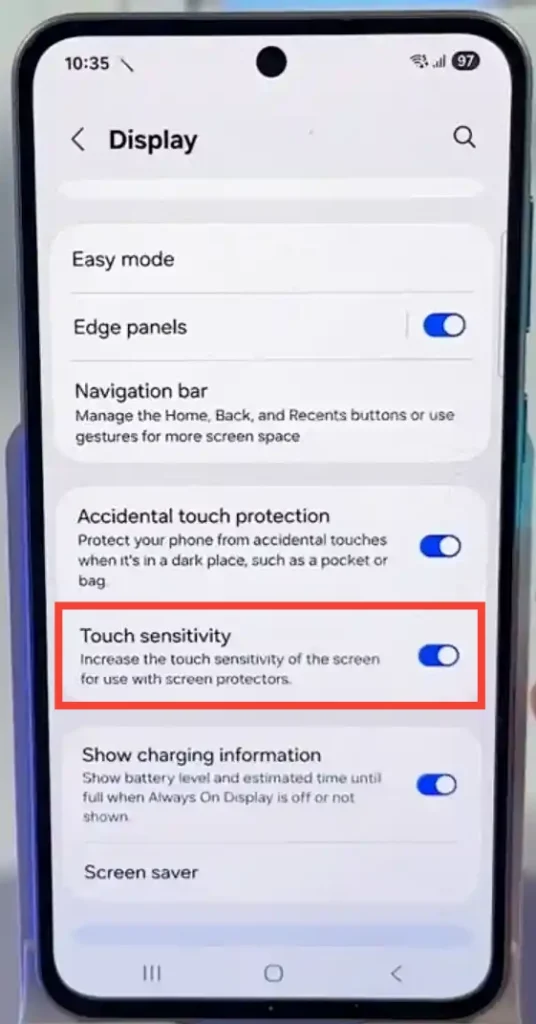
- Enable High Touch Sensitivity: Go to Settings > Display and toggle on Touch sensitivity to boost screen responsiveness through protective layers.
- Re-Register After Installation: Always re-register all fingerprints after applying a new screen protector.
For additional interface tweaks and display performance optimization, check out our guide to Samsung Galaxy A56 lock screen customization.
Hardware and Physical Causes
If troubleshooting reveals no software faults, physical factors may be impacting hardware accuracy:
- Impact Damage: Unprotected drops can loosen internal display flex cables even if the front glass shows no visible cracks.
- Moisture Ingress: Trapped water near the bottom display assembly degrades optical lens clarity.
- Aftermarket Screen Replacements: Non-genuine display panels installed by unauthorized third-party shops often lack properly calibrated optical sensor modules.
If you suspect hardware failure or face persistent connectivity issues across the device, review our troubleshooting steps for Samsung Galaxy A56 Wi-Fi problems or Samsung Galaxy A56 fast charging fixes to pinpoint broader hardware concerns.
When to Visit an Authorized Service Center
If your Samsung A56 fingerprint scanner is not working after completing every step above, professional diagnostic equipment is required.
Visit an authorized technician if:
- The fingerprint settings menu becomes grayed out or unselectable.
- The optical illumination light under the display fails to light up when touched.
- The phone sustained severe liquid or physical drop damage.
- Complete hardware diagnosis is needed under warranty. Refer to official guidelines via Samsung Support.
Long-Term Reliability Tips
- Maintain Dry Skin: Avoid registering prints when fingertips are extremely wet or unusually dry.
- Keep the Screen Clean: Gently wipe the lower screen region weekly using a lint-free microfiber cloth.
- Keep Backup Unlock Methods Active: Maintain a secure PIN, pattern, or face unlock profile alongside biometrics.
- Re-Register Periodically: Refresh your stored fingerprints every six months to accommodate natural changes in skin texture.
For more helpful configuration tips, explore our complete walkthrough on the first things to do on your Samsung Galaxy A56.
Frequently Asked Questions
Why did my Galaxy A56 fingerprint sensor stop working after a software update?
Update packages occasionally disrupt cached biometric data. Restarting your device, clearing the biometric app cache, or re-registering stored prints usually resolves update-related conflicts.
How many fingerprints can I save on the Samsung Galaxy A56?
The device supports up to 4 registered fingerprint profiles. Registering your primary thumb twice increases overall scanning accuracy.
Can a screen protector permanently damage the fingerprint scanner?
No. A screen protector will not physically damage the optical scanner, but thick or low-quality glass will prevent light from passing through cleanly, causing temporary read failures.
Is face unlock safer than the fingerprint sensor on the Galaxy A56?
No. The Galaxy A56 uses 2D camera-based face recognition, which is convenient but less secure than the optical fingerprint scanner or a strong PIN.
If you’ve made it this far and tried the steps above, there’s a very good chance your sensor is working fine again by now. Mine was a screen protector issue disguised as something scarier, and honestly, that seems to be the case for most people who reach out about this. Start simple, be patient with the re-registration process, and only worry about a repair visit if you’ve genuinely ruled everything else out.