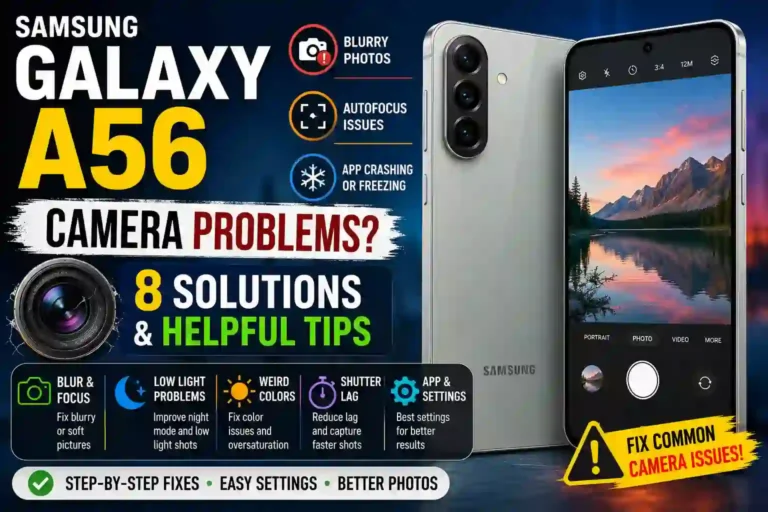
Samsung Galaxy A56 Camera Problems: 8 Solutions and Helpful Tips
I almost missed my nephew’s first steps because of Samsung Galaxy A56 camera problems.
True story. I’d just switched to the Galaxy A56 a few weeks earlier, everyone was gathered in the living room, my sister yelled “he’s doing it, get the camera!” and I fumbled to open the camera app, tapped the shutter, and got… a blurry mess with a two-second lag. By the time it focused, the moment was over. I was annoyed enough that I spent the next few nights digging through settings, forums, and official support threads trying to learn how to fix Samsung Galaxy A56 camera problems once and for all.
Turns out I wasn’t alone. A lot of A56 owners run into similar hiccups — from Samsung A56 camera lag and weird color casts to Galaxy A56 night photography problems and the app randomly freezing. Some of it is genuinely a software quirk, some of it involves user settings nobody explains properly, and a couple of issues stem from physical limitations of a mid-range camera sensor that no software update will fully solve.
This guide walks through every major Samsung Galaxy A56 camera problem and fix with practical, tested solutions. Whether your Samsung Galaxy A56 camera is not working as expected or you’re dealing with a Galaxy A56 camera blurry lens, we have you covered.
Quick Specs Table
| Feature | Detail |
|---|---|
| Main Sensor | 50MP, f/1.8, OIS (Optical Image Stabilization) |
| Ultra-Wide Lens | 12MP, f/2.2 |
| Macro Lens | 5MP, f/2.4 |
| Front Camera | 12MP, f/2.2 |
| Video Recording | Up to 4K at 30fps |
| Common Issue Areas | Low light, autofocus speed, shutter lag, app stability |
| OS at Launch | One UI 7 (Android 15) |
Note: Samsung pushes camera-related firmware updates fairly often. If you just unboxed your device, make sure to check out the first things to do on Samsung Galaxy A56 to ensure your system and apps are fully updated before troubleshooting.
How to Fix Samsung Galaxy A56 Camera Problems: The First 6 Steps
Honestly, if I’d known this list existed the week my camera started acting up, I’d have saved myself a lot of late-night troubleshooting. Before you jump into any specific problem below, run through these six steps in order. In my experience, this sequence alone resolves the majority of Samsung Galaxy A56 camera problems — including freezing, blur, and lag — without needing complex fixes.
- Clean the camera lenses thoroughly: A thin layer of pocket lint or a fingerprint smudge on the rear lens is the single most common cause of a Galaxy A56 camera blurry image. Wipe all three rear lenses (and the front selfie camera) gently with a clean microfiber cloth, then take a test shot. If you notice physical scratches, you might need to look into replacing the Samsung Galaxy A56 camera glass.
- Restart the phone: Not a quick lock-and-unlock — perform an actual full restart. This clears temporary memory glitches and background RAM hogging that can cause Samsung Galaxy A56 camera freezing.
- Check for Camera app updates in the Galaxy Store: Open the Galaxy Store, tap your profile icon, go to Updates, and check if the Camera app has an update pending. This is separate from your main system update, and it’s the step most people skip entirely.
- Check for system software updates: Go to Settings > Software update > Download and install. Camera bugs are often patched directly via system updates, especially after major One UI upgrades.
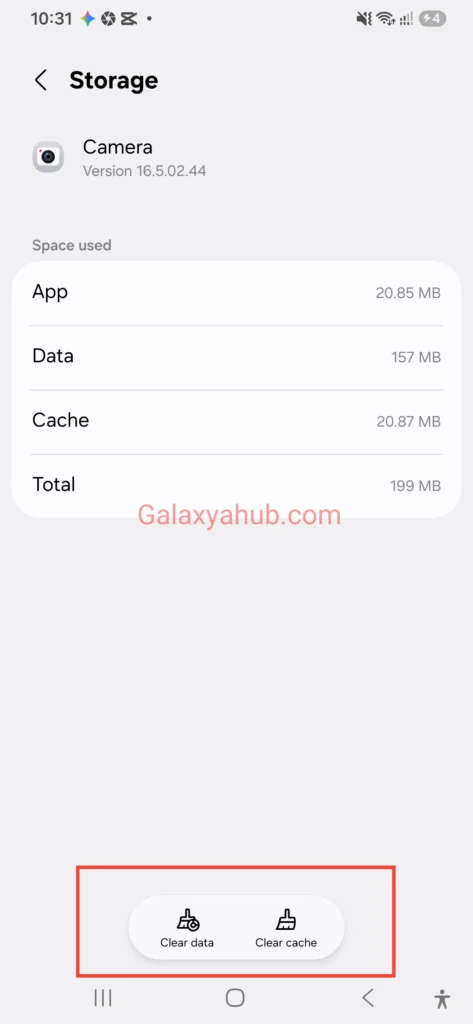
- Clear the Camera app cache: Go to Settings > Apps > Camera > Storage > Clear cache. This wipes corrupted temporary files without touching your photos or custom preferences.
- Test the camera in Safe Mode: Safe Mode temporarily disables third-party applications. If your camera works perfectly in Safe Mode, a downloaded app is causing permission conflicts. You can learn more about managing system permissions on Samsung Official Support.
If you’ve gone through all six steps and your Samsung Galaxy A56 camera is not working properly, check the targeted solutions below.
Why the A56 Camera Struggles in Certain Situations
Before jumping into individual fixes, it helps to understand what is happening under the hood. The Galaxy A56 is a feature-packed mid-ranger. Its 50MP main sensor is solid for daylight photography, but it doesn’t possess the massive sensor size or dedicated neural processing ISP found in flagship S-series phones.
In challenging conditions — dim indoor lighting, sunset scenes, or fast action — the processing engine works overtime. This is where software bugs and hardware boundaries intersect. Knowing the difference between a tweakable setting and a sensor limitation saves a ton of frustration.
Problem 1: Camera App Freezing or Crashing
(Samsung Galaxy A56 Camera App Keeps Crashing)
This was my main headache before the blurry photo situation. I’d tap the camera icon, and about one in ten times, the app would freeze on a black screen or force-close unexpectedly.
- Why it happens: Usually triggered by corrupted cached memory, background app conflicts, or pending updates after a software patch.
- Step-by-Step Fix:
- Navigate to Settings > Apps > Camera.
- Tap Storage.
- Select Clear cache first.
- Test the app. If the Samsung Galaxy A56 camera app keeps crashing, head back and tap Clear data (this resets camera settings to factory defaults).
- Restart your smartphone immediately after clearing data.
- Check the Galaxy Store for pending camera patches.
If app crashes persist across your entire device, consider performing a broader system refresh using our guide on a full Samsung Galaxy A56 reset.
Problem 2: Blurry or Soft Photos
(Why Is My Samsung Galaxy A56 Camera Blurry?)
If you’re asking yourself why is my Samsung Galaxy A56 camera blurry, you are far from alone. Photos that look crisp on the small preview screen can end up looking soft, grainy, or out of focus when viewed on a larger display.
- Common Causes:
- Microscopic grease smudges on the camera glass.
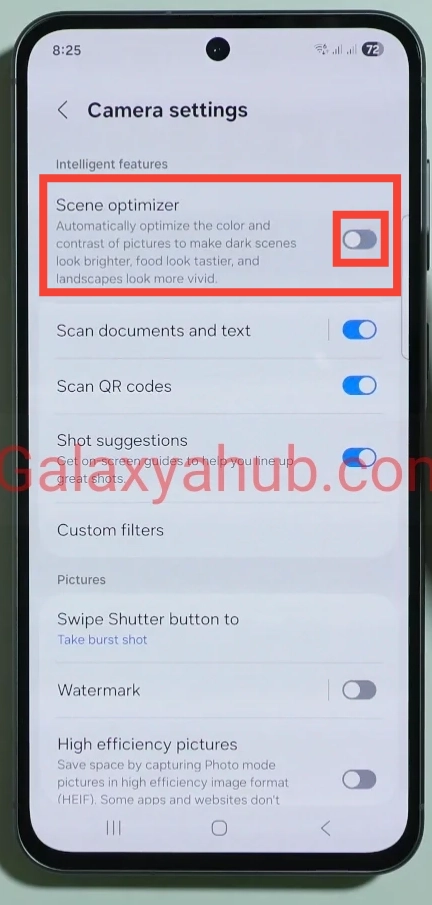
- Scene Optimizer over-processing and smoothing fine details.
- Slow shutter speeds triggered by low light.
- Moving subjects outpacing the autofocus lock.
- Tested Solutions:
- Wipe the glass: Keep a lint-free cloth handy. Smudges account for over half of all blur complaints.
- Disable Scene Optimizer: Open Camera > Settings (gear icon) and turn off Scene optimizer. This stops aggressive software smoothing.
- Manual focus tapping: Tap your subject on the screen before pressing the shutter button.
- Use Burst Mode: Hold and drag down the shutter button for a quick burst when shooting moving subjects, giving you multiple frames to pick from.
For deeper camera tuning, check our detailed guide on how to improve Samsung Galaxy A56 camera quality.
Problem 3: Slow Autofocus / Focus Hunting
(Samsung Galaxy A56 Autofocus Not Working)
A common Galaxy A56 autofocus problem occurs indoors under warm light. The lens repeatedly pulses in and out (“focus hunting”) before locking onto the target.
- Fixes that work:
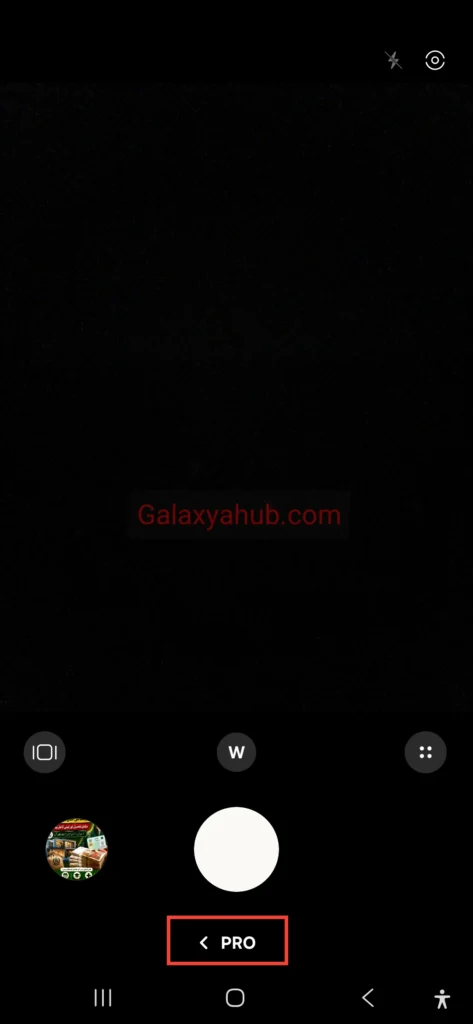
- Switch to Pro Mode: Manually adjust focus sliders when shooting static subjects in fixed lighting.
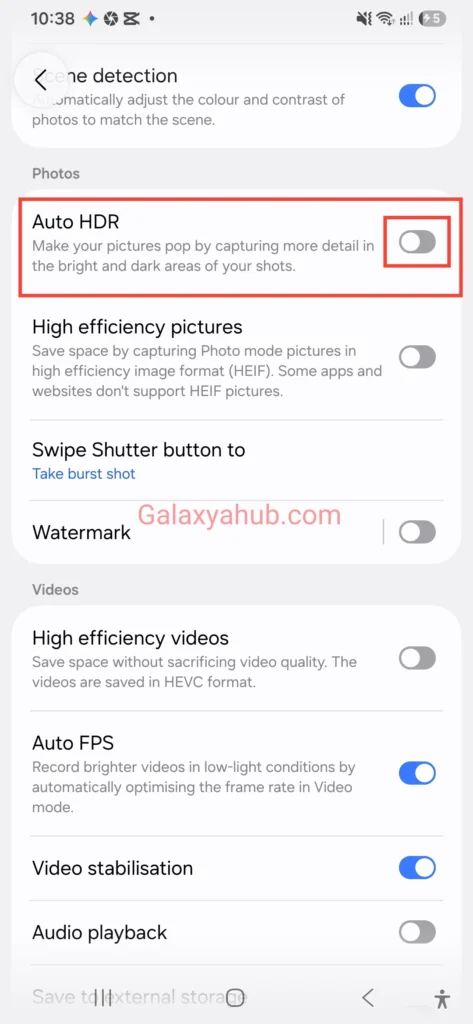
- Toggle Auto HDR: Go to Camera Settings and disable Auto HDR if you notice focus delays in high-contrast environments.
- Use Macro Mode for Close-Ups: Do not force the 50MP main sensor to focus on subjects closer than 10 cm. Switch to the dedicated 5MP Macro mode in the “More” tab.
- Review Camera Settings: Ensure your resolution and tracking settings are properly calibrated by reviewing the best Samsung Galaxy A56 camera settings.
Problem 4: Poor Low-Light and Night Photos
(Galaxy A56 Night Photography Problems)
Dealing with Galaxy A56 night photography problems requires balancing user expectations with practical technique. While the main 50MP lens features Optical Image Stabilization (OIS), night shots can still look muddy if left on default Auto settings.
- How to improve night capture:
- Select Night Mode manually: Swipe to the “More” section and choose Night mode explicitly rather than relying on auto-detection.

- Keep steady: Night Mode stacks multiple exposures over 2–4 seconds. Rest your arms on a table or use a compact tripod.
- Avoid Digital Zoom at night: Digital magnification in low light introduces severe noise and grain.
- Turn off the flash: The built-in LED flash often washes out faces and ruins ambient light.
For step-by-step low-light adjustments, check out our full collection of Samsung Galaxy A56 night mode tips.
Problem 5: Weird Colors or Oversaturation
(Galaxy A56 Camera Color Problems)
If skin tones look unnaturally orange or grass looks neon green, you’re experiencing default Galaxy A56 camera color problems.
- Why it happens: Samsung’s default color profile boosts saturation and contrast to make pictures look vibrant on Super AMOLED displays.
- How to fix it:
- Turn off Scene Optimizer: As mentioned earlier, Scene Optimizer applies artificial color boosting. Turning it off restores natural color rendering.
- Shoot in Pro Mode / RAW: RAW capture retains uncompressed data, letting you adjust white balance accurately.
- Use Gallery Tone Adjustments: Open any photo in the Gallery app, tap Edit > Tone, and dial down saturation by -5 to -10.
Problem 6: Camera Shutter Lag
(Samsung Galaxy A56 Camera Lagging)
Shutter delay is one of the most frustrating Samsung Galaxy A56 camera problems. When you hit the shutter button, a half-second delay can mean missing the shot completely.
- How to eliminate shutter lag:
- Enable Quick Launch: Go to Settings > Advanced Features > Side Button and set Double Press to Quick Launch Camera.
- Clear RAM / Background Apps: Close heavy applications before launching the camera.
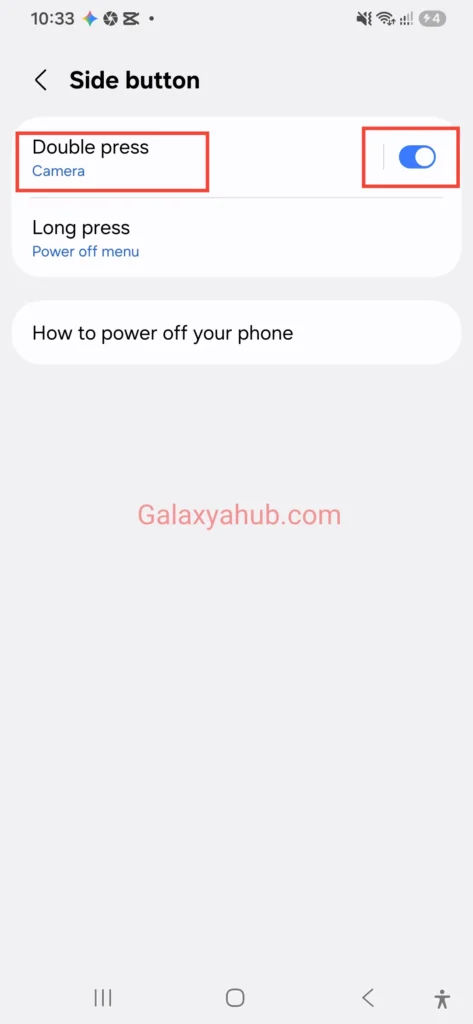
- Disable Unnecessary Features: Turn off tracking autofocus and unnecessary filters that add processing overhead.
- Optimize General Settings: Streamline device performance by applying the best Samsung Galaxy A56 settings.
Problem 7: Black Screen or Camera Not Opening
(Samsung Galaxy A56 Camera Black Screen Fix)
Opening the app only to see a blank dark screen indicates a system thread lock or permission freeze. Here is the recommended Samsung Galaxy A56 camera black screen fix order:
- Force stop the app: Tap the Recent Apps button, then swipe the Camera app away.
- Hard Restart: Hold the Power + Volume Down keys for 10 seconds until the Samsung logo appears.
- Verify Safe Mode: Boot into Safe Mode to rule out third-party camera app conflicts.
- Reset App Permissions: Go to Settings > Apps > Menu (three dots) > Reset app preferences.
Refer to official Android troubleshooting steps on Google Android Help if system-level app crashes persist.
Problem 8: Storage and Overheating During Video
(Samsung Galaxy A56 Camera Overheating While Recording)
Recording 4K video clips for extended periods can cause Samsung Galaxy A56 camera overheating, triggering a thermal warning that shuts down recording.
- Practical Workarounds:
- Drop Resolution to 1080p 60fps: Full HD recording reduces processing load and heat generation significantly.
- Remove Thick Protective Cases: Heavy TPU or leather cases lock in thermal dissipation.
- Free Up Internal Storage: Keep at least 15–20% of your internal memory free. Sluggish storage write speeds exacerbate processing delays.
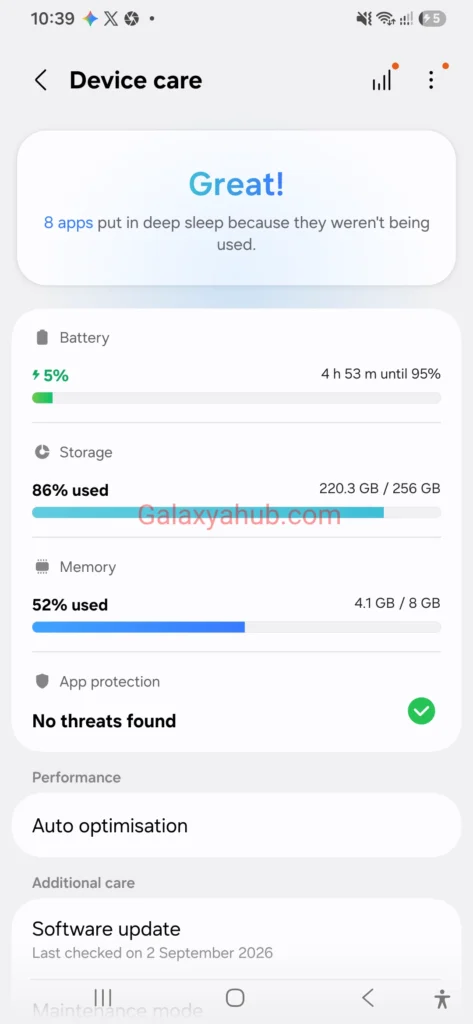
For broader thermal management, see our complete guide on Samsung Galaxy A56 overheating problem solved.
Common Mistakes People Make
- Ignoring the lens glass: Over 50% of blur complaints are resolved by cleaning off skin oils.
- Keeping every AI toggle enabled: More processing isn’t always better; AI tools can cause shutter delay.
- Forgetting Galaxy Store updates: Many users update Google Play apps but forget Samsung-specific system apps.
- Using heavy digital zoom: Digital zoom degrades mid-range sensor output quickly.
- Overlooking low storage: Running out of internal storage creates camera lag and preview freezing.
Helpful Everyday Tips
- Weekly Cleaning: Make wiping your camera lenses a regular habit.
- Enable Double-Tap Shortcut: Map the side key to launch the camera instantly.
- Pre-test before events: Take a quick test shot before important events to check lens clarity and settings.
- Explore Pro Mode: Taking ten minutes to understand manual exposure and focus control makes a big difference in tricky lighting.
For additional device optimizations, explore our full round-up of Samsung Galaxy A56 tips and tricks.
Pros & Cons of the A56 Camera
Pros
- Great daylight clarity with 50MP main sensor.
- Optical Image Stabilization (OIS) helps steady handheld shots.
- Handy Quick Launch side-key shortcut.
- Frequent software patches from Samsung improve camera performance over time.
Cons
- Low-light performance lags behind S-series flagships.
- Scene Optimizer can over-saturate colors by default.
- Occasional shutter lag in indoor lighting.
- 4K video recording can cause thermal throttling during long sessions.
Frequently Asked Questions (FAQs)
Why are my Samsung Galaxy A56 photos blurry even after tapping to focus?
This is usually caused by fingerprints on the lens glass or Scene Optimizer over-smoothing fine details. Clean your camera glass with a microfiber cloth and toggle off Scene Optimizer in Camera Settings.
Does the Samsung Galaxy A56 camera app update separately from system updates?
Yes. Samsung frequently releases camera optimizations through the Galaxy Store. Check Galaxy Store > Updates regularly alongside standard system updates.
How do I fix camera shutter lag on the Galaxy A56?
Turn on Quick Launch, disable Scene Optimizer, close memory-heavy background apps, and ensure you have at least 15% free internal storage.
Can I improve night photos on the A56 without extra accessories?
Yes. Manually select Night Mode, rest your phone against a stable surface, avoid digital zoom, and turn off the flash to capture cleaner ambient light.
Why do colors look different on my phone than on other screens?
The Galaxy A56 features a vivid Super AMOLED panel that punches up color vibrance by default. You can adjust your screen profile under Settings > Display > Screen Mode.
What should I do if my camera app keeps crashing after a One UI update?
Clear the Camera app’s cache and data via Settings > Apps > Camera > Storage, then restart your phone. Check the Galaxy Store for an app patch.
Does a thick protective case affect camera performance?
Yes. A thick case can interfere with thermal dissipation during video recording, leading to overheating, or partially block the ultra-wide lens field of view.
Is Pro Mode worth using for daily photography?
Yes. Pro Mode allows you to control ISO, shutter speed, and manual focus directly, helping you avoid auto-exposure mistakes in tricky lighting.
Final Thoughts
The Galaxy A56 isn’t a flagship camera phone, nor was it designed to be one. However, the majority of Samsung Galaxy A56 camera problems — blur, lag, oversaturation, or unexpected app crashes — are easily fixable through simple setting adjustments, regular app updates, and proper lens care.
If you’ve worked through every step in this guide and your camera still fails to open or focus properly, visit an authorized Samsung Service Center to inspect for hardware issues. For most everyday issues, the fixes above will get your camera working smoothly again.