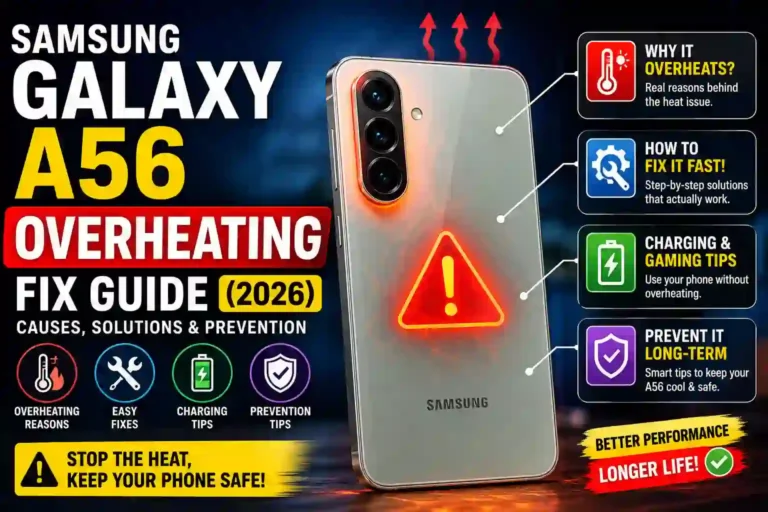
Samsung Galaxy A56 overheating Problem Solved Guide 2026
I almost sent my Galaxy A56 back to the store during the first week I owned it. I was sitting in my car, phone mounted on the dashboard, running Google Maps with the screen on full brightness while it charged off a cheap USB adapter I’d bought at a gas station. Fifteen minutes into a summer drive, the phone flashed a warning that it was too hot to charge and the screen dimmed itself down. I remember thinking, “Great, I bought a phone that can’t handle a road trip.”
Turns out, it wasn’t a broken phone. It was me—stacking three heat sources (sun through the windshield, GPS navigation, and fast charging) on a mid-range phone. Once I understood what was actually going on, the Samsung Galaxy A56 overheating issue basically stopped happening.
If you are wondering, “why is my Samsung Galaxy A56 getting hot?” or if your device has been randomly slowing down, dropping frame rates, or throwing “device is warming up” notifications, this guide covers everything you need to know. We will explore what causes the Samsung A56 overheating problem, effective step-by-step solutions, and how to stop Galaxy A56 from overheating in the future.
Why Is My Samsung Galaxy A56 Getting Hot? (The Real Reasons)
The A56 runs on an Exynos 1580 chip. While this is a capable mid-range processor, mid-tier smartphones generally feature thinner profiles and smaller passive cooling setups than flagship models like the S-series. Because there is less surface area for heat dissipation, heavy thermal load can build up quickly under continuous stress.
From personal testing and community reports, the Samsung Galaxy A56 heating problem usually stems from one (or a combination) of these factors:
- Direct Sunlight or High Ambient Heat: Direct sun on a dashboard or hot outdoor environments prevent internal processor heat from escaping.
- Fast Charging Under Heavy Load: The Galaxy A56 overheating while charging is common when running navigation or streaming at the same time.
- Background Apps Draining CPU: A rogue background process or misconfigured widget pinging location services can cause Samsung Galaxy A56 overheating when not in use.
- Extended Gaming or Camera Usage: When the Samsung Galaxy A56 gets hot when gaming or recording 4K video, the GPU and CPU run at maximum output, generating significant warmth.
- Post-Update System Indexing: A Samsung Galaxy A56 overheating after update scenario is often temporary, caused by background cache rebuilds and app re-optimization.
- Insulating Phone Cases: Heavy silicone, thick leather, or wallet cases trap heat against the glass and frame.
Quick Specs Table
| Spec | Detail |
|---|---|
| Chipset | Exynos 1580 |
| Display | 6.7″ Super AMOLED, 120Hz |
| Battery | 5,000 mAh |
| Charging | 45W wired fast charging |
| Build | Glass front, aluminum/plastic frame |
| Normal Operating Temp | 0–35°C (32–95°F) ambient / ~30–40°C on device |
| Concerning Temp | Consistently above 45°C (113°F) with thermal throttling |
Is Some Warmth Normal? Galaxy A56 Temperature Problem vs. Normal Heat
Before applying fixes, it helps to distinguish between safe operational heat and a genuine Galaxy A56 temperature problem. According to Samsung’s official thermal safety guidelines, mild warmth during heavy tasks or fast charging is expected behavior.
Normal Device Warmth
- Slight warmth after 20 minutes of 3D gaming or recording HD video.
- Moderate heat during 45W wired fast charging.
- Warmth during initial phone setup or cloud restore sessions.
Abnormal Overheating Signs
- The phone feels uncomfortably hot to touch.
- The display automatically dims dramatically or limits refresh rates.
- The system displays a warning message stating charging has been paused.
- Apps crash or close unexpectedly in the background.
- The phone remains hot while sitting idle on a table.
If your device is experiencing severe thermal throttling, follow the Samsung Galaxy A56 overheating fix steps below.
Step-by-Step: How to Fix Samsung Galaxy A56 Overheating Right Now
If your Galaxy A56 gets hot right now, follow these steps immediately to cool down the internal components safely:
- Remove the Protective Case: Take off your phone case immediately to maximize exposure to ambient air. For breathable everyday options, check out our guide on choosing the best Samsung Galaxy A56 back cover.
- Unplug the Charger: Disconnect any cable. Charging a hot battery creates a feedback loop that degrades battery health.
- Close Active & Background Apps: Swipe up to access recent apps and close everything.
- Move to a Cooler, Shaded Area: Move the phone away from direct sunlight or hot car dashboards. Never put your phone in a refrigerator or freezer, as sudden temperature drops create internal liquid condensation.
- Lower Screen Brightness & Refresh Rate: Reduce screen brightness and set motion smoothness to standard 60Hz temporarily.
- Let the Device Rest for 10–15 Minutes: Leave the phone screen-off on a flat, hard surface to let passive heat escape.
Samsung Galaxy A56 Overheating While Charging (And How I Fixed Mine)
The most frequent complaint among owners is that the Samsung A56 gets hot while charging. Because the device supports up to 45W charging, high current naturally increases temperature.
Fast Charger (45W) + Heavy App Usage + Insulating Case = Thermal Throttling Warning
Steps to Fix Charging Heat Issues:
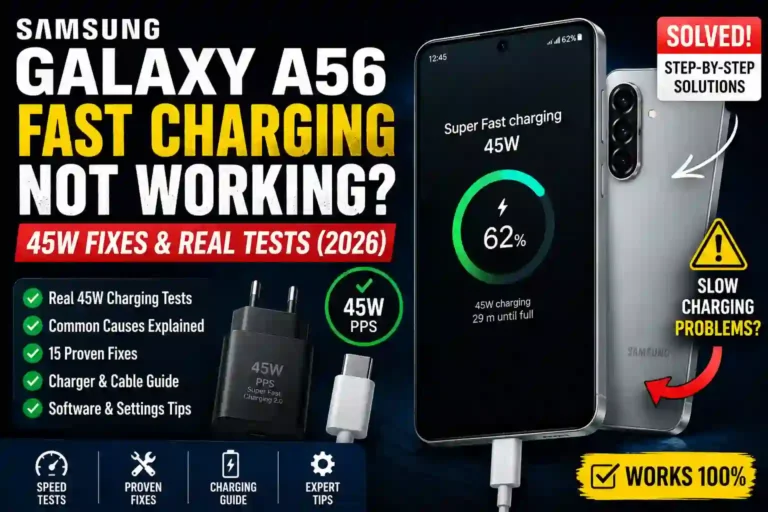
- Use USB Power Delivery (PD) Certified Chargers: Low-quality chargers lack stable power regulation. Always use official or reputable USB-PD chargers. If your device charges slowly or generates excess heat, read our Samsung Galaxy A56 fast charging troubleshooting guide.
- Avoid Heavy Use While Charging: Streaming high-definition video or using GPS while plugged in generates heat from two separate sources simultaneously.
- Charge on Hard Surfaces: Avoid charging on beds, couches, or under pillows where heat accumulates.
- Toggle Fast Charging Off When Not Needed: If charging overnight, go to Settings > Battery > Charging settings and disable Super Fast Charging to keep temps low.

Samsung Galaxy A56 Gets Hot When Gaming and Using Heavy Apps
When intense graphic rendering causes Galaxy A56 overheating while gaming, system safeguards lower processor clock speeds, resulting in frame drops.
Optimization Tips for Mobile Gamers:
- Adjust Graphic Presets: Drop in-game settings from “Ultra” or “High” to “Medium”. This significantly reduces processor strain while preserving smooth gameplay.
- Configure Game Booster: Launch Samsung’s built-in Game Booster to cap frame rates and set performance modes to balance temperature and battery life.

- Take Periodic Rest Breaks: A short 5-minute break every 30 to 45 minutes lets the internal heat dissipate.
- Adjust System Options: Fine-tune your device using the best Samsung Galaxy A56 settings to minimize background resource allocation.
Samsung Galaxy A56 Overheating After Update or When Not in Use
If you notice Samsung Galaxy A56 overheating after update or heating up while idling, software conflicts are usually the culprit.
Fixes for Idle and Post-Update Overheating:
- Reboot the Device: A simple restart clears temporary background loops and cache conflicts.
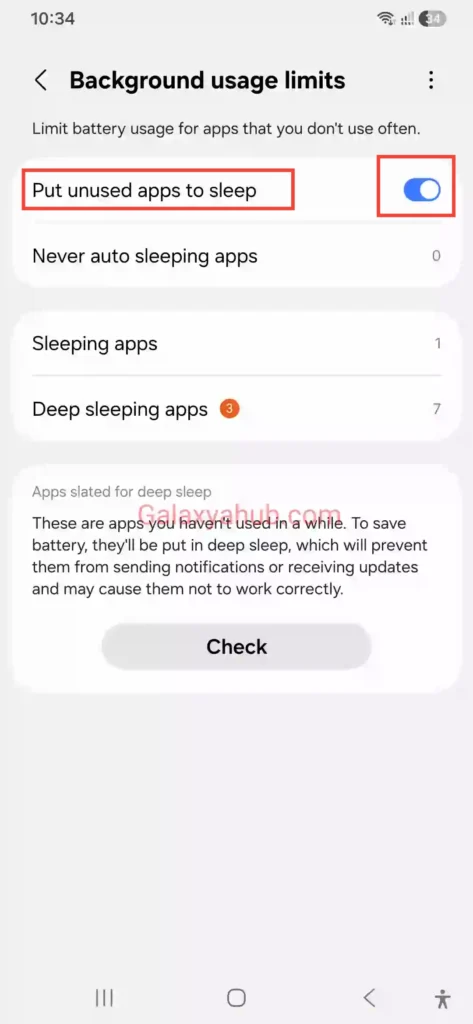
- Optimize Background Usage Limits: Go to Settings > Battery > Background usage limits and enable Put unused apps to sleep.
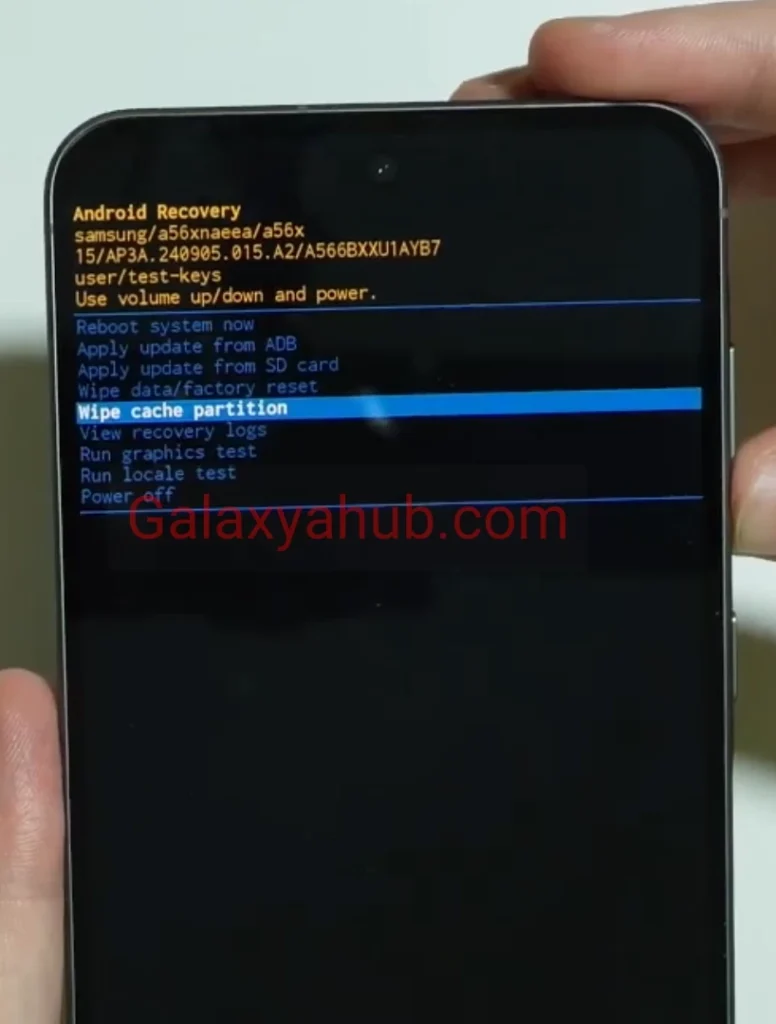
- Wipe Cache Partition: Turn off the phone, connect it to a computer via USB, press and hold
Power + Volume Upto enter Recovery Mode, and select Wipe Cache Partition.
- Check Battery Consumption: Review Settings > Battery > Battery usage to detect runaway background apps. For a complete fix on power drain issues, consult our guide on how to fix Samsung Galaxy A56 battery drain.
Common Mistakes That Make the Samsung A56 Overheating Problem Worse
Avoid these common missteps when trying to cool down your device:
- ❌ Using Freezers or Ice Packs: Rapid thermal shifts cause internal condensation, damaging circuit boards.
- ❌ Pushing Through Thermal Warnings: Ignoring overheating alerts can cause automatic system shutdowns or battery degradation.
- ❌ Using Power Bank Cases: Charging cases generate double heat while insulating the back cover.
- ❌ Keeping Unnecessary Connectivity Features Active: Leaving Mobile Hotspot, GPS, and Bluetooth running in weak signal areas forces antennae to use extra power.
Long-Term Prevention Tips
Adopting these habits helps maintain lower operating temperatures over time:
- Keep One UI Updated: System updates frequently include thermal management optimization.
- Manage Storage Capacity: Keep at least 10–15% of internal storage free so the OS operates smoothly.
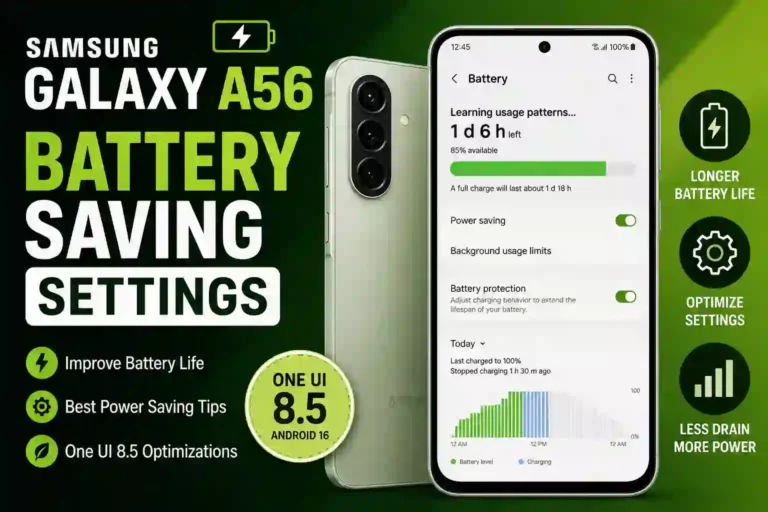
- Apply Power Saving Modes: Review Samsung Galaxy A56 battery saving settings to reduce background CPU processing.
- Use Lightweight Cases: Select slim, well-ventilated, or polycarbonate covers rather than heavy rubber mounts.
- Explore Helpful Feature Tweaks: Check out top Galaxy A56 tips and tricks to improve performance and efficiency.
When It’s a Hardware Issue: Samsung Galaxy A56 Heating Problem Solution
While most heat issues are software or environmental, hardware defects do occasionally occur.
Signs of Hardware Malfunction:
- The phone overheats rapidly on a fresh restart with no apps open.
- Visible battery swelling or back panel bulge.
- Severe heating persists even after performing a full software reset.
If a software cleanup does not solve the problem, learn how to factory reset your Samsung Galaxy A56 as a final troubleshooting step before reaching out to official Samsung Support or an authorized service center for hardware repairs.
Pros & Cons of How Samsung Handles Heat on the A56
Pros
- Effective software throttle protection prevents permanent chip damage.
- Integrated Game Booster offers controls for balancing frame rates and device temperature.
- Detailed battery health diagnostics make identifying rogue apps easy.
Cons
- Thinner mid-range chassis lacks a large dedicated vapor chamber cooling setup.
- 45W fast charging generates noticeable surface warmth.
- Aggressive thermal throttling can lower frame rates during extended gaming sessions.
FAQs
Is it normal for the Galaxy A56 to get warm during charging?
Yes, mild warmth during fast charging is normal. It becomes a concern only if the device becomes uncomfortably hot to hold or displays a thermal warning message.
Why does my A56 overheat even when I am not using it?
This usually points to background apps running location services, syncing data, or a rogue background process. Check Settings > Battery > Battery usage to identify high-consumption apps.
Can overheating permanently damage my Galaxy A56?
Modern Galaxy devices have built-in safety safeguards that throttle performance or shut down to prevent hardware damage. However, frequent high heat over long periods can shorten battery lifespan.
Does using a case make the Galaxy A56 heating problem worse?
Yes, thick rubber or leather cases insulate the device and trap heat against the back panel. Switching to a thin, breathable case helps lower operating temperatures.
Will a factory reset fix my Samsung Galaxy A56 overheating issue?
A factory reset fixes overheating caused by software corruptions, rogue background apps, or update conflicts. It will not fix physical battery wear or hardware issues.
Understanding how your Galaxy A56 manages thermal output makes it easy to prevent overheating. By adjusting your charging habits, optimizing graphics settings, and keeping background apps in check, you can keep your phone running cool and smooth.