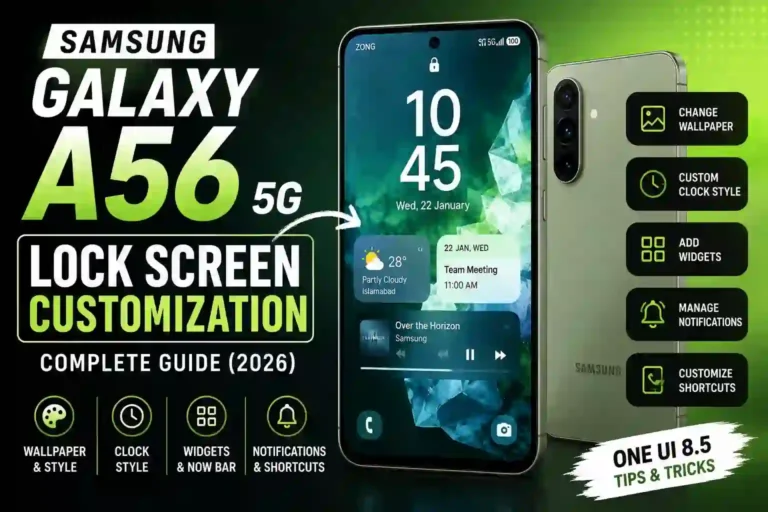
Samsung Galaxy A56 Lock Screen Customization: Complete Guide (2026)
I’ll be honest — I almost didn’t bother customizing my lock screen when I first got the Galaxy A56. I figured it was just the “wallpaper and clock” screen you swipe past fifty times a day without really looking at. Then a friend saw mine still running the default Samsung clock with the stock nature wallpaper and said, “You’ve had this phone for three weeks and you haven’t even touched the lock screen?” That comment stuck with me more than it should have.
So I spent a weekend actually digging into it. That was back when my A56 was still on One UI 8. Since then, my phone got the One UI 8.5 update, and honestly, enough changed on the lock screen side that I went back and rebuilt half my setup from scratch. So this isn’t just a “here’s how to change your wallpaper” guide anymore — it’s been updated to reflect what’s actually different now, what broke along the way, and what I had to troubleshoot when things didn’t work as expected.
If you’ve got an A56 sitting in your pocket right now, whether you’re still on One UI 8 or you’ve already gotten the 8.5 update, you can follow along step by step and end up with a lock screen that actually feels like yours — without falling into the same traps I did. If you’re new to the device, exploring the first things to do on Samsung Galaxy A56 will help you lay a solid foundation before diving deep into visuals.
What You Can Actually Customize on the A56 Lock Screen
Before jumping into steps, it helps to know the full menu of what’s possible. On One UI (the software running on the A56), the lock screen isn’t just a wallpaper — it’s made up of several layers you can mix and match:
- Wallpaper — Static image, Samsung’s dynamic/motion wallpapers, downloadable interactive wallpapers, or your own photo.
- Clock style — Dozens of fonts, layouts, and colors.
- Widgets — Weather, calendar, music controls, steps, battery, and more.
- Now Bar — A real-time info strip near the bottom of the lock screen for things like music, timers, and live alerts.
- Shortcuts — Two customizable app icons at the bottom corners.
- Notifications — How much detail shows up when your phone is locked.
- Always On Display — A low-power version of the lock screen that’s always visible.
Each of these can be adjusted independently, which is honestly the best part. You’re not locked into a single theme — you build your own combination using the native Samsung Galaxy A56 One UI customization suite.
Galaxy A56 Lock Screen Specifications Table
| Feature | Details on Galaxy A56 (One UI 8.5) |
|---|---|
| Software base | One UI 8.5, based on Android 16 QPR2 |
| Update rollout | Began in South Korea, expanded globally through May–June 2026 |
| Lock screen wallpaper types | Static photo, dynamic wallpaper, downloadable interactive wallpaper, video wallpaper |
| New in 8.5 | Automatic layout adjustment for people/pet wallpapers, expanded clock styles, new downloadable interactive wallpapers |
| Clock styles available | 20+ built-in styles, additional options via Galaxy Themes |
| Widgets supported | Weather, calendar, music, steps, battery, alarm, and more |
| Now Bar | Supported (requires One UI 7 or later; toggled under Lock screen and AOD settings) |
| Shortcuts | 2 customizable icons (bottom-left and bottom-right) |
| Always On Display | Yes, supports scheduling, tap-to-show, and automatic dimming |
| Good Lock LockStar | Installable, but select advanced modules operate with reduced functionality vs. flagships |
| AI features tier | “Awesome Intelligence” (a lighter AI feature set than the Galaxy S26 series) |
Step-by-Step: Changing Your Wallpaper Properly
Most people do this the “quick way” by long-pressing the home screen, but that actually applies the wallpaper to both home and lock screen together — which isn’t always what you want. Here’s how to change your Galaxy A56 lock screen wallpaper while maintaining total control:
- Go to Settings > Wallpaper and style.
- Tap Lock screen at the top (this separates it from the home screen).
- Choose from My wallpapers, Photos, or the Dynamic and Interactive categories.
- If you pick a photo, drag to reposition it — the A56’s screen is tall, so faces or focal points can get cropped near the clock if you’re not careful.
- Tap Done, then choose whether to apply it to lock screen only or both screens.
What’s new here in One UI 8.5: If you use a photo with a person or a pet in it, the system now automatically adjusts the layout so the subject doesn’t get awkwardly hidden behind the clock or widgets. Before this update, I had a photo of my dog where his face sat almost directly under the clock text — genuinely annoying to look at every day. After the 8.5 update, that same photo automatically repositioned itself so his face cleared the clock area. It’s a small detail, but if you’ve ever fought with cropping a portrait photo for your lock screen, you’ll appreciate it.
There’s also a new batch of downloadable interactive wallpapers added in 8.5. These live under the Dynamic/Interactive tab in the wallpaper picker rather than a separate app, and a few of them respond to touch or unlock gestures rather than just shifting color over time.
Pro Tip: Dynamic and interactive wallpapers look crisp on the A56’s Super AMOLED display, but they do draw a bit more power. If you notice battery changes after enabling them, review our guide on how to improve Samsung Galaxy A56 battery life.
Step-by-Step: Customizing the Clock Style and Color
This is the part most people skip, and it’s a shame because it changes the entire personality of your lock screen settings.
- From the lock screen, long-press anywhere on the clock.
- This opens the clock style picker directly without digging through menus.
- Swipe through the styles; some show date only, others show battery percentage, and some offer minimalist single-line fonts.
- Tap the color circle at the bottom to change the clock’s color — you can match it to your wallpaper palette or make it stand out.
- Tap Done.
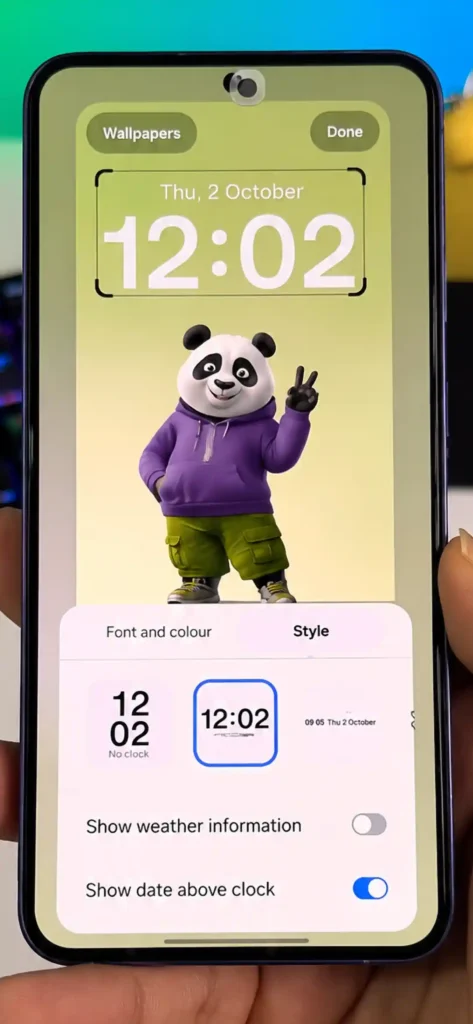
One UI 8 vs One UI 8.5 Clock Differences: One UI 8 laid the underlying architectural groundwork, but One UI 8.5 added more font and layout variety in the built-in picker along with better handling for clocks paired with widgets underneath.
If your clock looks squished or oddly placed, it’s often because a widget got added afterward and pushed elements around. Rearranging the widget underneath usually fixes the spacing automatically.
Adding and Rearranging Lock Screen Widgets
Widgets provide essential live information under the clock — weather, upcoming calendar events, music controls, and battery levels.
- Long-press the lock screen clock to enter edit mode.
- Tap Widgets at the bottom of the display.
- Select up to a few options — Samsung caps how many you can stack to maintain visual cleanliness.
- Drag to reorder; the top widget receives higher visual priority.
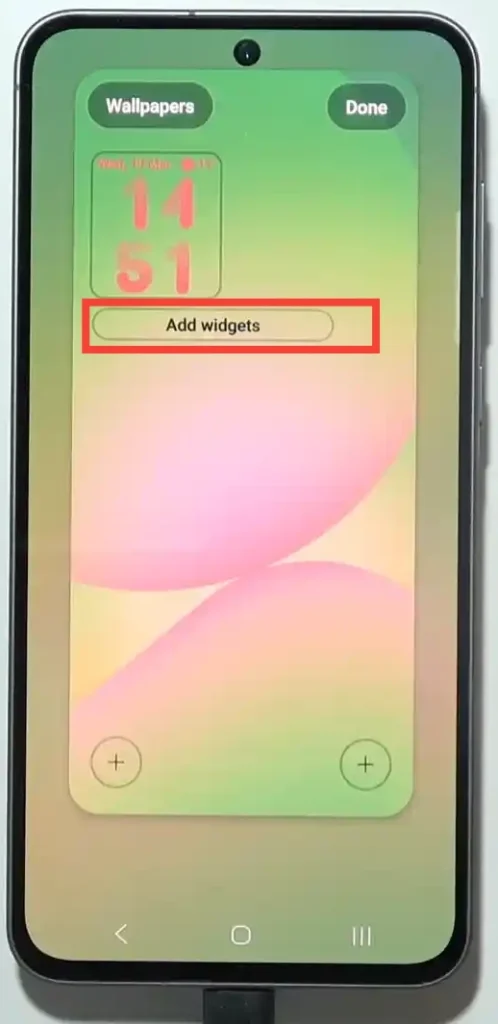
I settled on weather and my calendar. The weather widget genuinely changed a small daily habit for me — I stopped opening a separate weather app because the temperature and rain chance are right there every time I check the screen. Avoid overloading this area; stacking too many widgets makes the screen feel cluttered and harder to scan at a glance.
Setting Up and Using the Now Bar on the Lock Screen
The Now Bar is a dedicated real-time activity strip positioned near the bottom of your lock screen and Always On Display. It handles active tasks like music playback, timers, live sports updates, or ongoing calls without unlocking the device.
How to Enable the Now Bar:
- Navigate to Settings > Lock screen and AOD.
- Select Now bar.
- Tap See all under Live notifications to inspect supported applications.
- Toggle on your preferred features (e.g., Now Brief, Current mode, Do Not Disturb status, Flashlight).
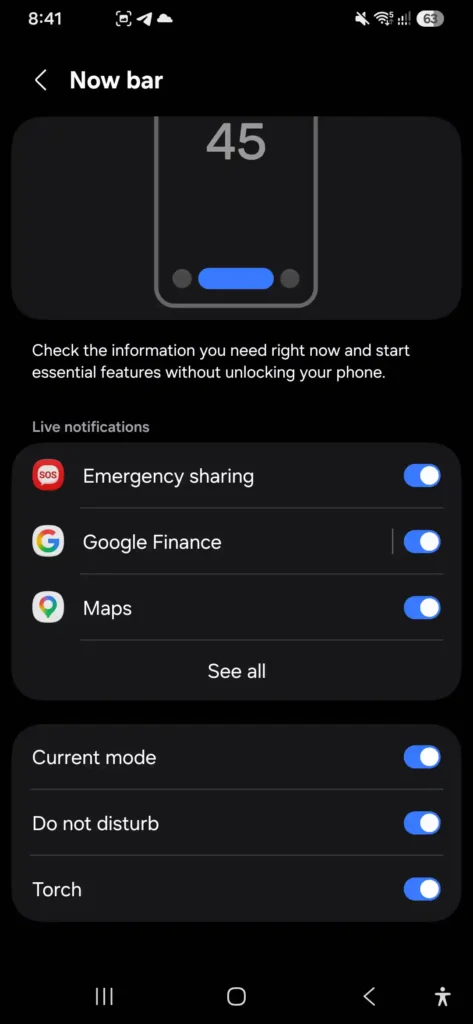
If the Now Bar appears empty, keep in mind that it only populates when a supported app actively runs a background task. If no music is playing and no timer is running, the bar automatically hides.
If supported apps fail to display live updates, verify that individual app permissions are enabled under “Live notifications.” Switching on the Now Bar system-wide does not always automatically enable third-party app access.
Setting Up Lock Screen Shortcuts (App Icons)
The two app shortcuts located in the bottom corners default to Flashlight and Camera, but you can assign almost any installed application to these slots.
- Long-press the lock screen and select Shortcuts.
- Select either the Left or Right slot.
- Choose your preferred app from the populated list.
- Confirm your selection.
I originally swapped the flashlight for a quick note-taking app, but I quickly realized how often I rely on the flashlight at night. I swapped it back within forty-eight hours. Tailor these icons to your daily physical habits rather than app novelties. Note that lock screen shortcuts operate completely independently of your side-panel drawers; adjusting them won’t interfere with your Samsung Galaxy A56 hidden features or Edge panels.
Always On Display (AOD): Is It Worth Turning On?
Always On Display keeps a dimmed clock and notification icons visible while the device rests.
- Go to Settings > Lock screen and AOD > Always On Display.
- Choose between Tap to show, Show always, or Show as scheduled.
- If scheduled, set your preferred operating window (e.g., 7:00 AM to 11:00 PM).
- Select a dedicated AOD clock style (configured independently from your main lock screen clock).
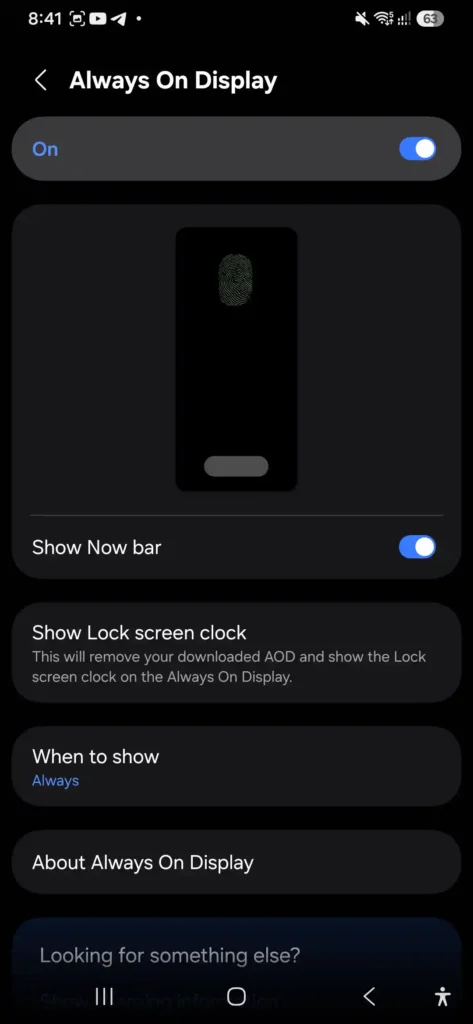
Running AOD continuously on “Show always” results in a modest power draw of roughly 4% to 5% per day, as the AMOLED panel lights only the active pixels. Using “Tap to show” preserves battery life while maintaining instant clock access when needed. If you notice unexpected battery consumption beyond this, check our guide on the Samsung Galaxy A56 battery drain fix.
Lock Screen Notifications: Privacy vs. Visibility
Protecting personal data on your screen is critical when in public spaces.
- Navigate to Settings > Lock screen and AOD > Notifications.
- Select Show content, Icons only, or Hide notifications.
- Fine-tune notification details per app within individual application settings.
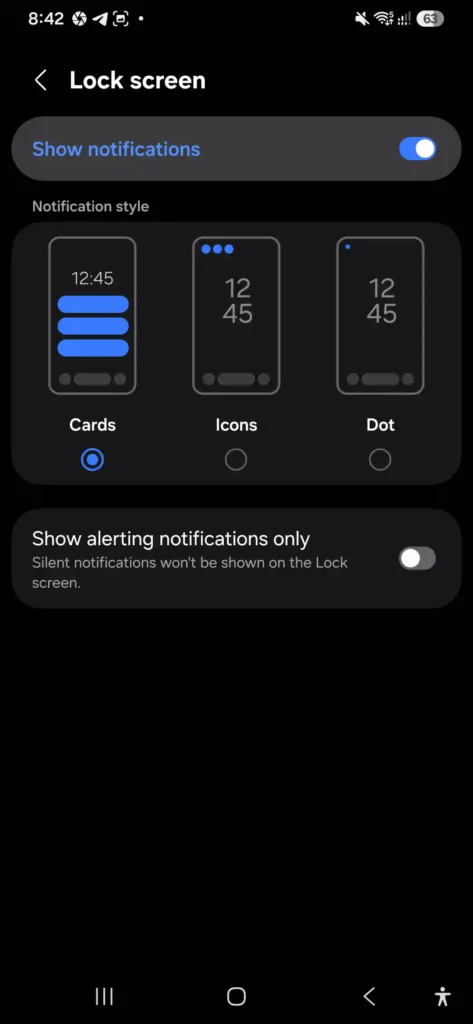
Switching notification preview display to “Icons only” prevents casual onlookers from reading incoming text snippets while your phone rests face-up on a table.
Using Multiple Lock Screen Styles and Wallpapers
Samsung allows you to save and alternate between multiple lock screen presets:
- Long-press the lock screen and tap the + icon to create a new layout.
- Customize a unique wallpaper, clock font, and widget pairing.
- Swipe horizontally between saved lock screens while in edit mode to swap profiles.
You can configure a minimal layout for working hours and a personal photo-centric layout for weekends. Alternatively, select multiple gallery photos within the wallpaper picker to enable automatic wallpaper rotation upon each screen wake. For deeper system tweaks, explore our collection of the best One UI settings for Samsung A56.
One UI 8 vs. One UI 8.5 Lock Screen Comparison
| Feature Capability | One UI 8 | One UI 8.5 (Android 16 QPR2) |
|---|---|---|
| Photo Subject Detection | Manual cropping required | Automatic alignment for people and pets |
| Clock Customization | Standard font choices | Expanded typography, transparency & size scaling |
| Interactive Wallpapers | Basic motion support | Touch-responsive & dynamic downloadable variants |
| Now Bar Integration | Base framework rollout | Expanded live activities & smoother transparency blur |
| System Settings Paths | Settings > Lock screen | Settings > Lock screen and AOD |
If you are looking to maximize system performance across all core software layers, cross-reference your lock screen setup with the best Samsung Galaxy A56 settings.
Good Lock’s LockStar on Galaxy A56: Is It Worth Installing?
Samsung’s Good Lock suite includes the LockStar module, designed to allow free-form placement of lock screen elements, custom unlock icons, and third-party widgets.
While LockStar installs smoothly on the Galaxy A56 via the Galaxy Store, select advanced features run with scaled-back options compared to flagship Galaxy S-series devices. Samsung optimizes these background rendering layers differently on mid-range hardware.
- Works Well: Moving standard clocks, repositioning shortcuts, altering notification layouts.
- Limitations: Certain complex animations and overlapping widget capabilities are simplified.
LockStar remains a solid free upgrade if you desire precise positioning control, but native One UI 8.5 settings now handle ninety percent of user customization needs out of the box.
Troubleshooting Common Galaxy A56 Lock Screen Issues
- Lock screen customization options greyed out: If you have Good Lock’s LockStar active, it overrides native Settings. Disable LockStar’s master toggle inside the app to restore standard system settings access.
- “Touch and hold to edit” not responding: Exit to the home screen and access settings directly through Settings > Lock screen and AOD. If the gesture remains unresponsive, restart the device.
- Now Bar showing app name without live data: This indicates the individual third-party app’s live background stream is updating slowly. Check the Galaxy Store or Google Play Store for pending app updates.
- Settings crash during lock screen edit: Outdated Good Lock modules following a One UI system update are the primary cause of settings crashes. Update all installed modules inside Good Lock.
- Features missing on carrier devices: Certain carrier-branded devices receive software builds on a staggered schedule. Verify build numbers under Settings > Software update. If you experience network or sync errors during setup, consult our guide on fixing Samsung Galaxy A56 Wi-Fi problems.
How the A56 Compares to the A55 and A36
The Galaxy A56, A55, and A36 share the same underlying One UI customization interface. The core lock screen toolkit — widgets, Now Bar, shortcuts, and clock styles — functions identically across all three devices when updated to the same software version.
However, visual execution varies slightly based on display hardware differences:
- The Galaxy A56 features refined bezel symmetry and higher peak brightness, making AOD clock faces and dynamic wallpapers pop more vividly outdoors than on the older A55.
- Processing efficiency on the A56 handles live background wallpapers with lower latency than the A36.
For a broader hardware breakdown beyond lock screen features, see our full Samsung Galaxy A56 vs A55 comparison or evaluate upgrade options in our Samsung Galaxy A56 vs A36 buying guide.
Common Lock Screen Customization Mistakes to Avoid
- Applying wallpapers globally by accident: Verify that you select “Lock screen only” when setting custom photos if you want a separate home screen image.
- Overpacking widgets: Stacking more than two or three widgets creates visual clutter and slows down at-a-glance readability.
- Leaving notification details public: Ensure sensitive messaging app previews are set to “Icons only.”
- Mismatched AOD and Lock Screen clocks: Remember that Always On Display clock formatting is managed in a separate menu tab from your primary lock screen clock face.
- Expecting full flagship LockStar features: Understand hardware tiers so you don’t spend time troubleshooting scaled-back Good Lock animations.
Useful Daily Operating Tips
- Discover unique fonts: Open the pre-installed Galaxy Themes store to download free custom fonts and lock screen clock designs.
- Adjust night brightness: Use the lock screen color picker to select warmer clock tones (amber or soft red) to reduce glare in dark rooms.
- Instant shortcut switching: Lock screen shortcuts update instantly upon selection — test app combinations for a few days without needing a system reboot.
- Keep modules updated: Check for module updates inside Good Lock after every major Android release to prevent layout glitches.
- Secure Folder isolation: Secure Folder uses an isolated, independent lock screen settings layer that does not inherit your primary lock screen visuals.
Pros & Cons of Galaxy A56 Lock Screen Customization
Pros
- Deep native visual control without needing third-party launchers.
- Automatic photo subject repositioning in One UI 8.5 prevents clock overlap.
- Real-time info tracking via the Now Bar reduces screen-unlock frequency.
- Multiple saved layout profiles allow quick toggling between work and personal setups.
Cons
- Dynamic wallpapers and Always On Display introduce mild battery overhead.
- Fixed limit of two corner app shortcut slots.
- Select Good Lock LockStar modules operate with reduced features compared to Galaxy S-series flagships.
Frequently Asked Questions
Can I use a personal photo as the lock screen background on Galaxy A56?
Yes. Go to Settings > Wallpaper and style > Lock screen, tap Photos, and choose any image from your gallery. One UI 8.5 will automatically scale the subject to avoid blocking clock text.
Does changing the lock screen wallpaper also change the home screen?
Not unless you select “Both.” Samsung gives you explicit toggles to apply changes to the lock screen only, home screen only, or both screens simultaneously.
Why did my lock screen clock shift position automatically?
The clock layout auto-adjusts whenever you add or resize widgets beneath it to maintain proper spacing. Removing or reordering widgets restores standard clock placement.
How much battery does Always On Display consume on the A56?
Continuous AOD (“Show always”) uses approximately 4% to 5% battery over a 24-hour period. Switching to “Tap to show” reduces power consumption down to negligible levels.
Why is my Now Bar empty?
The Now Bar displays information only when supported applications (such as media players, timers, or navigation apps) have active background tasks running. When no tasks are active, it hides automatically.
Is Good Lock LockStar fully supported on the Galaxy A56?
LockStar installs and runs fine for standard tasks like repositioning elements, but some complex animation modules run with reduced functionality compared to flagship Galaxy devices.
What is the major lock screen change between One UI 8 and One UI 8.5?
One UI 8.5 introduces intelligent subject positioning for pet and portrait photos, refined clock transparency controls, and new interactive live wallpapers.
Taking fifteen minutes to configure your Samsung Galaxy A56 lock screen elevates your daily interaction with the phone. By combining the layout adjustments of One UI 8.5, tailored widgets, and smart notification settings, your device becomes more functional every single time you pick it up. For additional optimization steps across camera modes and performance toggles, check out our roundup of Samsung Galaxy A56 tips and tricks.

3 Comments