
Best One UI Settings for Samsung A56 (2026) – Improve Battery, Speed & Privacy
I almost returned my Samsung Galaxy A56 5G in the first week. Not because the phone was bad—the screen looked gorgeous and the camera was solid for the price. My problem was the software. Notifications kept popping up from apps I never even opened. The battery dropped from 100% to 60% by lunch. And every time I typed something, autocorrect suggestions from three different keyboards showed up like an argument breaking out on my screen.
Turns out, none of that was the hardware’s fault. It was Samsung’s One UI, straight out of the box, doing what Samsung thinks is “helpful” by default.
Once I spent a weekend actually going through the menus properly—not just skimming—the phone felt like a completely different device. It became smoother, quieter, safer, and the battery actually made it to bedtime.
If you just picked up an A56 (or you’ve had it for a while and it has been annoying you), this is the exact list of best One UI settings for Samsung A56 to change first. This best settings after setup samsung a56 checklist requires no fluff or endless exploration—just clear changes that actually make a difference.
Quick Specs Table
Before we dive into the step-by-step tweaks, let’s take a quick look at the core hardware of the device to understand the engine under the hood. For a deeper breakdown of how this hardware stacks up against other mid-rangers, check out our Samsung Galaxy A56 vs. A36 Comparison.
| Spec | Details |
|---|---|
| Software | One UI 8 (Android 16 base, as of 2026) |
| Display | 6.7″ Super AMOLED, 120Hz adaptive refresh rate |
| Chipset | Exynos 1580 (4 nm processor) |
| RAM Options | 8GB / 12GB LPDDR4X |
| Battery | 5,000mAh with 45W wired charging support |
| Security | Knox Vault, optical in-display fingerprint |
| Update Policy | 6 years of major OS and security upgrades |
(Note: Specs can vary slightly by region—always verify your specific model number in Settings > About Phone.)
Samsung Galaxy A56 Privacy Settings to Fix First
This is where I’d recommend starting. Samsung bundles a lot of tracking, diagnostic telemetry, and personalized advertisement permission requests into the initial setup wizard. Most people just tap “Allow All” to get through it faster. That is a major mistake. Use these samsung galaxy a56 privacy settings to reclaim control of your data:
1. Tighten Your App Permissions
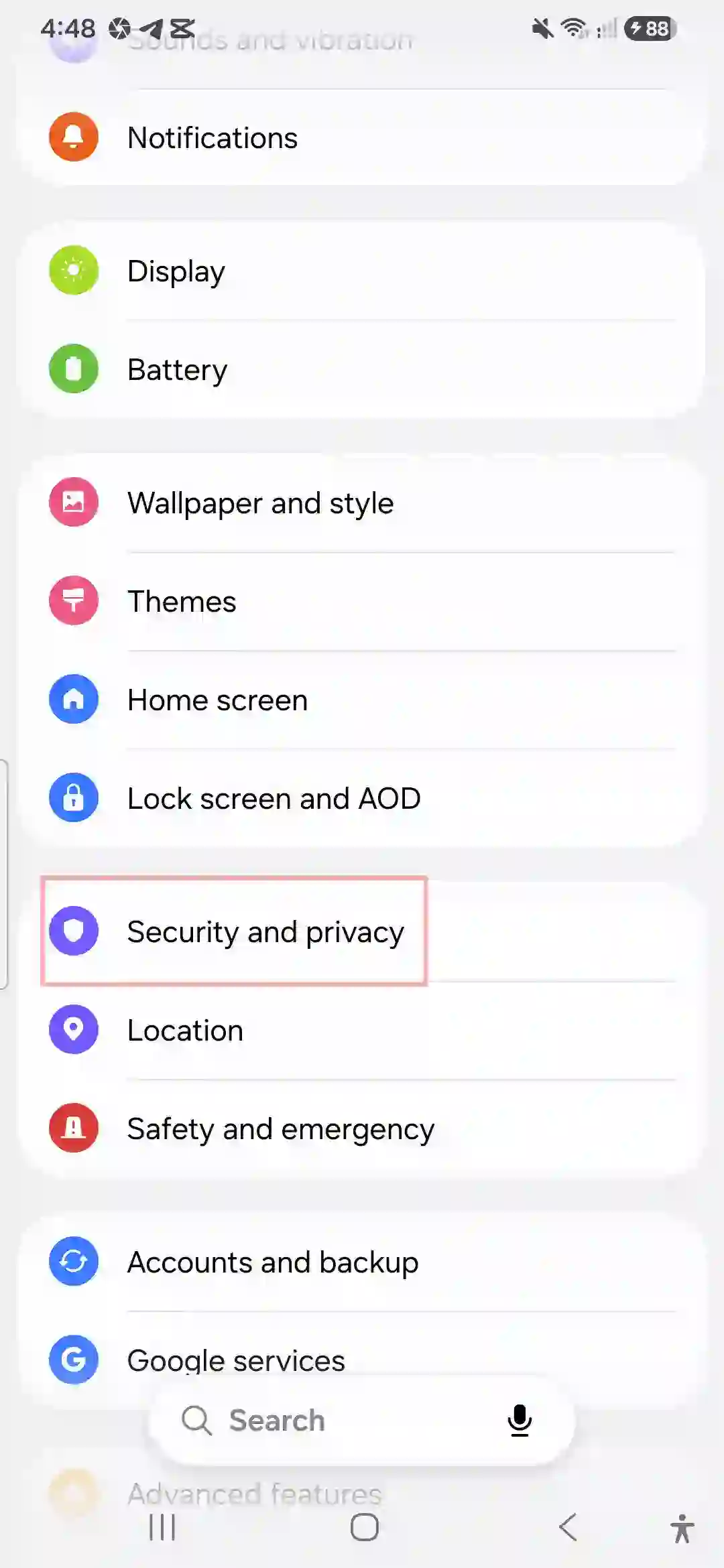
Go to Settings > Security and Privacy > Permission Manager. I highly recommend auditing these permissions one by one. I found a random third-party flashlight app that had default access to my contacts and precise location.
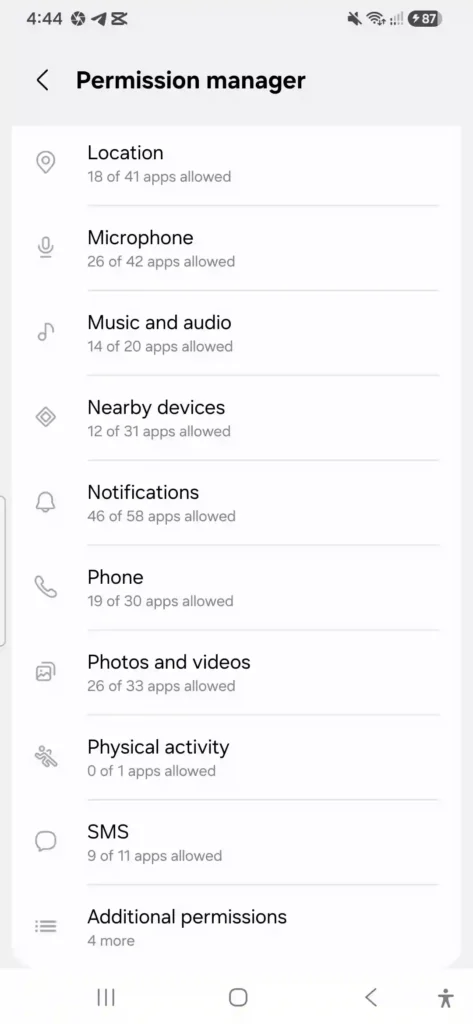
- The Rule: Revoke any permissions that do not make logical sense. A calculator app does not need access to your camera, and a basic QR reader does not need to listen to your microphone.
2. Disable Samsung’s Customization Service
Go to Settings > Security and Privacy > More Privacy Settings > Customization Service. Turn this off if you do not want Samsung actively tracking your app usage, location history, and search history to build an advertising profile. Deactivating this will not break any core system features.
3. Review Google’s Account Tracking
Because Android runs underneath One UI, you must also clean up Google’s built-in trackers. Navigate to Settings > Google > Manage your Google Account > Data & Privacy. Disable “Web & App Activity” or set it to auto-delete after 3 months to prevent background profiling.
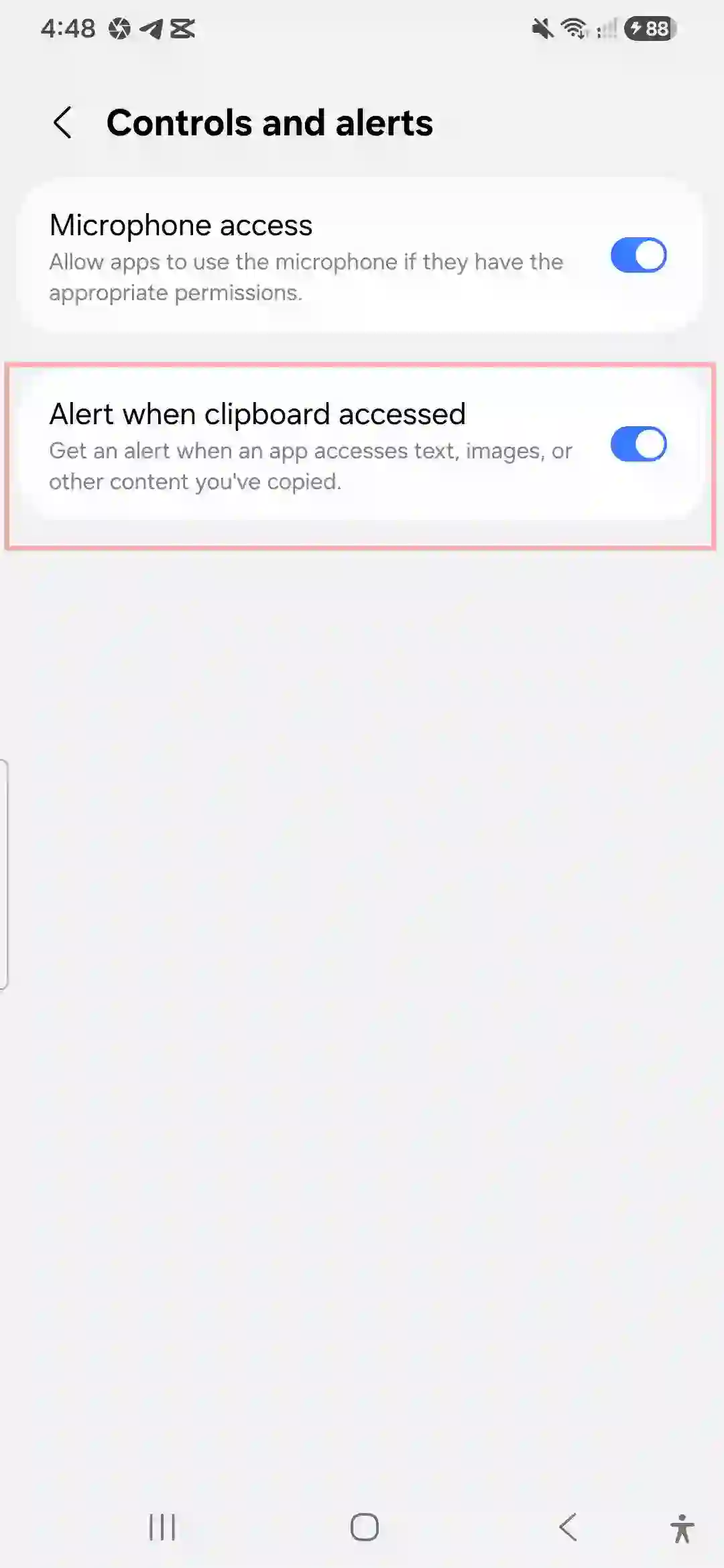
4. Enable Clipboard Access Alerts
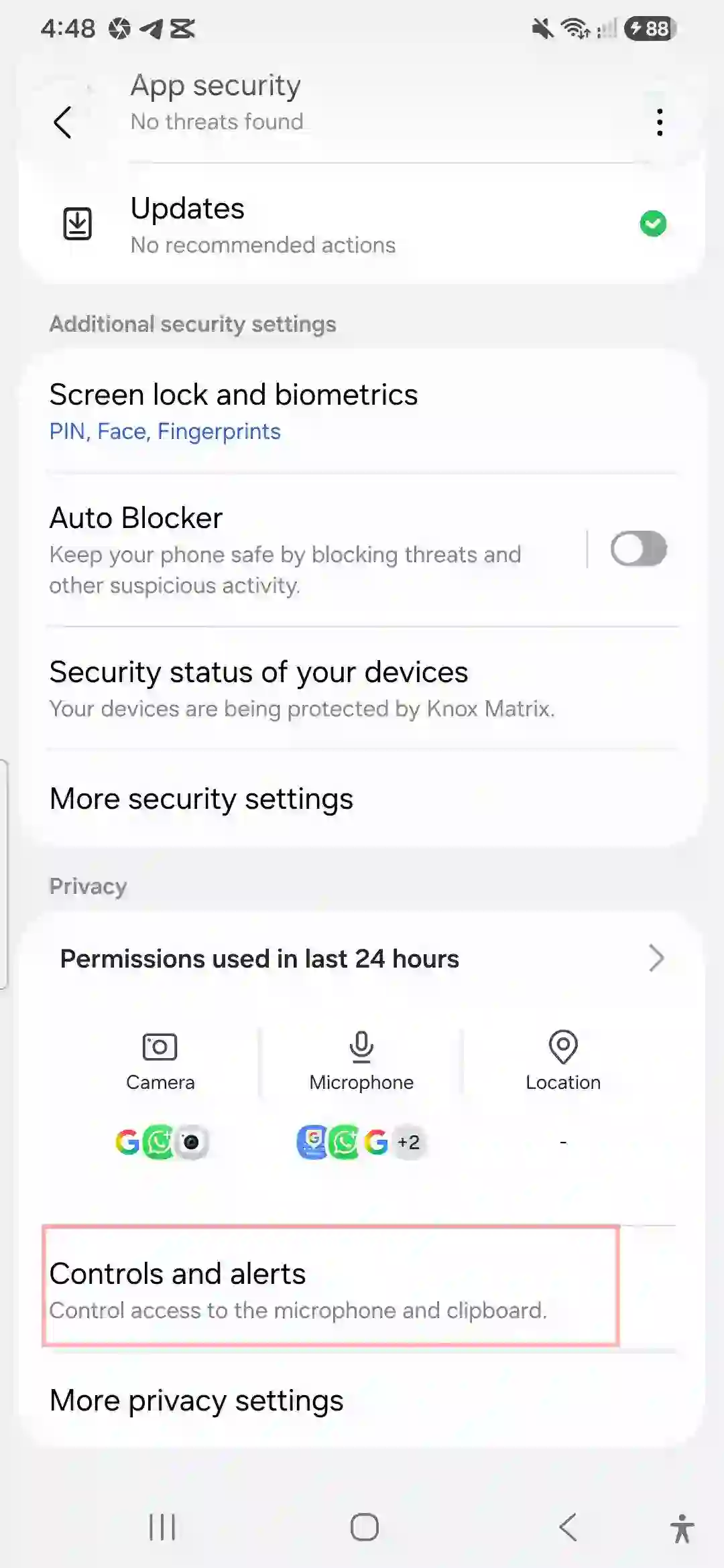
Go to Settings > Security and Privacy > More Privacy Settings and turn on the toggle for Alert when clipboard accessed. This sends a tiny popup notification whenever an app reads your copied text, which is an excellent defense against sketchy apps trying to sniff your passwords or bank details.
Security Settings That Actually Matter
Security can feel boring until your phone gets lost or a friend asks to borrow it “for a second” and immediately starts swiping through your personal photos. Adjusting these samsung galaxy a56 security settings ensures your physical and digital data remains private.
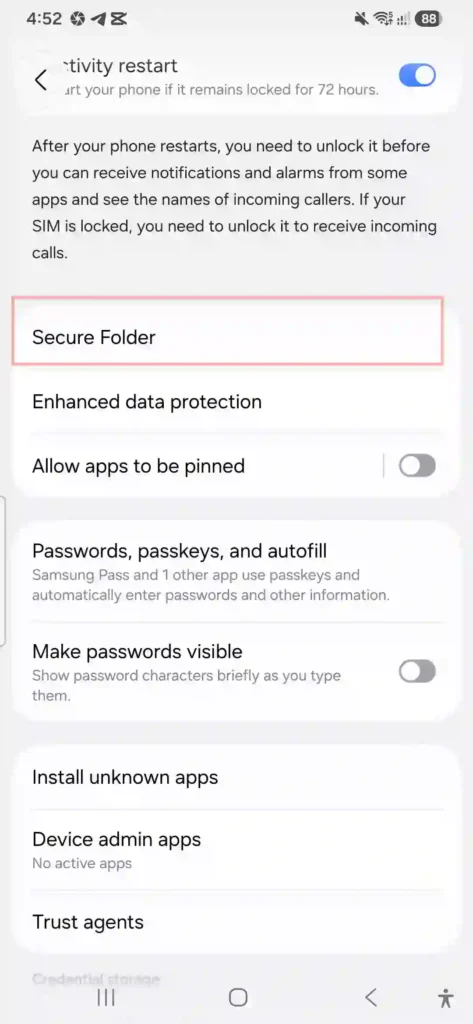
Set Up Secure Folder
Go to Settings > Security and Privacy > Secure Folder. Secure Folder utilizes Samsung’s hardware-based Knox Vault security framework to create a sandboxed, encrypted partition on your device. I keep banking apps, work emails, and sensitive documents in here. It requires its own unique PIN or fingerprint, keeping it entirely isolated from the rest of your system.
Configure Find My Mobile Properly
Do not just toggle this on—actually test it. Go to Settings > Security and Privacy > Lost Device Protection. Ensure Offline Finding is enabled so your phone can be located by other nearby Galaxy devices even if it loses Wi-Fi or cellular data.
Prioritize Fingerprint Recognition Over Face Unlock
While the face unlock feature on the A56 is fast, it relies on a standard 2D front-facing camera. This means it can occasionally be tricked by high-resolution photos or struggle in dim lighting. Set up the optical in-display fingerprint sensor under Settings > Security and Privacy > Biometrics > Fingerprints as your primary biometric unlock method.
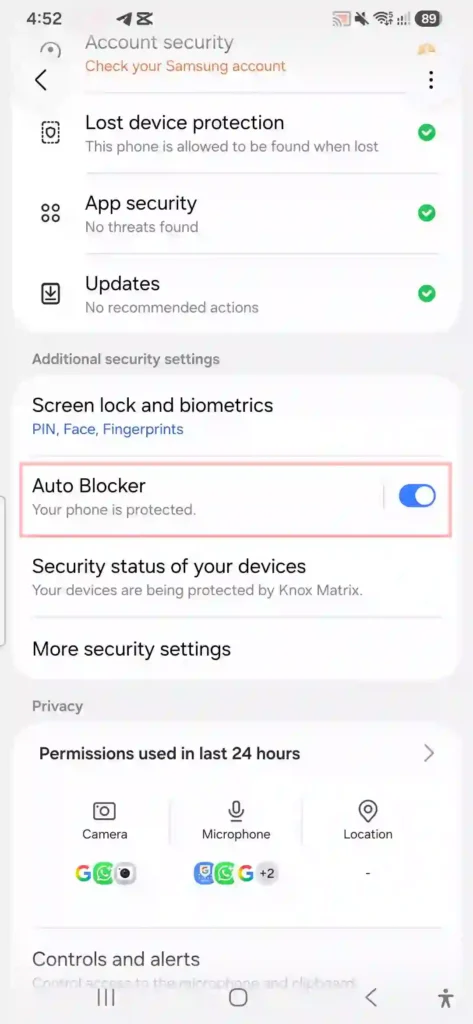
Enable the New Auto Blocker
Go to Settings > Security and Privacy > Auto Blocker. This is an exceptional defense mechanism that:
- Prevents app installations from unauthorized sources (sideloading via sketchy web links or PDF files).
- Turns on app security checks to scan for malware.
- Blocks malicious commands from being sent to your phone via a USB cable (ideal when using public charging stations).
Display Settings for Better Battery and Comfort
The 120Hz Super AMOLED panel is one of the best reasons to own this device, but leaving everything on default will absolutely tank your battery. To combat this, apply these samsung galaxy a56 display settings:
- Refresh Rate Management: Go to Settings > Display > Motion Smoothness. By default, it is set to “Adaptive” (switching dynamically up to 120Hz). If you want to squeeze out maximum battery life during long travel days, toggle this to “Standard” (60Hz).
- Switch to Dark Mode: Go to Settings > Display and choose Dark. Because AMOLED screens turn off individual pixels to display black, system-wide dark mode dramatically decreases power consumption. If you’re experiencing rapid power loss, make sure to read our extensive guide on fixing Samsung A56 battery drain issues.
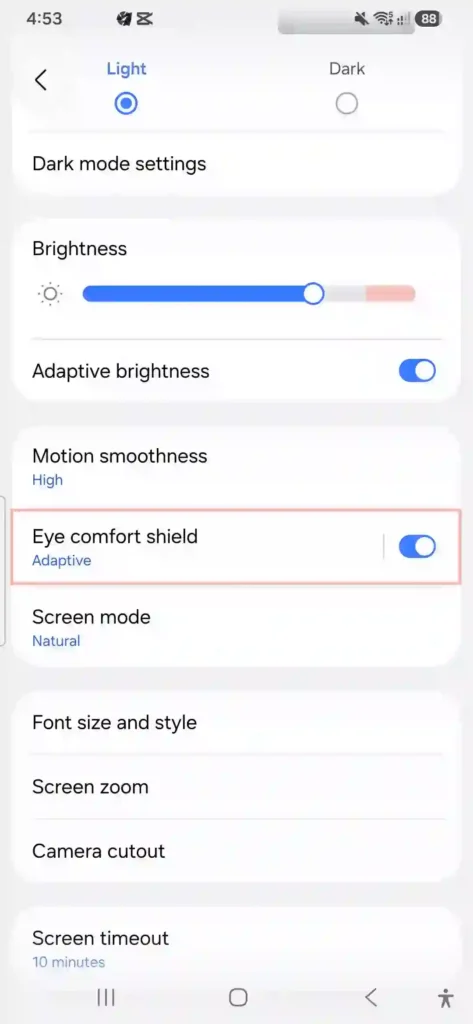
- Schedule Eye Comfort Shield: Go to Settings > Display > Eye Comfort Shield. Set it to Sunset to Sunrise. This reduces blue light emissions dynamically as night approaches, reducing eye strain and helping you fall asleep easier.
- Reduce Screen Timeout: Go to Settings > Display > Screen Timeout and set it to 30 seconds or 1 minute. The default is often set higher, which keeps the screen drawing power long after you have put the phone down.
Notification Settings to Stop the Chaos
Out of the box, One UI treats every installed app like it has an urgent message for you. To restore peace, implement these samsung galaxy a56 notification settings:
Master Notification Cleanup
Go to Settings > Notifications > App Notifications. Turn off toggles for any app that does not require real-time attention. Food delivery, shopping, and casual game apps should never be allowed to make your phone buzz.
Disable App Icon Badges
If the sight of red numbers on your home screen icons stresses you out, go to Settings > Notifications > Advanced Settings and turn off App Icon Badges (or change them to a simple, clean dot).
Use Notification Categories (Channels)
If you want to keep receiving important updates from an app (like delivery alerts) but silence its promotional spam, go to Settings > Notifications > Advanced Settings and make sure Manage Notification Categories for Each App is turned on. You can then long-press any annoying notification to block that specific category forever while keeping the useful ones active.
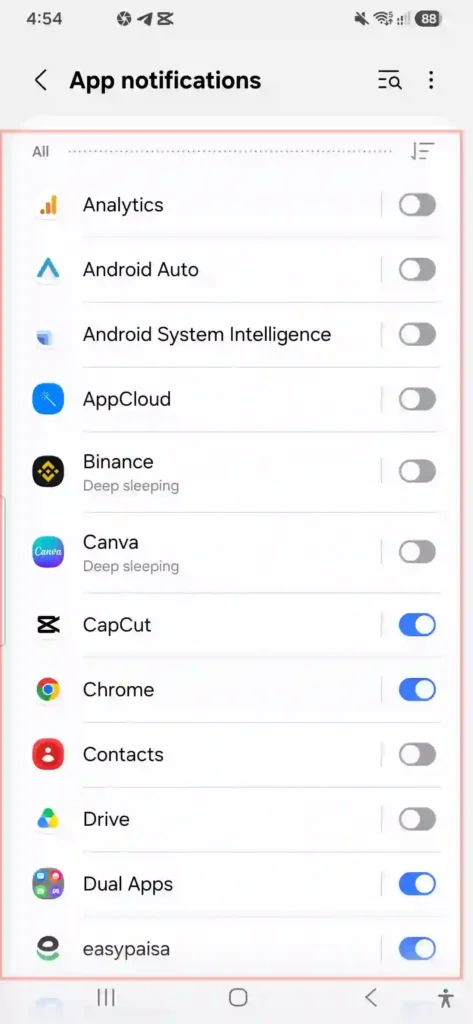
Set Up a Do Not Disturb Schedule
Go to Settings > Notifications > Do Not Disturb. Schedule it to turn on automatically (e.g., from 11:00 PM to 7:00 AM) to ensure you aren’t woken up by midnight marketing emails.
Performance Settings That Speed Things Up
The Exynos 1580 chipset is incredibly capable, but some of Samsung’s optimization settings are actually counterproductive. Adjust these samsung galaxy a56 device care settings to keep the phone snappy:
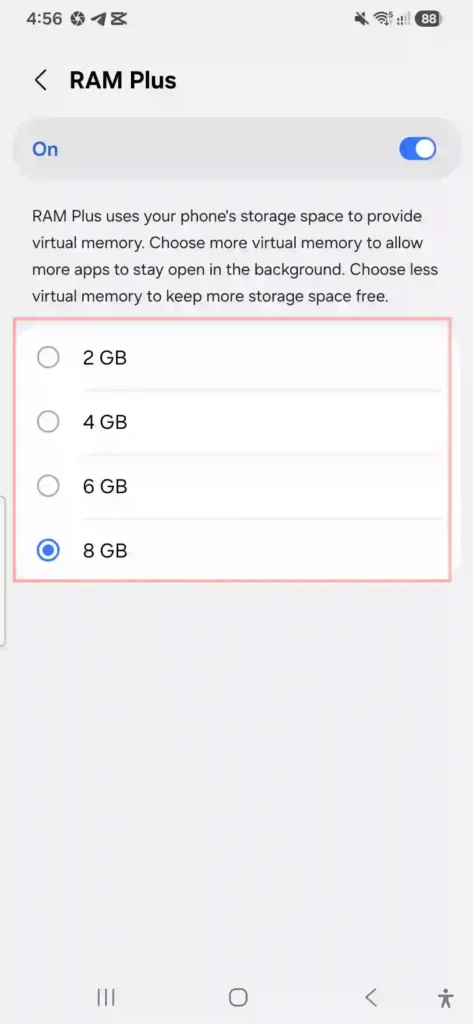
- Reduce RAM Plus: Go to Settings > Device Care > Memory > RAM Plus. This feature uses your physical storage as virtual memory. However, virtual memory is significantly slower than actual RAM. If you own the 8GB or 12GB RAM version of the A56, you do not need much of this. Turning RAM Plus down to its lowest setting (2GB) or switching it off entirely can actually improve UI fluidness and save storage space.
- Configure Background App Limits: Go to Settings > Device Care > Battery > Background Usage Limits. Turn on Put Unused Apps to Sleep. For extremely heavy background battery hogs (like social media apps), manually add them to the Deep Sleeping Apps list so they never run unless you explicitly open them.
- Enable Auto Optimization: Go to Settings > Device Care > Auto Optimization and toggle on Restart when needed. Your phone will perform a quick, automatic system reboot in the background when you are sleeping to clear system cache and close leaked memory loops.
- Speed Up System Animations: For advanced users, adjusting your transition speeds is a classic samsung galaxy a56 developer options trick. Go to Settings > About Phone > Software Information and tap Build Number seven times to unlock Developer Options. Go back to the main Settings menu, open Developer Options, scroll down to Window Animation Scale, Transition Animation Scale, and Animator Duration Scale, and change them all from 1x to 0.5x. Your phone will instantly feel twice as fast.
Smart Features Worth Turning On (and Off)
Samsung includes dozens of “Smart” gestures and features under Settings > Advanced Features. Here is what is worth your time:
Features to Turn ON:
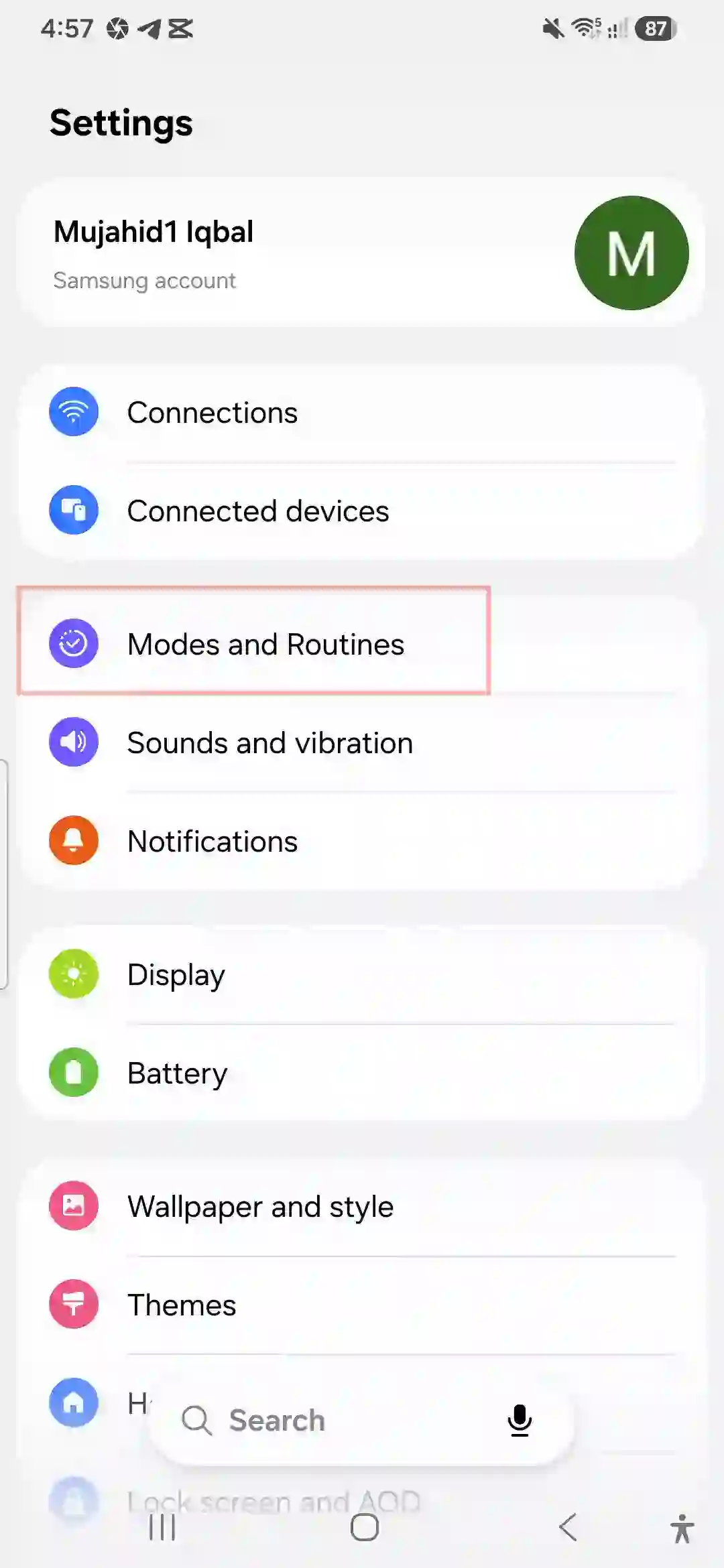
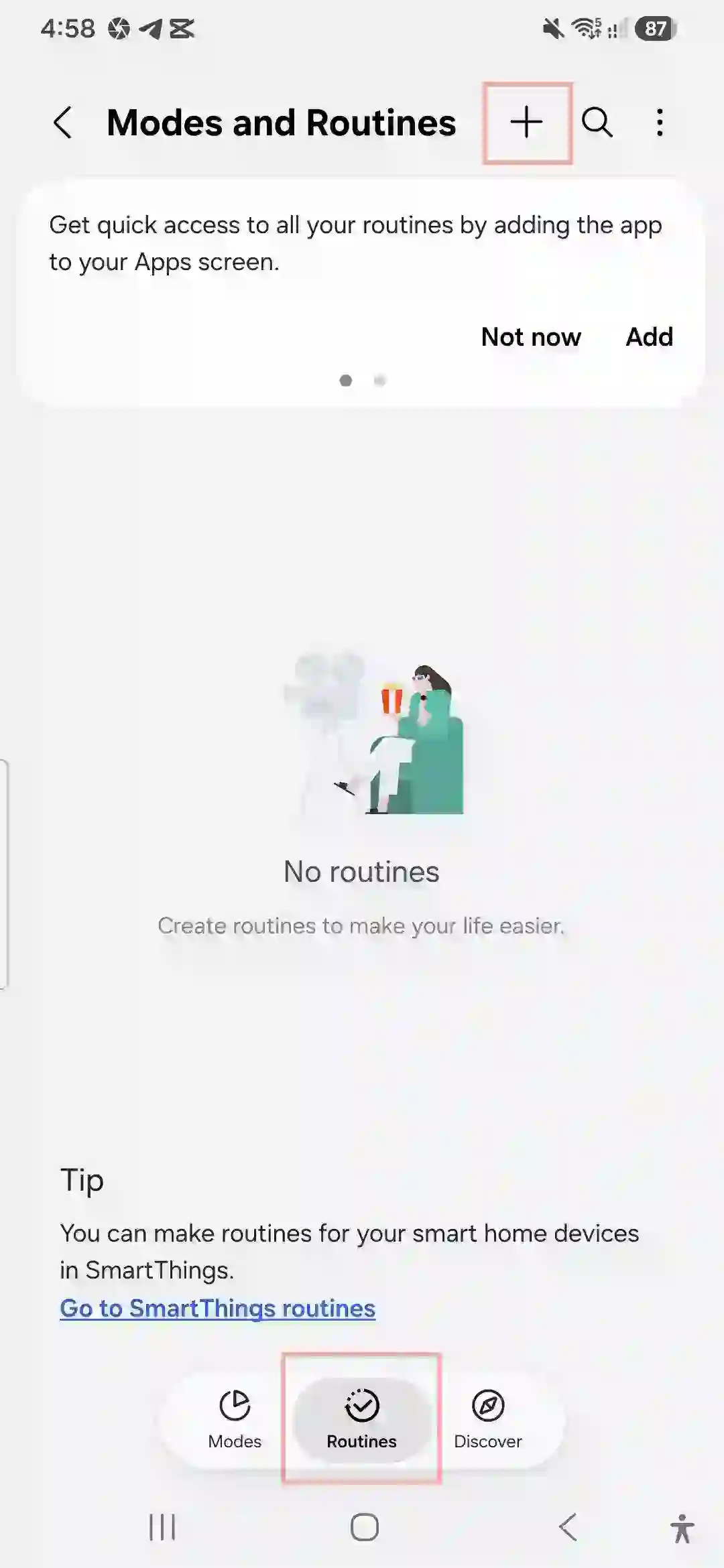
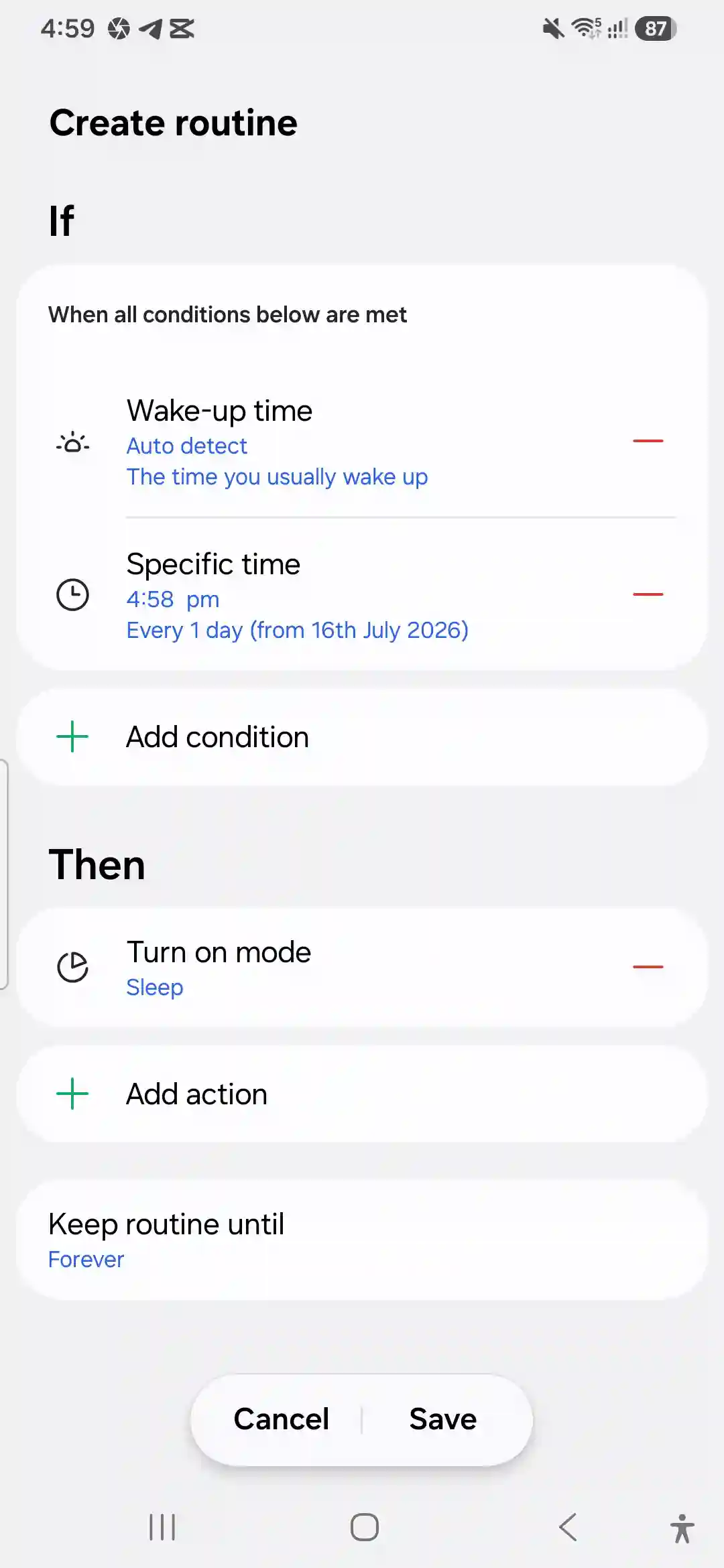
- Modes and Routines: Navigate to Settings > Modes and Routines. You can build powerful automation profiles here. For instance, you can set a routine that automatically turns on Wi-Fi, disables silent mode, and opens your favorite playlist the second your phone connects to your car’s Bluetooth.
- Circle to Search: This is an incredibly helpful addition. Simply long-press your home button or navigation handle to circle anything on your screen and instantly search for it via Google, without needing to take screenshots or switch apps.
Features to Turn OFF:
- Bixby Voice Wake-up: Unless you actively use Samsung’s voice assistant, having your microphone constantly listening for the “Hey Bixby” wake-up word drains battery background resources. Turn this off in Settings > Advanced Features > Bixby.
- Samsung Free / Discover Feed: Swipe to the leftmost page on your home screen. If you see a cluttered feed of ad-heavy news and games, pinch the home screen, swipe over to that left panel, and switch the toggle at the top to Off to remove it.
Common Mistakes People Make
- Blindly Tapping “Accept All” During Setup: Many bloatware apps and marketing notifications get registered because we skip reading setup menus.
- Ignoring Background Sleeping Limits: Leaving all apps running with unrestricted background access will kill your battery, regardless of display settings.
- Leaving the Camera App on Default Settings: If you want to capture the best possible images with the upgraded camera module, adjust your settings using our detailed Samsung Galaxy A56 camera configuration guide.
- Never Resetting the Phone When Migrating: If you transferred your data from an old phone using Smart Switch and are experiencing major lag, a clean factory reset can resolve deep-seated system bugs. Follow our Samsung Galaxy A56 master reset tutorial to do this safely.
Real Examples From My Own Use
My partner and I both purchased the Galaxy A56 at the same time. She left her phone on the default factory settings, while I spent 20 minutes applying the optimizations in this guide.
Here is how our real-world experience compared after a few weeks:
| Metric | Partner’s Phone (Factory Defaults) | My Phone (Optimized Settings) |
|---|---|---|
| Battery Life | Dies by 7:30 PM | Ends the day with 30-35% battery remaining |
| Daily Notifications | 45+ pings (mostly retail and game ads) | Under 10 essential notifications |
| Performance | Occasional micro-stutter in animations | Butter-smooth transition animations |
| Wi-Fi Connectivity | Experienced occasional drops | Constant, stable connection (after applying the Samsung A56 Wi-Fi fix) |
Pros & Cons of One UI on the A56
Pros
- Unmatched Customization: One UI lets you modify almost every element of the lock screen, quick settings, and home layout.
- Enterprise-Grade Security: The physical integration of Knox Vault keeps security keys and secure folders completely safe.
- Unbeatable Software Lifecycle: 6 years of major Android version updates keeps your phone secure for years.
Cons
- Menu Bloat: It is easy to feel overwhelmed by the sheer depth of nested settings menus.
- Heavy Out-of-the-Box Setup: Default settings prioritize promoting Samsung’s partner apps over user battery life and privacy.
FAQs
Are these settings safe to change?
Yes. Every single setting listed in this guide uses built-in options designed by Samsung. None of these changes will void your warranty, delete your data, or harm your hardware.
Should I keep the virtual RAM (RAM Plus) enabled?
If you have the 12GB RAM version of the A56, you can safely turn RAM Plus off entirely to save storage space and prevent system write wear. If you have the 8GB version, keeping it at 2GB is a sweet spot.
Will changing these settings disable future software updates?
Not at all. Your phone will continue to receive monthly security patches and major Android version updates over the air as normal.
Final Thoughts
The Samsung Galaxy A56 5G is an exceptional mid-range phone, but its factory default state does it a massive disservice. Taking just 15 minutes to adjust these essential best One UI settings for Samsung A56 turns a noisy, battery-hungry phone into an efficient, personalized powerhouse.
If you are short on time, start by cleaning your app permissions, configuring your notifications, and turning on the Auto Blocker. Your eyes, privacy, and battery will thank you.

One Comment