Samsung Galaxy A56 Wi-Fi Problems: 24 Fixes That Actually Work 2026
My Galaxy A56 dropped Wi-Fi three times during a video call with my landlord about a lease renewal. Three times. I ended up finishing the conversation on mobile data while sitting two feet from my router, watching the Wi-Fi icon just… vanish, then reappear a minute later like nothing happened.
If you’re here, you probably know exactly what that feels like. The little spinning circle. The “Connected, no internet” message. The phone that shows full Wi-Fi bars while your videos still won’t load.
I spent about three weeks going down this rabbit hole after I got my A56, comparing notes with a couple of guys in a Samsung community forum, and testing a bunch of fixes on my own unit. Some worked. Some were a complete waste of time. This is everything that actually made a difference, plus a few things I wish someone had told me before I tried them.
Quick Specs Table
| Spec | Detail |
|---|---|
| Model | Samsung Galaxy A56 5G |
| Software | One UI 7 (Android 15/16 based) |
| Wi-Fi Standard | Wi-Fi 5/6 (dual-band, 2.4GHz + 5GHz) |
| Common Issue | Drops connection, slow speeds, “no internet” errors |
| Most Effective Fix | Network settings reset + router band separation |
| Time to Fix (avg) | 10-25 minutes depending on cause |
Why the Galaxy A56 Has Wi-Fi Issues in the First Place
Before jumping into fixes, it helps to know why this happens. It’s not one single bug — it’s usually a combination of things.
Samsung’s One UI has this aggressive battery optimization system that, on the A56, sometimes treats your Wi-Fi radio like an app it wants to shut down. That’s the biggest culprit I found. The phone thinks it’s “saving power” by throttling background network activity, and it ends up killing your connection stability instead.
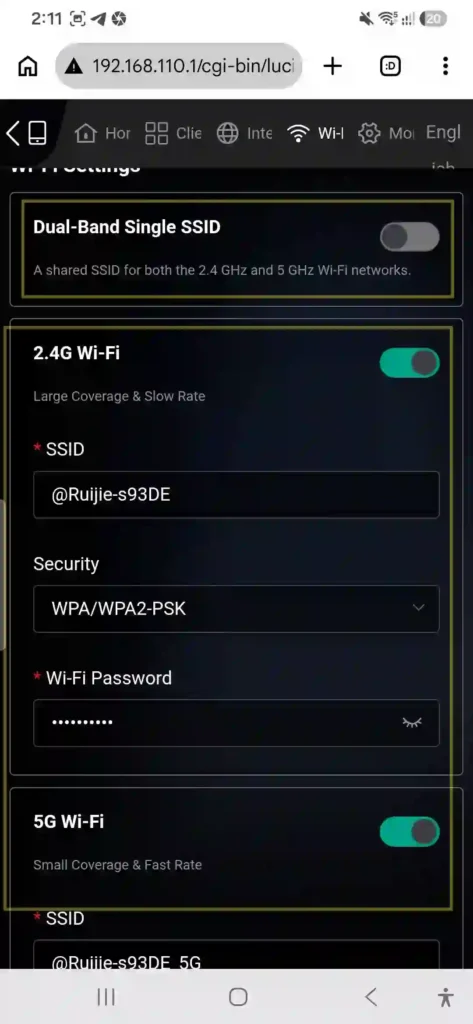
The second issue is router compatibility. A lot of home routers, especially older dual-band ones, get confused when the A56 tries to auto-switch between 2.4GHz and 5GHz bands using the same network name (SSID). This is called “band steering,” and it’s a nice idea in theory, but in practice it causes handoff glitches on a lot of Samsung phones.
Third, and this one surprised me, a software update Samsung pushed out actually made things worse for a chunk of users before a follow-up patch fixed it. So if your Wi-Fi problems started right after an update, you’re not imagining it.
While troubleshooting internet drops is essential, maximizing your device’s overall performance is equally important. Before exploring the fixes below, feel free to read our ultimate guide on Samsung Galaxy A56 tips and tricks
The 24 Fixes That Actually Work
I’m listing these roughly in the order I’d try them — easiest and least disruptive first.
1. Toggle Airplane Mode on and off. Sounds too simple, but it forces the radio to fully reset. Works about 30% of the time for me.
2. Restart your router, not just your phone. Unplug it for a full 30 seconds. Half-second power cycles don’t actually clear the router’s memory.
3. Forget the network and reconnect. Go to Settings > Connections > Wi-Fi, tap the gear icon next to your network, and hit “Forget.” Then reconnect and re-enter your password.
4. Reset Network Settings entirely. Settings > General Management > Reset > Reset Network Settings. This wipes saved Wi-Fi passwords, Bluetooth pairings, and mobile data settings, so be ready to re-enter your Wi-Fi password afterward.
5. Check for a pending software update. Settings > Software Update > Download and Install. Samsung has quietly patched Wi-Fi bugs in maintenance updates before.
6. Turn off Adaptive Wi-Fi. This feature tries to switch between Wi-Fi and mobile data automatically and can cause weird handoff issues. Found under Settings > Connections > Wi-Fi > Wi-Fi settings (gear icon top right).
7. Disable “Auto network switching.” Same location as above — this is a separate toggle that keeps hopping your connection.
8. Separate your router’s 2.4GHz and 5GHz bands. Log into your router’s admin panel and give each band its own network name instead of one combined SSID. This fixed my drop issue almost entirely.
9. Move closer to the router temporarily to test. If it’s stable up close but not from your bedroom, it’s a signal strength issue, not a phone bug.
10. Check for battery optimization restrictions. Settings > Apps > look for any background-heavy app, then Battery > Unrestricted for apps you actually need running.
11. Clear the cache partition via Recovery Mode (Volume Up + Power, then release Power and hold Volume Up when the Samsung logo shows).
12. Update your router’s firmware — properly, not just once. This one deserves more than a one-liner because it fixed my worst disconnect loop. Most people check for a firmware update once when they set up the router and never again. Log into your router’s admin panel (usually 192.168.1.1 or 192.168.0.1 in a browser), find the firmware or “system update” section, and check manually — a lot of routers don’t auto-notify you. My ISP-provided router had been sitting on firmware from over a year earlier. After updating it, three separate bugs I’d been chasing on the phone side just disappeared, including the combined-SSID band steering issue from fix #8.
13. Change your DNS settings on the phone. This is one people skip because it sounds technical, but it’s genuinely simple. Go to Settings > Connections > Wi-Fi > tap your connected network > Wi-Fi settings > Private DNS, and set it to “Private DNS provider hostname,” then type in dns.google or 1dot1dot1dot1.cloudflare-dns.com. Your router’s default DNS (usually whatever your ISP hands out) is sometimes slow or flaky, and that shows up as pages timing out even though the Wi-Fi connection itself looks fine. Switching to Google DNS or Cloudflare’s 1.1.1.1 fixed a “connected but nothing loads” issue for me on two separate occasions.
14. Disable VPN apps temporarily to see if they’re the actual cause.
15. Turn off Wi-Fi calling and see if the issue persists — it can interfere with normal Wi-Fi data handling on some carriers.
16. Check MAC randomization settings. Settings > Connections > Wi-Fi > gear icon > Privacy > set to “Use device MAC” instead of a randomized one, especially if your router has MAC filtering enabled.
17. Remove and re-add MAC filtering entries on your router if you use that feature.
18. Connect to a completely different Wi-Fi network to test. Try a neighbor’s, a family member’s, or a coffee shop’s network. I go into this in more depth further down, but it’s the fastest way to know for sure whether the problem lives in your phone or your home network.
19. Test with mobile hotspot from another phone. This isolates whether it’s your home network or the A56 itself, without needing to leave the house.
20. Uninstall recently added apps that request network access, especially VPNs, ad-blockers, or “network booster” apps (ironically, these often cause the exact issue they claim to fix).
21. Turn off Private DNS specifically when joining public Wi-Fi. This one’s covered in detail below, but if you can’t get past a hotel or airport login page, this is very likely why.
22. Reset your router to factory settings if firmware updates and band separation don’t help — sometimes years of accumulated settings changes conflict with each other in ways that are hard to trace.
23. Factory reset your phone as a last resort, after backing up your data through Samsung Smart Switch.
24. Contact Samsung Support or visit a service center if none of the above works — occasionally it’s a hardware antenna issue, especially on units that have been dropped.
DNS Settings That Fix More Than You’d Think
I almost skipped this section when I first started troubleshooting because DNS sounds like something only network engineers should touch. It’s not. It took me two minutes to change and it solved a specific kind of annoying problem: full Wi-Fi bars, connected status showing normal, but web pages just spinning and never loading.
Here’s what’s actually happening. When your phone connects to Wi-Fi, it also needs a DNS server to translate website names (like google.com) into the actual server addresses that make pages load. Most home routers just pass along whatever DNS your ISP provides by default, and some ISPs run DNS servers that are slow, overloaded, or occasionally just go down without any warning.
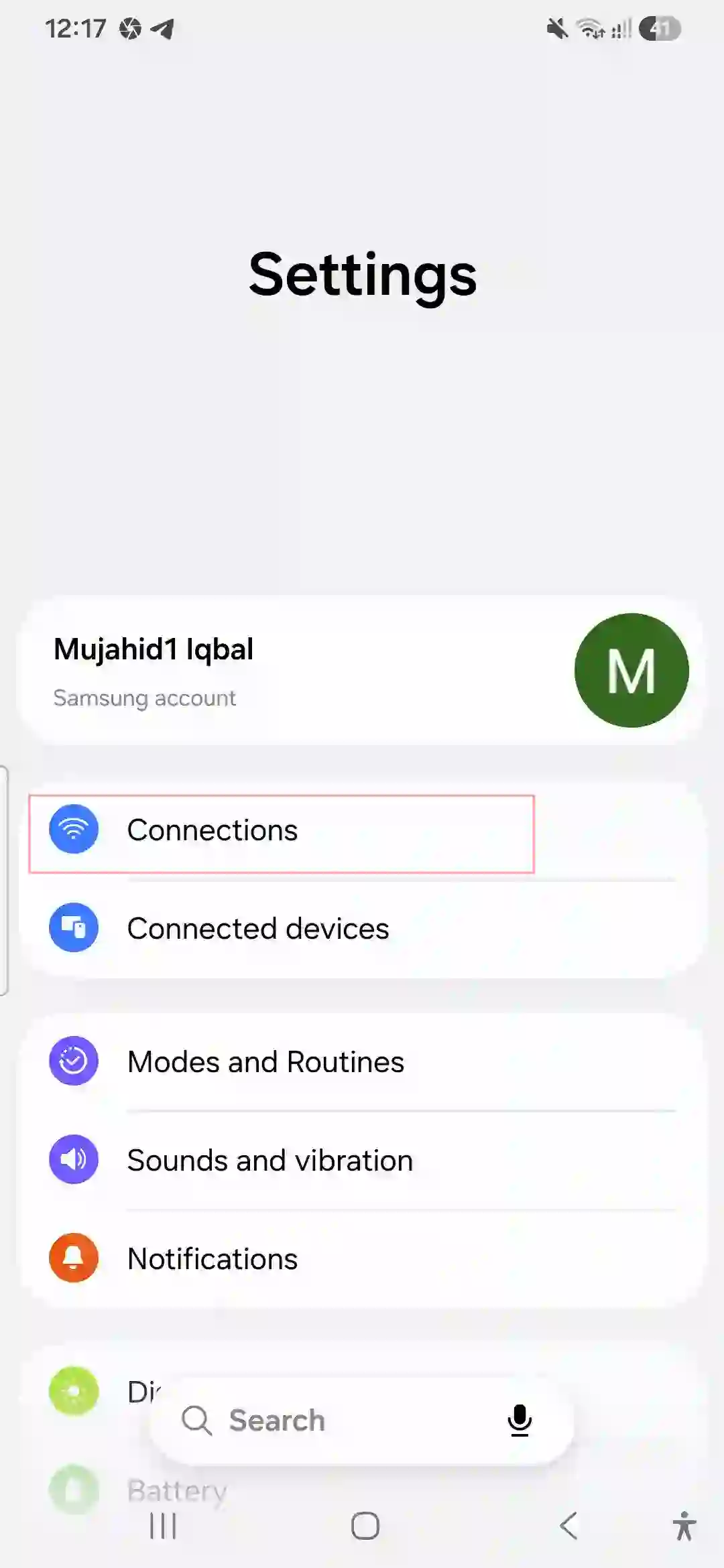
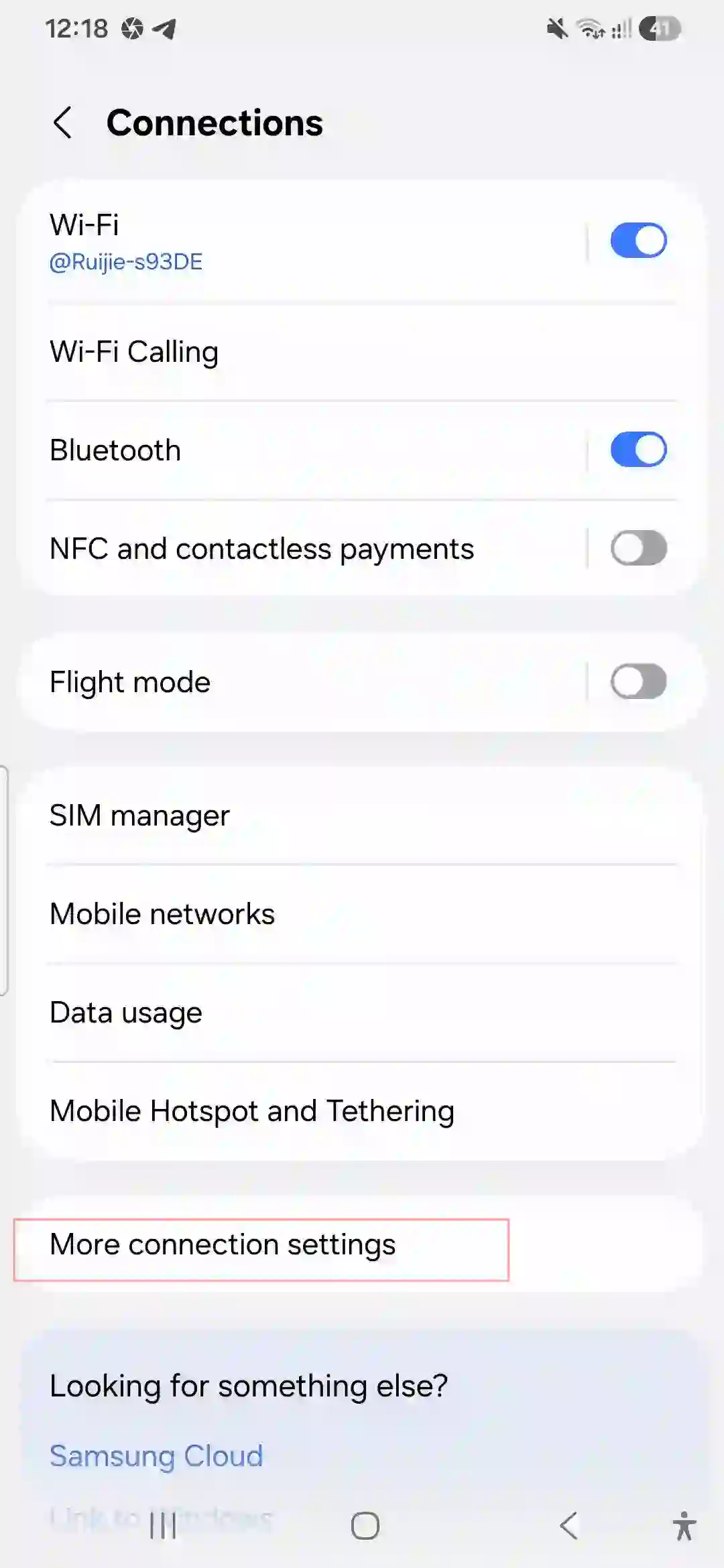
To change it on the A56:
- Go to Settings > Connections > Wi-Fi.
- Tap the network you’re connected to.
- Scroll to Private DNS (it’s usually near the bottom under Wi-Fi settings, or under Settings > Connections > More connection settings > Private DNS).
- Select “Private DNS provider hostname.”
- Enter
dns.googlefor Google’s DNS, or1dot1dot1dot1.cloudflare-dns.comfor Cloudflare. - Save and reconnect to Wi-Fi.
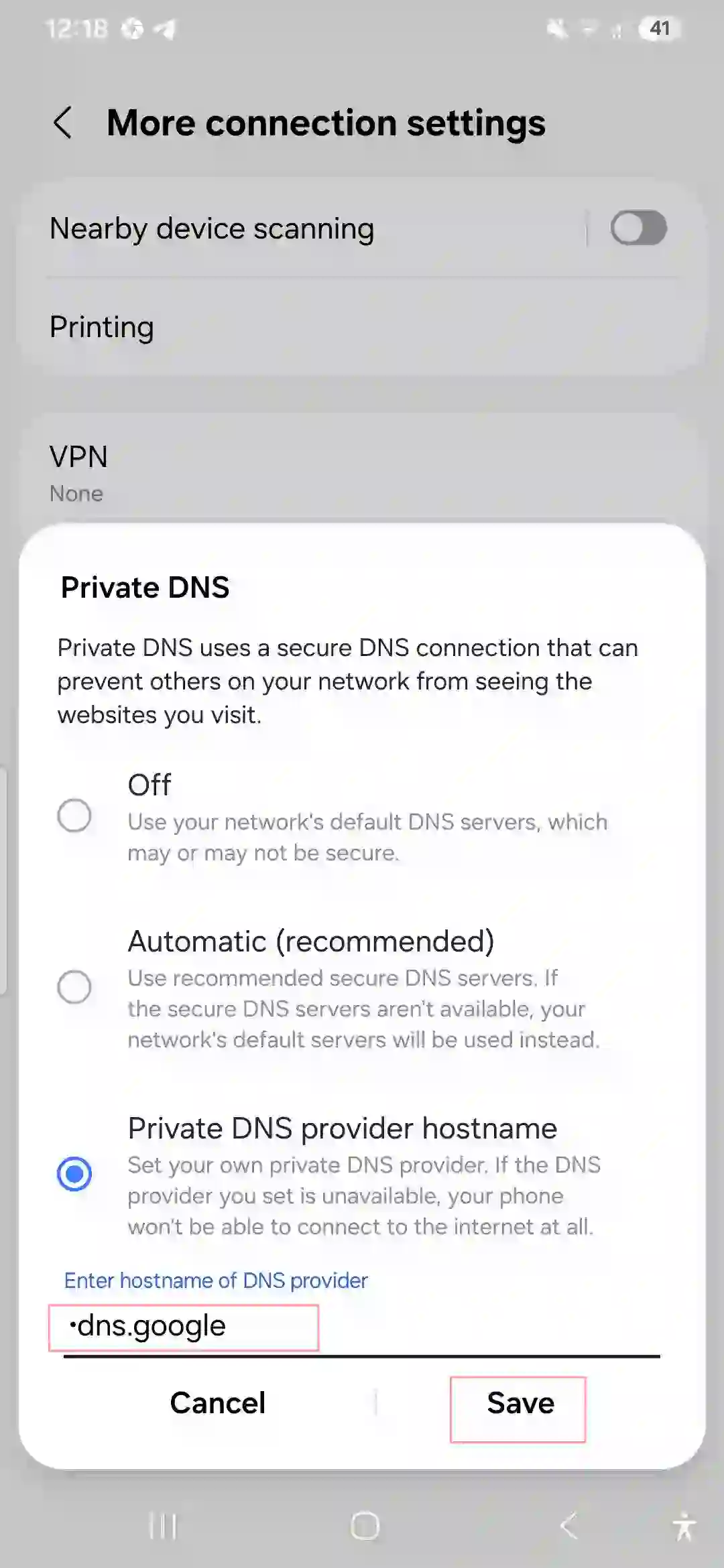
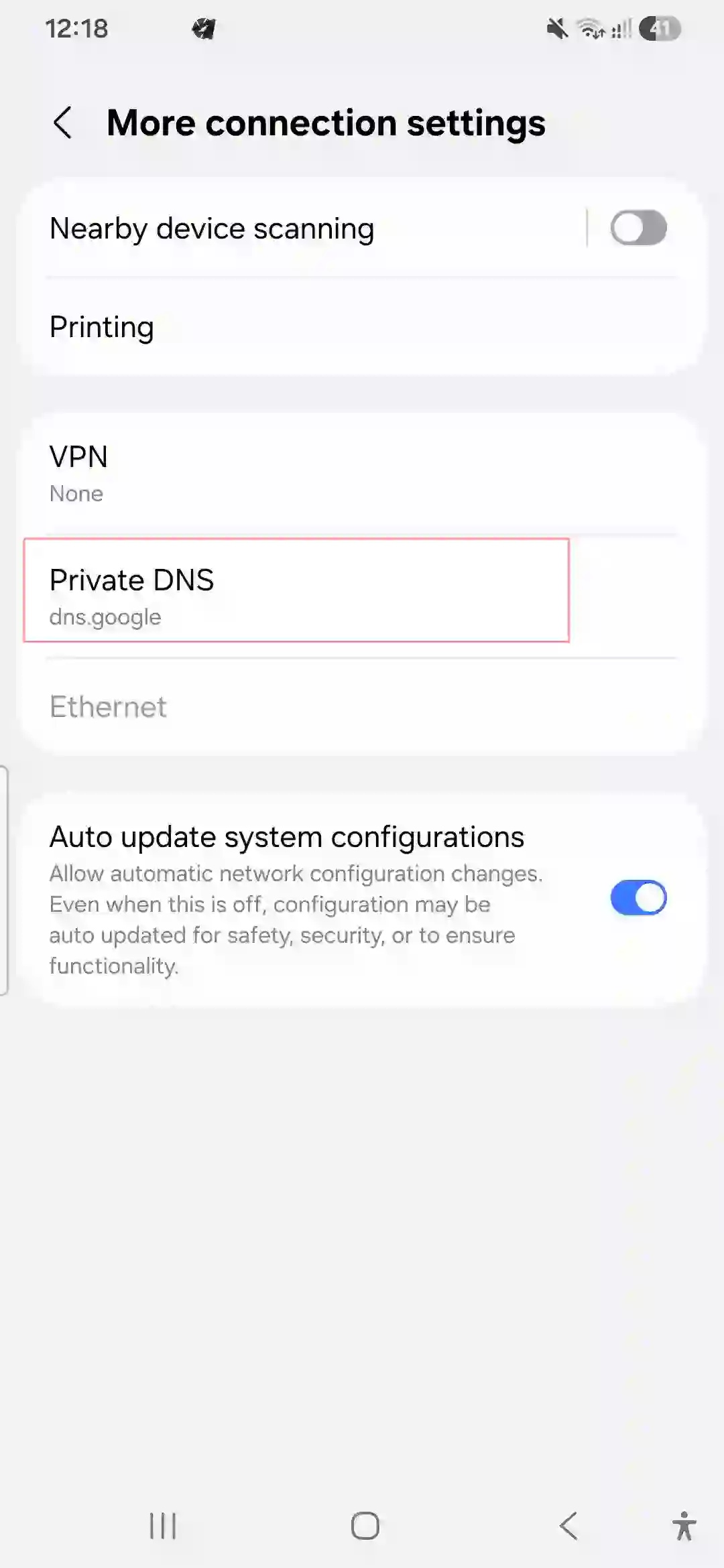
I’ve used both. Cloudflare’s felt marginally faster on my home connection, Google’s felt more consistent when I was on hotel Wi-Fi. Either is a solid upgrade over most default ISP DNS servers.
One thing worth knowing: if a page still won’t load after this, it’s probably not DNS anymore, and you can cross that cause off the list and move on to the router or app-side fixes.
Public Wi-Fi Problems on the Galaxy A56
This is the one that caught me off guard the most, honestly. At home, everything eventually got sorted out. But connecting to public Wi-Fi — hotel rooms, coffee shops, airport lounges — kept giving me a different headache entirely: the phone would connect to the network, show full bars, and then just refuse to open the login/payment page that public networks use to grant internet access. That login page is called a “captive portal,” and it’s a common weak spot on Samsung phones running One UI 7.
The main cause, in my experience, is Private DNS. If you followed the DNS fix above and left it turned on, it can actually block the captive portal page from loading, because the phone is trying to route everything through an encrypted DNS provider before the network has even verified who you are.
The fix:
- Go to Settings > Connections > Wi-Fi > More connection settings > Private DNS.
- Switch it to “Off” or “Automatic” before connecting to any public network.
- Connect to the public Wi-Fi as normal — the login page should now pop up properly.
- Once you’re actually online, you can turn Private DNS back on if you want to.
A second thing I noticed with public Wi-Fi specifically: the A56’s “Auto network switching” feature (fix #7 above) is far more aggressive on public networks than on your home network, because the phone is constantly comparing signal strength against your mobile data. If your phone keeps kicking you off public Wi-Fi and back onto mobile data mid-browsing session, turning that setting off is the first thing to try.
Also worth remembering — this one’s more of a mistake I made than a phone bug — public networks often have weaker or shared bandwidth than you’d expect, so before blaming the A56, check whether other devices on the same network are struggling too. If your laptop is also crawling on the same hotel Wi-Fi, it’s not your phone.
How to Test on a Different Wi-Fi Network (And Why It Matters)
This is genuinely the single most useful troubleshooting step in this entire article, and it’s the one people skip because it feels like extra effort. It shouldn’t take more than five minutes and it tells you almost immediately whether you’re dealing with a phone problem or a network problem.
Here’s how I do it:
- Go somewhere with a different Wi-Fi network — a friend’s house, a family member’s place, a café, or even just your phone’s mobile hotspot broadcasting from a second device.
- Connect the A56 to that network and use it normally for 10-15 minutes. Stream a video, load a few websites, stay on a call if you can.
- Watch for the same symptoms: dropped connection, “no internet” message, slow loading despite full bars.
If the A56 behaves perfectly on the different network, the problem is almost certainly with your home router, its settings, or your ISP — not the phone itself. That’s exactly what happened to me. My phone was flawless at a friend’s apartment, which told me immediately to stop chasing phone settings and start looking at my router’s band steering and firmware.
If the A56 still has issues on a completely different network, that’s a stronger signal the problem is with the phone itself — worth working through the software-side fixes, and if those don’t help, worth a visit to a Samsung service center.
Either way, this single test saves you from wasting hours adjusting the wrong thing.
One UI Settings People Miss Completely
These aren’t obvious unless you go digging:
- Settings > Battery and Device Care > Background usage limits — check if Wi-Fi-heavy apps got auto-added to a sleeping apps list.
- Settings > Connections > More connection settings > Nearby device scanning — turning this off reduced random disconnects for me.
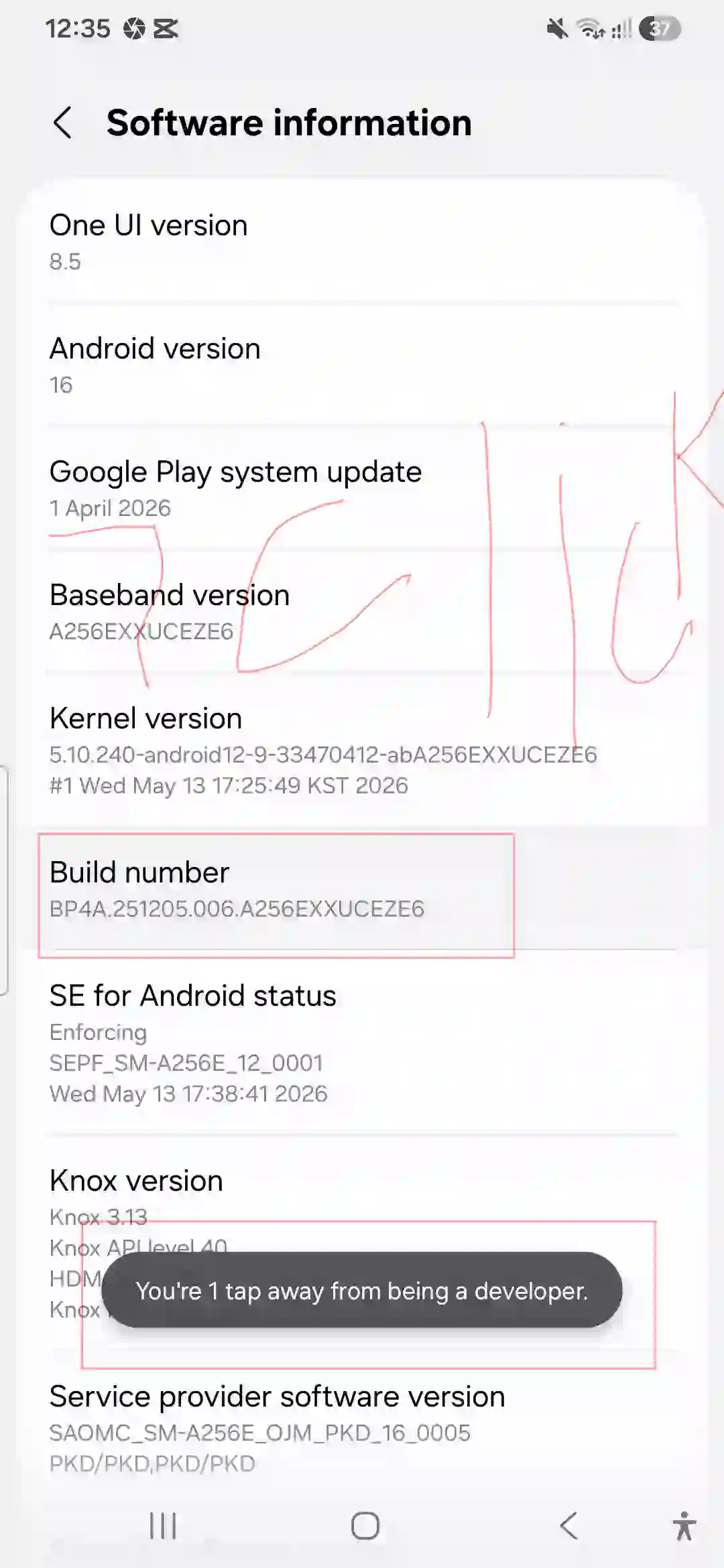
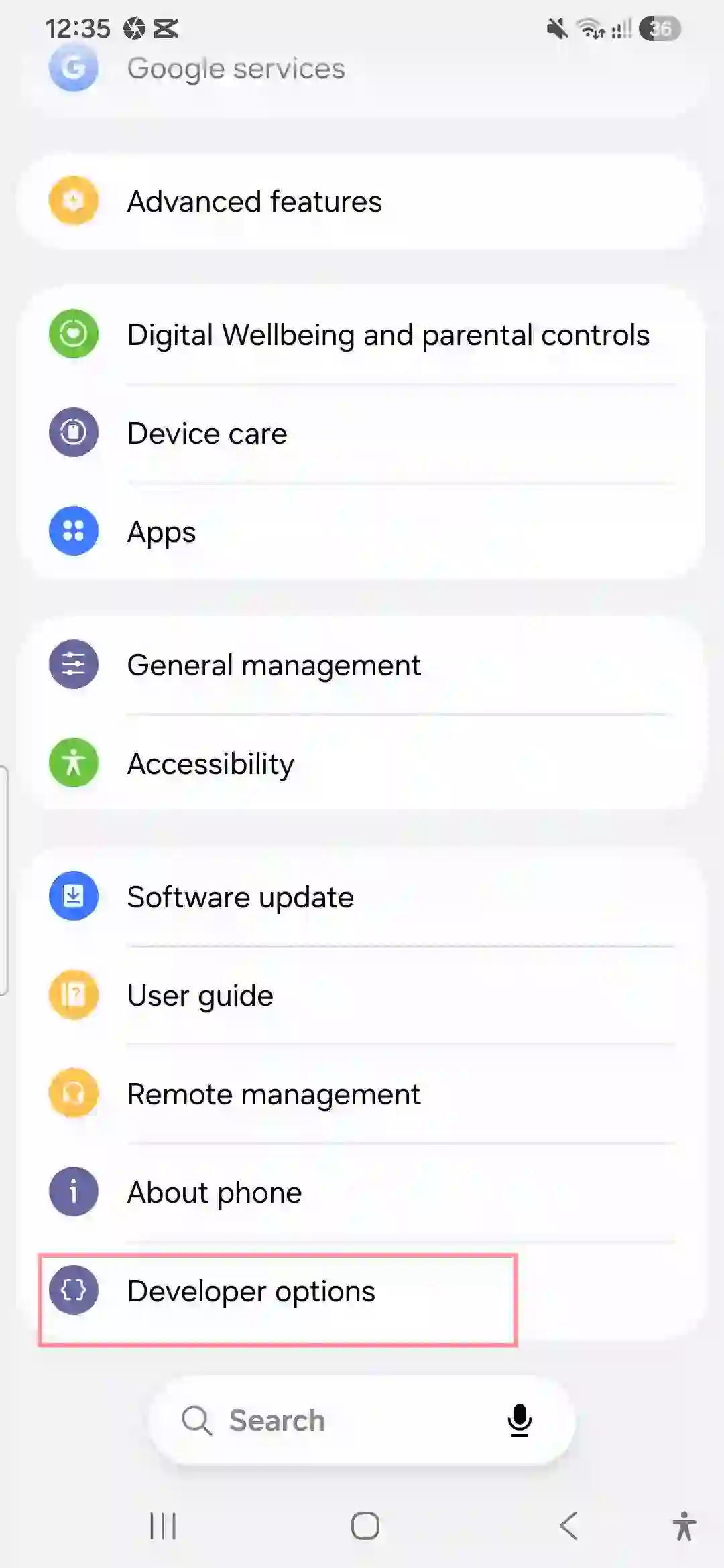
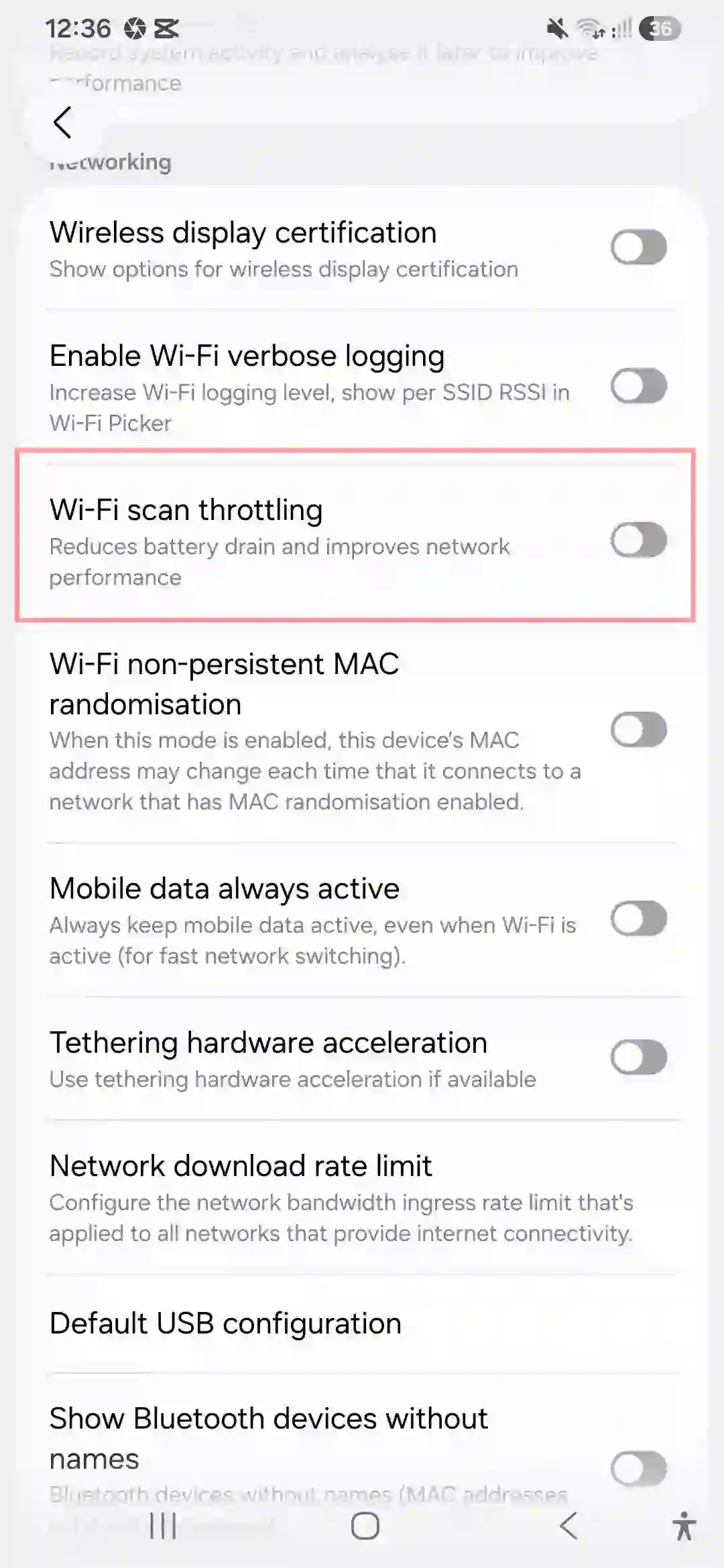
- Developer options > Disable Wi-Fi Scan Throttling — this one’s more advanced but helped when I was troubleshooting alongside a friend who’s an Android developer.
- Tweaking these network settings can sometimes impact your overall power consumption. If you notice your device is losing charge faster than usual, make sure to check out our comprehensive guide on Samsung Galaxy A56 battery drain fix to optimize your device’s longevity.”
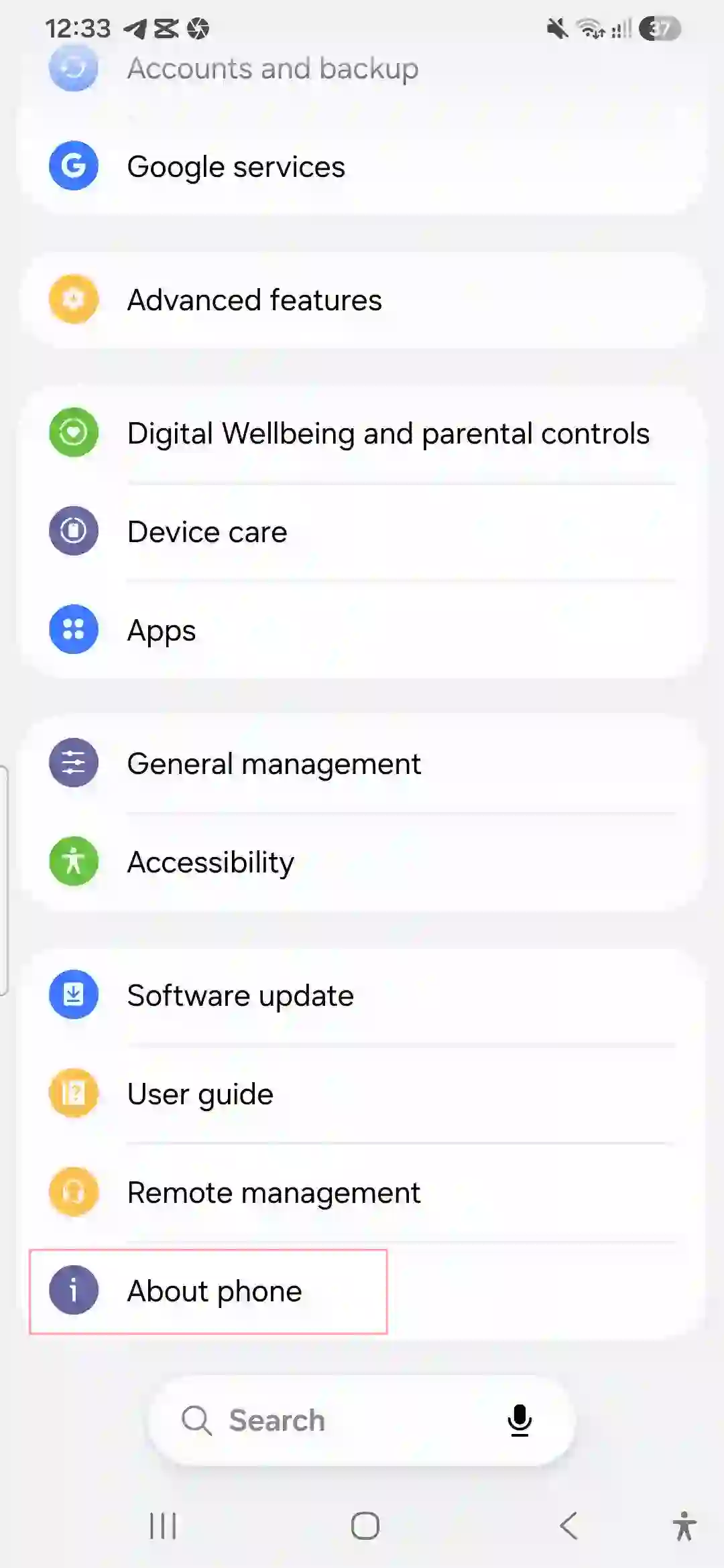
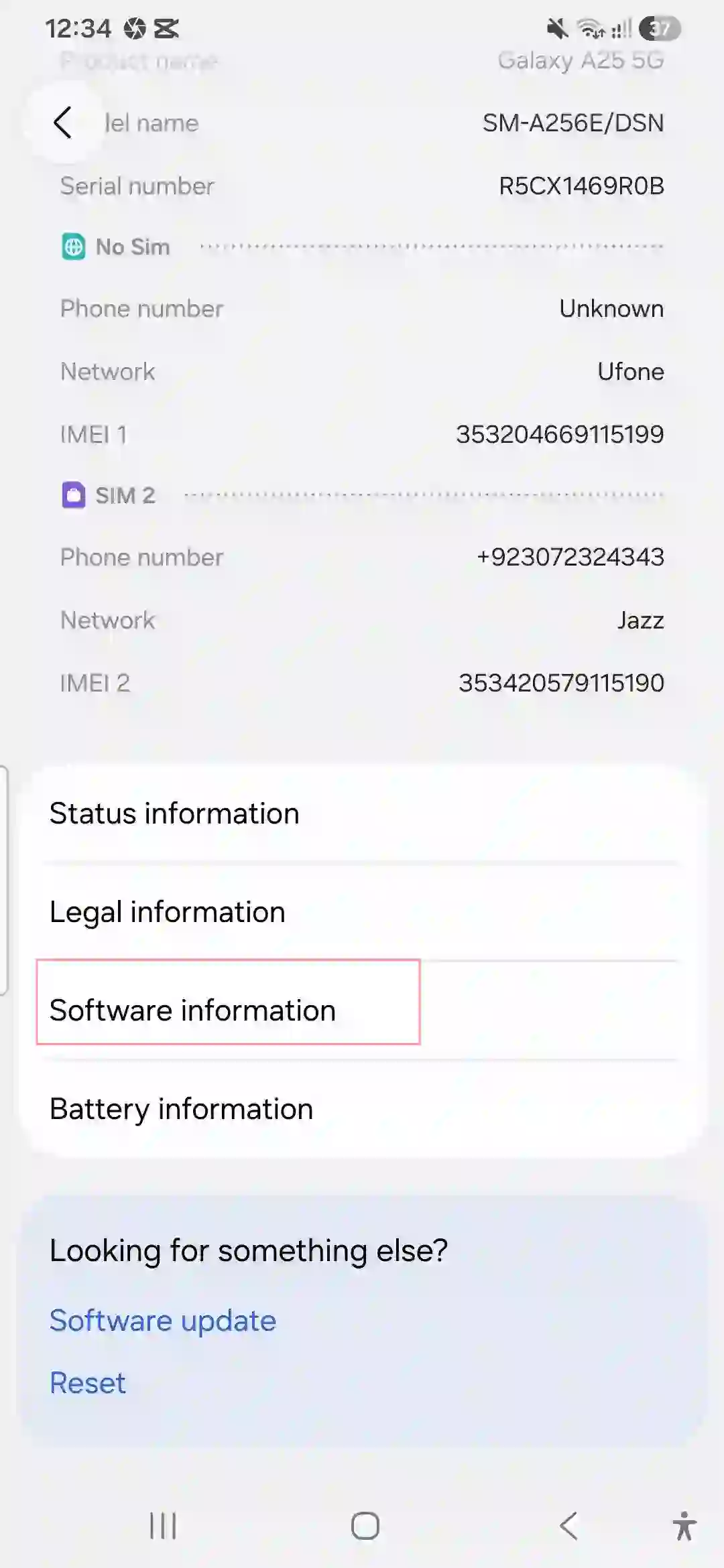
Common Mistakes to Avoid
- Resetting the entire phone before trying the router-side fixes first.
- Assuming it’s always the phone’s fault when it’s actually an ISP outage (check downdetector-style sites first).
- Forgetting that combined 2.4GHz/5GHz SSIDs cause more problems on Samsung phones than people expect.
- Leaving VPN apps running 24/7 without realizing they can quietly break local network handoffs.
- Leaving Private DNS turned on when connecting to hotel or airport Wi-Fi, then wondering why the login page never shows up.
- Never testing on a different network before spending hours changing phone settings — this single step tells you where the actual problem lives.
- Skipping the router firmware update because “it’s working fine” — outdated firmware causes bugs that look exactly like phone bugs.
Real Examples From My Own Testing
On day one, my A56 dropped Wi-Fi every 15-20 minutes at home. I assumed it was the phone. Turned out my router had auto-updated its firmware and reset the band-steering setting back to combined SSID mode. Separating the bands fixed it in under five minutes.
A friend of mine with the same phone had a completely different issue — hers was Wi-Fi calling interfering with her carrier’s network stack. Disabling that setting solved it for her, but did nothing for my case. That’s the thing with this phone: there isn’t one universal fix, there are several possible causes, and you kind of have to work through the list.
On a trip a few months later, I got stuck for almost twenty minutes at a hotel unable to get past the Wi-Fi login page, convinced the hotel’s network was just broken. It wasn’t — my phone’s Private DNS setting was quietly blocking the captive portal from loading. Turning it off for two seconds fixed it instantly, and I felt a little silly once I figured out why.
I also tested the “different network” method properly once, at my parents’ house, specifically to settle an argument with myself about whether it was really my router. The A56 ran perfectly there for an entire evening. That confirmed the issue was sitting in my home setup, not the phone, and saved me from doing a pointless factory reset.
Pros & Cons of the A56’s Wi-Fi Performance
Pros:
- Once properly configured, speeds and stability are genuinely solid.
- Supports modern Wi-Fi standards for its price range.
- Samsung has been responsive with patches addressing early bugs.
Cons:
- Out-of-the-box settings aren’t optimized for older or budget routers.
- Battery optimization is overly aggressive by default.
- No single universal fix — troubleshooting takes patience.
FAQs
Why does my Galaxy A56 keep disconnecting from Wi-Fi randomly?
Usually it’s battery optimization killing background network processes, or your router’s band steering confusing the phone’s radio.
Will resetting network settings delete my photos or apps?
No. It only clears saved Wi-Fi networks, Bluetooth pairings, and VPN/mobile data configs — your personal files stay untouched.
Is this a hardware problem or software problem?
In most cases it’s software or router configuration. Hardware antenna issues are rare and usually only happen after physical damage.
Does Wi-Fi calling cause Wi-Fi problems on the A56?
It can, for some carriers. Try disabling it temporarily to test.
Should I update my router firmware even if it’s working fine otherwise?
Yes, outdated firmware is a common hidden cause of “phone” Wi-Fi bugs that aren’t actually about the phone at all.
Why does my phone show full Wi-Fi bars but no internet works?
That usually points to a DNS or IP conflict issue, or a temporary ISP outage rather than a signal strength problem.
Does factory reset guarantee a fix?
Not always, but it rules out software corruption as a cause. Try it only after the other fixes on this list.
Does factory reset guarantee a fix?
Not always, but it rules out software corruption as a cause. Try it only after the other fixes on this list.
Are third-party “Wi-Fi booster” apps worth installing?
Generally no — most just kill background processes aggressively and can cause more disconnects, not fewer.
Why won’t the login page pop up when I connect to hotel or airport Wi-Fi?
Turn off Private DNS before connecting. It’s the most common reason captive portal login pages fail to load on the A56.
Is changing my DNS settings safe to do myself?
Yes, it’s completely reversible and doesn’t affect your data or apps — you’re just choosing which server translates website names into addresses.
How do I know if the problem is my phone or my router?
Connect the A56 to a completely different Wi-Fi network for 10-15 minutes. If it behaves perfectly there, the issue is with your home router, not the phone.
Does public Wi-Fi being slow always mean my phone has a problem?
Not necessarily — check if other devices on the same public network are also struggling. Shared public bandwidth is often the real bottleneck.
Final Thoughts
Honestly, the Galaxy A56 isn’t a bad phone when it comes to Wi-Fi — it’s just picky about setup in a way a lot of people don’t expect from a phone in this price range. Once I separated my router’s bands and turned off a couple of the “smart” auto-switching features, mine has been rock solid for months now.
If you’re still stuck after working through this list, don’t rule out that it might just be your specific router struggling with newer phone radios. Sometimes the fix isn’t in your phone at all — it’s twenty feet away, blinking quietly on a shelf, running firmware from two years ago.
Read More: Samsung Galaxy A56 camera settings