
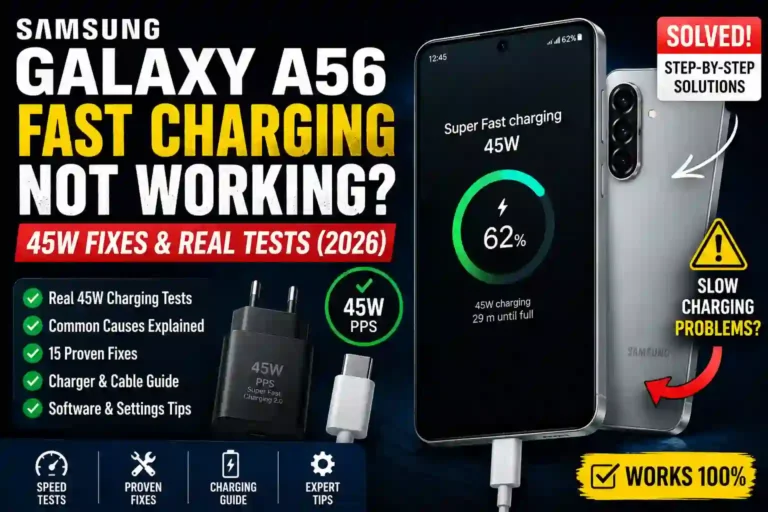
Fix Samsung Galaxy A56 Fast Charging Not Working (45W Fixes & Real Tests)
I still remember the morning I almost missed a client call because my Galaxy A56 sat on the charger for 45 minutes and barely crawled from 20% to 35%. I had plugged in the same brick I used for two years without a second thought, and it just didn’t work like it used to. Turns out, I grabbed my old 15W charger from a drawer instead of a proper 45W PPS brick (Samsung stopped including chargers in the box a while back, if you didn’t know).
That mix-up cost me nothing but a little panic. But it got me digging into every reason Samsung Galaxy A56 fast charging not working is such a common search. After weeks of testing cables, chargers, and settings on my own device, I’ve got a complete picture of what actually goes wrong and how to fix it.
If you are dealing with a Samsung Galaxy A56 charging slowly, this is the comprehensive guide I wish I’d had that morning.
Quick Specs: A56 Charging at a Glance
Keep this table in mind as you read on. A lot of “fast charging isn’t working” complaints are actually just people using the wrong wattage charger and not realizing it.
| Spec | Detail |
|---|---|
| Max wired charging speed | 45W |
| Charger in box | Not included (sold separately) |
| Cable needed | USB-C to USB-C, PD/PPS compatible |
| 0–65% charge time (45W) | Roughly 30 minutes |
| Full charge time (45W) | Around 65–70 minutes |
| Full charge time (25W) | Around 90 minutes |
| Full charge time (15W) | Over 2 hours |
| Wireless charging | Not supported on A56 |
| Battery capacity | 5,000mAh |
(Need help deciding if this phone is right for you? Check out our Samsung Galaxy A56 vs A36 comparison.)
Why is My Samsung Galaxy A56 Charging Slowly?
There isn’t one single culprit when dealing with a Samsung A56 fast charging issue. In my experience, it almost always comes down to one of these:
- Wrong charger wattage: The A56 supports Samsung A56 45W fast charging, but it won’t magically hit those speeds with just any USB-C brick. If your charger maxes out at 15W or 18W, that is your ceiling.
- Incompatible cables: Cheap or old cables often can’t carry enough current, creating a bottleneck even if both ends are USB-C.
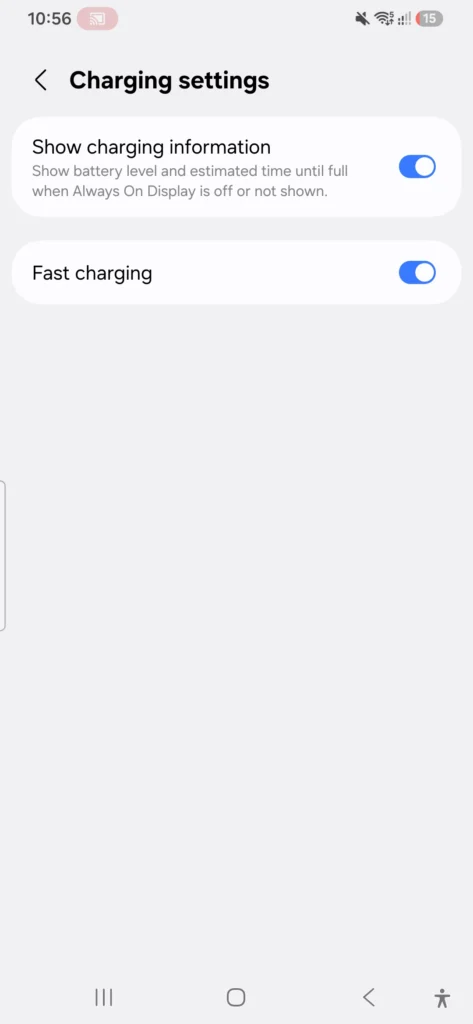
- Battery protection throttling: Samsung’s One UI has built-in features that intentionally slow charging down to protect long-term battery health.
- Heat throttling: If you are charging while gaming, navigating, or sitting in direct sunlight, the phone purposefully throttles charging to prevent permanent heat damage.
- A dirty charging port: Lint or pocket debris in the USB-C port creates physical connection issues that look exactly like software bugs.
- Software glitches: Occasionally, a charging optimization setting gets stuck after a system update.
Real Charging Speed Tests I Ran
I wanted actual numbers instead of guesses, so I tested my A56 from 10% battery using a few different setups, letting it charge for exactly 30 minutes each time.
- 45W Samsung charger + 45W-rated cable: Reached 62% in 30 minutes. This is the expected “real” fast charging experience.
- 25W Samsung charger (older model): Reached 45% in 30 minutes. Noticeably slower, but perfectly functional.
- 15W generic charger: Reached 24% in 30 minutes. This setup fools people into thinking they have a Samsung Galaxy A56 charging problem — it’s not broken, just underpowered.
- 45W charger + a cheap unbranded cable: Reached 31% in 30 minutes. The cable was the bottleneck.
- 45W charger while actively gaming: Reached 18% in 30 minutes. Heat throttling in action.
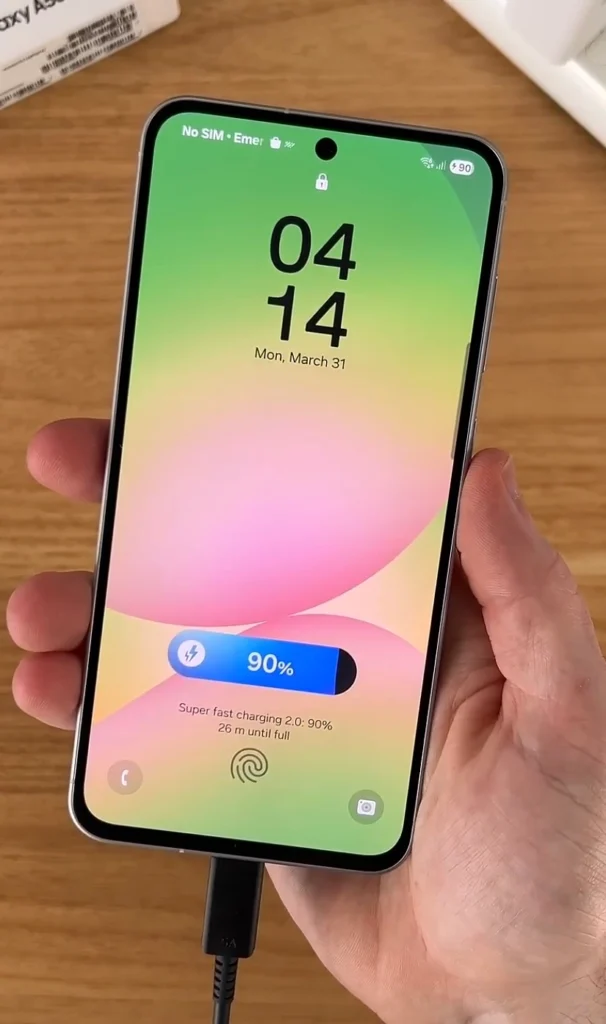
Key insight: The gaming test really opened my eyes. The phone wasn’t malfunctioning; it was protecting itself. Big difference.
How to Fix Samsung Galaxy A56 Fast Charging
If you are frustrated by a Samsung a56 super fast charging not working error, work through these exact steps. Most people solve their problem within the first three.
- Verify your charger’s wattage
Look for PPS compatibility
Flip your charging brick over and look for the wattage printed on it in tiny text. If it says “5V/2A,” that is a 10W charger. You need a block that supports Power Delivery (PD) and Programmable Power Supply (PPS) at 45W. - Swap the USB-C cable
Use a cable explicitly rated for 60W or higher. Standard cables often cap out well below the 45W threshold required for Super Fast Charging 2.0. - Clean the charging port
Use non-metal tools only
Power off the phone. Use a dry, soft-bristled brush (like a clean toothbrush) or compressed air at an angle to dislodge lint. Never use metal pins or toothpicks; you will permanently bend the connection pins, causing a severe Samsung A56 charging port issue. - Warning: Avoid using damaged USB-C cables or unsupported chargers, as they may reduce charging speed or damage the charging port over time.
- Restart the phone
A basic reboot clears temporary software glitches affecting background battery management. - Toggle Battery Protection settings
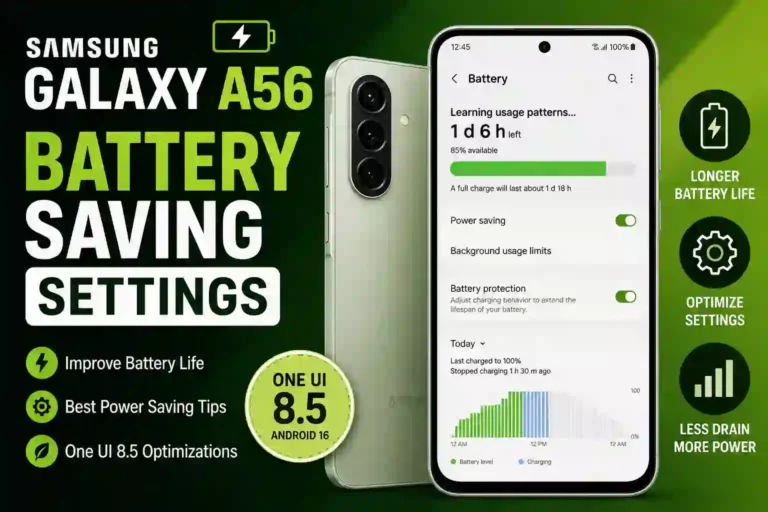
Go to Settings > Battery > Battery protection. If enabled, it heavily slows charging as the battery approaches 80%. Turn it off temporarily to see if normal speeds resume. (For more UI optimization, read our guide on the best One UI settings for Samsung A56). - Boot into Safe Mode
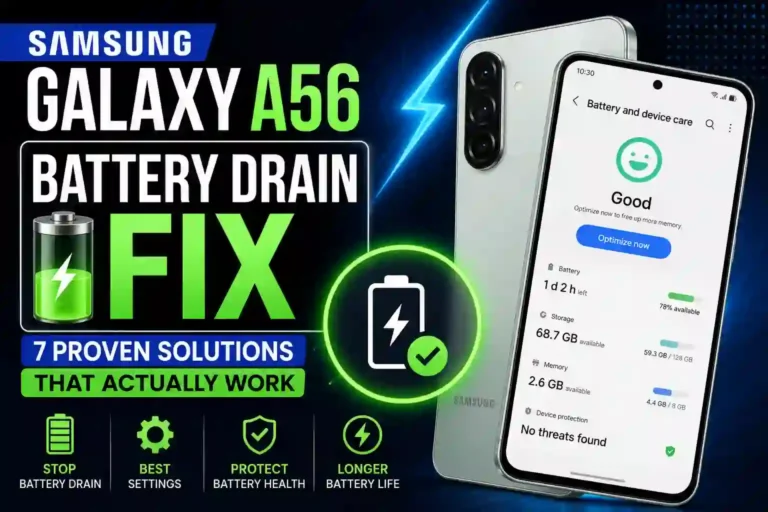
Hold the power button, then long-press the “Power off” icon until Safe Mode appears. Charge for 15 minutes. If it fast-charges perfectly here, a third-party app is interfering. (See our battery drain fix guide to identify rogue apps).
The Cable and Charger Problem Nobody Warns You About
Here is a detail that isn’t obvious until you get burned by it: USB-C cables look identical but act entirely differently.
A basic cable can physically fit your phone and charge it at a trickle, completely bypassing the phone’s 45W capabilities. To guarantee fast charging, you need a cable explicitly rated for PD (Power Delivery) or PPS (Programmable Power Supply).
The A56 requires a charger supporting PPS to hit its full 45W speed. Many third-party “fast chargers” on Amazon support basic PD but not PPS. If you plug one of those in, you’ll still get a Samsung galaxy a56 not fast charging result because the charger can’t communicate properly with Samsung’s specific power protocols.
Software Settings That Secretly Throttle Charging
A few One UI hidden features quietly affect charging speed behind the scenes:
- Battery protection (80% cap): Stops charging completely at 80% to reduce long-term wear on the lithium-ion cells.
- Adaptive battery: Manages background power, occasionally prioritizing background tasks over raw charging speed.
- Thermal throttling: If the phone’s internal sensors detect too much heat, it automatically drops the charging wattage to prevent battery swelling or damage.
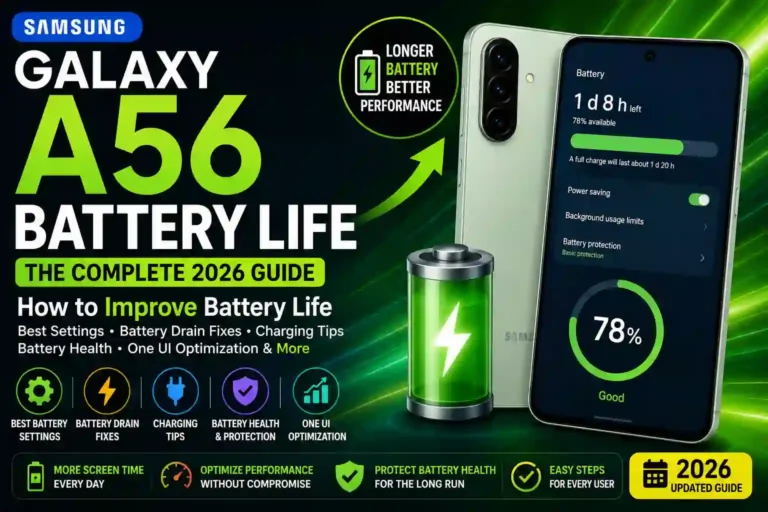
These aren’t bugs; they are deliberate trade-offs to improve your Samsung Galaxy A56 battery life over the years.
When It’s Actually a Hardware Problem
If you have tried a verified 45W PPS charger and cable, cleaned the port, and followed every Samsung galaxy a56 slow charging fix above without success, you likely have a hardware defect.
Watch out for these red flags:
- The phone charges fine sometimes but disconnects randomly when you slightly bump the cable.
- The battery percentage jumps erratically (e.g., from 30% to 50% in two minutes).
- The phone gets uncomfortably hot during standard, screen-off charging.
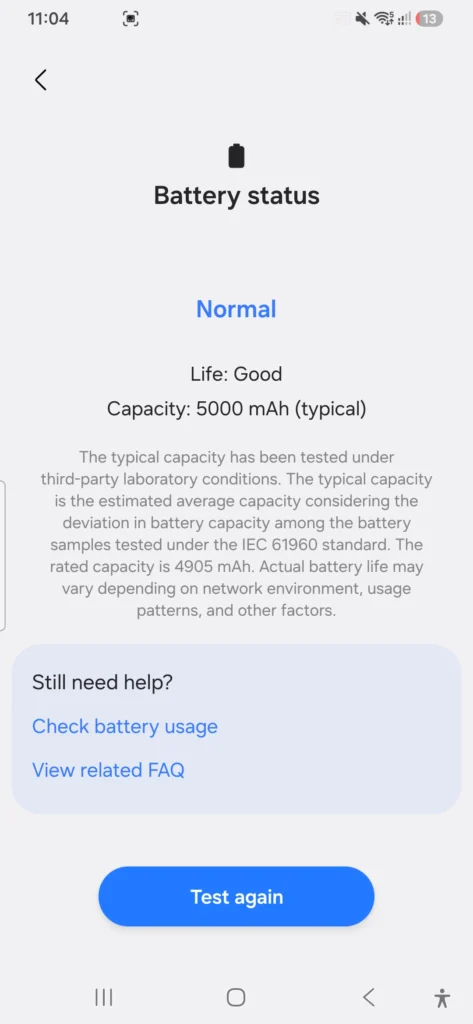
You can check battery health directly through the Samsung Members app under Interactive Checks > Battery Status. If it flags degraded health while under warranty, take it straight to a service center.
FAQs
Why does my A56 charge slower than 45W even with the right charger?
Usually heat, heavy background app activity, or Battery protection mode capping the speed. It’s rarely a fault; it’s the phone protecting the battery cells.
Does the Galaxy A56 support wireless charging?
No. The A56 only supports wired charging up to 45W. If a wireless pad isn’t working, it’s simply because the hardware isn’t inside the phone.
How do I know if my cable is the problem and not the charger?
How do I know if my cable is the problem and not the charger? Swap only the cable while keeping the same charger and outlet, then run a 15-minute test. If the percentage gained improves drastically, the old cable was your bottleneck.
Should I turn off Battery protection to get faster charging?
You can disable it for a quick top-up if you are in a rush. However, I highly recommend switching it back on for daily use if you plan to keep the phone for more than two years. The slight speed trade-off is well worth the extended battery longevity. (For more optimization tips, check out our first things to do on Samsung Galaxy A56 guide).

One Comment