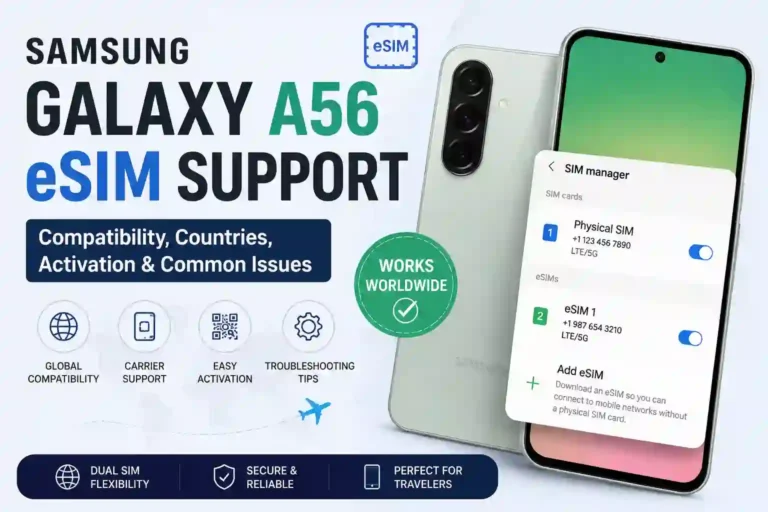
Samsung Galaxy A56 eSIM Support: Compatible Countries, Setup & Activation Guide (2026)
I almost missed my connecting flight in Toronto because I was standing at a Rogers kiosk trying to figure out why my brand-new Galaxy A56 wouldn’t scan an eSIM QR code. Turns out I was overthinking it — the phone was fine, I just had my Wi-Fi turned off. Rookie mistake, but it happens to a lot of people, so I figured I’d write down everything I learned the hard way.
If you just bought (or are about to buy) the Galaxy A56 or the A56 5G and you’re wondering whether it actually supports eSIM, or you’re trying to set one up before a trip, this is the guide I wish I had.
Does the Samsung Galaxy A56 Support eSIM?
Short answer: yes. The standard global and North American versions of the Samsung Galaxy A56 eSIM Support pipeline work seamlessly out of the box. The Galaxy A56, including the 5G variant, ships with eSIM support built right into its core network configuration. It functions as a dual SIM phone, meaning you can run one physical nano-SIM and one eSIM profile at the same time, or store multiple eSIM profiles (though only one eSIM can be active at any given moment).
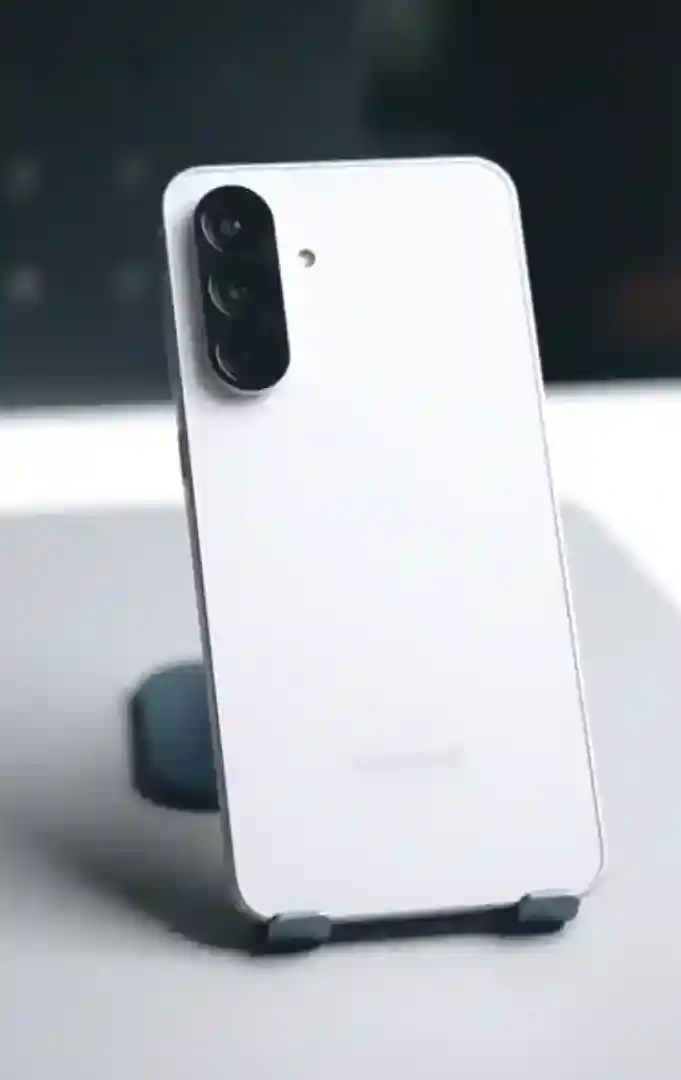
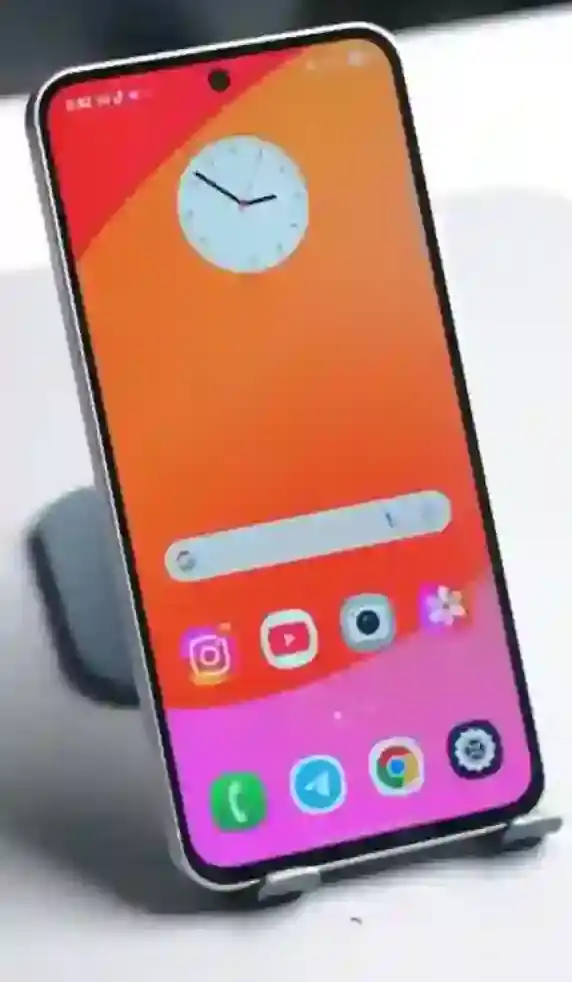
I set mine up initially with my home carrier on the physical SIM tray and a travel eSIM loaded on top for a trip to Vancouver. Worked exactly as expected — incoming calls on my main line, data through the eSIM.
One thing that trips people up: does Samsung Galaxy A56 support eSIM functionality on every single device? Not quite. It heavily depends on where the phone was manufactured and sold. If you’re experiencing setup issues beyond regional lockdowns, checking for broader Samsung Galaxy A56 Wi-Fi problems can help determine if it’s a connectivity glitch or a hardware limitation.
Galaxy A56 5G eSIM Support Explained
The question of does Samsung Galaxy A56 5G support eSIM networks comes up constantly in forums, and I get why — Samsung doesn’t always make this obvious on the box. The A56 5G (model SM-A566) is the version most carriers sell in North America, the UK, and most of Europe, and Samsung Galaxy A56 5G eSIM Support is fully enabled in those markets.
Where it gets murky is with units sold in mainland China, Hong Kong, Macau, and Taiwan. Samsung has historically stripped eSIM capability from devices in those regions due to local regulations. If you bought your phone from one of those markets, don’t assume Galaxy A56 carrier compatibility includes digital SIM cards — check your settings menu before you rely on it for a trip.
South Korea is another exception. Most Korean-market Samsung phones have eSIM disabled at the carrier level, though this has loosened up slightly with newer models. If you are comparing regional variants or deciding on an upgrade path, you might want to review the full breakdown of the Samsung Galaxy A56 vs A36 to see how their cellular hardware stacks up.
Quick Specs Table
| Feature | Details |
|---|---|
| Model | Galaxy A56 / Galaxy A56 5G (SM-A566) |
| eSIM Support | Yes (region dependent) |
| Active eSIMs at once | 1 |
| Storable eSIM profiles | Multiple (varies by carrier, generally 3-5) |
| Dual SIM setup | eSIM + physical nano-SIM, or eSIM only |
| Regions with full support | US, Canada, UK, EU, most of Asia-Pacific |
| Regions without support | Mainland China, Hong Kong, Macau, Taiwan |
| Android version needed | Android 15+ recommended for best compatibility |
| Activation methods | QR code scan, manual entry, carrier app, SIM transfer |
| Release year | 2025 / 2026 hardware pipeline |
Samsung Galaxy A56 eSIM Support in Canada
This is where most of my personal experience comes from, so let me go deeper here since I know a lot of people search specifically for Samsung Galaxy A56 eSIM Support Canada.
The A56 sold through Canadian networks is fully eSIM-capable. I’ve personally tested it with Rogers and Fido, and confirmed with friends who use Bell, Telus, Koodo, and Virgin Plus that it works fine on their end too. Samsung’s own Canadian support page lists the A56 as compatible alongside carriers like Eastlink, Fizz, Freedom, Lucky Mobile, SaskTel, and Videotron.
If you’re buying the A56 unlocked from Samsung.ca or Best Buy Canada, you shouldn’t run into any regional restrictions. Where you can hit friction is if you bought the phone used or from a carrier-locked source — some Canadian carriers lock the eSIM feature for the first few months on financed devices, similar to how they lock the phone itself.
If you’re a traveler heading to Canada and want to grab a travel eSIM for your Galaxy A56 (from providers like Airalo, Holafly, or Mobimatter), it’ll work the same way as a local carrier eSIM. Just make sure you’re connected to Wi-Fi when you install it, and ideally wait to activate the data plan until you’ve actually landed so you don’t burn validity days sitting at home.
Which Carriers Actually Support It
Based on my own testing and Samsung’s Official Carrier Specifications, here’s a realistic breakdown of global Galaxy A56 carrier compatibility:
- United States: AT&T, T-Mobile, Verizon, Google Fi, Mint Mobile, Visible, US Cellular, Cricket, Boost Mobile, and most MVNOs riding on those networks.
- Canada: Rogers, Bell, Telus, Fido, Koodo, Virgin Plus, Freedom Mobile, SaskTel, Videotron, Fizz, Lucky Mobile, Eastlink.
- UK and Europe: EE, Vodafone, O2, Three, Orange, Deutsche Telekom, and most major European operators.
- Travel eSIM providers: Airalo, Holafly, Airhub, Nomad, and similar services all work fine since they’re not tied to a single home network.
If your carrier isn’t listed, it doesn’t necessarily mean it won’t work — smaller regional carriers sometimes support eSIM without being on Samsung’s official list. It’s always worth trying to scan the activation layout to see if it registers.
Step-by-Step Activation Guide
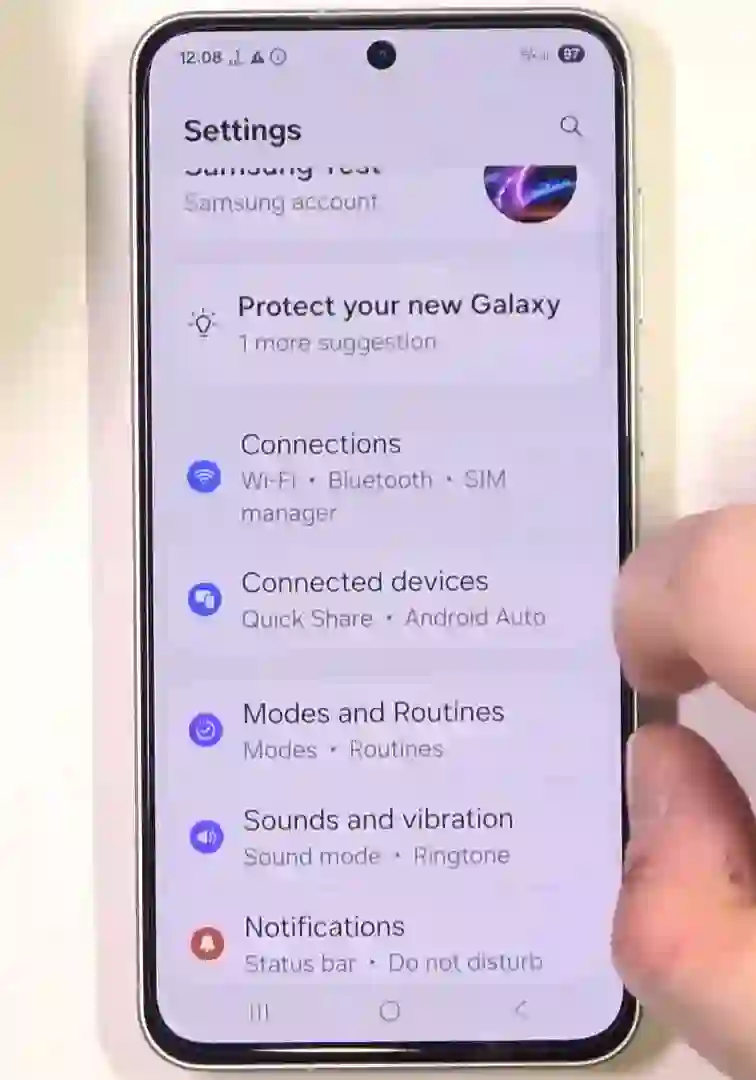
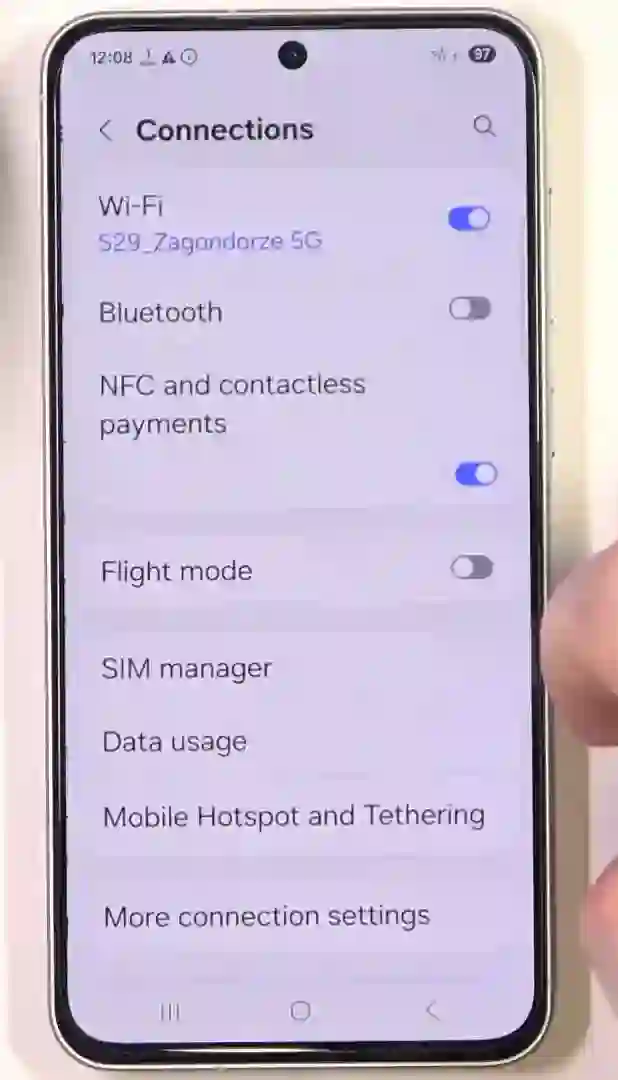
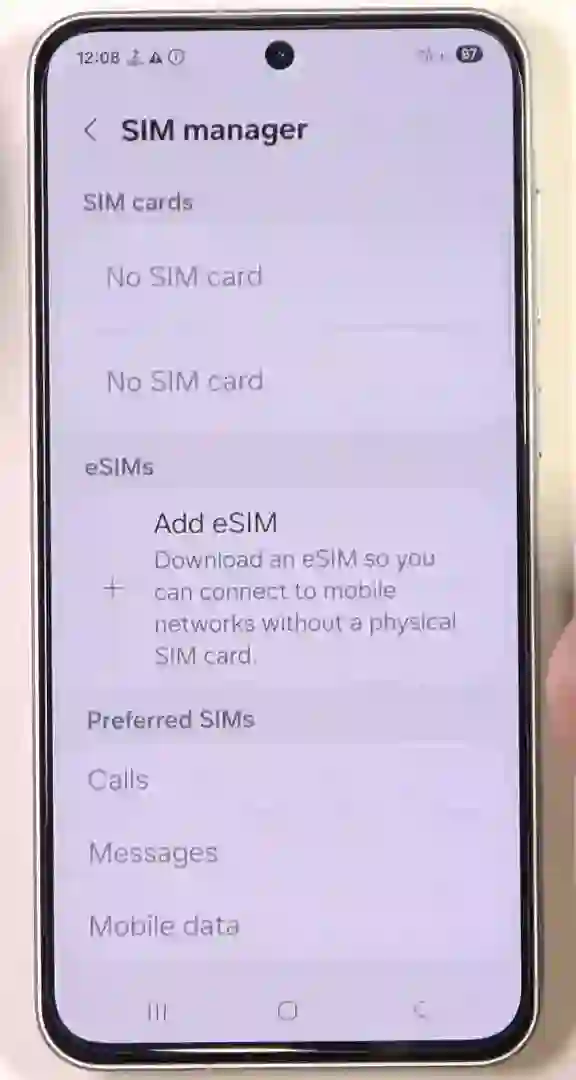
Here is the precise Samsung Galaxy A56 eSIM Activation and Samsung Galaxy A56 eSIM Setup process that actually worked for me, start to finish:
- Connect to Wi-Fi First
Prerequisite
This is the step I skipped the first time, and the phone just sat there refusing to add the profile. Make sure you have a stable network connection before starting. - Navigate to SIM Manager
System Settings
Open your device and go to Settings > Connections > SIM Manager. - Initiate eSIM Addition
Add Profile
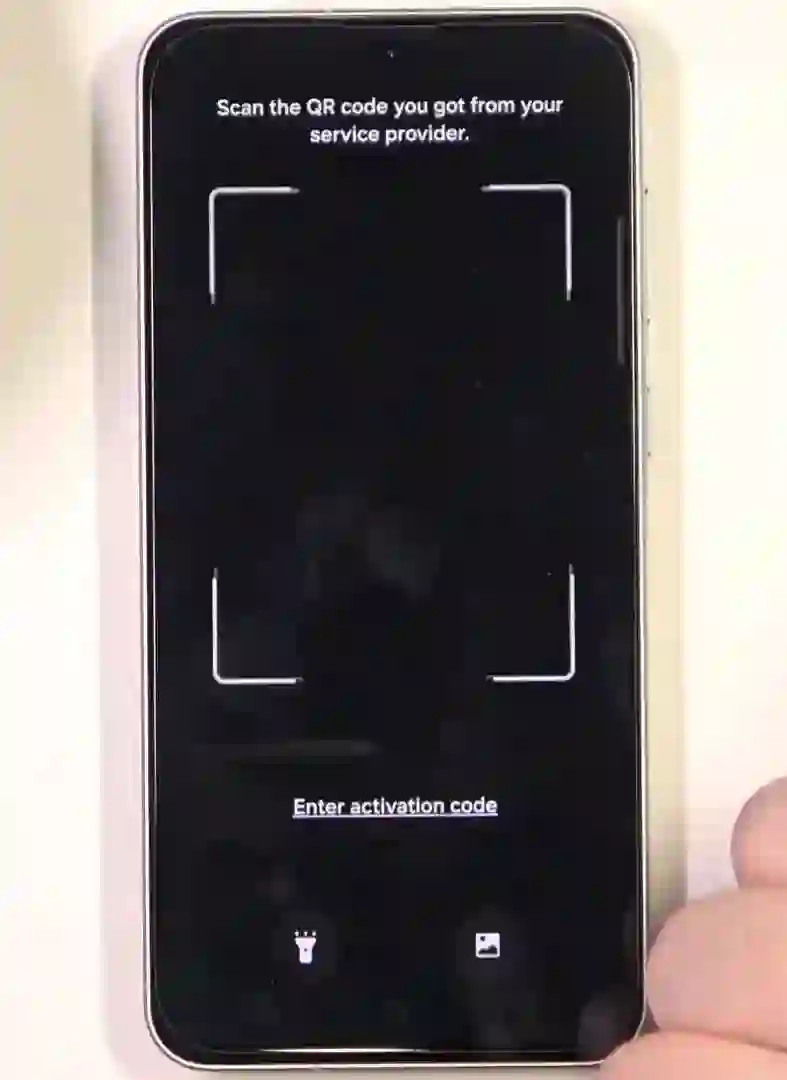
Tap on Add eSIM. You’ll get three choices: scan a QR code, enter the activation code manually, or transfer from another device. - Scan the QR Code
Profile Download
If you got a QR code from your carrier or travel eSIM provider, tap Scan QR code from carrier and point your camera at it. Wait for the phone to download the profile — this usually takes 30 to 90 seconds. - Toggle and Label Your New Line
Finalization
Once it’s added, go back to the SIM Manager screen and toggle the new eSIM to active. Give it a clear label like “Travel” or “Work” so you don’t confuse it with your primary physical line later.
Pro-Tip: Restart your phone once if mobile data doesn’t kick in right away — this fixed it for me more than once. If your carrier supports eSIM Instant Transfer (Samsung-to-Samsung), you can skip QR codes entirely by keeping both phones on the same Wi-Fi with Bluetooth turned on.
Real Mistakes People Make (Including Me)
- Forgetting Wi-Fi: I’ve said it twice now because it’s genuinely the number one issue. eSIM profiles need an active internet connection to download — your existing physical SIM’s data profile doesn’t always count depending on carrier restrictions.
- Activating too early: With travel networks, activating the plan before you land wastes days off your validity window. I did this once with a 7-day Japan eSIM and lost an entire day sitting in a Toronto airport lounge.
- Assuming two eSIMs can run active together: The A56 can store multiple profiles, but only one can be active at a time alongside your physical SIM card. You have to manually switch between them in the SIM Manager.
- Buying a used unit without checking origin: A friend bought a used A56 online that turned out to be a Hong Kong unit — no eSIM option at all, completely missing in settings. No software patch exists for that; it’s a hardware limitation baked in at manufacturing.
- Not updating software: Older firmware versions occasionally have bugs with camera scanning. Keeping up with system updates ensures these bugs are ironed out. If you like tweaking your OS, exploring Samsung Galaxy A56 One UI hidden features can reveal better ways to manage network tools.
Common Issues and Fixes
“Couldn’t connect to network” during setup
Double check you’re on Wi-Fi, not just mobile data, and that your carrier’s servers aren’t down (this happens more than you’d think during peak travel days).
QR code won’t scan
Clean your camera lens, increase the screen brightness on the device showing the code, or use the manual entry option instead. Every eSIM provider gives you a backup activation code and SM-DP+ address for exactly this reason. If your camera continues to struggle focusing on small codes, check out Samsung Galaxy A56 camera settings to optimize focus modes.
eSIM shows as added but no signal
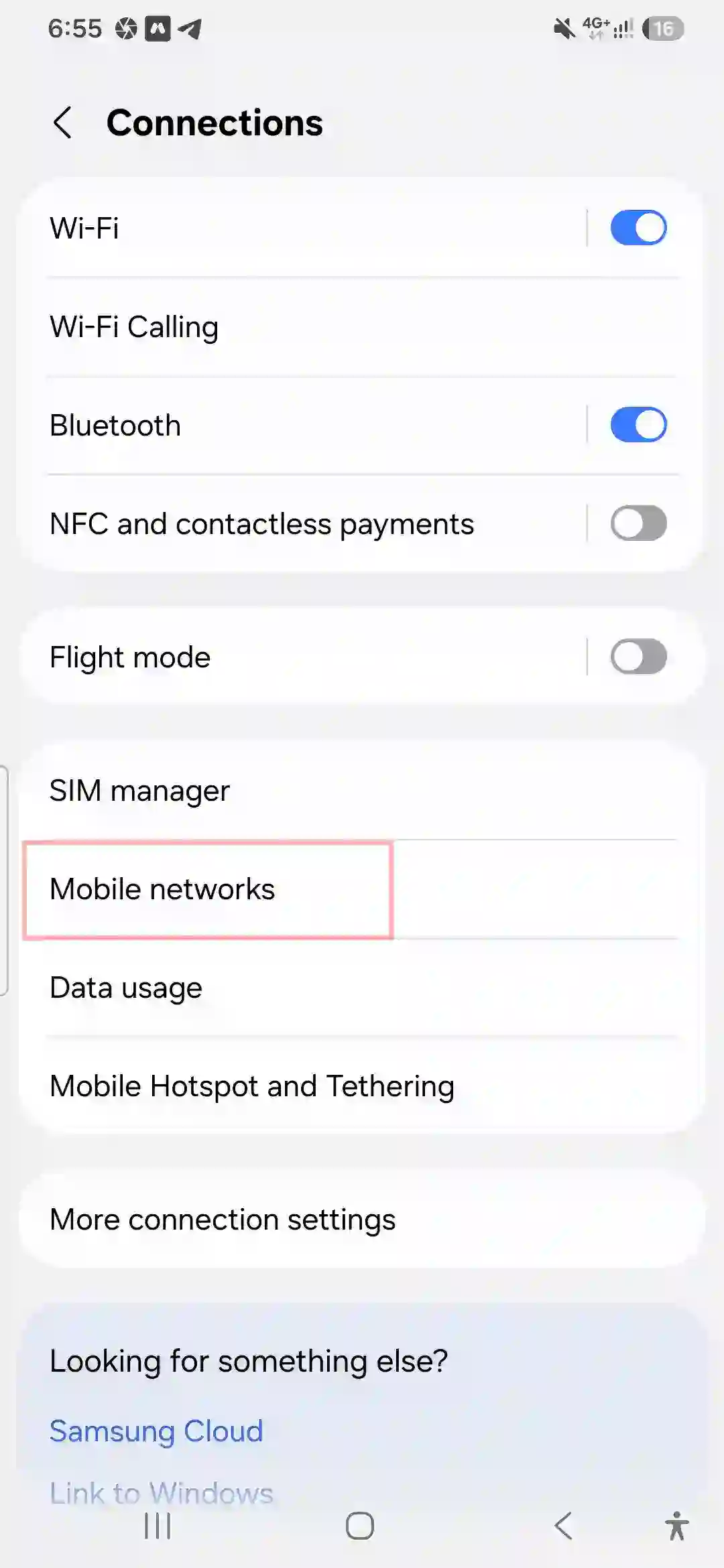
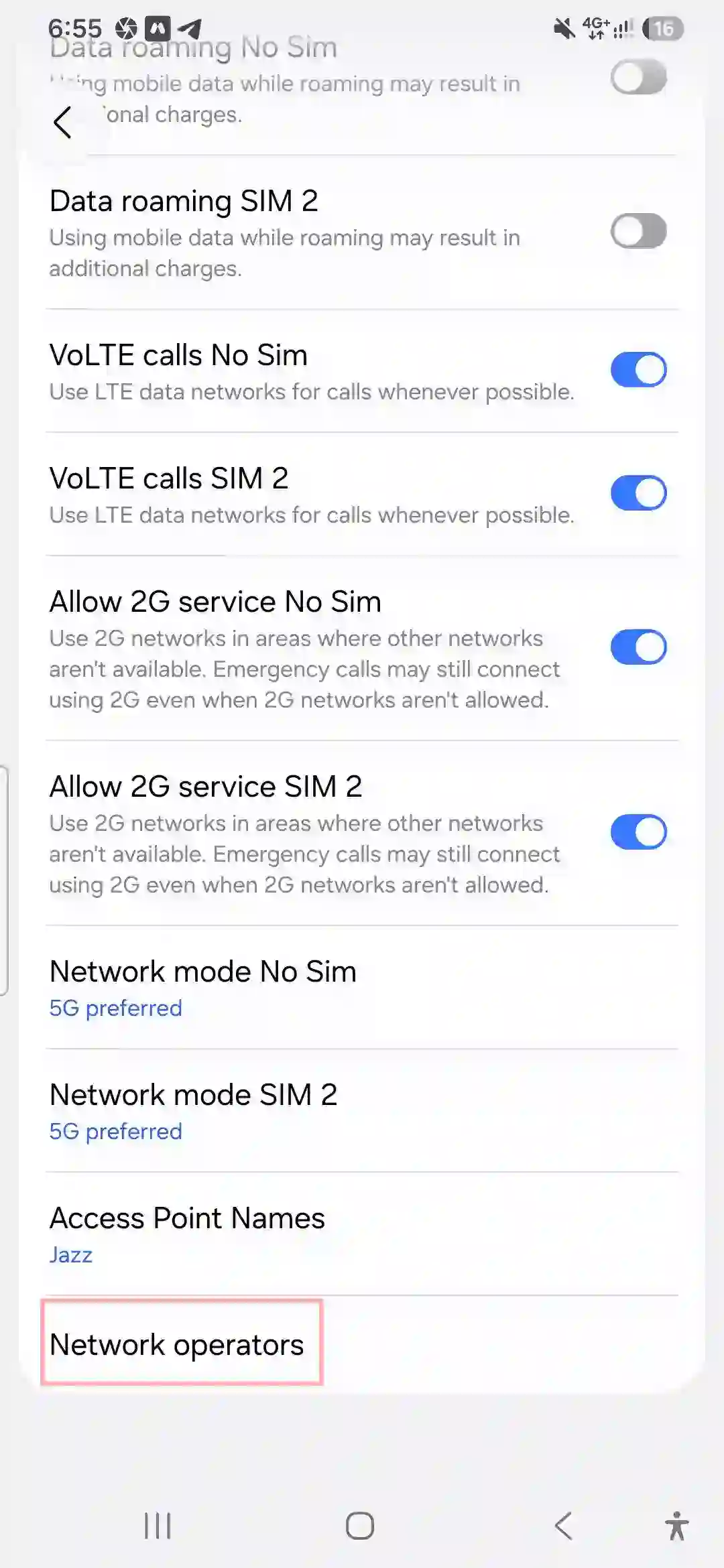
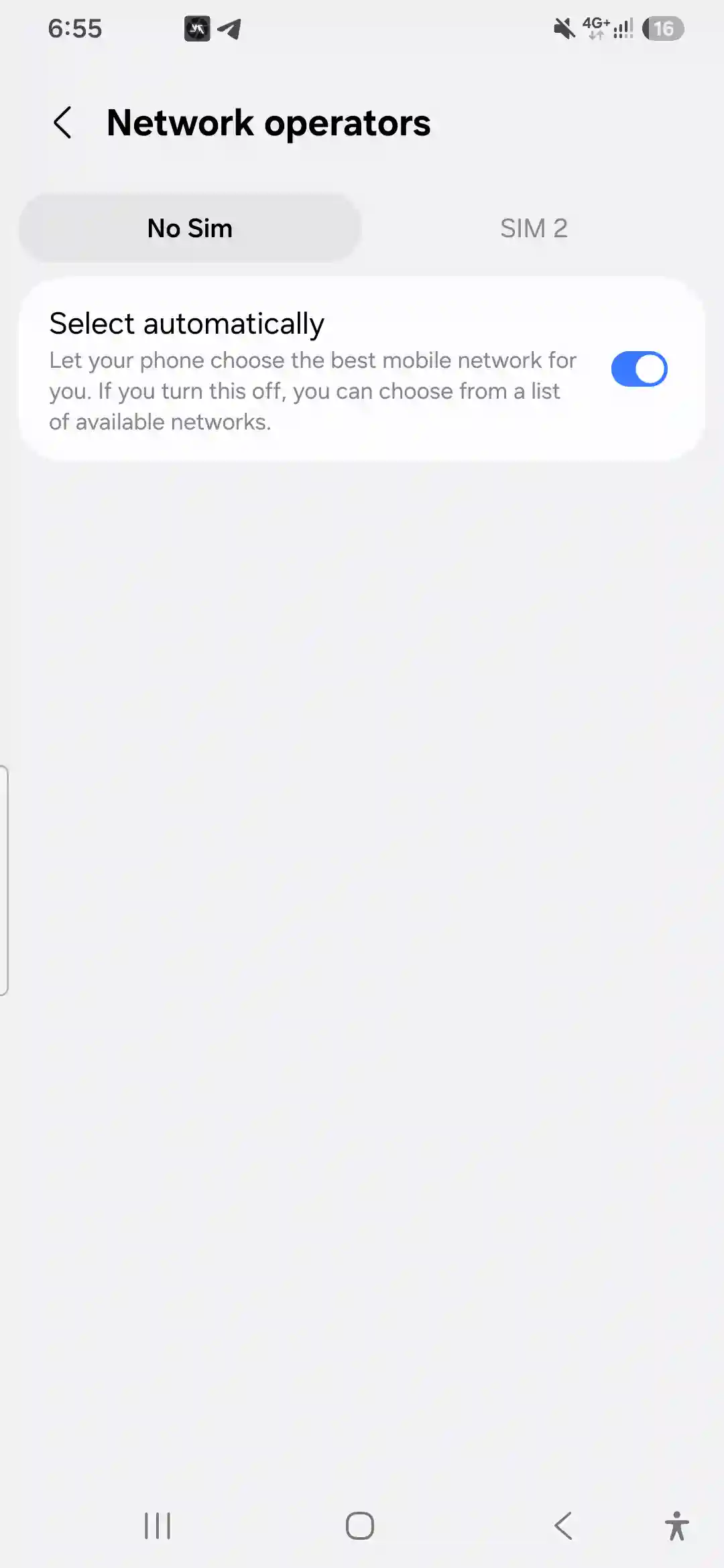
Restart the phone. If that doesn’t work, toggle Airplane Mode on and off, or manually select your carrier network under Settings > Connections > Mobile Networks > Network Operators.
Can’t add a second eSIM (“maximum reached”)
The A56 can store several profiles but has a hard storage limit. You’ll need to delete an old, unused eSIM profile in SIM Manager before adding a new one.
eSIM disappeared after a factory reset
This one caught me off guard. A factory reset wipes eSIM profiles just like it wipes apps. You’ll need to re-add it using your carrier’s QR code or app afterward — save that QR code or activation email somewhere safe before resetting. If you are troubleshooting configuration issues or trying to protect your phone’s battery health after a heavy setup day, look into a Samsung Galaxy A56 battery drain fix to balance things out.
Pros & Cons of Using eSIM on the A56
Pros
- No physical SIM tray fumbling, especially useful if you’ve ever lost that tiny metal ejector pin.
- Easy to switch between a home line and a travel data plan without swapping plastic cards.
- Instant activation with most travel eSIM apps, often within a minute of purchase.
- One less physical point of failure (no bent SIM tray pins, no lost cards).
Cons
- Factory resets wipe your digital profiles, meaning you have to keep backup activation sheets.
- Only one eSIM active at a time, which limits some multi-line international workflows.
- Regional restrictions mean not every physical A56 unit in the world actually has the feature enabled.
- Switching phones later requires either network-side transfer support or a brand new QR code from your carrier.
FAQs
Does the Samsung Galaxy A56 support eSIM?
Yes, the standard global and North American versions support eSIM functionality alongside a physical nano-SIM slot.
Does the Samsung Galaxy A56 5G support eSIM?
Yes, the 5G variant (SM-A566) has the exact same eSIM capability as the regular A56, provided it wasn’t manufactured for a restricted market like mainland China or Hong Kong.
Does the Samsung Galaxy A56 support eSIM in Canada?
Yes. Major Canadian carriers including Rogers, Bell, Telus, Fido, Koodo, and Virgin Plus all support eSIM activation on the A56.
Can I use two eSIMs at the same time on the A56?
No. You can store multiple profiles on the chip, but only one can be active at any given moment. You can, however, run one active eSIM alongside a physical nano-SIM simultaneously.
Will my eSIM survive a factory reset?
No, a factory reset removes your active eSIM profile. You’ll need your carrier’s original QR code or official app to reinstall it afterward.
Can I use a travel eSIM from Airalo or Holafly on the A56?
Yes, third-party travel eSIM providers work the same way as local carrier networks, as long as you have a stable Wi-Fi connection to download the profile.
Why won’t my eSIM QR code scan?
Usually, it’s a lighting or camera focus issue, or the code has already been scanned once (most eSIM QR codes are single-use). Try typing the manual activation codes instead.
Is the eSIM feature available on every Galaxy A56 sold worldwide?
No. Units sold in mainland China, Hong Kong, Macau, and Taiwan typically don’t have eSIM enabled due to local carrier regulations.
Final Thoughts
The Galaxy A56’s eSIM support genuinely made my last two trips easier — no more digging through my bag for a SIM ejector pin at 6 AM in an airport terminal. Once you get past the initial setup quirk (and remember to actually connect to a working Wi-Fi access point before you start), it’s a pretty painless system.
If you’re still getting used to your device layout, you can check out some hidden options in our Samsung Galaxy A56 hidden features manual, or pick up foundational usability habits with our Samsung Galaxy A56 tips and tricks overview.
If you’re on the fence about whether your specific unit supports it, just go to Settings > Connections > SIM Manager and look for Add eSIM. If it’s there, you’re good to go. If it’s missing or greyed out, it’s worth checking your device’s regional origin or contacting your network provider before planning a trip around it. Oh, and while protecting your digital connection is important, don’t forget to protect the hardware itself — make sure to grab a durable Samsung Galaxy A56 back cover to keep that glass back safe from airport drops!