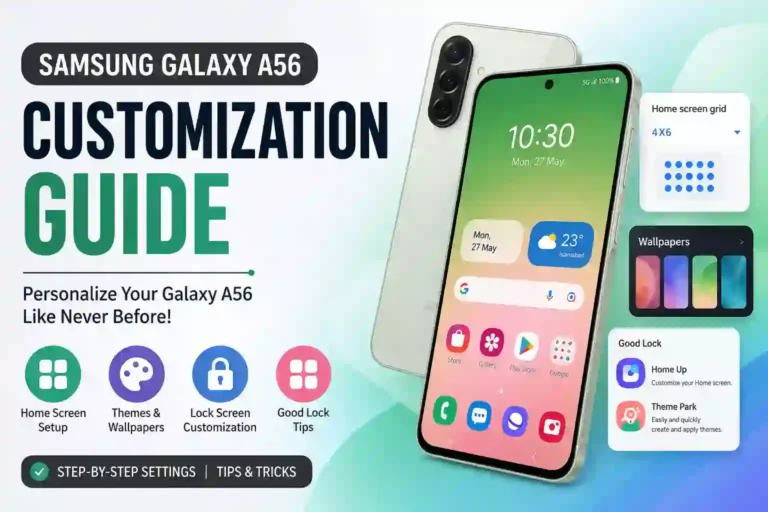
Samsung Galaxy A56 One UI Customization Guide (2026): Tips & Settings
I set up my Galaxy A56 for my cousin last month, and by the time I handed it back to her twenty minutes later, she genuinely asked if it was “the same phone.” Same box, same screen, completely different vibe — different icons, a home screen that actually matched her aesthetic, a lock screen with the exact clock style she wanted, and a bunch of little touches that made the device feel like hers instead of something fresh out of a retail store. If you are just unboxing your device, check out our guide on the first things to do on your Samsung Galaxy A56 to get everything configured right from day one. You might also want to slip it into one of the best protective Samsung Galaxy A56 back covers to keep it safe while styling it.
That’s the beauty of mastering Samsung Galaxy A56 One UI customization. But this isn’t a flagship Galaxy S phone with a Snapdragon chip and 12GB+ of RAM — it runs on the Exynos 1580 processor with 8GB of RAM in most configurations. That matters more than people think when tweaking system settings. Heavy animations, live wallpapers, and unoptimized Good Lock modules put more strain on mid-range hardware than on a flagship, and I noticed that firsthand while testing this setup.
By the time you finish reading this Samsung Galaxy A56 Android 16 customization walkthrough, you’ll know exactly how to reshape your device from top to bottom — while keeping battery life solid and performance silky smooth.
Quick Specs Snapshot
| Feature | Details |
|---|---|
| Chipset | Exynos 1580 |
| RAM | 8GB (varies by region/configuration) |
| Software | One UI 8.5 (Android 16 QPR2), with One UI 9.0 in development |
| Display | 6.7″ Super AMOLED, 120Hz refresh rate |
| Customization Apps | Themes, Good Lock, Wallpaper & Style |
| Icon Customization | Full support via Themes app, Good Lock, and launcher settings |
| AOD Support | Yes, with custom clock styles, widgets, and background options |
| Keyboard | Samsung Keyboard with themes, resizing, Keys Cafe, and toolbar options |
| Account Requirement | Samsung Account needed for Theme Store and Good Lock modules |
| Connectivity | 5G, Wi-Fi 6, and Samsung Galaxy A56 eSIM support guide details |
Customization Checklist
Run through this pre-setup checklist before installing themes or tweaking system settings:
- [ ] Update One UI: Check
Settings > Software update. - [ ] Update Galaxy Store Apps: Keep Good Lock modules current.
- [ ] Sign in to Samsung Account: Required for Theme Store and Good Lock downloads.
- [ ] Select Core Wallpaper: Base your system accent colors around this image.
- [ ] Apply Color Palette: Enable Material You dynamic color matching.
- [ ] Customize Icons: Apply custom icon packs or Theme Store packages.
- [ ] Organize Home Screen: Fine-tune grids and widget stacks.
- [ ] Configure Lock Screen: Set custom clock styles, shortcuts, and widgets.
- [ ] Install Good Lock: Download essential modules from the Galaxy Store.
- [ ] Backup Your Preset: Save Good Lock configuration files manually.
Getting Started: Where One UI Customization Actually Lives
Samsung splits personalization across multiple system menus. Knowing where these tools live prevents confusion:
- Settings > Wallpaper and style: Manage themes, system colors, icons, and wallpapers.
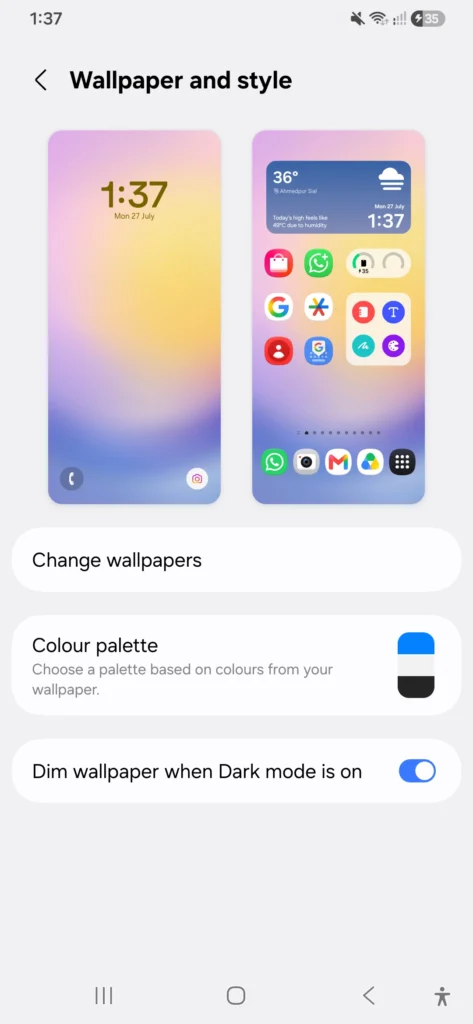
- Settings > Lock screen: Customize clock styles, lock screen widgets, and app shortcuts.
- Settings > Display: Configure Always On Display (AOD), dark mode, screen mode, fonts, and display zoom. Explore the best Samsung Galaxy A56 settings for optimal display parameters.
- Galaxy Store > Good Lock: Access deeper Samsung Galaxy A56 One UI hidden features.
- Long-press Home Screen: Rapid access to grid settings, widgets, and wallpaper choices.
Bottom Line: Wallpaper & Style, Lock Screen, and Good Lock are distinct systems. Attempting to modify lock screen widgets inside the Themes app is the number one reason users assume a feature is unsupported.
How to Customize Galaxy A56 Home Screen
Your home screen is your main dashboard. Proper layout structure prevents clutter while keeping performance snappy.
Home Screen & Apps Screen Grid
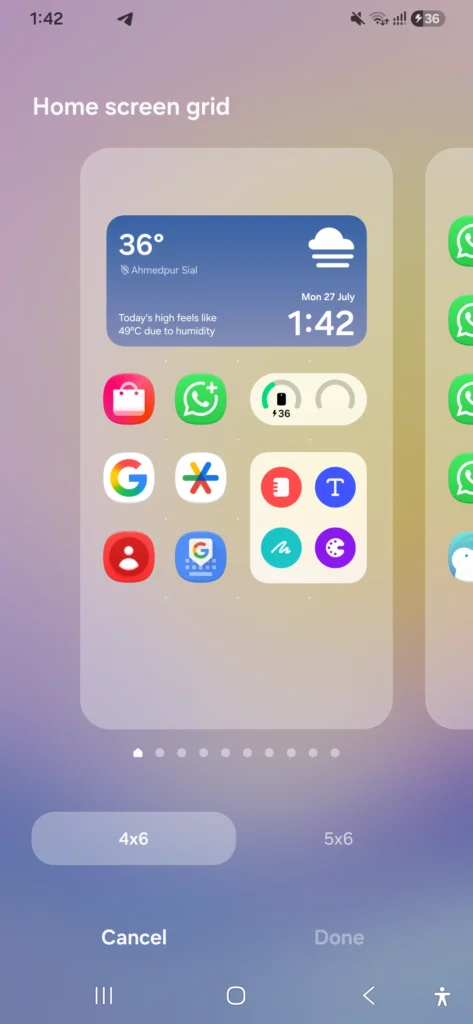
Long-press any empty home screen area, tap Settings, then Home screen grid. Choose between 4×5, 4×6, or 5×6 densities. The Exynos 1580 handles denser grids like 5×6 effortlessly without UI lag. You can adjust the Apps screen grid independently within the app drawer menu.
Folder Personalization
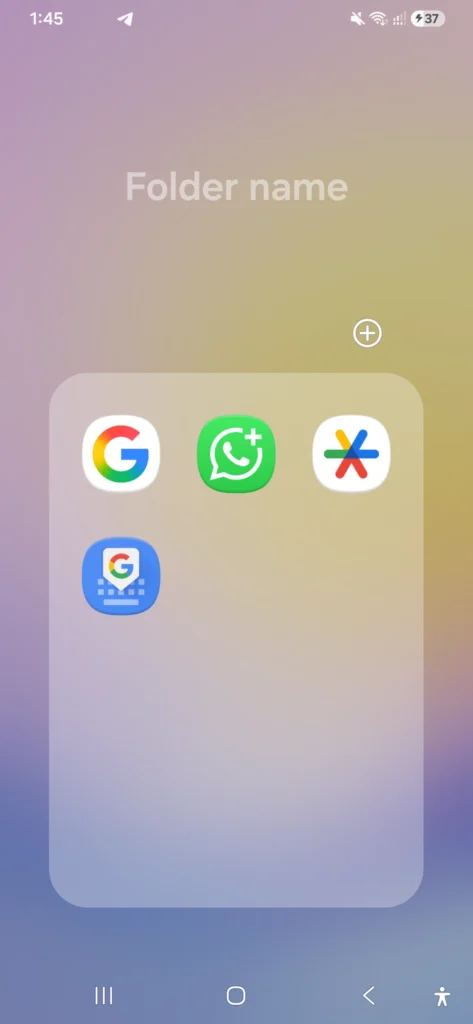
Tap and hold any folder, then select the folder title area to rename or customize:
- Folder Color: Match or contrast with your background color palette.
- Folder Size: Adjust workspace dimensions depending on icon counts.
- Icon Arrangement: Place high-frequency apps along the bottom row for easier thumb reach..
Lock Home Screen Layout
Toggle on Lock Home screen layout in Home Screen Settings. This prevents accidental icon dragging or widget deletion when pulling the phone out of a pocket.
Widgets & Smart Widgets
Widgets provide glanceable data, but poor setup choices can impact layout efficiency.
Adding, Resizing, & Widget Stacks
Long-press the home screen, select Widgets, and drag your desired item. Touch and hold to adjust resize handles.
To save screen real estate, create a Widget Stack: drag one widget directly on top of another of identical dimensions. Stack your Samsung Weather (4×2) with Calendar to switch between weather forecasts and schedules with a simple swipe.
Best Widgets for Daily Efficiency
- Samsung Weather: 4×2 interactive layout.
- Digital Clock: Typography options with battery readouts.
- Samsung Notes: Rapid checklist access.
- Device Care: Quick memory clearing and battery health monitoring.
Performance & Battery Reality
Static widgets consume negligible battery. However, running three or more continuously updating live widgets (e.g., sports tickers or animated weather radar) can trigger mild thermal buildup on warmer days. If you experience unexpected battery drain, read our full Galaxy A56 battery drain fix guide.
Galaxy A56 Lock Screen Customization
You interact with your lock screen dozens of times a day. Personalizing it blends security with aesthetic style.
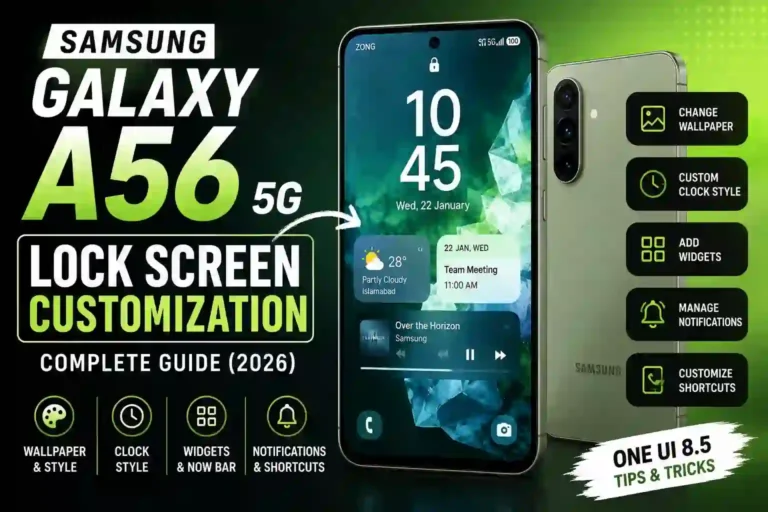
Clock Style & Shortcuts
Navigate to Settings > Lock screen > Clock style. Select from typographic fonts, analog faces, or integrated weather layouts.
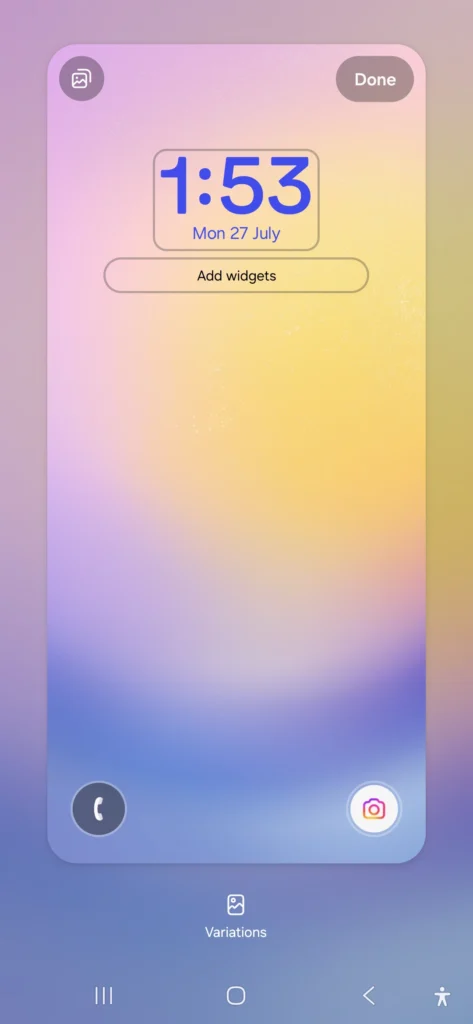
Under Settings > Lock screen > Shortcuts, assign essential apps to the bottom corners—such as Flashlight on the left and Camera on the right.
Lock Screen Widgets
Tap the region directly beneath the clock to add widgets for calendar schedules, weather forecasts, or media playback.
Security Note: If using Secure Folder or work profile data, verify that lock screen widget previews do not expose sensitive calendar entries before biometric authentication.
Fonts & Display Personalization
Changing text scales and color tones changes how comfortable the phone feels during extended reading sessions.
Font Styles, Display Zoom, & Eye Comfort
Navigate to Settings > Display > Font size and style to adjust system typography. Pair custom fonts with Screen zoom adjustments under display settings to scale interface elements cleanly.
For nighttime use, combine Dark Mode with our recommended Samsung Galaxy A56 Night Mode tips to reduce eye strain and conserve AMOLED power.
Galaxy A56 Theme Store & Icon Pack Customization
Transform your system aesthetic using Samsung’s native theme engine and custom icon packs.
Galaxy A56 Theme Store Customization
Access Settings > Wallpaper and style > Themes to browse pre-made system themes.
- Free Themes: Ideal for quick visual shifts; quality varies, so explore beyond featured pages.
- Paid Themes: Provide broader third-party icon coverage, custom system sounds, and themed stock app interfaces.
Galaxy A56 Icon Pack Customization
To customize icons individually without applying a full system theme, use Good Lock’s Home Up or Theme Park tools. You can also review the best One UI settings for Samsung A56 to streamline system styling.
⚠️ Security Warning: Avoid downloading untrusted APK files or unofficial theme packages from third-party sites. Stick to official Galaxy Store downloads to avoid security risks or software incompatibilities.
Material You & Color Palette Integration
Under Settings > Wallpaper and style > Color palette, One UI extracts dominant color tones from your active wallpaper, applying them across quick setting toggles, dialer keys, and supported system app icons.
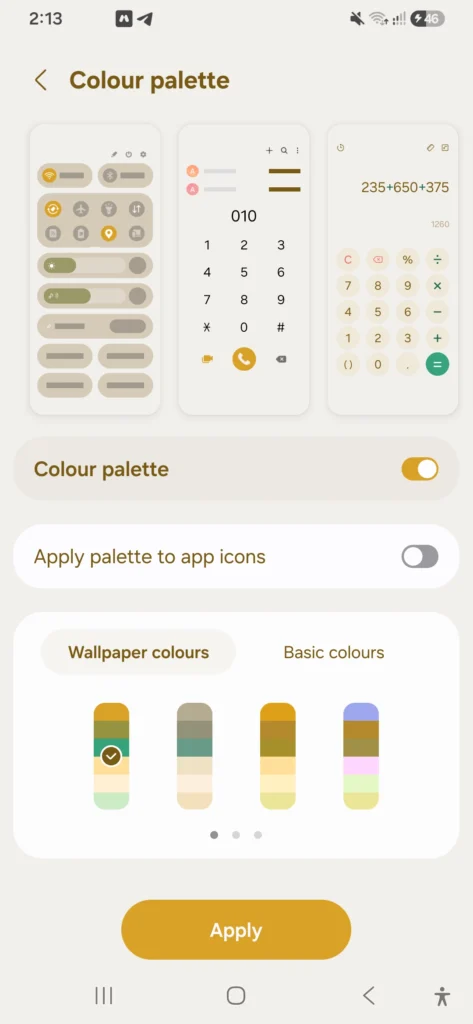
If applying a custom theme from the Theme Store, disable dynamic color palettes to prevent accent color conflicts.
Galaxy A56 Always On Display Customization
Samsung’s Super AMOLED screen offers sharp contrast for Always On Display (AOD) visuals.
Navigate to Settings > Lock screen > Always On Display to toggle between Tap to show, Always show, or Scheduled.
[ AOD: Always-On Mode ] ──> Higher visual convenience  ──> Increased overnight battery draw
[ AOD: Tap-To-Show Mode ] ──> Maximum battery efficiency ──> Zero idle battery drain
If you notice excessive battery consumption with custom AOD wallpapers, check our guide on how to improve Samsung Galaxy A56 battery life. For charging issues, see our fix for Samsung Galaxy A56 fast charging not working.
Edge Panels and Navigation Gestures
Enable Edge Panels via Settings > Display > Edge panels for slide-out access to apps, tools, and contacts from any screen.
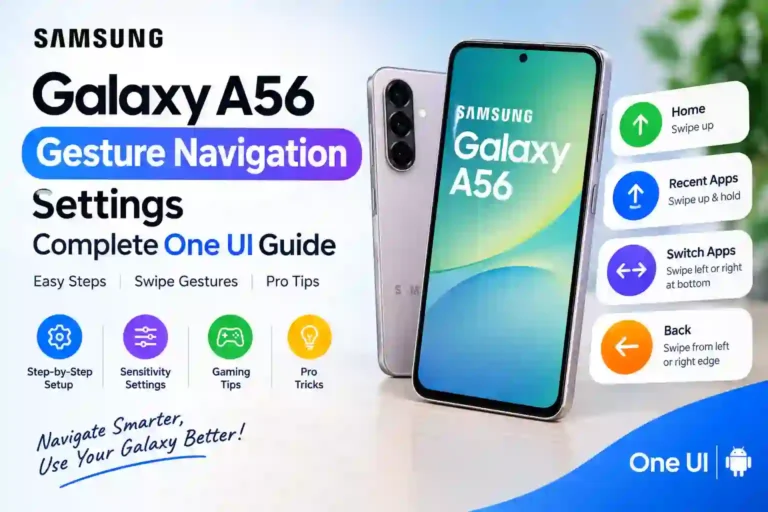
Under Settings > Display > Navigation bar, toggle between traditional three-button navigation and Swipe gestures. Gestures maximize screen real estate on the 6.7-inch display, while three-button navigation offers predictable touch control for users with limited dexterity.
Galaxy A56 Keyboard Customization
Open the Samsung Keyboard toolbar and select the palette icon to apply native keyboard skins.
Tap keyboard settings to adjust Keyboard size and transparency. Shrinking and shifting the keyboard layout toward one corner makes one-handed typing far more comfortable on a large display. For power users, enable the built-in clipboard manager and Writing Assistant features.
Sound, Haptics, and Notification Personalization
Configure custom ringtones and haptic intensity via Settings > Sounds and vibration. Adjust Vibration pattern settings so incoming calls remain noticeable inside bags or pockets.
Assign distinct notification tones to specific applications via Settings > Apps > [App Name] > Notifications to identify messages without looking at the screen.
Good Lock Galaxy A56 Plugins & Modules
Good Lock is Samsung’s official, free customization suite available via the Galaxy Store.
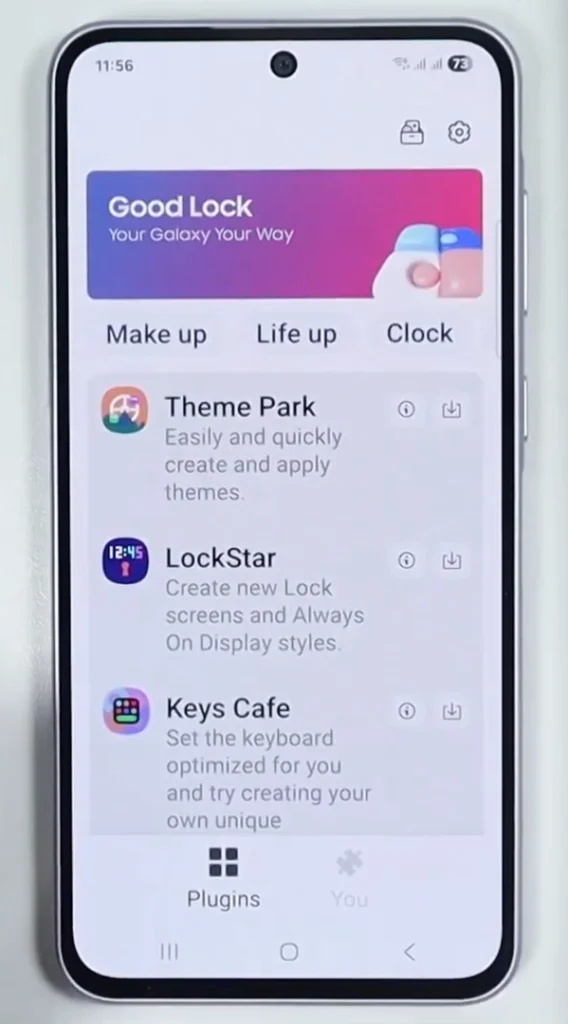
Good Lock Module Recommendation Table
| Plugin / Module | Key Personalization Capability | Performance Cost (Exynos 1580) | Recommended For |
|---|---|---|---|
| Home Up | Extended grid controls, folder sizes, task changer | Very Low | Everyone |
| Theme Park | Builds custom themes from raw image assets | Low | Designers & Stylists |
| LockStar | Advanced lock screen placement & clock placement | Low | Lock Screen Tinkers |
| ClockFace | Creates custom AOD and lock screen clock designs | Low | Typography Enthusiasts |
| NavStar | Customizes gesture sensitivity and navigation icons | Low | Gesture Power Users |
| QuickStar | Hides status bar icons, redesigns Quick Panel | Low | Minimalists |
| Wonderland | Adds 3D parallax depth effects to wallpapers | Moderate | Visual Enthusiasts |
| Keys Cafe | Custom keyboard effects, sounds, and layouts | Low | Typists |
| RegiStar | Reorders settings menus, customizes tap actions | Low-Moderate | Power Users |
| Camera Assistant | Tweaks camera auto-capture speeds and soft edges | Low | Photographers |
To pair your camera module tweaks with ideal camera configurations, read our full guides on optimal Samsung Galaxy A56 camera settings and how to improve Samsung Galaxy A56 camera quality.
Good Lock Permissions & Security
Modules like NavStar and RegiStar request system Accessibility Service permissions to detect gesture inputs and app triggers. Because these plugins are developed and cryptographically signed directly by Samsung, they are safe to use. However, regularly review Settings > Accessibility > Installed apps to revoke permissions for plugins you no longer actively run.
Customization Performance Impact Matrix
| Customization Choice | Battery Impact | RAM / Performance Impact | Thermal Impact |
|---|---|---|---|
| Home Screen Grid Adjustments | None | None | None |
| Static Widgets (1–4 Total) | Negligible | Negligible | None |
| Live / Animated Widgets (3+) | Moderate | Low | Minor warmth |
| Font & Screen Zoom Adjustments | None | None | None |
| Dynamic Color Palette | None | None | None |
| Always On Display (Tap to Show) | Very Low | None | None |
| Always On Display (Always-On + Image) | Moderate-High | None | Low |
| Single Good Lock Module (e.g., Home Up) | Very Low | Very Low | None |
| Multiple Heavy Modules (Wonderland + RegiStar) | Moderate | Low-Moderate | Slight stutter potential |
If you experience persistent system slowdowns after installing multiple modules, consult our guide on hidden features on the Galaxy A56 to optimize your setup.
Third-Party Launchers vs One UI Home
Some users consider replacing One UI Home with third-party options like Nova Launcher or Niagara Launcher.
Launcher Comparison Table
| Launcher Option | Good Lock Compatibility | Customization Depth | Gesture Support | Best Use Case |
|---|---|---|---|---|
| One UI Home (Stock) | Full Support | High (with Good Lock) | Native & Smooth | Complete Samsung Ecosystem Use |
| Nova Launcher | Partial (Home Up breaks) | Very High (Independent) | Extended Custom Gestures | Non-Good Lock Power Users |
| Niagara Launcher | None | Minimal / List-focused | Vertical Swipe Lists | Minimalist Setup |
Multi-User & Child Profile Customization
Secondary user profiles (Settings > General management > Users) maintain distinct home screen layouts, icon styles, and wallpapers. However, the Lock Screen and Always On Display remain system-wide and shared across all profiles.
Good Lock modules installed on the owner profile do not automatically transfer to secondary user profiles. To run modules on a secondary profile, log into a Samsung Account within that profile and download them separately. Samsung Kids child profiles disable Good Lock and external theme installation by design to maintain a safe environment.
Galaxy A56 One UI 8.5 Customization & Future Updates
Knowing how system updates impact customization settings helps protect your setup over time.
Galaxy A56 One UI 8.5 Update Features
Rolled out starting mid-2026, One UI 8.5 introduces:
- Refreshed Visual Design: Transparent blur effects and floating menu elements.
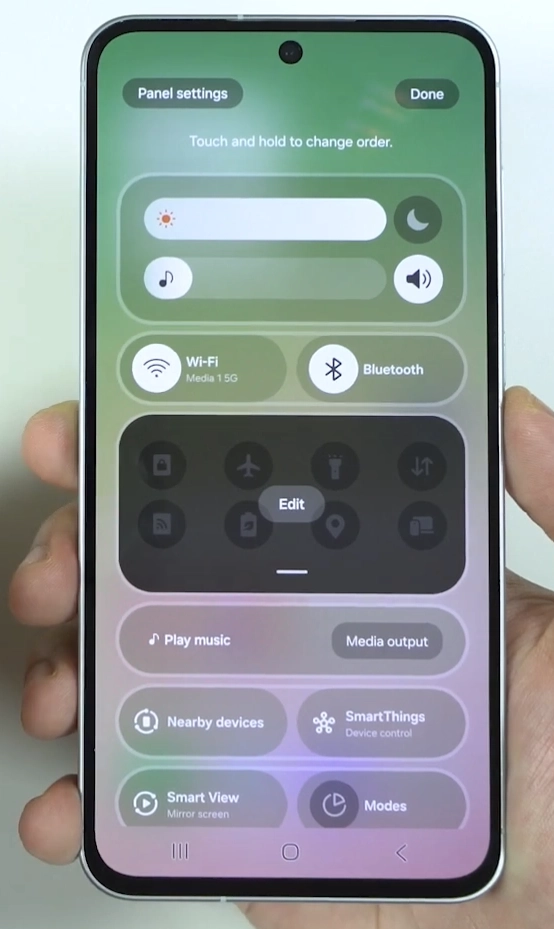
- Galaxy A56 Quick Panel Customization: Individually resizable and reorderable toggles and sliders, with independent landscape layouts.
- Enhanced Lock Screen Layouts: Automatic clock repositioning around subject photos (people and pets).
Galaxy A56 One UI 9 Update Preview
The Galaxy A56 One UI 9 update (based on Android 17) is currently in development. Samsung’s rollout strategy prioritizes flagship Galaxy S and Z series devices first, followed by A-series devices. One UI 9 focuses on refining Quick Panel responsiveness and system fluidity on mid-range chips like the Exynos 1580.
Feature Parity: Galaxy A56 vs Flagships & Siblings
       ┌────────────────────────────────────────────────────────┐
       │             One UI Customization Features              │
       └───────────────────────────┬────────────────────────────┘
                                   │
         ┌─────────────────────────┴─────────────────────────┐
         ▼                                                   ▼
┌─────────────────────────────────┐                 ┌─────────────────────────────────┐
│     Shared Across Lineup        │                 │     Flagship / Foldable Only    │
├─────────────────────────────────┤                 ├─────────────────────────────────┤
│ • Good Lock Core Modules        │                 │ • Flex Mode Foldable Layouts    │
│ • Theme Store & Icon Packs      │                 │ • External Cover Display UI     │
│ • Lock Screen & AOD Clocks      │                 │ • Full Galaxy AI Suite          │
│ • Resizable Quick Panel Tiles   │                 │ • One UI Beta Access            │
└─────────────────────────────────┘                 └─────────────────────────────────┘
Galaxy A56 vs Galaxy A36 & A55 Differences
The software customization toolkit is identical across the A36, A55, and A56 when running One UI 8.5. For a hardware breakdown, read our Samsung Galaxy A56 vs A55 comparison and our Samsung Galaxy A56 vs A36 comparison guide.
Troubleshooting: Galaxy A56 One UI Customization Issues
If custom themes or Good Lock plugins fail to apply correctly, follow this step-by-step troubleshooting sequence:
[ Step 1: Force Stop App ] ──> [ Step 2: Check Store Updates ] ──> [ Step 3: Clear One UI Cache ]
                                                                               │
[ System Normalization ]  <──  [ Step 5: Full Restart ]  <──  [ Step 4: Verify Permissions ]
- Force Stop App: Navigate to
Settings > Apps > Good Lock (or Theme Store)and select Force stop. Reopen the app. - Check for Updates: Verify that individual modules are updated in the Galaxy Store.
- Clear Launcher Cache: Go to
Settings > Apps > One UI Home > Storage > Clear cache. This cleans up visual layout corruption without wiping your icon arrangements. - Verify Accessibility Permissions: Ensure modules like NavStar have active Accessibility access under
Settings > Accessibility > Installed apps. - System Restart: Perform a full restart to clear system overlay glitches.
If software instability or crashing persists, read our troubleshooting steps on how to reset your Samsung Galaxy A56 or resolve troubleshooting Samsung Galaxy A56 Wi-Fi problems.
Frequently Asked Questions
Does Good Lock work on Galaxy A56?
Yes. Good Lock is fully supported on the Galaxy A56 via the Galaxy Store.
Is One UI 9 available for Galaxy A56?
One UI 9 (Android 17) is currently in active development for the Galaxy A56. Mid-range A-series devices will receive the update following the initial flagship rollout.
How do I customize the Galaxy A56 home screen?
Long-press any open area on the home screen to modify grid dimensions, stack widgets, change wallpapers, or lock the layout against accidental edits.
How do I change the lock screen on Galaxy A56?
Navigate to Settings > Lock screen to adjust clock fonts, change app shortcuts, and add lock screen widgets.
Can Galaxy A56 use Samsung Themes?
Yes. Full themes, wallpaper sets, and icon packs can be downloaded through the official Samsung Theme Store.
How to customize Always On Display on Galaxy A56?
Go to Settings > Lock screen > Always On Display to pick custom clock faces, adjust display schedules, or toggle between tap-to-show and continuous display modes.
Final Summary
Personalizing your Galaxy A56 balances aesthetic style with efficient hardware performance. By leveraging built-in One UI 8.5 settings and selective Good Lock modules like Home Up and LockStar, you can transform the look and feel of your phone without straining its Exynos 1580 processor or draining the battery.
For more software optimizations, check out our collection of essential Samsung Galaxy A56 tips and tricks.