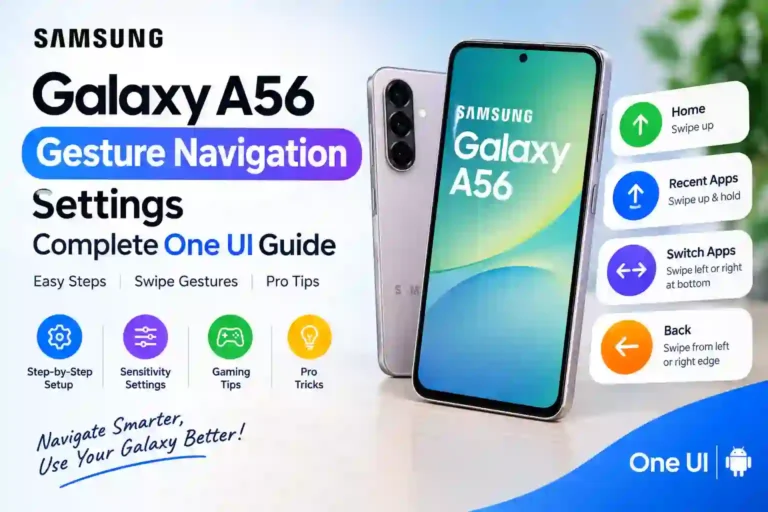
Samsung Galaxy A56 Gesture Navigation Settings: Complete One UI Guide 2026
I almost returned my Galaxy A56 during the first week I owned it. Not because of the camera, not because of battery life — those were fine. It was the navigation. I’d come from an iPhone for two years, and when I switched back to Android, mastering the Samsung Galaxy A56 gesture navigation system felt completely alien. I kept accidentally opening the recent apps screen when I meant to go home, and I swiped up from the bottom so many times trying to close an app that I genuinely started wondering if the phone was broken.
It wasn’t broken. I just didn’t know how any of these Samsung A56 navigation gestures actually worked.
Once I sat down and figured out the Galaxy A56 gesture navigation settings — really figured them out, not just skimmed a menu once — the A56 became one of the smoothest phones I’ve used for one-handed navigation. If you are exploring the first things to do on your Samsung Galaxy A56, tuning your navigation layout is paramount. This complete guide covers everything I wish someone had told me on day one, minus the fumbling around.
Quick Specs Snapshot
| Feature | Detail |
|---|---|
| Device | Samsung Galaxy A56 |
| Software | One UI (based on Android 15/16) |
| Navigation Options | Full-screen swipe gestures, 3-button navigation bar |
| Primary Setting Location | Settings > Display > Navigation bar |
| Gesture Hints Toggle | Available (shows bottom navigation line) |
| Edge Sensitivity Adjustment | Yes, independent left/right back gesture controls |
| Third-Party Launcher Compatibility | Supported with One UI smooth animations |
Buttons vs. Gestures: What’s the Real Difference?
Before you modify your Galaxy A56 navigation bar settings, it helps to know what you’re choosing between.
- Buttons Navigation: Gives you the classic three-icon bar at the bottom — Back, Home, and Recent Apps. This is what most Android users default to because it’s predictable. If you’ve never used full-screen controls before, traditional buttons are a safe starting point.
- Gesture Navigation: Removes those fixed icons entirely. Instead, you utilize Samsung Galaxy A56 swipe gestures from different screen edges to execute system controls.
Switching to gestures reclaims valuable display area, giving you an edge-to-edge viewing surface. It looks cleaner and, once your thumb builds muscle memory, swiping is noticeably faster than reaching down to tap small virtual keys. You can learn more about maximizing display optimization in our guide to the best Samsung Galaxy A56 settings.
How to Turn On Samsung Galaxy A56 Gesture Navigation (Step by Step)
If you want to know how to Galaxy A56 change navigation buttons to gestures, follow these exact steps inside One UI:
- Open the Settings app on your Galaxy A56.
- Scroll down and select Display.
- Tap Navigation bar (located near the bottom half of the menu).
- Under the navigation type section, select Swipe gestures.
- Keep the toggle for Gesture hints turned ON initially. This displays a subtle navigation line at the bottom edge to anchor your swipes.
- Select More options to adjust back swipe sensitivity or customize gesture handles.
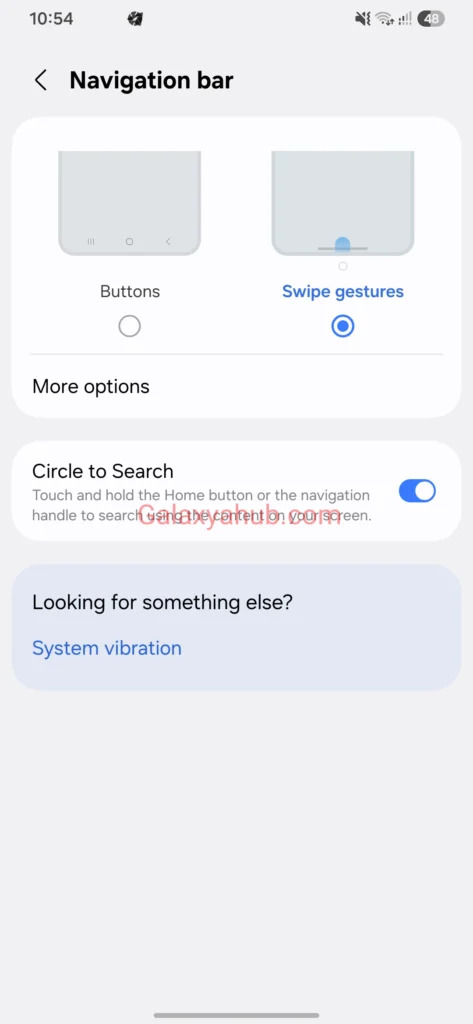
The change takes effect immediately without requiring a system reboot.
Understanding Each Samsung Galaxy A56 Swipe Gesture
Mastering full-screen swipes requires learning subtle differences in swipe speed and hold duration.
1. Galaxy A56 Home Gesture
- Action: Swipe up quickly from the bottom center edge of the screen and release immediately.
- Result: Minimizes the active app and returns you directly to your Home Screen.
2. Galaxy A56 Recent Apps Gesture
- Action: Swipe up from the bottom edge and pause your thumb mid-screen for half a second before lifting off.
- Result: Opens the multitasking app switcher so you can close apps or switch active tasks.
3. Galaxy A56 Back Gesture
- Action: Swipe inward from either the left or right edge of your display.
- Result: Replaces the traditional back button to navigate to the previous page, menu, or screen.
4. Switch Between Active Apps
- Action: Drag horizontally left or right along the bottom edge where the gesture handle rests.
- Result: Instantly flips between recently used applications in chronological order.
5. Launch Voice Assistant
- Action: Swipe diagonally inward from either bottom corner of the screen.
- Result: Triggers Google Assistant or Gemini, depending on your default digital assistant setup. (For more details on operating system features, consult Google’s official Android navigation guide).
Customizing Gesture Sensitivity and Hints in One UI
A common issue users encounter when using Samsung A56 navigation gestures is triggering the “back” function when trying to open app side menus (hamburger menus). Samsung provides dedicated controls within One UI to eliminate this friction.
Navigate to Settings > Display > Navigation bar > More options to access the Back gesture sensitivity sliders.
Low Sensitivity <--- [Slider] ---> High Sensitivity
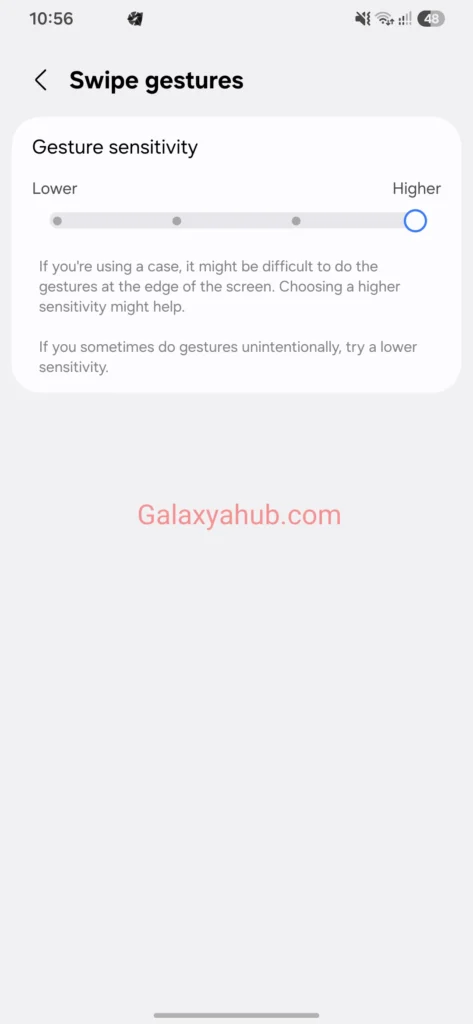
- Left Edge Sensitivity: If apps like Gmail or side-drawer shopping apps keep going back instead of opening their menus, slide the left-side sensitivity toward Low.
- Right Edge Sensitivity: Keep this at standard or high, depending on your primary hand usage.
Adjusting edge sensitivity ensures that swipe gestures don’t interfere with app drawer navigation. For further operating system tweaks, explore our comprehensive Samsung Galaxy A56 One UI customization guide.
Real-Life Scenarios Where Gestures Shine (and Struggle)
1. Reading and Social Media Browsing (Shines)
Full-screen navigation removes the permanent bottom bar. Articles, social feeds, and web pages display more content on the A56’s AMOLED display.
2. Mobile Gaming (Requires Adjustment)
Games with edge controls (such as racing titles or fighting games) can trigger accidental back swipes mid-match. Use Samsung’s built-in Game Booster tool to lock swipe gestures while playing.
3. One-Handed Operation (Shines)
Reaching down for a static home button while holding your phone in one hand can cause grip instability. Swiping inward from the natural resting position of your thumb makes edge navigation effortless.
4. Screen Protector Interferences (Struggles)
Thick tempered glass screen protectors with raised edges can impede your thumb during edge-inward swipes. If you notice missed back swipes, ensure your glass accessory features rounded 2.5D edges or adjust sensitivity higher. Check out our tested picks for the best Galaxy A56 screen protector options.
Common Mistakes People Make
- Disabling Gesture Hints Too Soon: Turning off the visual bottom indicator before building muscle memory leads to missed home and app-switcher swipes.
- Releasing Too Quickly on Recents: Landing on the home screen instead of the app switcher happens when you don’t pause at the end of the upward swipe.
- Ignoring Edge Sensitivity Settings: Blaming One UI for “buggy” back commands when simple slider adjustments in navigation settings solve edge-swipe conflicts.
- Skipping Game Booster Locks: Forgetting to enable gesture protection during full-screen gaming sessions.
My Personal Settings Recommendation
After testing the device across daily workflows, here is the optimal configuration for most users:
- Navigation Type: Swipe gestures
- Gesture Hints: On (for the first 10-14 days), then optional
- Left-Edge Back Sensitivity: Set slightly lower to accommodate app side drawers
- Right-Edge Back Sensitivity: Set to Medium/Standard
- Game Booster Lock: Enabled for action, racing, and full-screen games
Pairing these navigation settings with other system optimizations listed in our guide to the top One UI settings for Samsung A56 will deliver a smoother daily user experience.
Helpful Tips From Daily Use
- Dual-Edge Back Command: Unlike iOS, which primarily restricts back swipes to the left edge, Android allows back swipes from both left and right edges on the Galaxy A56.
- Screen Protector Recalibration: If you attach a full-coverage screen protector, turn on Touch sensitivity under Settings > Display alongside boosting back gesture sensitivity.
- Reverting to Buttons: Navigation choices are non-destructive. You can instantly toggle back to traditional buttons at any point without losing home screen layouts or app preferences. You can verify device diagnostic details or software states anytime using Samsung A56 secret codes.
- Troubleshooting Support: If you encounter system responsiveness issues after a major update, check the official Samsung Support portal or consult our Galaxy A56 tips and tricks hub.
Pros and Cons of Gesture Navigation on the A56
Pros
- Maximized Display Area: Removes fixed navigation bars for full-screen view.
- Ergonomic One-Handed Control: Allows back and home commands from natural thumb positions.
- Custom Edge Controls: One UI provides granular sensitivity sliders.
- Fluid Multitasking: Quick bottom-bar sliding lets you hop between active apps fast.
Cons
- Initial Learning Curve: Requires 3 to 5 days to establish muscle memory for swipe timing.
- App Edge Conflicts: Requires manual sensitivity adjustment for apps with slide-out menus.
- Gaming Triggers: Requires Game Booster locks to prevent accidental exits.
FAQs
Can I switch back to button navigation anytime on the Galaxy A56?
Yes. Go to Settings > Display > Navigation bar and choose Buttons. The classic Back, Home, and Recents icons will reappear immediately.
Why does my back gesture open a side menu instead of going back?
Your left edge sensitivity is set too high for apps that utilize slide-out navigation drawers. Go to Settings > Display > Navigation bar > More options and lower the back gesture sensitivity slider for that side.
Does full-screen gesture navigation save battery life on the Galaxy A56?
The navigation style itself consumes identical battery power. However, because gesture navigation hides the static navigation bar, AMOLED pixels in that screen area spend more time displaying dark or variable content, which can subtly reduce static element battery consumption.
Why does my phone open recent apps when I want to go home?
You are holding your upward swipe too long. A fast swipe and immediate release triggers the Galaxy A56 home gesture, while a swipe with a brief pause opens recent apps.
Can I disable the back gesture on specific games?
Yes. Open Game Booster while playing any full-screen game, navigate to its settings menu, and enable Block navigation gestures to prevent accidental exits mid-game.
Do gesture hints drain battery or slow down performance?
No. Gesture hints are simple UI visual lines rendered natively by One UI. They have zero impact on performance or battery consumption.
Will major One UI software updates reset my gesture settings?
System updates generally preserve your Galaxy A56 gesture navigation settings. However, major Android version upgrades may introduce updated animation curves or sensitivity defaults, so reviewing your navigation bar menu post-update is recommended.
Is gesture navigation harder for smaller or larger hands?
Gestures are generally more accessible regardless of hand size because edge swipes register along the entire side or bottom boundaries of the display, removing the need to stretch your thumb down to a specific corner button.