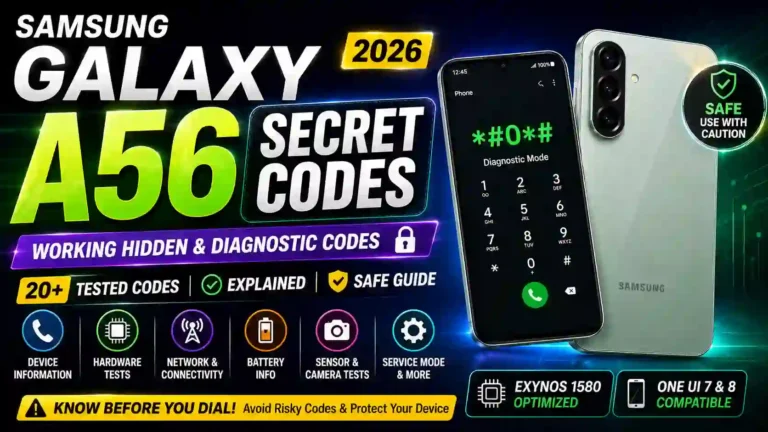
Samsung A56 Secret Codes (2026): Full List + Fix for “Not Working” Issue
I almost bricked my sister’s brand new Galaxy A56 last month. Not because I did anything reckless — I was just trying to check if the touchscreen digitizer had a dead spot near the bottom bezel (long story, she dropped it face-down on a gravel driveway, though thankfully she was using a sturdy protective back cover). I typed in an old code I remembered from my Galaxy A54 days, hit call, and instead of a nice little diagnostic menu, I got… nothing. Just a blank screen for two seconds and back to the dialer like I’d typed a wrong number.
Turns out a bunch of the classic Samsung secret codes either don’t work anymore, work differently, or need something specific enabled or disabled first on One UI 7 and One UI 8. So I spent a weekend testing basically every Samsung A56 hidden code I could find on the A56 itself, cross-checking which ones still fire, digging into why some fail, and figuring out which ones are actually useful versus which ones are just internet folklore at this point.
This isn’t a copy-paste list from some forum thread. Everything below I typed into an actual Galaxy A56 5G (Exynos 1580, One UI 6.1, then re-tested again after updating to One UI 7 on Android 15/16). I’ll tell you flat out when something didn’t work for me, why it probably didn’t, and what to check before you assume your phone is broken.
What Are Secret Codes and Why They Still Matter
These are technically called USSD code or MMI code strings — little sequences you punch into the stock dialer app starting with a star and pound sign combo. They’re not some hacker trick. Samsung (and Android in general) built them in years ago so technicians and factory testers could run quick diagnostics without opening up a whole service app like Samsung Members or connecting to external diagnostic tools.
For regular people, learning what are the secret codes for Samsung A56 is genuinely handy in a few situations: buying a used phone and wanting to check if it’s genuine, executing a how to test camera on Samsung A56 with code procedure after a repair, figuring out if that annoying vibration issue is a hardware fault, or just finding out how to check IMEI on Samsung A56 without digging through settings menus.
The reason I’m writing this specific Samsung A56 secret codes list 2026 guide for the A56 is that most lists floating around are recycled from Galaxy S-series or older A-series articles, sometimes years old, and never actually re-tested on current One UI 7 update or One UI 8 update builds on this phone’s specific Exynos 1580 chipset. A few things behave differently here, and I want to walk through exactly what and why.
Before You Start: Auto Blocker Is Probably Your Real Problem
If you’ve typed a code and gotten nothing — no popup, no hidden menu, just a blank flash back to the dialer — before you assume the code is dead, check Auto Blocker. This is the primary Samsung A56 secret codes not working fix.
Auto Blocker is the security feature Samsung introduced with One UI 6 and carried forward into One UI 7 and 8. It’s designed to restrict app installs from outside official stores, block unauthorized commands sent over USB while the phone is locked, and generally lock down anything that looks like an unapproved system-level interaction.
Important Clarification: Samsung has never officially published documentation confirming that Auto Blocker interferes with dial-pad USSD codes specifically. However, it’s the single most common solution mentioned on official Samsung Community Forums when users report a Samsung A56 test mode code “just not working.” In my own hands-on testing, a couple of codes that failed on a fresh A56 with Auto Blocker turned on worked fine after I turned it off.
Samsung A56 Auto Blocker Disable Secret Codes Step-by-Step
If you need a clear Samsung A56 hidden menu step by step setup:
- Open Settings (adjusting your best Samsung Galaxy A56 settings first makes overall navigation smoother).
- Go to Security and privacy.
- Tap Auto Blocker.
- Toggle it off temporarily, or review the sub-toggles if you don’t want to fully disable it.
- Try your Samsung A56 dialer codes again.
- Re-enable Auto Blocker once you’re done testing — it’s a genuinely useful protection to leave on day-to-day alongside configuring the best One UI settings for Samsung A56.
If a code still doesn’t work with Auto Blocker off, check your default dialer. Some of these codes silently fail if you’ve set Google Phone as default instead of Samsung’s native dialer. Switch back temporarily via Settings > Apps > Choose default apps > Phone app. Also disable call-screening or spam-blocker apps that intercept dial strings.
Exynos 1580 and Why Some “Universal” Codes Don’t Apply Here
The A56 runs on Samsung’s own Exynos 1580 system-on-chip, not a Qualcomm Snapdragon or MediaTek processor. That matters when using Samsung A56 secret codes Exynos 1580 combinations because many codes circulating online were written for MediaTek budget devices or Snapdragon models. Their modem-diagnostic or Samsung A56 engineering mode codes simply don’t map onto Exynos system binaries.
Practically, this means: if you find a code claiming to open a deep modem band-locking menu and it fails on your A56, that’s because it was written for a different chipset family entirely, not because your phone is broken. The A56’s actual modem and RF diagnostics live inside the unified *#0*# test menu and the *#0011# Samsung A56 service mode screen.
The Working Diagnostic Codes (Hardware Tests)
These are the core Samsung A56 diagnostic codes I confirmed actually pull up menus on the A56.
+-------------------------------------------------------------------+
|                   MAIN HARDWARE TEST MENU (*#0*#)                  |
+-------------------------------------------------------------------+
|  [ RED ]      |  [ GREEN ]    |  [ BLUE ]     |  [ RECEIVER ]     |
|  [ VIBRATION ]|  [ DIMMING ]  |  [ MEGA CAM ] |  [ SENSOR ]       |
|  [ TOUCH ]    |  [ SPEAKER ]  |  [ SUB KEY ]  |  [ FRONT CAM ]    |
|  [ BLACK ]    |  [ HALL IC ]  |  [ GRIP SENSOR]| [ LIGHT SENSOR ] |
+-------------------------------------------------------------------+
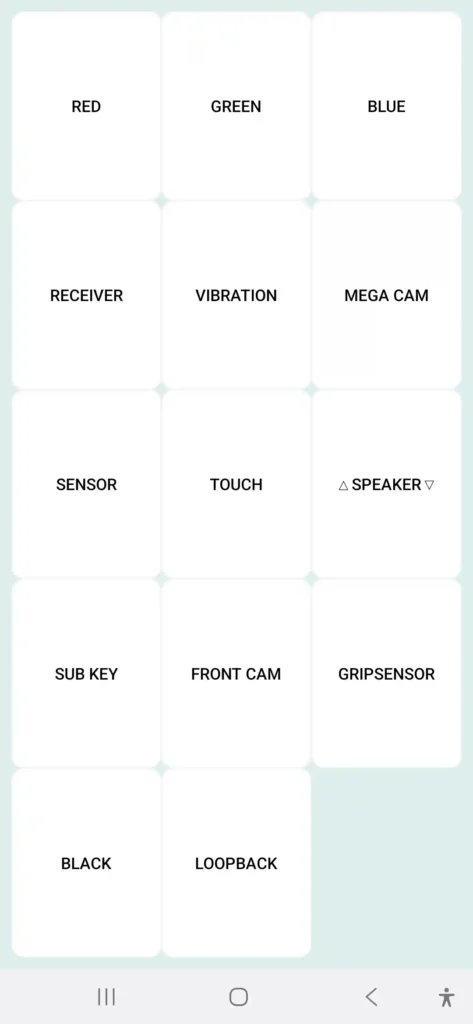
*#0*# — The Big One (Hardware Test Menu)
This is the most useful code on the list for anyone asking how do I access hidden menu on Samsung A56. Dialing what does #0# do on Samsung A56 opens a grid menu with tiles for testing the AMOLED display colors, touch sensitivity, speakers, front/back cameras, proximity sensor, accelerometer, barometer, fingerprint sensor, and vibration motor.
When I ran this on my sister’s A56, the touch test grid lit up green across the entire screen with no dead zones — proving the driveway drop didn’t damage the digitizer. Tap on any tile in the menu to launch that specific hardware test.
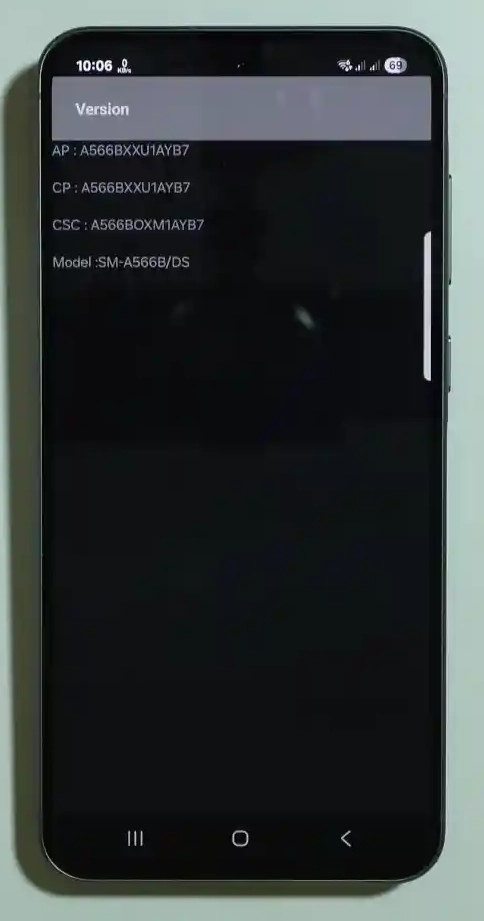
*#1234# — Firmware Version Info
Shows your AP, CP, and CSC firmware version readouts in one clean popup. Useful for verifying if an update installed correctly or when comparing software builds between devices.
*#12580369# — Software and Hardware Info Dump
Provides a longer readout containing build date, hardware revision, RF band info, and product codes. It overlaps with *#1234#, so use it when a technician asks for full device information.
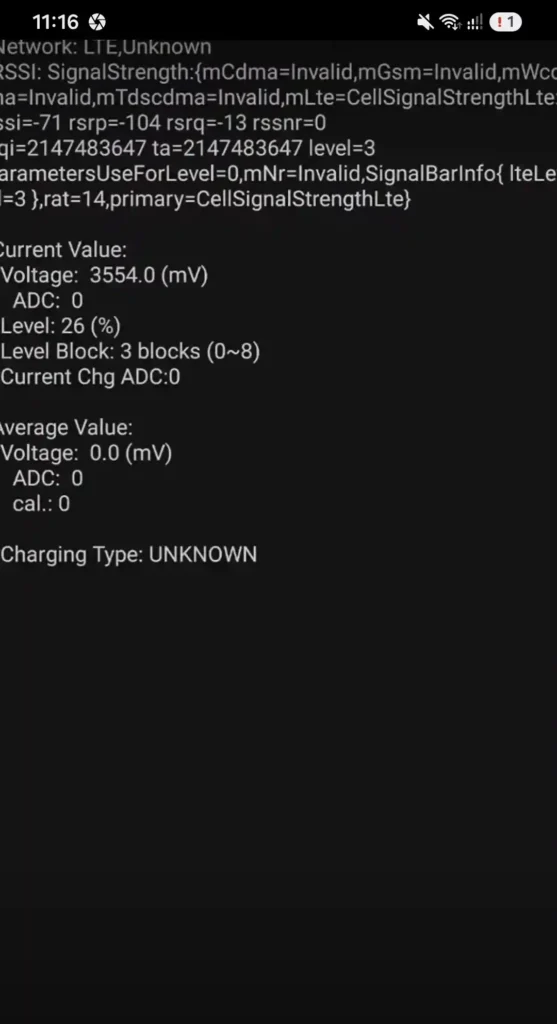
*#0228# — Battery Status & Health Check
This is one of the key Samsung A56 secret codes for battery health. It pulls up raw battery metrics: current voltage, internal capacity percentage, and real-time operational temperature.
Tip: If you are experiencing unexpected power drops, cross-reference this diagnostic screen with our Samsung Galaxy A56 battery drain fix and guide on how to improve Samsung Galaxy A56 battery life. A healthy battery should sit in a stable voltage range at rest; unusually high idle temperatures warrant inspection.
*#0842# — Vibration Motor Test
Triggers a continuous vibration pattern test to verify the haptic motor is operating correctly. Handy after dropping the device or exposing it to moisture.
*#0289# — Speaker & Audio Test
Cycles through test tones on both top and bottom speakers. If one speaker sounds quiet or distorted, this helps confirm whether it’s a hardware fault or software bug.
*#2663# — Touchscreen Firmware Version
Displays digitizer firmware details. Primarily used by repair shops to verify that a replacement screen has the correct firmware loaded.
How to Actually Read Your Test Results (Pass vs Fail)
Knowing how to test Samsung A56 hardware without app installations requires understanding what a passing result looks like:
- Touch Test: A grid of small squares covers the display. Drag your finger across every square to turn them from grey to green. Any square that stays grey indicates a dead spot — pointing to digitizer damage.

- Display Color Test: The screen fills with solid red, green, blue, black, and white. Check for uneven brightness, corner tints, or stuck pixels. Uniform color across the panel is a pass. Faint vertical or horizontal banding points to panel or ribbon cable issues.
- Sensor Test: Displays live numerical data. Tilt the phone to watch accelerometer values change smoothly. Cover the proximity sensor near the top bezel; the reading should flip from “far” to “near” instantly.
- Speaker/Receiver Test: Compare volume output between top and bottom speakers. Distortion, crackling, or channel imbalance indicates hardware wear.
- Fingerprint Sensor Test: Prompts you to tap the sensor repeatedly to log success counts. Inconsistent recognition often points to a dirty surface or hardware degradation.
Network, IMEI & Connectivity Codes
*#06# — Show IMEI & EID
Universal across all mobile networks. Because the A56 is a dual-SIM device, it displays two IMEI number strings (one per physical SIM slot). If you’re using an eSIM, the EID identifier is listed separately.
Next Step: If you’re setting up dual lines, see our guide on Galaxy A56 eSIM support. Always store your IMEI numbers in a secure location outside the phone.
*#232338# — Wi-Fi MAC Address
Displays your Wi-Fi network interface card MAC address without navigating settings. Great for router MAC filtering. If you run into network hiccups, review our guide on Samsung Galaxy A56 Wi-Fi problems.
*#232331# — Bluetooth Test
Runs a diagnostic check on the Bluetooth radio chip and returns the hardware MAC address. Useful when troubleshooting Samsung Galaxy A56 Bluetooth problems.
*#7465625# — Check SIM / Network Lock Status
Displays whether SIM lock, network lock, or carrier subset locks are active. Essential when evaluating Samsung A56 secret codes carrier locked vs unlocked differences before buying a pre-owned phone.
Do Dialing Any of These Trigger a Real Call or Cost Money?
No. None of these codes place an outgoing call or use mobile minutes/data. They are processed locally by the system dialer and executed offline. You can test diagnostic codes safely in Airplane Mode with no SIM installed.
Decoding the *#0011# Service Mode Screen
Dialing *#0011# opens a raw Samsung A56 secret codes for network test overlay showing live cellular connectivity parameters. Here is what the technical abbreviations represent:
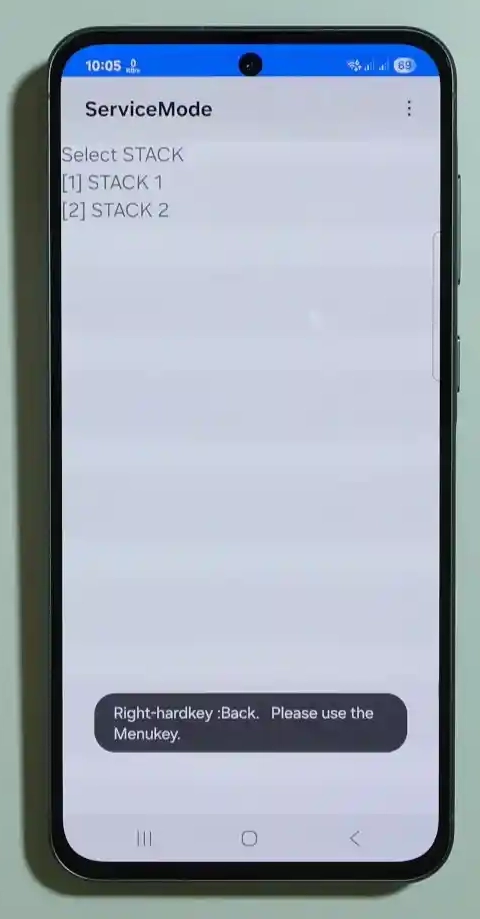
+-------------------------------------------------------------------+
|                  SERVICE MODE PARAMETERS (*#0011#)                 |
+-------------------------------------------------------------------+
|  PARAMETER  |  DESCRIPTION                                        |
+-------------+-----------------------------------------------------+
|  RSSI       |  Received Signal Strength (dBm, e.g., -65 to -105)  |
|  CELL ID    |  Unique identifier of connected cell tower tower    |
|  PLMN       |  Public Land Mobile Network (Carrier ID Code)       |
|  BAND       |  Active LTE / 5G frequency band (e.g., n78, B3, B20)|
|  RSRP/RSRQ  |  Detailed reference signal quality metrics          |
+-------------------------------------------------------------------+
- RSSI (Received Signal Strength Indicator): Real-time signal power measured in dBm. Values closer to 0 (e.g., -65 dBm) represent strong signal; numbers further from 0 (e.g., -110 dBm) indicate weak coverage. Anything better than -85 dBm provides stable data and call quality.
- Cell ID: The unique tower node your A56 is connected to, which updates dynamically as you move.
- PLMN: Carrier network identification code.
- Band: The active LTE or 5G frequency band. Useful for checking whether weak indoor signal is caused by high-frequency band usage.
Codes That Are Risky or Destructive (Read This Before Dialing)
I am including these because users search for them constantly, but exercise extreme caution:
*2767*3855# — Factory Reset / Full Format
Warning: What happens if I dial
27673855#on Samsung A56? It performs an unprompted factory format — wiping apps, photos, accounts, and internal storage.
If you’re asking how to factory reset Samsung A56 with code, note that executing this code on an eSIM-active A56 deletes your registered eSIM profile. You will need to contact your carrier for a new activation QR code. For a safer recovery method, read our detailed Samsung Galaxy A56 hard reset step-by-step guide.
*#*#7780#*#* — Data Reset
Intended to reset app data and system settings while leaving internal media files intact. Because Samsung has deprecated official support for this factory reset code, behavior can be unpredictable on One UI 7. Avoid using it without a full system backup.
Does Knox Warranty Get Voided by These Codes?
A common question is is it safe to use secret codes on Samsung A56 without tripping Knox security.
The answer is yes. None of the diagnostic, informational, or reset codes in this guide touch the Knox warranty counter (Knox Bit 0x0). That hardware fuse only trips when you unlock the bootloader or flash custom software binaries using tools like Odin. Diagnostic test codes operate entirely within Samsung’s official framework.
Carrier-Locked vs Unlocked A56: Why Your Results May Differ
If your A56 is locked to a specific carrier (such as Verizon, AT&T, or T-Mobile), certain Samsung A56 USSD codes or Samsung A56 MMI codes may fail to respond. Carrier firmware builds frequently disable low-level service menus to reduce unauthorized network configuration changes. Unlocked global units retain full access to these menus.
A56 vs A55: What Changed
If you are upgrading from an A55, note key hardware and menu changes:
+-------------------------------------------------------------------+
|               SAMSUNG GALAXY A56 vs A55 DIAGNOSTIC COMPARISON      |
+-------------------------------------------------------------------+
|  FEATURE / CODE         | GALAXY A55 (2024)   | GALAXY A56 (2026)   |
+-------------------------+---------------------+---------------------+
|  Chipset Architecture   | Exynos 1480         | Exynos 1580         |
|  *#0*# Diagnostic Menu  | Full Legacy Tiles   | Streamlined Tiles   |
|  Legacy Modem Tiles     | Present             | Consolidated        |
|  Default OS Version     | One UI 6.0          | One UI 7.0 / 8.0    |
|  Auto Blocker Impact    | Standard            | Strict Interception |
+-------------------------------------------------------------------+
While the core *#0*# menu layout remains visually familiar, specific legacy modem tiles available on the A55 were deprecated on the A56 due to the architecture transition to the Exynos 1580 chipset. For a full side-by-side review of hardware features, check out our Samsung Galaxy A56 vs A55 comparison. If you’re evaluating upgrade options across models, read our Samsung Galaxy A56 vs A36 comparison.
Buying a Used A56? Run This Checklist First
Using Samsung A56 used phone check codes before buying is one of the best ways to determine how to check if Samsung A56 is original and fully functional:
- Dial
*#06#and verify the displayed IMEI matches the number printed on the box and receipt. - Dial
*#7465625#to confirm the device is unlocked and free of network restrictions. - Dial
*#0*#to test screen digitizer touch points, AMOLED panel uniformity, vibration, and speakers. - Dial
*#0228#to check battery voltage and temperature status. - Inspect Settings > About Phone > Software information to verify that Knox status is intact (
0x0). - Review our guide on the first things to do on your Galaxy A56 to finalize device setup.
Quick Reference Table: Samsung A56 Secret Codes List 2026
Here is the complete reference table of tested Samsung A56 5G secret codes:
| Code | Function / Purpose | Confirmed Working on A56 (2026) | Risk Level |
|---|---|---|---|
*#0*# | Full Hardware Diagnostic Menu | Yes | Safe |
*#06# | Displays IMEI Numbers & EID | Yes | Safe |
*#1234# | Firmware Version Info (AP/CP/CSC) | Yes | Safe |
*#12580369# | Detailed Hardware & Software Info | Yes | Safe |
*#0228# | Battery Voltage, Temp & Status | Yes | Safe |
*#0842# | Haptic Vibration Motor Test | Yes | Safe |
*#0289# | Speaker & Audio Diagnostic Test | Yes | Safe |
*#2663# | Touchscreen Firmware Version | Yes | Safe |
*#232338# | Wi-Fi Interface MAC Address | Yes | Safe |
*#232331# | Bluetooth Hardware Diagnostic | Yes | Safe |
*#7465625# | SIM & Network Lock Status | Yes | Safe |
*#0011# | Raw Service Mode / Band Signals | Yes | Safe |
*2767*3855# | Factory Format (Wipes All Data/eSIM) | Works (Use Caution) | High Risk |
*#*#7780#*#* | System Data Reset | Inconsistent on One UI 7 | High Risk |
*#*#4636#*#* | Legacy Android Testing Menu | Blocked on A56 | N/A |
*#9900# | SysDump Log Output Menu | No Response | N/A |
*#7353# | Legacy Quick Test Menu | Replaced by #0# | N/A |
Codes I Tested That Did NOT Work on the A56
To save you time, these popular codes circulating on old listicles returned no response on the A56, even with Auto Blocker disabled:
*#*#4636#*#*— Blocked entirely on One UI 7 for Exynos 1580 builds.*#9900#— Legacy system dump menu; disabled on standard retail firmware.*#7353#— Deprecated quick test menu; fully integrated into*#0*#.*#197328640#— Root service mode menu; restricted on production builds.
Common Mistakes People Make With These Codes
- Assuming a non-working code indicates a broken phone: Nine times out of ten, Auto Blocker or a third-party dialer is intercepting the command.
- Dialing codes designed for Snapdragon or MediaTek chips: Codes written for other hardware platforms will silently fail on Exynos models.
- Confusing diagnostic codes with reset commands: Read-only test codes like
*#1234#do not alter system data. - Forgetting to back up before testing reset codes: Always back up files and note eSIM re-activation procedures before attempting system wipes.
- Testing on carrier-restricted devices: Enterprise-managed or carrier-locked devices often restrict access to low-level engineering menus.
Helpful Tips From Actually Using These
- Record your IMEI early: Store your
*#06#output outside the device immediately after unboxing. - Verify lock status when buying used: Run
*#7465625#before handing over cash for a pre-owned phone. - Monitor battery trends: Check
*#0228#monthly to track voltage stability over time. - Troubleshoot connectivity: Use
*#0011#to check signal band allocation when experiencing dropped calls. - Explore additional features: Once you’ve completed hardware checks, check out our guides on Samsung Galaxy A56 hidden features, Samsung Galaxy A56 One UI hidden features, and general Galaxy A56 tips and tricks.
Pros & Cons of Using Secret Codes
Pros
- Instant hardware diagnostics without installing third-party apps.
- Safe, read-only checks that do not trip Knox warranty protection.
- Essential for pre-owned phone verification and post-repair validation.
- Direct access to hardware parameters like MAC addresses and IMEI numbers.
Cons
- Deprecated legacy codes cause confusion across firmware updates.
- Auto Blocker requires extra troubleshooting steps to allow menu access.
- Absence of official Samsung documentation leaves code compatibility to manual testing.
- Destructive reset codes can wipe user data if mistyped.
Frequently Asked Questions (FAQs)
Why don’t secret codes work on my Samsung A56?
The most common cause on recent One UI versions is Auto Blocker interfering with system dial commands. Disable Auto Blocker under Settings > Security and privacy > Auto Blocker, ensure you are using Samsung’s native Phone app, and retry.
Is *2767*3855# safe to use on the A56?
It works, but it is destructive. It executes a full factory format and Is *2767*3855# safe to use on the A56?erases active eSIM profiles. It does not affect your Knox warranty status, but you will need to re-provision your eSIM with your carrier afterward.
Do secret codes trip Knox warranty voiding on the A56?
No. Diagnostic and system information codes do not alter the Knox warranty bit (0x0). Knox is only tripped by unlocking the bootloader or flashing unauthorized software binaries.
Which codes are Exynos-specific versus universal Android codes?
*#06# is a universal code across all mobile devices. Codes like *#0*#, *#1234#, and *#0228# are Samsung-specific. MediaTek engineering codes do not apply to the Exynos 1580 chipset inside the A56.
Does dialing these codes use cellular minutes or affect my phone bill?
No. USSD diagnostic strings are processed locally within the device firmware and do not initiate actual phone calls or data transactions.
How can I optimize my camera settings after running hardware tests?
If your camera hardware passes diagnostic testing in *#0*#, explore our setup guides for Samsung Galaxy A56 camera settings, how to improve Samsung Galaxy A56 camera quality, and Samsung Galaxy A56 night mode tips.
Summary & Next Steps
The takeaway from hands-on testing with the Samsung A56 secret codes on One UI 7 and 8 is that diagnostic tools remain functional — they have simply been consolidated into the unified *#0*# menu and protected by Auto Blocker security.
For further device setup and software optimization, check out our guides on Samsung Galaxy A56 One UI customization and resolving Samsung Galaxy A56 fast charging problems.