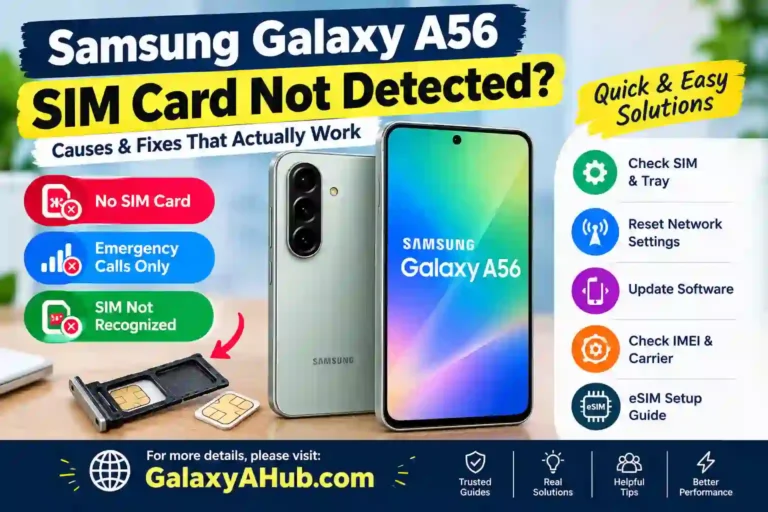
Fix Samsung Galaxy A56 SIM Card Not Detected (100% Working)
Picture this: your phone is fine at 11 p.m., you plug it in, and by morning the status bar says “No SIM card” or “Emergency calls only.” Nothing was dropped and no update was pending. The phone just decided your SIM doesn’t exist. If you are wondering why is my Samsung Galaxy A56 not detecting my SIM, you are not alone.
It’s a maddening Samsung A56 SIM card problem because it looks like a hardware failure but usually isn’t. In most cases I’ve seen, the fix took under ten minutes and cost nothing. Occasionally it does turn out to be a real hardware fault, and I’ll show you how to tell the difference before you waste money on a repair.
This guide provides a complete Samsung Galaxy A56 emergency calls only fix and goes in the order I’d troubleshoot it, from the boring checks that fix most cases to the deeper resets.
What “SIM Not Detected” Looks Like on the A56
When experiencing a Samsung Galaxy A56 SIM problem, the issue shows up in a few different ways, and the wording gives a key hint about the cause:
- “No SIM card” or “Insert SIM card”: The phone can’t see the card at all. If your Samsung Galaxy A56 says no SIM card, this usually points to seating, dirt, a damaged card, or a tray problem.
- “Invalid SIM” or “SIM not supported”: The phone sees the card but refuses it. This Galaxy A56 SIM not supported issue often points to carrier lock, a deactivated SIM, or a provisioning error (try our Samsung Galaxy A56 SIM not supported fix section below).
- “Emergency calls only”: The Samsung Galaxy A56 emergency calls only message means the phone reads the SIM but can’t register on a network. This can be a network issue, an account issue, or a mobile configuration glitch.
- SIM shows up but says “Off”: In the dual SIM menu, the card is simply switched off. Yes, this happens, and it’s embarrassingly easy to miss.
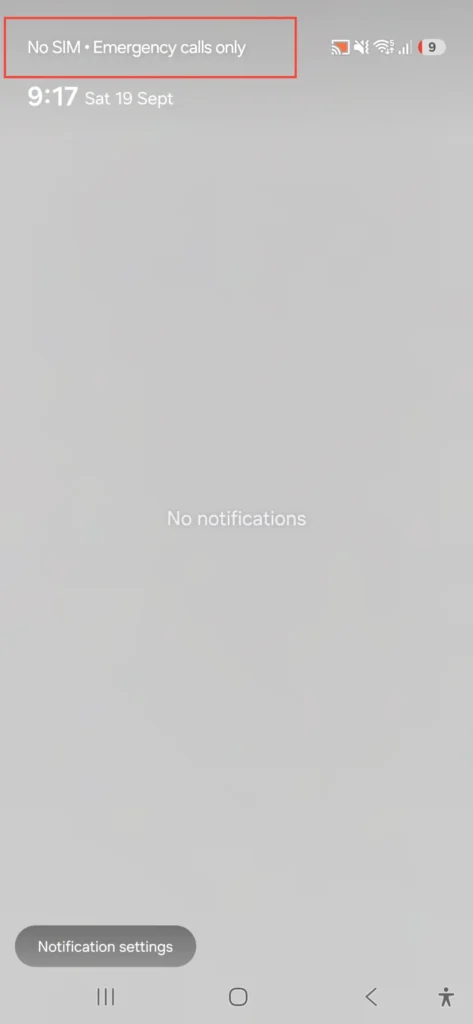
Take a second to note which specific Galaxy A56 SIM error you’re seeing. It’ll save you time later.
Quick Reference: SIM Basics on the Galaxy A56
Before touching anything, here is what you are dealing with on this device. Details vary by region, so check your retail box or Samsung’s official support page if in doubt.
| Feature | What to Know |
|---|---|
| SIM Size | Nano-SIM (4FF), the smallest standard physical size |
| Dual SIM | Available in most markets; see our guide on eSIM support on the Galaxy A56 |
| eSIM | Supported (carrier support required) |
| Memory Card Slot | The A56 has no microSD slot, so the tray is for SIMs only |
| Water Resistance | IP67 rated (handles splashes, but seal wear happens) |
| Tray Tool | The SIM ejector pin from the box; a straightened paperclip works in a pinch |
The no-microSD detail matters. When comparing hardware setups like in our Samsung Galaxy A56 vs A55 comparison, older hybrid trays shared space between a second SIM and a memory card. That isn’t a factor here.
The 60-Second Checks (Try These First)
Before diving into complex settings when facing a Samsung Galaxy A56 SIM not recognized scenario, always run through these rapid checks first.
- Restart the phone properly. Hold the power and volume-down buttons, tap Restart, and let it fully reboot. Modem glitches are surprisingly common, and a simple reboot clears many temporary errors.
- Toggle Airplane mode. Swipe down the quick panel, turn Airplane mode on, wait about 15 seconds, and turn it off. This forces the phone to re-register with the network and fixes cases where the Galaxy A56 mobile network not working persists.
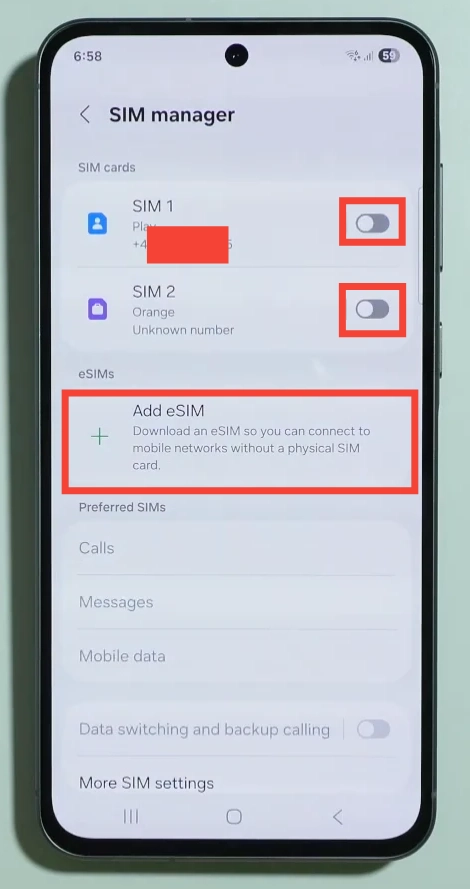
- Check that the SIM is switched on. Go to Settings > Connections > SIM manager. If your SIM is listed but toggled off, turn it on. This is especially common after configuring dual SIM or eSIM settings.
- Test the SIM in another phone. If you have a second phone, put your SIM in it. If a Samsung Galaxy A56 SIM works in another phone, then the SIM is fine and your A56 device or software is the culprit. If it fails there too, the SIM itself is damaged, requiring a replacement from your carrier.
How to Fix Samsung Galaxy A56 SIM Card Not Detected (Step-by-Step)
If the quick checks didn’t help solve your Samsung Galaxy A56 SIM card not working status, work through these steps in order. Don’t jump ahead to a full reset yet.
Step 1: Reseat the SIM Card Properly
- Power the phone off completely.
- Insert the ejector pin into the small hole on the tray and push gently until the tray pops out.
- Take the SIM out and look at both the card and the tray.
- Wipe the gold contacts on the SIM with a clean, dry, lint-free cloth. No water or alcohol is needed.
- Check that the SIM sits flat in the tray, with the notched corner matching the tray shape.
- Slide the tray back in fully and evenly, then power on.
While the card is out, inspect for scratches or discoloration. If the card was manually cut down from a larger size, get a proper factory nano-SIM from your operator.
Step 2: Check the Tray Itself
Sometimes the SIM is fine and the physical tray is the problem. Look for a tray that’s slightly warped or doesn’t sit flush with the frame. If the tray sits proud of the frame, the internal pins won’t make contact with the card.
Step 3: Update the System Software
If your Samsung Galaxy A56 SIM card not working after update (or pending an update), Samsung often pushes fixes for modem stability in software patches. Connect to Wi-Fi, navigate to Settings > Software update > Download and install, and update your device.
Step 4: Reset Mobile Network Settings
This clears saved network configurations without deleting your photos, apps, or files.
- Go to Settings > General management > Reset.
- Tap Reset mobile network settings.
- Confirm, then restart the phone.
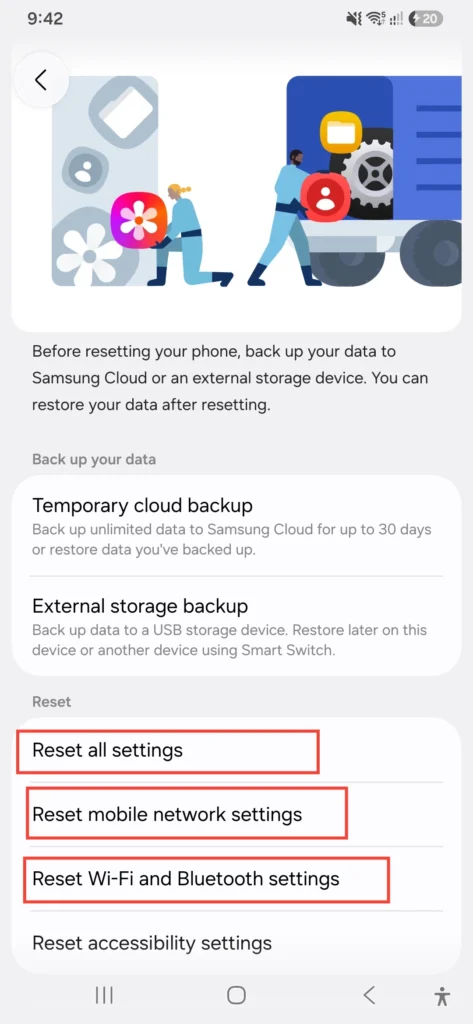
(Note: Wi-Fi networks and Bluetooth pairings may need to be re-entered. If you encounter wireless setup glitches afterward, see our guide on fixing Samsung Galaxy A56 Wi-Fi problems or resolving Samsung Galaxy A56 Bluetooth problems).
Step 5: Check Network Mode and Carrier Settings
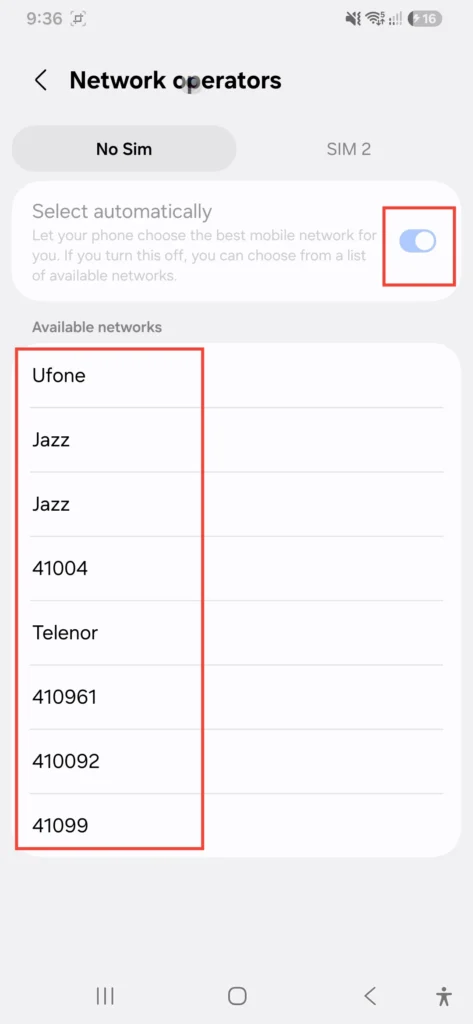
Go to Settings > Connections > Mobile networks and examine Network mode. Selecting 5G/LTE/3G/2G (auto connect) works best. If you’re in an area with poor 5G coverage, forcing LTE/3G/2G can stabilize connection drops. Also ensure Network operators is set to Select automatically.
Step 6: Check Your IMEI Number
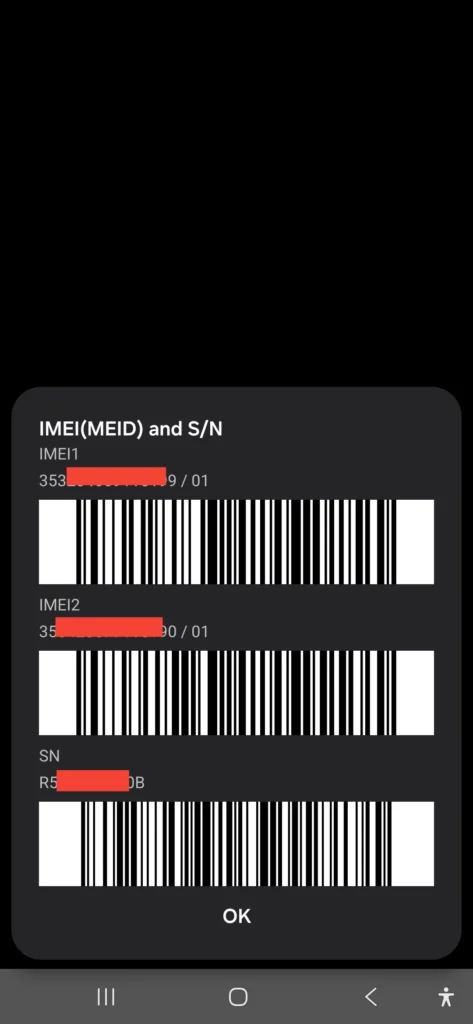
Open the Phone app and dial *#06# (you can find more diagnostic tools in our guide to Samsung A56 secret codes). You should see one or two IMEI numbers displayed.
- IMEI shows normally: The cellular modem hardware is functional; the root cause is likely settings, carrier provisioning, or the SIM card itself.
- Samsung Galaxy A56 IMEI missing (blank, zeros, or “Unknown”): This points to corrupted modem firmware or internal hardware issues. Proceed to Safe Mode or seek technical service.
Step 7: Test in Safe Mode
A third-party app can occasionally interfere with network services.
- Hold the power button until the power options appear.
- Press and hold Power off until the Safe mode prompt shows up.
- Tap Safe mode.
If your SIM is recognized here, an installed app (like a call blocker or VPN) is causing interference. Uninstall recently added apps one by one.
Step 8: Reset All Settings
Go to Settings > General management > Reset > Reset all settings. This restores system parameters to defaults without touching your personal media files.
Step 9: Perform a Factory Data Reset (Last Resort)
If your SIM card functions in other devices and your IMEI is intact, but the Samsung Galaxy A56 SIM card not detected error persists, back up your device and head to Settings > General management > Reset > Factory data reset. For detailed backup steps, review our complete Samsung Galaxy A56 reset guide.
Common Causes at a Glance
| Symptom | Most Likely Cause | First Thing to Try |
|---|---|---|
| Samsung Galaxy A56 no SIM card (Random) | Loose or dirty SIM contact | Reseat and clean the SIM gold contacts |
| No SIM detected after a drop | Bent tray or internal connector damage | Inspect tray / Visit service center |
| “Invalid SIM” or “SIM not supported” | Carrier lock or deactivated SIM profile | Contact your carrier to verify line status |
| “Emergency calls only” message | Network registration failure | Reset mobile network settings; set network to auto |
| SIM listed but shown as “Off” | Disabled inside SIM Manager | Toggle SIM switch on in Settings |
| Works in other phone, not A56 | Phone software or hardware modem fault | Software update, network reset, or service check |
| Doesn’t work in any phone | Dead, corrupted, or deactivated SIM | Request a new nano-SIM from your carrier |
Signs It’s Hardware or the Carrier, Not Software
While software fixes address most instances of a Samsung Galaxy A56 SIM not detected, some symptoms point directly to physical or network issues.
It’s probably hardware if:
- The issue began right after a drop, hard impact, or liquid exposure.
- The device shows a Samsung Galaxy A56 IMEI missing error (
*#06#returns blank). - The phone gets unusually hot along the upper or lower motherboard frame.
- The SIM card works in every other device, but never in your A56 even after a factory reset.
It’s probably the carrier or SIM if:
- The SIM fails in every device you test.
- You recently changed your plan or account status and activation hasn’t finalized.
- You see explicit messages like “Invalid SIM” or “SIM not supported”.
In these cases, contact your service provider. Official standards from organizations like the GSMA govern device network authorization, so your carrier can confirm if your line status is active or blocked.
Samsung Galaxy A56 eSIM Not Working? Troubleshooting eSIM
If you are encountering a Samsung Galaxy A56 eSIM not working issue, troubleshooting differs slightly since there is no physical tray involved:
- Navigate to Settings > Connections > SIM manager and verify your eSIM profile is toggled ON.
- Toggle Airplane mode on for 15 seconds, then off.
- Verify with your carrier that your eSIM profile hasn’t been deactivated or transferred during a recent account update.
- If the eSIM profile is corrupted or missing, ask your carrier to issue a new QR code or perform an over-the-air activation.
Important: Never delete your eSIM profile while troubleshooting unless your carrier has already provided a fresh QR activation code. Deleting it completely removes the profile from your phone.
Mistakes That Make Things Worse
When attempting to solve a Samsung A56 SIM card problem, avoid these common pitfalls:
- Forcing the tray in: If the tray resists, it’s misaligned. Forcing it bends the tray or breaks internal pins.
- Using sharp pins inside the slot: Scraping the internal tray reader with needles can damage terminal contacts.
- Cleaning with liquids: Never clean SIM slots or card contacts with water or harsh chemicals.
- Trimming physical SIMs manually: Using scissors to cut old micro-SIMs down to nano-SIM size frequently causes alignment errors.
Practical Tips to Keep It From Coming Back
- Use a protective case: Physical shocks are a leading cause of tray displacement and motherboard connector stress.
- Avoid unnecessary tray removal: Limit pulling out the SIM tray to reduce wear on rubber water seals.
- Keep software current: Install regular system maintenance updates to ensure modem firmware patches are applied.
- Keep a record of device details: Save your IMEI numbers and SIM ICCID numbers in a safe place for fast carrier support.
FAQs
Why does my Galaxy A56 say “No SIM card” when the SIM is inserted?
The most common causes are dirty contact points on the card, a loose tray, a disabled toggle in SIM Manager, or temporary software modem glitches. Cleaning the SIM and restarting the device resolves most cases.
Can a software update cause the SIM card not detected error?
Yes. Occasionally, network configuration conflicts occur post-update. Performing a reset of mobile network settings clears post-update bugs.
How do I know if my SIM card is dead?
Test the SIM card in another working phone. If it fails to detect on that device as well, the SIM card itself is damaged or deactivated.
Will resetting mobile network settings delete my personal data?
No. Resetting network settings only clears saved Wi-Fi passwords, Bluetooth pairings, and cellular preferences. Your photos, contacts, and personal files remain untouched.
What does it mean if my IMEI number is missing?
A missing or blank IMEI number indicates that the phone’s modem firmware isn’t communicating with the system board. This usually requires official service center diagnostics.
Is it safe to clean SIM card contacts myself?
Yes, using a dry, soft, lint-free microfiber cloth. Avoid liquids, rough fabrics, or aggressive scrubbing.
Why does my phone say “Emergency calls only” with a SIM installed?
This occurs when the phone reads the card hardware but cannot establish a voice/data link with your carrier’s cell towers. Verify account status, check network coverage, and set Network Operators to automatic.
7. Why does my phone say “Emergency calls only” with a SIM installed?
This occurs when the phone reads the card hardware but cannot establish a voice/data link with your carrier’s cell towers. Verify account status, check network coverage, and set Network Operators to automatic.
Pros and Cons of Fixing It Yourself
| Pros | Cons |
|---|---|
| Free and takes only a few minutes | Cannot repair broken internal SIM tray pins |
| Fixes the vast majority of software-related SIM glitches | Forceful tray handling can cause frame damage |
| Avoids unnecessary device resets or service center visits | Mismanaging eSIM profiles requires carrier re-issuance |
Wrapping Up
When facing a Samsung Galaxy A56 SIM card not detected issue, systematic troubleshooting is key. Start with simple steps like checking SIM Manager, restarting your device, cleaning the contacts, and testing the SIM in another phone before attempting deeper resets.
If your SIM functions properly in another phone, your IMEI is intact, but the phone still fails to read any card after a settings reset, contact an authorized Samsung service center for hardware evaluation.