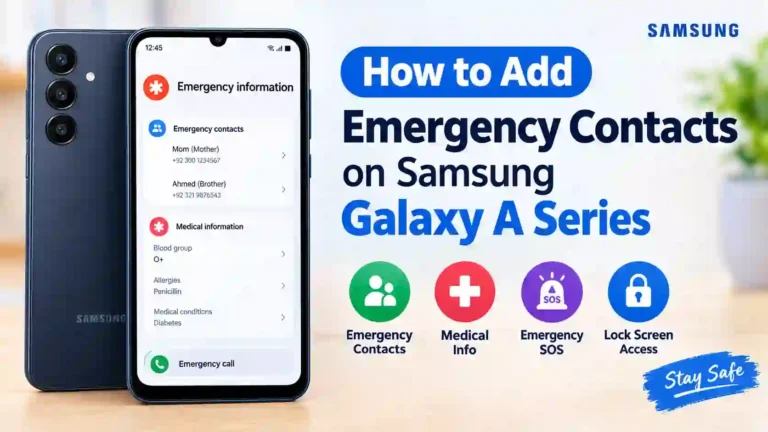
How to Add Emergency Contacts on Samsung Galaxy A Series Phones Step-by-step Guide
A practical, no-nonsense walkthrough for the A05, A15, A25, A35, A55, A56, and other Galaxy A phones.
Here is a question I started asking people after a small scare in my own family: if you passed out on the street right now, and a stranger picked up your locked phone, who would they call?
Most people go quiet for a second. Then they say something like, “Well, they would just unlock it… oh wait, they couldn’t.”
Exactly. A locked phone is great for privacy and terrible for emergencies, unless you have set up the one feature that bridges the two. I only did this properly after helping my mother set up her phone. She had saved “Beta” and “Bhai” in her contacts for years and assumed that was enough. It wasn’t. Nothing on that phone told a stranger, a paramedic, or a hospital receptionist who her family was, because none of it was reachable from the lock screen.
The fix takes about three minutes. This guide walks through all of it: how to add emergency contacts on Samsung Galaxy A series phones, filling in the medical details that go with them, setting up the SOS shortcut, and testing everything so you know it works before you actually need it.
What “Emergency Contacts” Actually Do on a Galaxy A Phone
There is some confusion here, so let’s clear it up first. Samsung’s phones running One UI have a few related features in the Samsung Safety and emergency settings, and people often mix them up:
- Emergency contacts are people you list as the ones to call in a crisis. Someone helping you can reach them from the Samsung emergency call screen without knowing your PIN, password, or pattern.
- Medical info is a separate card for things like blood group, allergies, medications, and conditions. It lives right next to your emergency contacts.
- Emergency SOS is the shortcut that lets you press the side key several times in a row to send an alert message to your chosen contacts, share your live location, and optionally start an automated call.
They work best together. Contacts tell people who to call, medical info tells responders what they are dealing with, and SOS lets you ask for help when you can still use your hands but don’t have time to dial.
Note: None of this replaces calling your local emergency services (like 911, 112, or 999). If you are in immediate danger, call your local emergency number first. These features ensure your family and first responders get critical context quickly.
Quick Reference Table
| Item | Details |
|---|---|
| Works on | Galaxy A series phones running One UI (A0x, A1x, A2x, A3x, A5x series including A55 and A56) |
| Where to find it | Settings > Safety and emergency |
| Time needed | About 3 to 5 minutes |
| Needs internet? | Not to save or view contacts on lock screen. Samsung SOS message location sharing requires active network coverage |
| Visible on lock screen? | Yes, through the Emergency Call screen if enabled |
| Extra app required? | No, built directly into One UI |
Step-by-Step: How to Add Emergency Contacts on Samsung Galaxy A Series
Before starting this Samsung emergency contacts setup, make sure the people you want to add are already saved in your Contacts app with their full, up-to-date phone numbers.
1. Open Settings
Swipe down from the top of your screen and tap the gear icon, or open the Settings app from your app drawer.
2. Navigate to Safety and Emergency
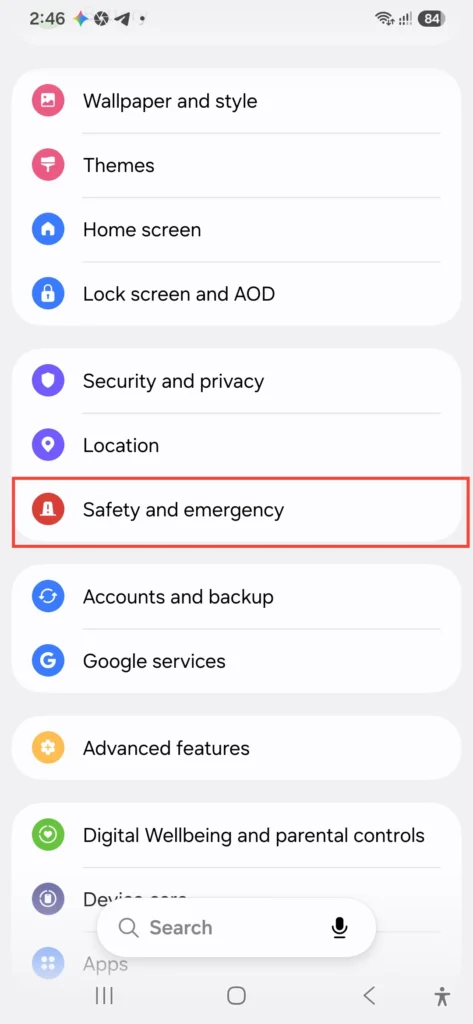
Scroll down and tap Safety and emergency. If you can’t spot it immediately, tap the magnifying glass icon at the top right of Settings and search for “where is Safety and emergency in Samsung settings” or simply type “emergency”.
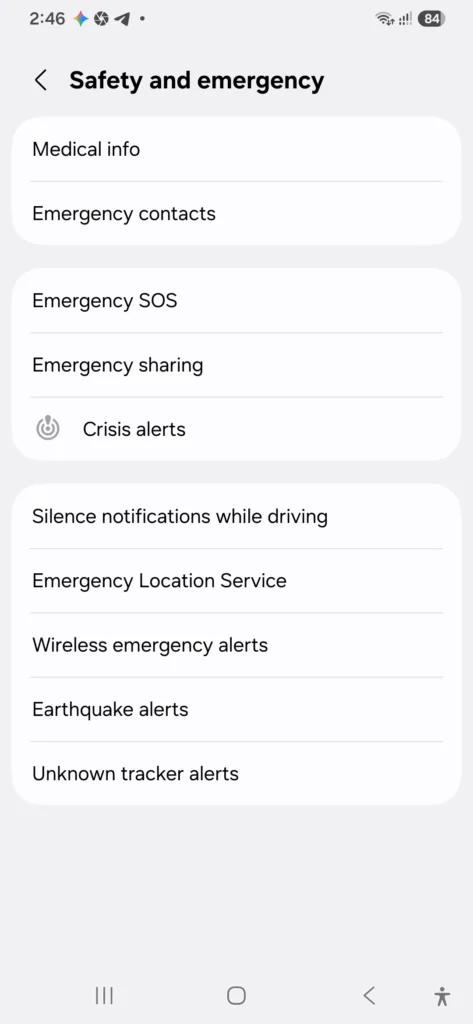
3. Tap Emergency Contacts
Select Emergency contacts from the list of options.
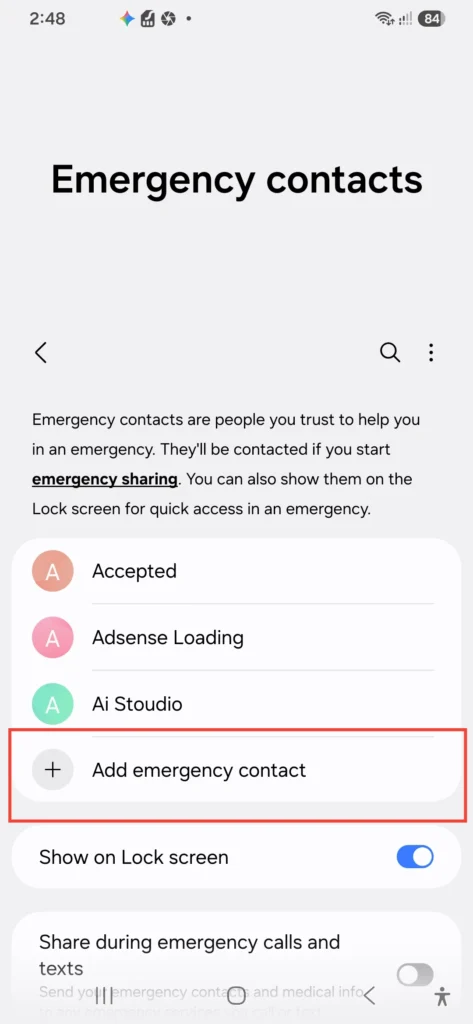
4. Select “Add Emergency Contact”
Tap Add emergency contact (or the plus icon). You will be prompted to choose from your existing contacts list.
5. Choose Your Trusted Contacts
Tick the names of the people you want to designate as emergency contacts and tap Done. (Whether you need to know how to set emergency contacts on Samsung Galaxy A15 or how to add emergency contacts to Samsung Galaxy A55, the workflow in One UI is identical).
6. Enable “Show on Lock Screen”
Ensure the toggle next to Show on Lock screen is switched ON. This is what allows first responders to view your emergency contacts without unlocking the phone.
Settings ➔ Safety and emergency ➔ Emergency contacts ➔ Add contact ➔ Enable "Show on Lock screen"
Adding Relationship Labels
Some One UI versions allow you to note how each person is related to you (e.g., spouse, parent, sibling). If available, use it! A paramedic glancing at your screen at speed doesn’t have time to guess whether “Zain” is your brother or your mechanic.
If your phone doesn’t offer a relationship field, rename the contact itself in your phonebook to something explicit, like “Ammi (Mother)” or “Sara (Wife)”.
Adding Medical Info (Don’t Skip This)
Contacts tell someone who to call, but adding Samsung Medical info lock screen details gives first responders vital health parameters. If you have wondered how to add medical information to Samsung Galaxy A55 or other A-series phones, it is managed in the exact same menu.
- Go to Settings > Safety and emergency.
- Tap Medical info.
- Fill out the relevant fields:
- Name & Date of Birth
- Medical Conditions (e.g., Asthma, Diabetes, Epilepsy)
- Allergies (e.g., Penicillin, Peanuts)
- Current Medications
- Blood Type / Blood Group
- Notes (e.g., “Wears hearing aid”, “Pacemaker installed”)
- Tap Save and make sure the Show on Lock screen toggle is active.
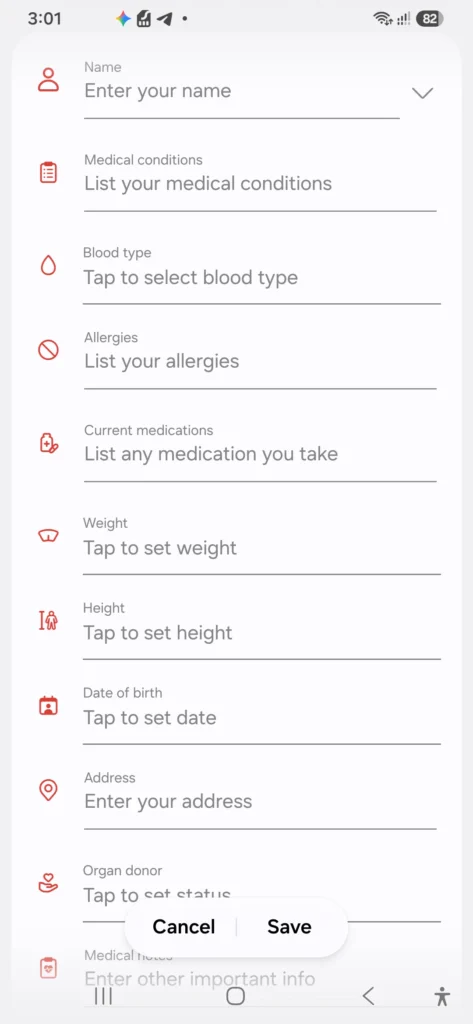
Privacy Rule: Only enter what you are comfortable having visible to someone holding your locked phone. Keep entries short and direct—”Penicillin allergy” is far more practical for paramedics than a long paragraph.
Setting Up Emergency SOS with the Side Key
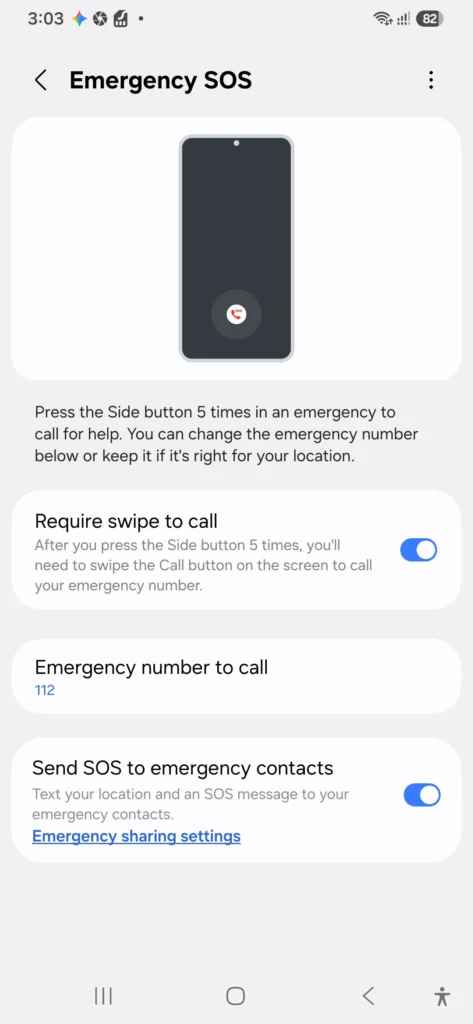
The side button SOS Samsung Galaxy feature converts your physical power key into an instantaneous distress signal sender. Here is how to set up Emergency SOS on Samsung Galaxy A series:
- Go to Settings > Safety and emergency > Emergency SOS.
- Toggle the feature ON.
- Choose the trigger method: by default, pressing the Side key 5 times in a row initiates SOS actions.
- Set the Countdown timer (e.g., 5 seconds) to give yourself time to cancel accidental triggers.
- Enable Send SOS to emergency contacts and grant location and media permissions.
- Choose whether to attach photos from the cameras or a 5-second audio recording to the automated distress text.
If you ever wonder, “does Samsung Emergency SOS work without mobile data?”—standard SMS alerts and location links require cellular coverage to transmit. However, local emergency calls will attempt to connect through any available network carrier.
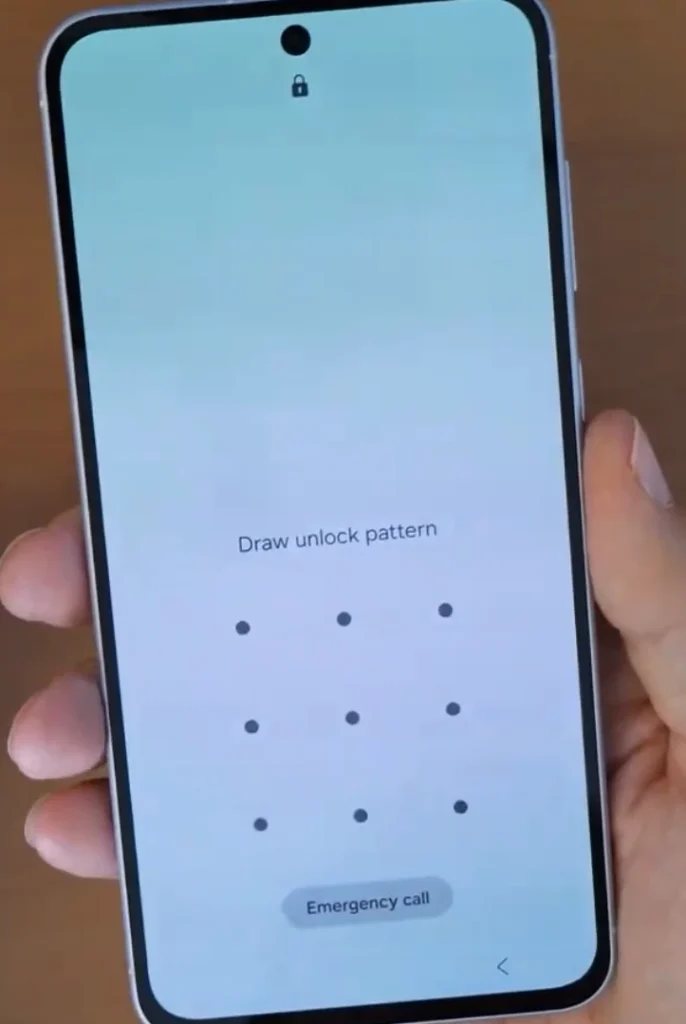
How to Test It from the Lock Screen
Wondering how to check emergency contacts on Samsung Galaxy or can you view emergency contacts without unlocking Samsung phone? Follow this step-by-step verification test:
- Lock your Galaxy A device.
- Press the power button or double-tap the screen to wake it.
- Swipe up to bring up the PIN / Pattern / Fingerprint screen.
- Tap Emergency call at the bottom left or bottom center.
- Tap Medical info on the bottom left to verify your health card displays.
- Tap the dialer / contacts icon to confirm your Samsung emergency call screen shows your listed emergency contacts.
Real-Life Scenarios Where This Matters
- Unexpected Falls or Sudden Illness: If an elderly family member slips or experiences a sudden health issue outside, a bystander can immediately locate their family contacts without needing a passcode.
- Road Accidents & First Responders: When an injured driver cannot communicate, first responders check for a Samsung lock screen emergency information card to view blood type and severe drug allergies.
- Kids with Galaxy A Devices: Adding parents as emergency contacts on a child’s phone gives teachers or good Samaritans a fast way to reach home.
- Solo Travel & Commuting: Walking alone late at night or taking long transit routes becomes safer when side-key SOS alerts are active.
Common Mistakes to Avoid
- Adding Only One Contact: If that person’s phone is dead, silent, or off, there is no backup. Always list 2–3 trusted individuals.
- Selecting Contacts Who Travel Together: If both designated emergency contacts live in the same house or travel with you constantly, a single shared incident leaves no off-site contact reachable.
- Outdated Phone Numbers: People change SIM cards and carriers. Recheck your emergency contacts list twice a year.
- Forgetting to Inform Your Contacts: Always notify the people on your list so they know what an automated SOS alert looks like if they receive one.
- Leaving Medical Info Empty: Emergency phone numbers are only half of the setup; medical conditions provide immediate context for EMTs.
Practical Tips
- Format Phone Numbers with Country Codes: If you travel internationally, save emergency numbers with the full prefix (e.g.,
+1,+44,+92). - Optimize Your Lock Screen Settings: Check out our guide on best Samsung Galaxy A lock screen customization to keep your lock screen clean while ensuring emergency shortcuts remain visible.
- Keep Settings Updated After OS Upgrades: When upgrading to major One UI software releases, revisit first things to do on Samsung Galaxy to ensure your safety permissions remain active.
- Paper Backup in Wallet: Keep a small printed card with blood type and two emergency numbers in your wallet alongside your ID.
If You Can’t Find the Option
If your device layout looks slightly different due to carrier branding or regional One UI variants:
- Use the Settings search bar and query “Safety and emergency” or “Medical info”.
- Check for system updates under Settings > Software update to ensure you have the latest safety feature updates.
- On certain older One UI versions or stock Android configurations, emergency info is managed inside the Google Personal Safety app. Refer to official guidance on Google Android Emergency Information Support for stock Android steps.
FAQs
1. How many emergency contacts can I add on a Galaxy A phone?
Samsung allows you to add multiple emergency contacts (typically up to 4–5 depending on One UI version and region).
2. Can someone view emergency contacts without unlocking my phone?
Yes. They are accessible directly from the Samsung emergency call screen on your lock screen.
3. How do I change emergency contacts on Samsung Galaxy later?
Go to Settings > Safety and emergency > Emergency contacts. Tap and hold any contact to remove them, or tap Add emergency contact to insert new numbers.
4. Will my contacts receive my location during an SOS alert?
Yes, provided Samsung SOS message location sharing and location services are enabled in your Emergency SOS menu.
5. Does Emergency SOS automatically dial emergency services?
You can configure Emergency SOS to dial a local emergency service number or dial your custom primary emergency contact directly.
Pros and Cons
Pros
- 100% Free & Built-In: No extra third-party subscription apps required.
- Lock Screen Accessibility: Accessible to first responders without unlocking your device.
- Rapid Alert Trigger: Emergency SOS side-key shortcut alerts family in seconds.
- Comprehensive Protection: Combines contact details, location data, and health profiles in one place.
Cons
- Public Visibility: Anyone with physical access to your locked phone can read listed medical notes.
- Requires Network for SOS Texts: Text/location dispatch depends on cellular connectivity.
- Accidental Triggers: Pressing the side button rapidly can trigger false alarms if countdown sounds are disabled.
Final Thoughts
Setting up safety features on your device takes under five minutes, yet it provides invaluable peace of mind. For more optimization guides, check out our walkthroughs on best One UI settings for Samsung Galaxy and essential Samsung Galaxy secret codes. Taking a few moments today to configure your emergency information ensures that if trouble ever arises, your phone can speak for you when you need it most.