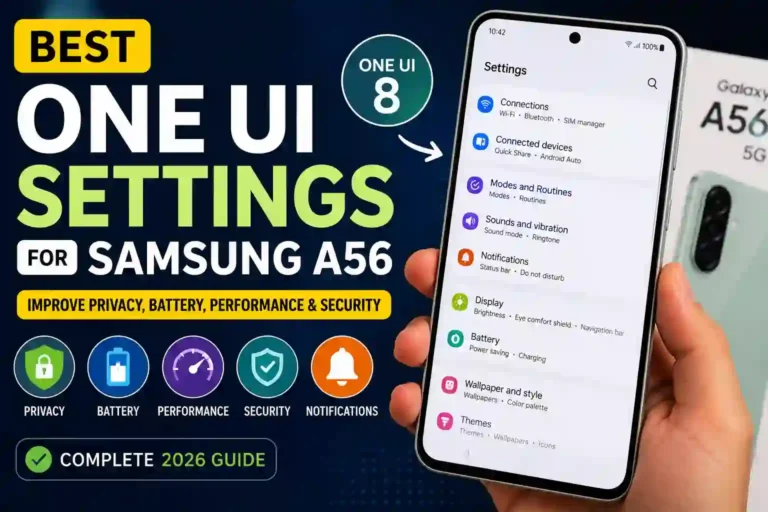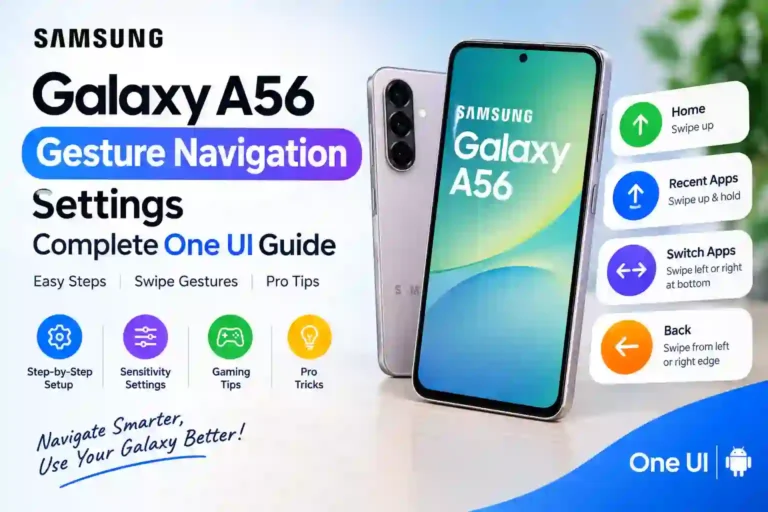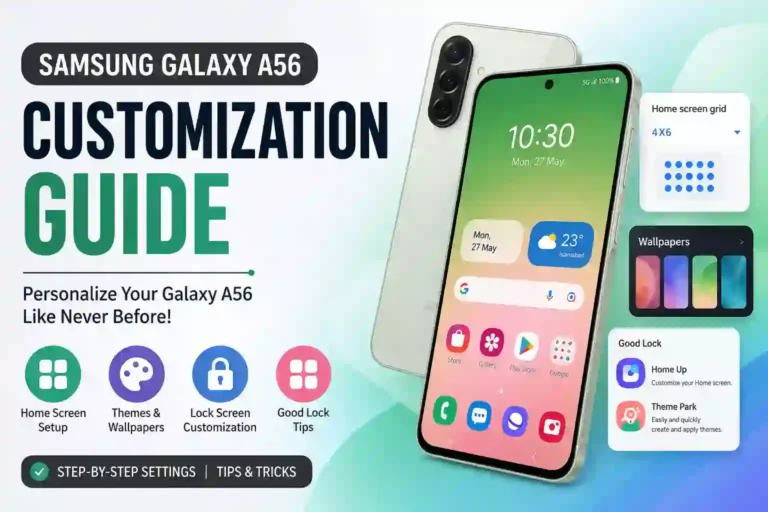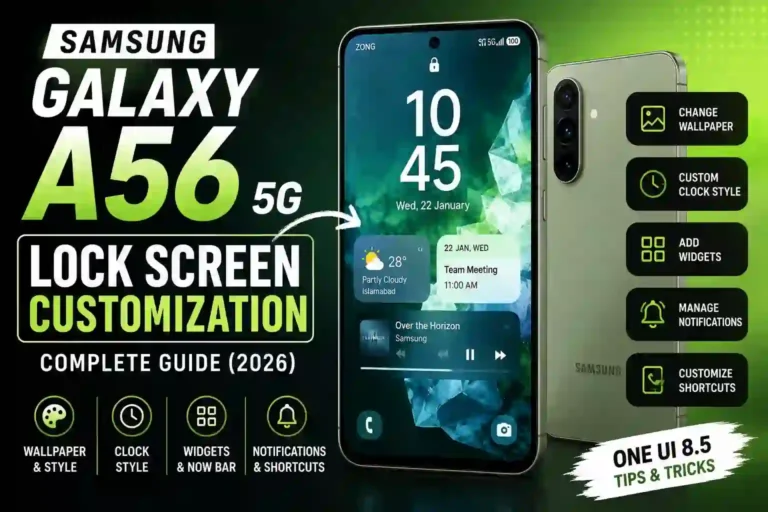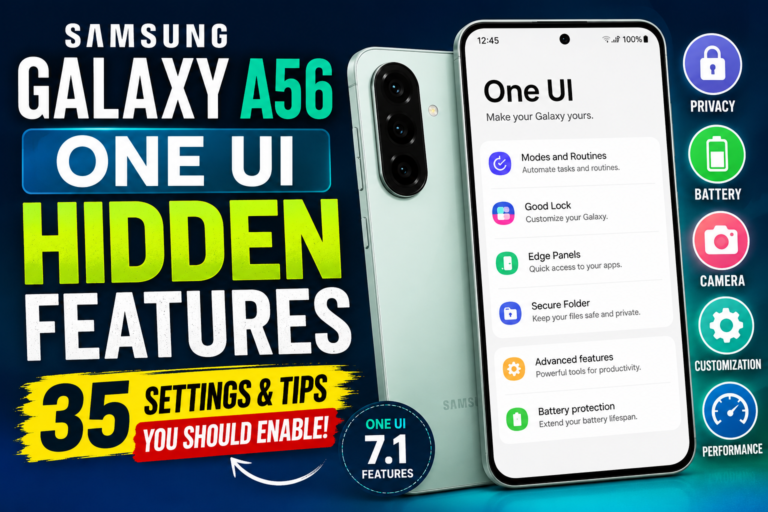
Samsung Galaxy A56 One UI Hidden Features: 35 Tips & Settings
Almost returned my Galaxy A56 in the first week I owned it. Not because it’s a bad phone it isn’t but because I genuinely thought it was “just another mid-range Samsung.” Boring camera app, cluttered settings menu, notifications I didn’t ask for. I was ready to go back to my old phone.
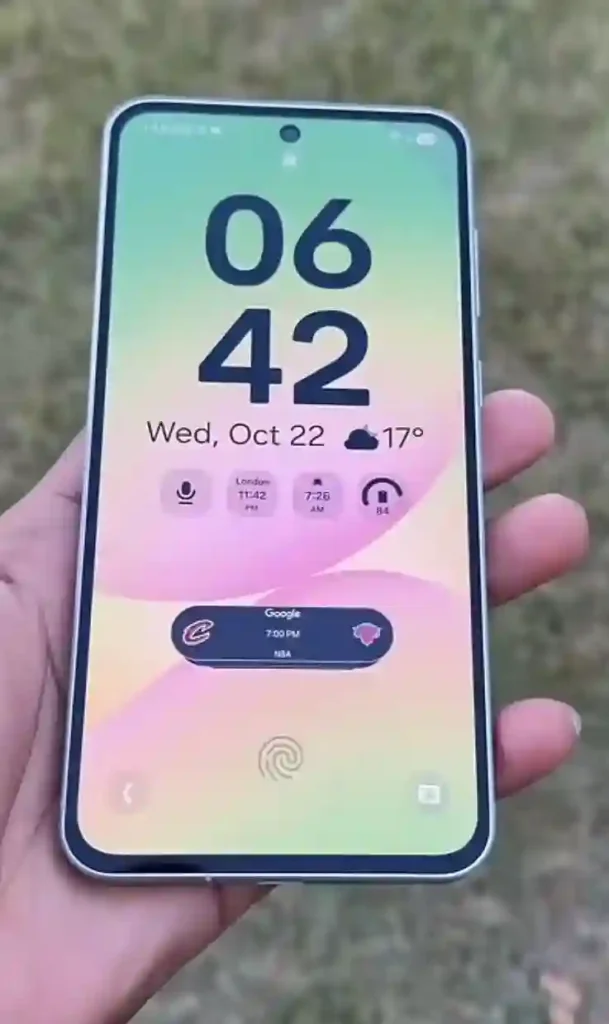
Then a coworker who’s been on Samsung for six generations straight watched me fumble through my home screen during lunch and said, “You haven’t even turned on half the good stuff yet.”
She was right. Buried inside One UI on the A56 is a genuinely impressive set of tools — most of which Samsung never explains anywhere in the box, the setup wizard, or even the official support page. I spent the next few weeks digging through every settings menu, breaking a few things along the way (more on that later), and testing what actually made a difference in daily use versus what’s just a gimmick. This is that list. Thirty-five tips, all tested on my own A56, no fluff.
Quick Specs Table
| Spec | Details |
|---|---|
| Display | 6.7″ Super AMOLED, 120Hz |
| Software | One UI (Android-based), 6 years of OS + security updates promised |
| Chipset | Exynos 1580 |
| RAM/Storage | 8GB/128GB or 256GB (varies by region) |
| Battery | 5,000mAh with fast charging |
| Camera | 50MP main + ultra-wide + macro |
| Build | IP67 water/dust resistance |
| Standout Software Feature | Good Lock customization suite |
Now let’s get into the actual tips.
Setup & Display Tips
1. Turn on the full Good Lock suite. This isn’t pre-installed — you grab it from the Galaxy Store. It’s basically a mod menu for One UI. Once installed, plugins like Home Up, NavStar, and RegiStar unlock control over things Samsung hides from regular users, like changing your app grid layout or resizing the status bar icons.
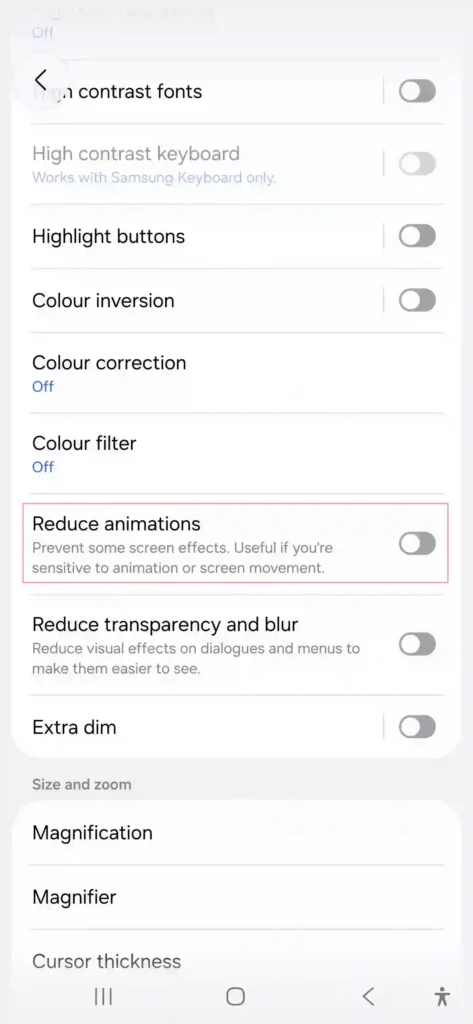
2. Enable “Reduce animations” for a snappier feel. Settings > Accessibility > Visibility enhancements. It sounds small, but on the A56’s mid-range chip, this genuinely makes app switching feel quicker.
3. Switch to Vivid screen mode only if you actually watch a lot of video. Otherwise Natural mode is easier on your eyes for daily scrolling. Found under Settings > Display > Screen mode.
4. Use Edge Panels for one-handed use. Swipe from the side edge to pull up apps, contacts, or tools without reaching across the screen. I use this constantly when I’m holding a coffee in the other hand.
5. Customize your Always On Display with a personal photo. Most people never touch this beyond the default clock styles, but you can set a custom AOD image under Lock screen settings.
6. Turn on Dark mode scheduling. Instead of manually flipping it, set it to auto-switch at sunset. Saved me from blinding myself scrolling in bed.
7. Enable Labs features hidden in Settings. Search “Labs” in the settings search bar — there are experimental toggles Samsung doesn’t advertise, including some display tweaks.
Productivity & Multitasking Tips
8. Use Multi-window with app pairs. Drag two apps into a split screen, then save that pair to your Edge Panel. I keep Gmail and Notes paired for meetings.
9. Try Samsung DeX with just an HDMI cable. You don’t need the official dock — a decent USB-C to HDMI cable turns your A56 into a mini desktop on any monitor. I used this to finish a presentation at a client’s office when my laptop died.
10. Set up Modes and Routines. This replaced old Bixby Routines. Go to Settings > Modes and Routines and build something like “when I plug in headphones after 9 PM, launch Spotify and dim brightness.” Small thing, but it removes so much manual fiddling.
11. Use Samsung Notes’ PDF export with handwriting. If you sign documents often, you can write directly in Notes and export as PDF instead of using a separate app.
12. Pin apps to the status bar quick panel. Long-press and drag to rearrange your Quick Settings so your most-used toggles (like Hotspot or Screen Recorder) are one tap away.
13. Turn on floating notifications for messaging apps. Settings > Notifications > choose app > select “Pop-up” instead of banner. Great for replying without leaving whatever you’re doing.
Camera & Gallery Secrets
14. Shoot in RAW using Expert RAW (downloadable from Galaxy Store). It’s not built in by default, but once added it unlocks manual ISO, shutter speed, and RAW capture that the standard camera app hides.
15. Use Single Take mode when photographing kids or pets. It captures multiple formats and short clips in one shot, then lets you pick the best result afterward. Saved me from missing a moment more than once.
16. Enable “Scene optimizer” but turn off over-sharpening manually. It’s on by default and can make food and skin tones look unnatural. I dialed mine back in Camera settings > Picture quality.
17. Try the Object Eraser in Gallery. Circle unwanted people or objects in a photo, and it does a surprisingly clean job removing them. Not perfect on busy backgrounds, but great for simple shots.
18. Use Portrait mode’s adjustable blur AFTER taking the photo, not just before. You can tweak the bokeh intensity in the Gallery editor later.
19. Turn on the camera grid lines. Basic, but genuinely improves your framing. Found in Camera settings > Grid lines.
Battery & Performance Tips
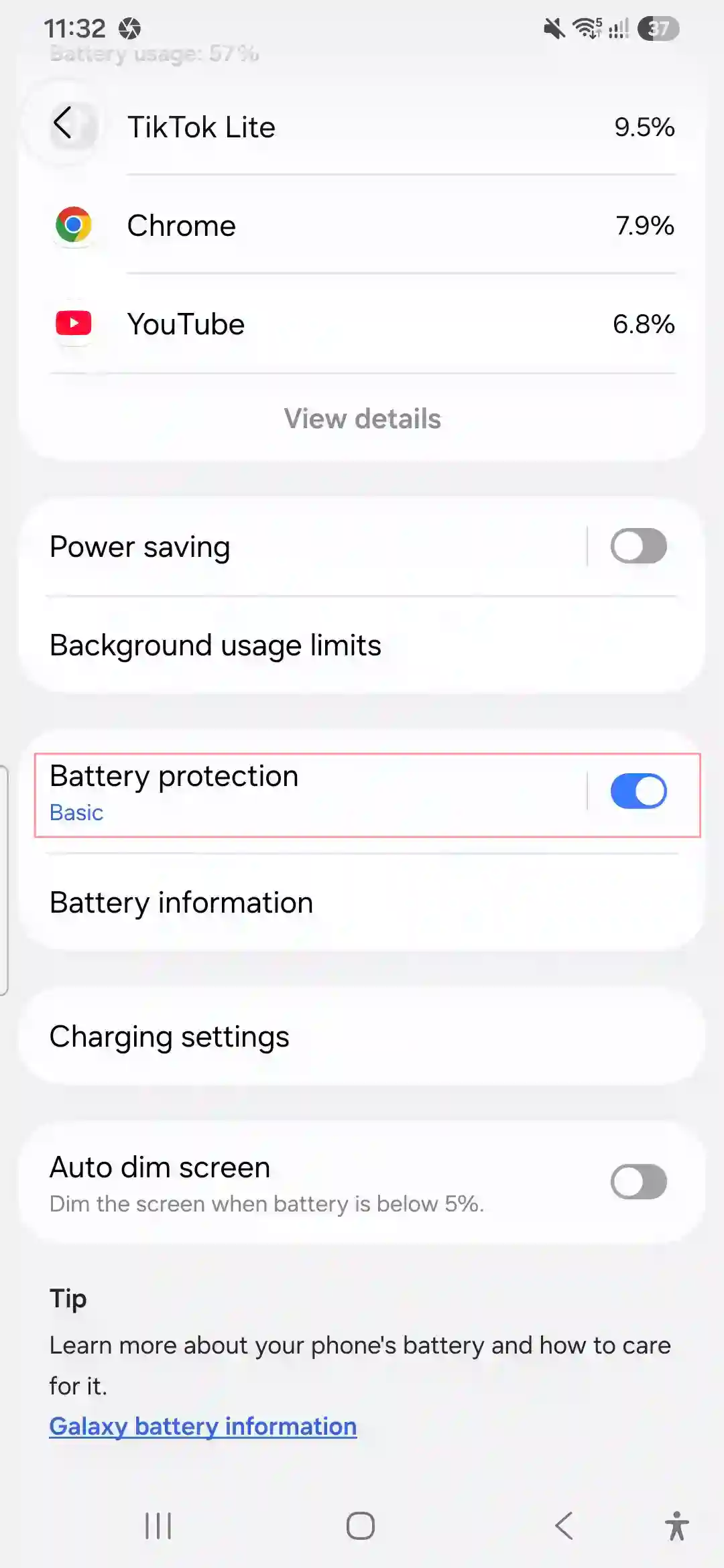
20. Check Battery protection settings. Settings > Battery > More battery settings lets you cap charging at 80–85% to protect long-term battery health, especially useful if you charge overnight.
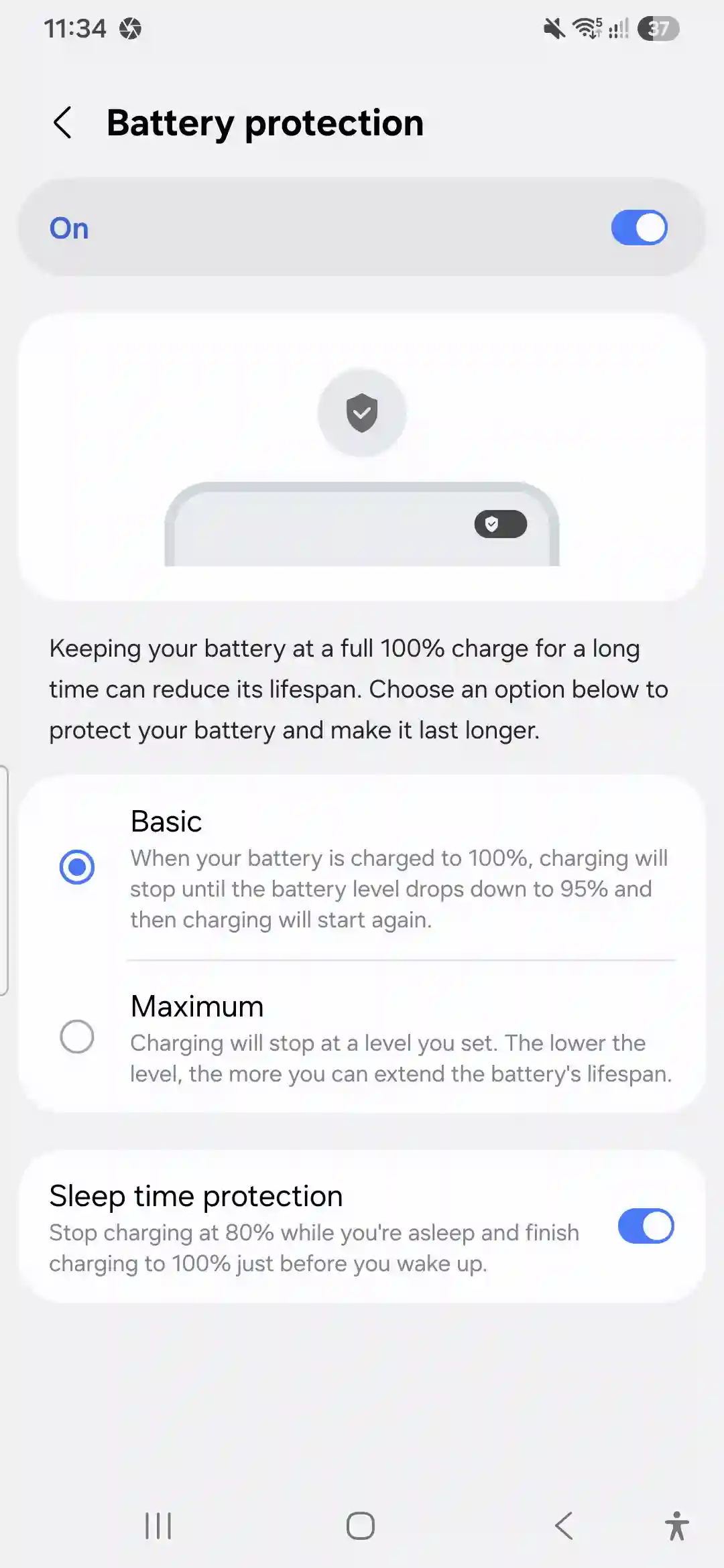
21. Use adaptive power saving instead of manually toggling power modes. It adjusts based on your usage pattern instead of a flat restriction.
22. Close background apps by app, not “clear all.” Clearing everything can actually slow things down temporarily as apps reload from scratch. I learned this the hard way during a busy work week — clearing all constantly made things feel laggier, not faster.
23. Turn off “Enhanced processing” for apps you don’t use often. Settings > Battery > Background usage limits. This alone noticeably extended my screen-on time.
24. Use Game Booster even for non-gaming multitasking-heavy apps. It can be manually added to apps like video editors for a performance boost.
Privacy & Security Settings
25. Set up Secure Folder. It’s a hidden, encrypted space for apps and files. I use it for banking apps so they’re separated from my main app drawer entirely.
26. Turn on Private Share for sending sensitive files. It adds expiration dates and screenshot protection to shared files. Underused, genuinely useful for work documents.
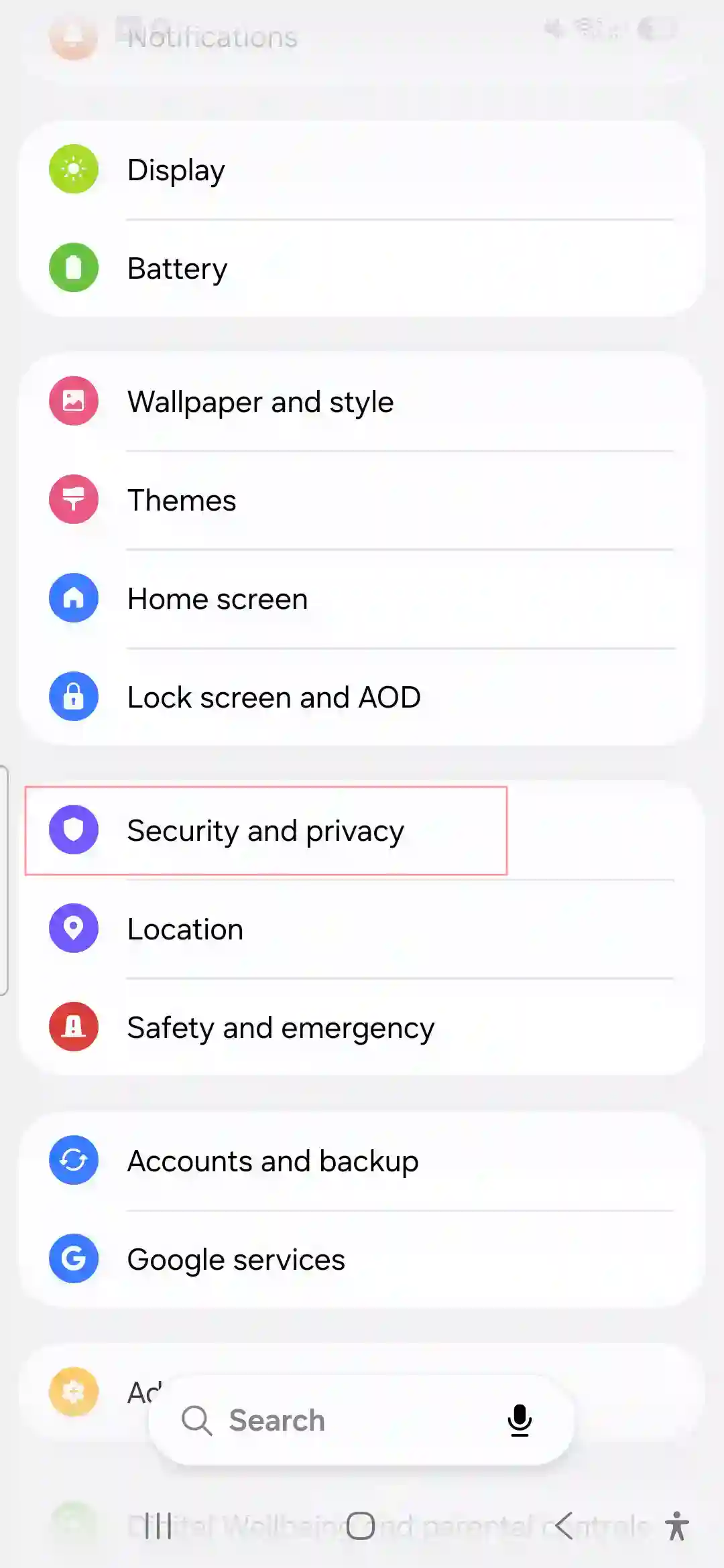
27. Review App permission monitor weekly. Settings > Security and privacy > Permission manager shows exactly which apps are using your mic or camera in the background — and it’s surprised me more than once.
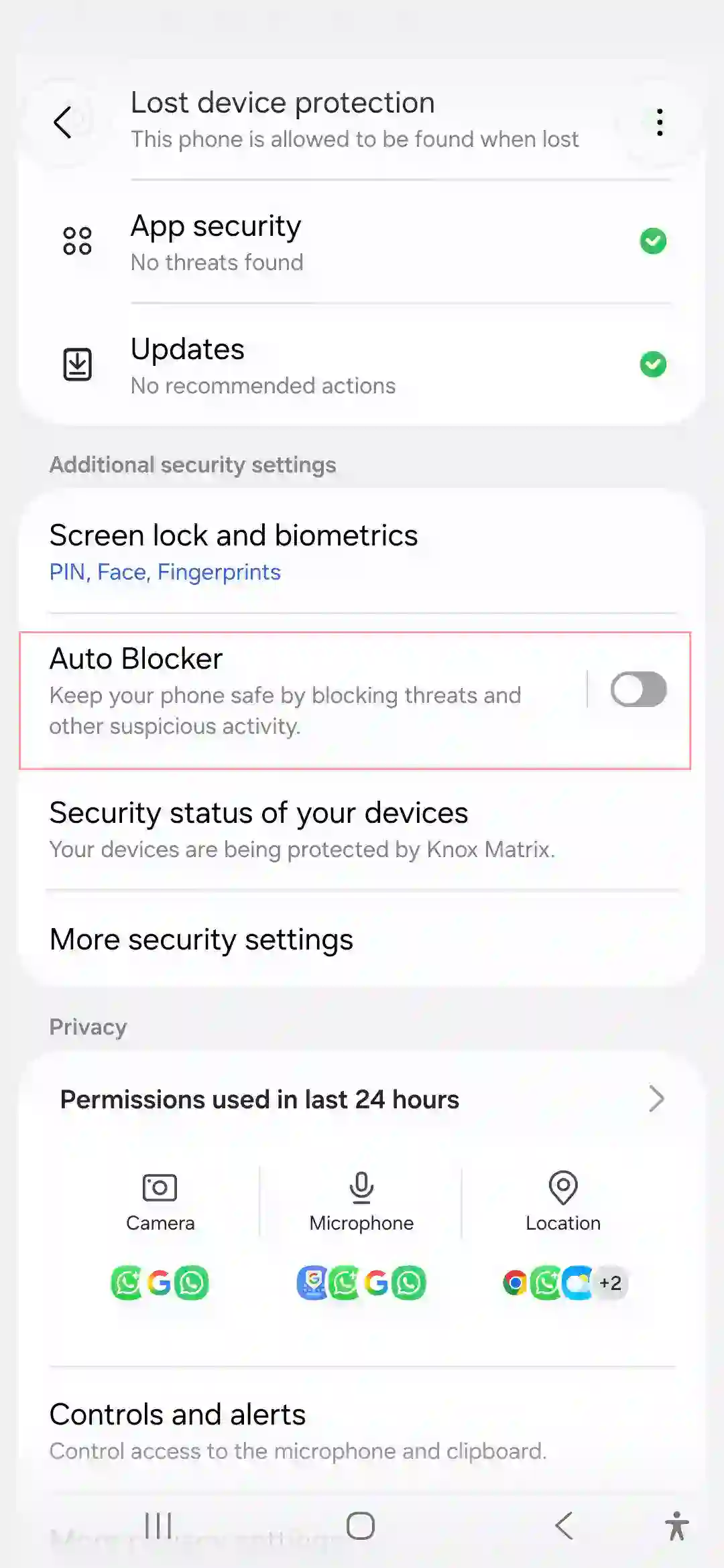
28. Enable Auto Blocker. This is one of Samsung’s newer protections against malicious sideloaded apps and unauthorized app installs. Worth turning on if you ever install APKs outside the Play Store.
Fun & Personalization Extras
29. Customize your lock screen with widgets. Long-press the lock screen and add a calendar, weather, or music widget above the clock.
30. Try Bixby Text Call for silent environments. It converts calls into a real-time text conversation — handy in meetings when you can’t talk out loud.
31. Set up multiple user profiles. If you share your phone with a partner or kid, separate profiles keep your notifications and apps completely private.
32. Use the built-in screen recorder with internal audio. No third-party app needed for tutorials or bug reports at work.
33. Customize the side key. Double-press to open camera, or hold for Bixby/power menu, under Settings > Advanced features > Side button.
34. Try the Routine widget shortcut on your home screen for one-tap access to your most-used automation.
35. Explore the hidden “Motions and gestures” menu. Palm swipe to screenshot, double-tap to wake — small things, but they genuinely change how you interact with the phone daily.
Common Mistakes to Avoid
- Don’t enable every Good Lock plugin at once — it can slow the phone down and cause conflicts. Add them one at a time.
- Don’t clear all background apps constantly thinking it saves battery. It often does the opposite.
- Don’t ignore the Permission manager. I found an old app still accessing my microphone months after I stopped using it.
- Don’t skip software updates. Some of the best hidden features (like Auto Blocker) arrived through updates, not out of the box.
Pros & Cons
Pros
- Deep customization once you know where to look
- Good Lock genuinely transforms the experience
- Strong privacy tools that are actually usable, not just marketing
- Long update support means these features keep improving
Cons
- Most of this is buried and undocumented by Samsung
- Some features (Expert RAW, Good Lock) require separate downloads
- Settings menu can feel overwhelming for first-time Samsung users
- A few animations and effects can drag on the mid-range chipset if overused
FAQs
Is Good Lock safe to install on the Galaxy A56?
Yes, it’s an official Samsung app available through the Galaxy Store, not a third-party mod.
Do I need Samsung DeX accessories to use DeX mode?
No, a basic USB-C to HDMI cable works fine for a simple desktop-style setup.
Will enabling all these features drain my battery faster?
Not if you’re selective. Features like adaptive power saving and battery protection actually help battery life rather than hurt it.
Can I recover a photo after using Object Eraser?
Yes, as long as you save the edit as a copy, your original photo stays untouched in Gallery.
Is Auto Blocker necessary if I only use the Play Store?
It’s optional but still adds an extra layer of protection, so there’s no real downside to keeping it on.
Does Secure Folder work without an internet connection?
Yes, it functions locally on your device and doesn’t require constant syncing.
Can I use Multi-window with any two apps?
Most apps support it, but a few, especially some games, don’t allow split-screen use.
Final Thoughts
None of this stuff shows up when you first turn on the A56. Samsung hands you a solid phone and just… expects you to figure the rest out yourself, or stumble across a Reddit thread at 1 AM like I did.
Once you actually dig in, though, the A56 feels like a genuinely different phone than the one you unboxed. It’s not about turning on every single toggle — it’s about picking the handful that actually fit how you use your phone and letting the rest sit unused.
If I had to pick just three to start with, I’d say Good Lock, Battery protection, and the Permission manager. Everything else is worth exploring when you have a slow afternoon and some patience.