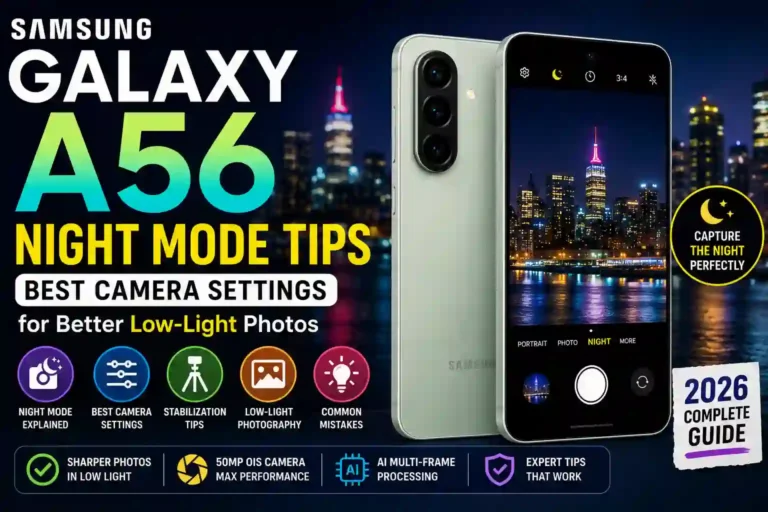
Samsung Galaxy A56 Night Mode Tips: Best Camera Settings for Better Low-Light Photos (2026 Guide)
I still remember the exact moment I got frustrated enough to actually dig into my phone’s manual settings instead of just tapping the shutter and hoping for the best. I was at a friend’s rooftop birthday party—string lights everywhere—and I wanted one decent photo of the group before everyone scattered. I took it. It was grainy, blurry, and half the faces looked like they were smudged with a thumb.
That is when I realized that capturing low-light photos on the Samsung Galaxy A56 night mode isn’t a “point and it magically works” feature. It is a genuinely capable system—powered by a solid 50MP Sony IMX906 main sensor with Optical Image Stabilization (OIS)—but it needs a little cooperation from you to shine.
This isn’t a speculative spec-sheet rundown. These are real samsung galaxy a56 camera tips picked up over months of real-world use at concerts, on evening hikes, in badly lit restaurants, and yes, back at that same rooftop venue where I finally nailed the shot.
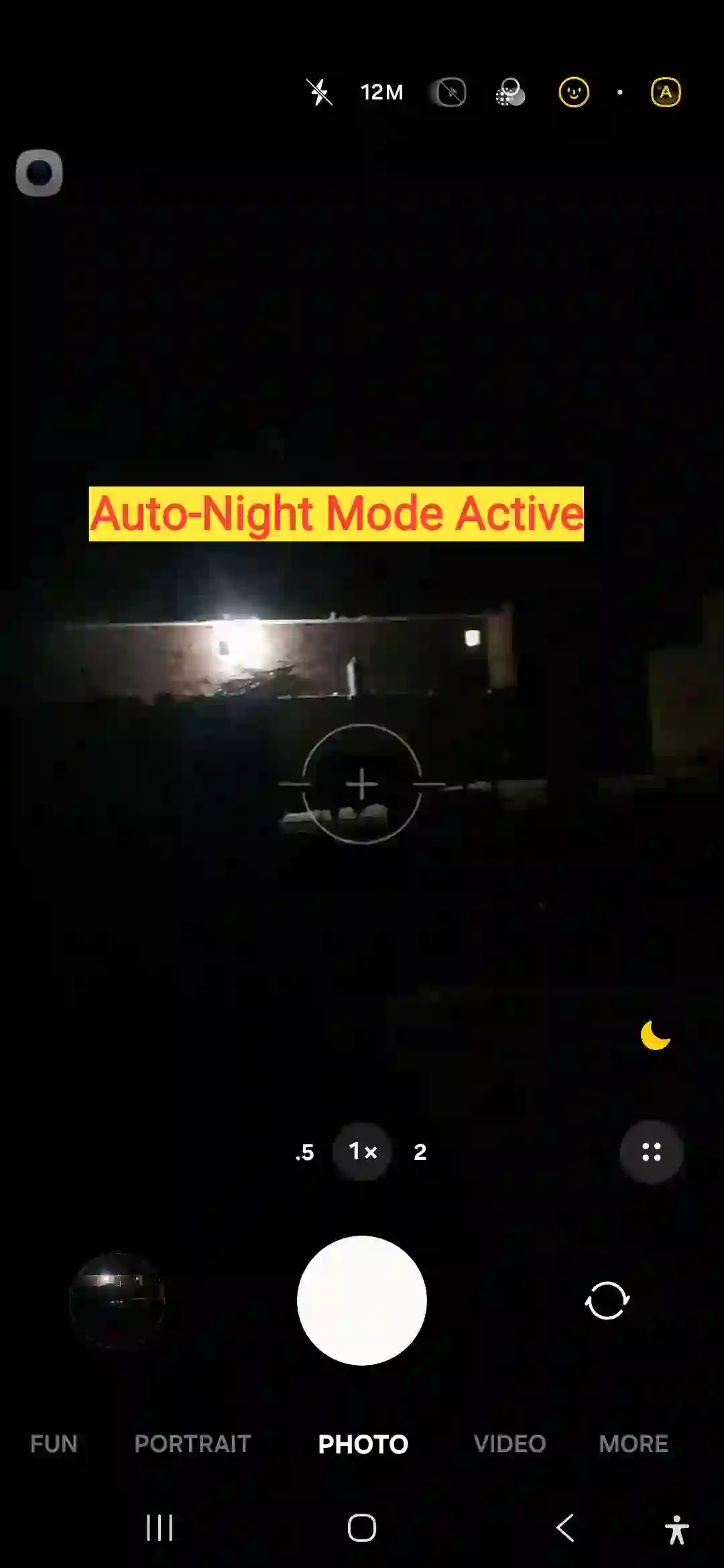
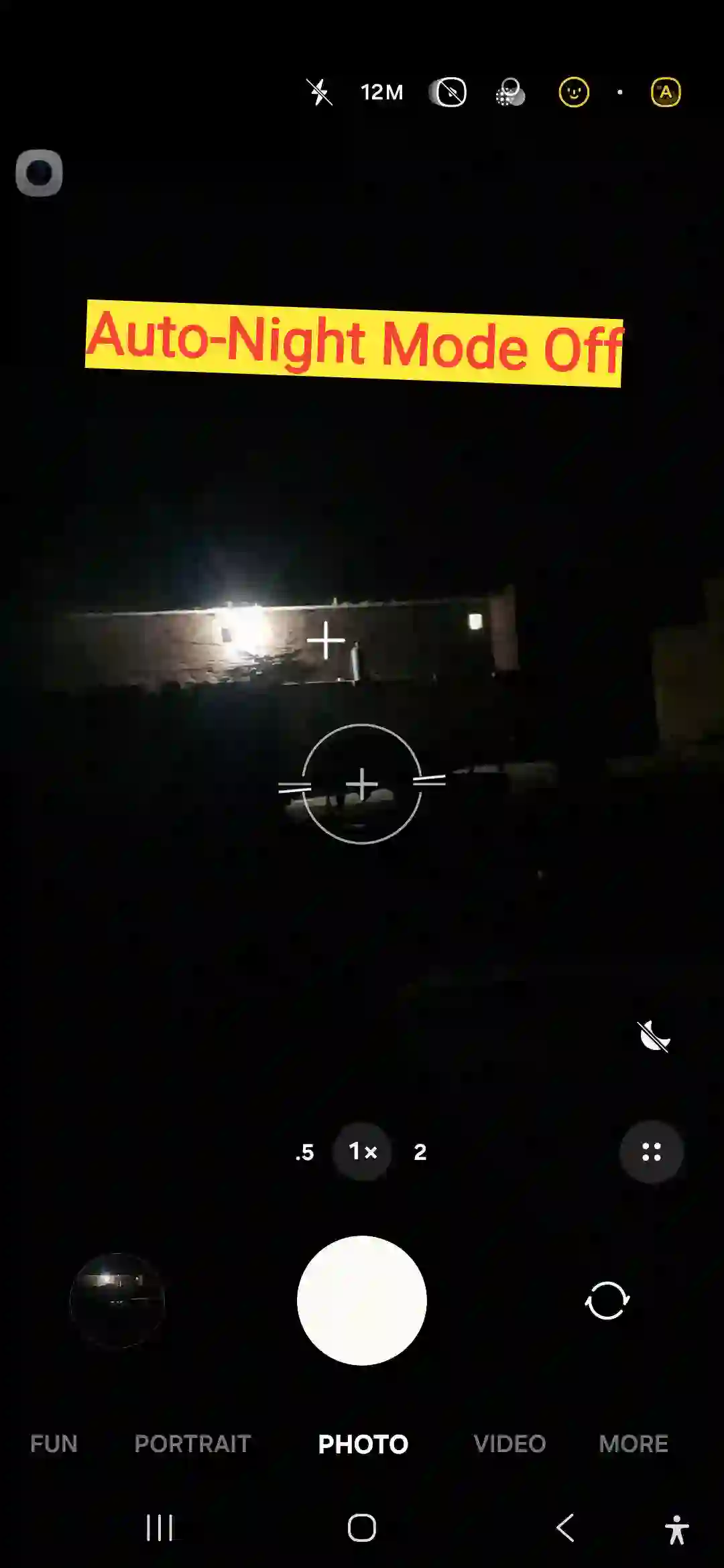
Quick Specs: Samsung Galaxy A56 Low Light Camera
| Feature | Details |
|---|---|
| Main Camera Hardware | 50 MP wide-angle (f/1.8 aperture, 1/1.56″ sensor size, OIS) |
| Night Mode Processing | Multi-frame AI synthesis (combining multiple frames into one optimized image) |
| Average Processing Time | Roughly 2 to 4 seconds depending on ambient environment |
| Best For | Cityscapes, neon street signs, static indoor gatherings, ambient portraits |
| Known Limitations | Fast-moving pets, hyper-dark environments, extreme digital zoom levels |
Why Samsung Galaxy A56 Night Mode Struggles Without Help
Here is the tech reality: samsung galaxy a56 night photography relies on multi-frame processing. When you hit the shutter, the camera absorbs light over a span of a few seconds and stacks those exposures to drop image noise and boost clarity.
If your hand shakes, the subject moves, or you pull the phone away too quickly, the algorithm gets confused. The result is a soft, muddy photo. Once you understand that timing and stabilization are everything, your samsung galaxy a56 low light photos will transform instantly.
Step-by-Step: Getting the Most Out of Night Mode
To unlock the full potential of your device, configure your approach using these field-tested operational steps:
- Force the Night Toggle Manually
Step 1
While the AI suggests Night Mode via a small moon icon in dim environments, it often fails to trigger in moderate, tricky lighting. Open your camera app, swipe over to More, and explicitly select Night to ensure the sensor stays open long enough to capture adequate light data. - Brace Your Upper Body to Kill Shake
Step 2
You do not always need a tripod, but you must minimize hand wobble. Tuck your elbows tightly against your ribs, or rest them firmly on a railing, table, or wall. Eliminating macro-shakes dramatically cleans up finer textures in the final image processing. - Commit to the Full Capture Countdown
Step 3
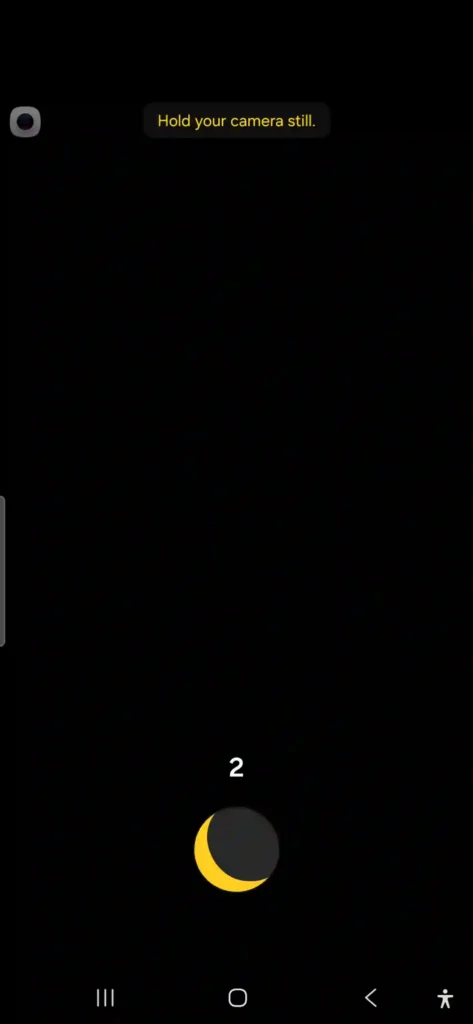
[Screenshot: Galaxy A56 camera interface showing the circular loading countdown indicator during low-light capture] This is where most people fail. After tapping the shutter, watch the yellow progress ring complete its full loop (usually 2 to 4 seconds). Keep holding completely still until the image preview icon fully updates in the corner. - Tap to Set Focus and Drag Exposure Manually
Step 4
Do not let the phone guess what matters. Tap the most crucial subject on your viewfinder (like a face or a sign). When the circular focus ring appears, drag the small sun slider downward. Lowering the exposure slightly prevents streetlamps from blowing out and keeps black skies looking dark instead of grainy grey. - Keep the LED Flash Disabled
Step 5
The built-in flash ruins the multi-frame blending process. It flattens foreground subjects, blows out skin tones, and washes out the ambient atmosphere. Let the lens and the image processor handle the darkness naturally.
Real-World Scenarios Where It Shines (And Fails)
The Success Stories
- Night Markets and Neon: Shooting a street vendor lit only by a pair of raw bulbs yielded rich colors and crisp text on signs. By bracing against a lamppost, the samsung galaxy a56 camera night mode pulled clean facial lines without blowing out the highlights.
- City Skylines: Propping the device flat against a hotel balcony ledge allowed the system to stretch its legs. Distant office windows resolved cleanly instead of bleeding into a singular orange blur.
The Clear Weakness
- Fast Motion: Trying to take a picture of a dog running around a dimly lit yard or friends dancing at a concert results in heavy ghosting. The processing algorithm requires static elements to stack frames properly; moving objects will always look blurry.
Common Mistakes I Made (So You Don’t Have To)
- Moving Too Soon: Pulling the phone away mid-capture is the primary reason for soft images. Treat the entire 3-second countdown as the shot.
- Relying on Digital Zoom: Stepping past 2x zoom at night degrades image resolution instantly. The sensor crops into a limited light pool, multiplying grain. Walk physically closer instead.
- Shooting Through Glass windows: Night mode processing amplifies interior glare and reflections on window panes, creating a foggy haze over your shot.
- Neglecting Lens Cleanliness: Pocket lint and thumb smudges create massive streaks and “starburst” light flares around light fixtures. Give the glass a quick wipe before every session.
Advanced Settings to Elevate Your Output
If you want to move beyond the automated night features, check out the manual controls built into the core Samsung Galaxy A56 camera settings.
Switching over to Pro Mode grants direct authority over your ISO and shutter speeds. For instance, setting your ISO lower (around 100 to 400) and lengthening the shutter speed while holding the phone on a solid surface yields a cleaner image than standard automatic modes can provide.
For those looking to deep-clean their low-light workflows, exploring the full lineup of best Samsung Galaxy A56 settings will help unlock further optimization tricks. Additionally, you can review our full master guide on Samsung Galaxy A56 tips and tricks to ensure you are squeezing every bit of performance out of the Exynos 1580 platform.
Expert Tip: For deep shadow restoration in post-production, consider downloading Samsung’s Expert RAW application from the Galaxy Store. It saves uncompressed image data, giving you massive dynamic range flexibility inside mobile editor programs like Adobe Lightroom or Snapseed.
Pros & Cons of Galaxy A56 Nightography
Pros
- Impressive highlight retention around challenging ambient light sources.
- Clean color accuracy on the main 50MP sensor when stabilized.
- Pro Mode offers accessible entry-level manual exposure rules.
Cons
- Heavy pixel noise on the ultra-wide lens when ambient light is extremely low.
- Processing delays make candid, fast-paced action shots difficult to frame.
- Digital zoom quality suffers severe deterioration at night.
FAQs
Does Night Mode work automatically on the Galaxy A56?
Yes, the camera app will display a small yellow moon icon when it senses low lux values. However, for predictably crisp results in challenging lighting, it is best to manually force the camera into “Night” mode via the “More” menu tab.
Why do my night photos still look blurry despite the stabilization features?
Blur occurs when either your hands move during the 2 to 4-second multi-frame window, or the subjects themselves are moving. Focus on fixing your positioning or leaning against a static object.
Should I utilize the camera flash for evening landscape shots?
No. The integrated LED flash has a functional range of less than a few meters. Using it for wide night scenes only reflects off nearby airborne dust particles and completely ruins your exposure balance.
Final Thoughts
The samsung galaxy a56 night camera settings deliver incredible value for a mid-tier phone, provided you do not treat it like an expensive flagship camera. It won’t freeze a fast-moving subject in pitch-black conditions. But once you build the simple habit of leaning your phone against a steady surface, dropping the manual exposure slider, and patiently waiting out the countdown ring, you will capture genuinely beautiful evening memories.
For a visual breakdown comparing low-light capabilities directly across generations, take a look at this detailed Samsung Galaxy A56 VS Galaxy A55 NIGHT MODE Camera Test. This comparison video demonstrates real-world frame processing variations and side-by-side stabilization performance under identical night lighting conditions.