
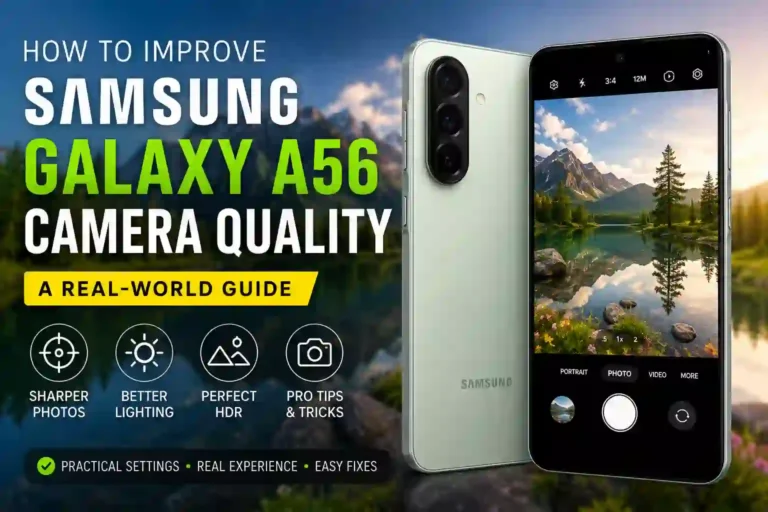
How to Improve Samsung Galaxy A56 Camera Quality: A Real-World Guide
I almost returned my Galaxy A56 in the first week.
Not because it is a bad phone — it isn’t — but because the first batch of photos I took at my cousin’s engagement dinner came out soft, yellow-tinted, and honestly kind of embarrassing next to shots from my friend’s iPhone sitting at the same table. Same lighting. Same moment. Completely different results.
Turns out the main problem was not the phone’s hardware. It was me not knowing how to make Samsung Galaxy A56 camera better by tailoring it to real-world environments. Over the next couple of months, I went down a rabbit hole — testing different options, comparing shots side by side, tweaking the best Samsung Galaxy A56 camera settings, and annoying my family by making them pose twice for every photo “for science.”
If you own an A56 and feel like your Samsung Galaxy A56 photo quality should look sharper than it does, stick around. I am not going to tell you to just “turn on Night Mode” or “adjust your settings” without context. This guide covers practical, field-tested Samsung Galaxy A56 camera tips to help you get professional-looking results.
Why Your A56 Photos Might Look Worse Than They Should
The A56 boasts a capable camera setup for its price range: a 50MP main sensor with OIS, an ultra-wide sensor, and a macro camera. On paper, that sounds great. However, mid-range phones rely heavily on algorithmic post-processing to compensate for smaller physical sensor sizes compared to premium flagships. That means the stock camera app constantly guesses how to adjust white balance, exposure, noise reduction, and skin tones.
When that guessing process misses the mark, you end up with flat, oversharpened, or muddy shots. The good news is that learning proper Samsung Galaxy A56 camera optimization allows you to take control away from the automated algorithms and fix most image issues permanently.
Getting Sharper, Clearer Photos
A common concern among users is finding a reliable Samsung Galaxy A56 blurry camera fix. Sharpness issues often stem from subtle handling errors rather than hardware defects.
- Hold still longer than feels natural: The main 50MP sensor relies on 4-in-1 pixel binning by default, outputting 12.5MP images. This multi-frame capture process takes a fraction of a second longer to finalize than it seems. Moving the phone immediately after tapping the shutter introduces micro-blur. Pausing briefly after hitting capture yields noticeable clarity improvements.
- Understand when to use 50MP vs. Default 12.5MP mode: The standard 12.5MP binned mode combines four pixels into one large pixel, offering superior dynamic range, lower noise, and better low-light handling.When 50MP mode works better: The full 50MP resolution excels in direct, bright daylight when shooting distant scenery or architecture. For example, if you are taking a photo of a distant cityscape from an overlook on a sunny afternoon and plan to crop into a specific building without losing fine detail, switch to 50MP. In shadowy or indoor lighting, however, 50MP introduces heavy grain and reduced dynamic range.
- Tap to focus before every shot: The autofocus on mid-range devices can occasionally hesitate in busy scenes. Tapping explicitly on your subject before hitting the shutter locks focal points instantly and fixes most sharpness complaints.
Making HDR Actually Work For You
HDR (High Dynamic Range) on the A56 captures multiple exposures simultaneously to balance bright skies and dark shadows. While helpful, automatic HDR can sometimes overprocess a scene, making photos look artificial or washed out.
Where HDR Rescues a Shot
- Individuals standing directly in front of bright windows or sunlit backgrounds.
- Interior rooms lit by a combination of outdoor sunlight and ambient interior lighting.
- Outdoor landscape photography featuring bright skies alongside shaded ground areas.
Where HDR Hurts Image Quality
- Evenly lit scenes with little contrast variance.
- Fast-moving subjects like pets or sports, where multi-frame exposure blending causes double-image ghosting.
- Macro close-ups where natural shadows provide needed depth.
If a shot looks overly processed, tap and briefly hold on the darker area of your subject to re-center exposure metering before pressing shutter.
Understanding Light: Indoor vs. Outdoor Lighting
No phone camera software can invent optical detail where light is lacking. Managing ambient light remains the single most effective way to improve Samsung Galaxy A56 camera quality.
    [ Strong Outdoor Natural Light ] ──► Lower ISO / Higher Shutter Speed ──► Crisp Detail & Rich Colors

    [ Complex Indoor Artificial Light ] ──► Higher ISO / Lower Shutter Speed ──► Increased Noise & Color Cast
Outdoor Lighting Dynamics
Outdoors, the sensor receives ample light, allowing for low ISO levels and faster shutter speeds. Sunlight provides natural directional contrast, making foliage and landscapes pop. Overcast days are equally beneficial: clouds act as a massive softbox diffuser, eliminating harsh shadows on faces and providing ideal skin tones for outdoor portraits.
Indoor Lighting Challenges
Individually managed indoor lighting mixes different light color temperatures—such as cool LED overheads paired with warm yellow table lamps. This mix confuses the white balance sensor, creating unnatural color tints. Furthermore, reduced indoor ambient light causes the phone to boost ISO sensitivity, adding grain and softening details through post-process smoothing.
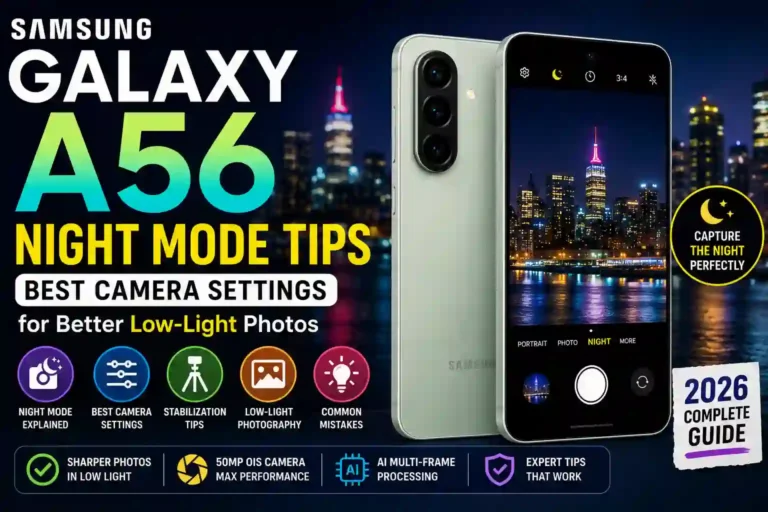
To improve indoor Samsung Galaxy A56 image quality, turn off competing light sources, move closer to natural window light, or explore dedicated Galaxy A56 Night Mode tips when shooting in dim venues.
How the AI Scene Optimizer Actually Behaves
The built-in Scene Optimizer analyzes your viewfinder and applies automated saturation, contrast, and tone adjustments based on recognized subjects (e.g., food, blue sky, foliage, faces).
- Greenery & Skies: Amplifies saturation levels, which can look vibrant on phone screens but slightly unrealistic on external displays.
- Portraits & Faces: Applies warm skin tones and mild smoothing.
- Food: Enhances contrast and warm color casts to make dishes appear rich, though extreme contrast can crush subtle textures.
If you prefer true-to-life tones or plan to edit your photos in third-party applications, disable Scene Optimizer in your Camera Settings. Leave it turned on when taking quick, casual shots intended for immediate social sharing.
Fixing Selfie Quality Problems
The front-facing camera on the A56 requires a different approach than the primary rear sensor:
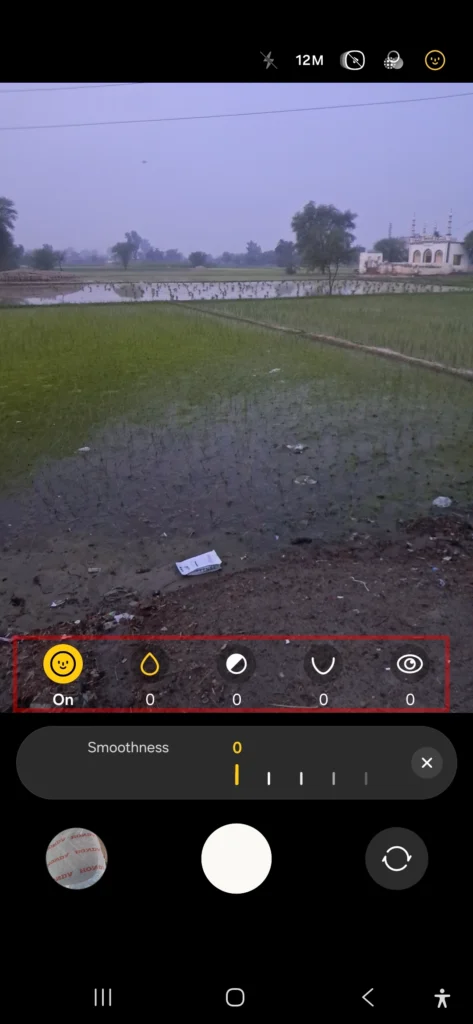
- Disable Default Beauty Filters: Smooth skin settings are enabled by default. Lowering or turning off these sliders in the top-right camera menu restores natural texture and facial detail.
- Face Light Sources directly: The front sensor’s smaller footprint makes it susceptible to low-light noise. Position yourself directly facing an indoor lamp or window rather than sitting backlit.
- Avoid Edge Distortion in Wide Mode: When using the wider field-of-view selfie setting for group shots, avoid placing people on the extreme edges of the frame to prevent perspective stretching.
Getting Better Video Recordings
Achieving high-grade Samsung Galaxy A56 video quality requires matching your frame rates and recording formats to your specific shooting scenario.
Choosing the Right Resolution & Frame Rate
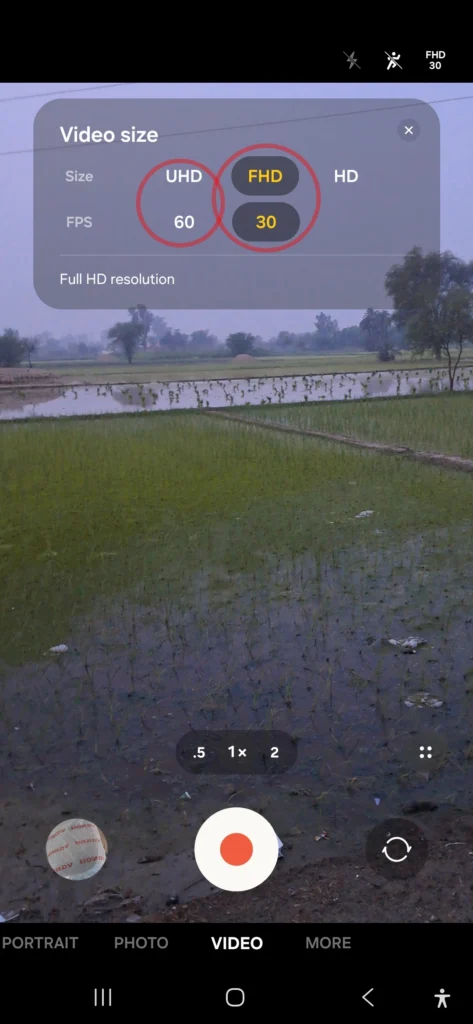
- Social Media & Stories (Reels, TikTok): Choose 1080p at 60fps. High frame rates deliver smooth motion for panning shots and convert cleanly when compressed by social media algorithms.
- Travel Vlogs & Landscape Footage: Choose 4K at 30fps. This captures maximum resolution and fine structural details on large displays.
- Indoor Family & Low-Light Clips: Choose 1080p at 30fps. Keeping the frame rate at 30fps allows the sensor to keep the shutter open twice as long per frame compared to 60fps, reducing video noise in dim environments.
       1080p @ 60fps   ►  Best for Fluid Motion & Social Reels
       4K @ 30fps      ►  Best for Maximum Landscape Detail
       1080p @ 30fps   ►  Best for Low-Light & Everyday Clips
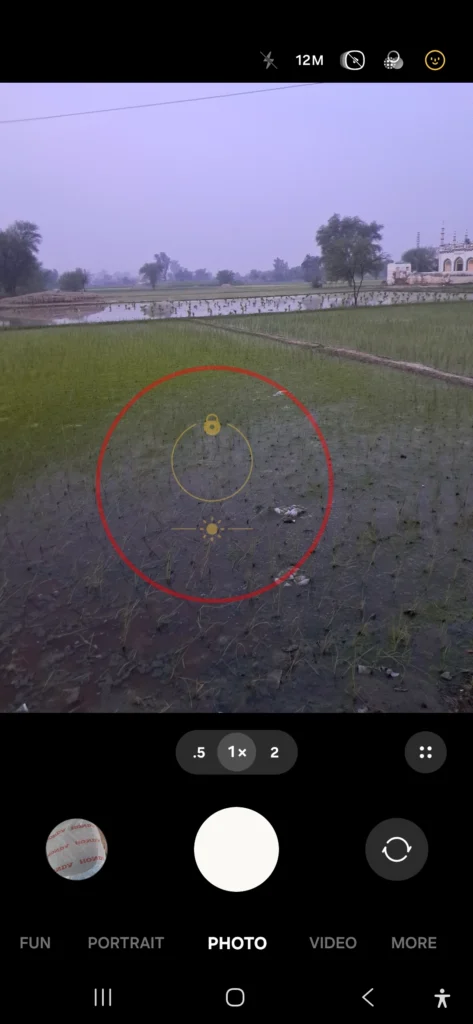
- Lock Focus and Exposure: Tap and hold your primary subject on the screen until the “AE/AF Lock” indicator appears. This prevents the lens from hunting for focus or changing brightness mid-recording.
Lens Cleaning — Yes, Really
Because the A56 features individual rear camera cutouts, dust and skin oils easily accumulate on the glass lenses when putting the device into pockets or bags.
A thin oil film on the glass scatters light entering the sensor, causing visible light streaks, reduced contrast, and soft focus. Wiping your lenses with a dry microfiber cloth before taking important photos eliminates haze instantly.
Fixing Focus Issues
When the camera hesitates or struggles to lock focus:
- Low-Light Scenarios: Tap on a high-contrast boundary (such as the border between a dark jacket and a bright shirt) rather than a flat, uniform surface.
- Reflective Surfaces: When photographing through windows or glass display cases, place the lens close to the glass or tap firmly on the background subject to override reflections.
- Capturing Fast Movement: Instead of relying on single shots, hold down the shutter button (or swipe down, depending on your quick-action setup) to capture a rapid burst of photos, selecting the sharpest frame afterward.
Software Updates: One UI vs. Galaxy Store Camera Updates
Many users assume all software patches arrive in standard system updates. However, Samsung distributes camera optimizations through two distinct channels:
                          ┌──► System One UI Updates (OS Level / Base Drivers)
  Samsung Update System  ─┤
                          └──► Galaxy Store Updates (Camera App / AI Processing)
- System One UI Updates: These overall Android OS upgrades land via Settings > Software Update. They revise core hardware drivers, system stability, and base image-processing pipelines. If you are fine-tuning overall device performance, exploring options alongside best One UI settings for Samsung A56 helps maintain system responsiveness.
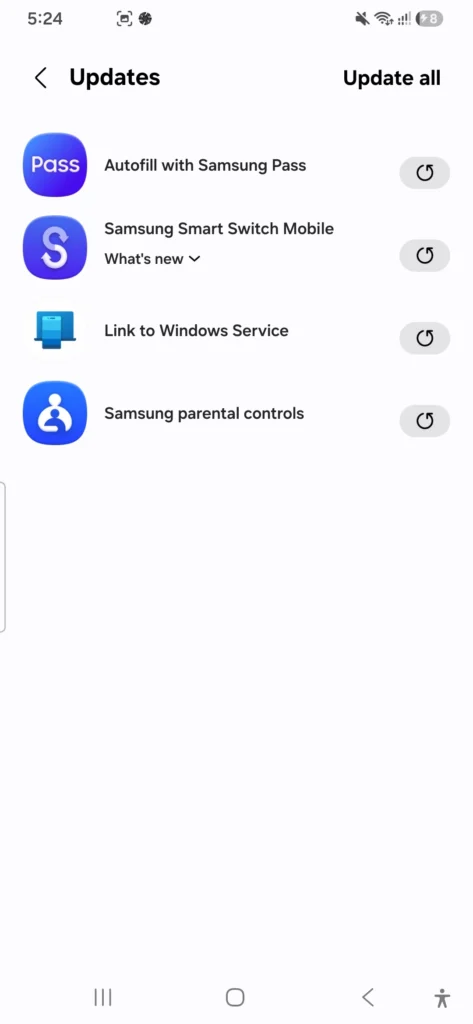
- Galaxy Store Camera Updates: Samsung routinely pushes direct updates to the standalone Camera application through the Galaxy Store. These updates adjust AI processing behavior, tweak scene recognition algorithms, and fix minor app bugs directly without requiring a full system reboot. Open the Galaxy Store, tap Menu > Updates, and update the Camera app whenever patches are available.
Common Mistakes People Make With the A56 Camera
- Using Digital Zoom Beyond 2x: The A56 lacks a dedicated telephoto lens. Digital zoom past 2x simply crops and scales pixels digitally, reducing detail. Walk closer physically whenever possible.
- Thick Camera Cutout Cases: Certain heavy-duty phone cases feature high ridges around the camera bump, causing subtle dark vignetting in the corners of ultra-wide shots.
- Editing in Low Screen Brightness: Editing photos with display brightness turned down low leads to overcorrecting exposures, resulting in images that look overly bright or oversaturated on other screens.
- Neglecting Device Maintenance: Extended camera use paired with background app overhead can warm the processor and cause shutter lag. Reviewing general Samsung Galaxy A56 tips and tricks helps keep background processing clean. Additionally, keeping battery performance optimal using methods to improve Samsung Galaxy A56 battery life ensures long shooting sessions without thermal throttling.
Quick Specs Table
| Feature | Samsung Galaxy A56 Camera Specification |
|---|---|
| Main Sensor | 50 MP, f/1.8, OIS (Optical Image Stabilization) |
| Ultra-Wide Sensor | 12 MP, f/2.2 |
| Macro Sensor | 5 MP, f/2.4 |
| Front Camera | 12 MP, f/2.2 |
| Max Rear Video | 4K at 30 fps, 1080p at 30/60 fps |
| Stabilization | OIS on Main Lens + VDIS (Video Digital Image Stabilization) |
| Primary App Updates | Galaxy Store & System One UI Updates |
Practical Tips That Actually Help
- Use the Volume Key as a Physical Shutter: Tapping the on-screen button can cause hand shake. Pressing the physical Volume Down key keeps handheld shots steadier.
- Shoot Test Photos First: Take a quick test photo when entering a venue with unusual indoor lighting to check white balance before taking important group photos.
- Group Shot Focus Distance: When photographing groups in multiple rows, tap focus on a person in the middle row to keep both front and back rows cleanly within the depth of field.
- Camera Hardware Comparison: If you are upgrading from an older device or comparing generations, reviewing a detailed Galaxy A56 vs A55 comparison provides valuable context on sensor and ISP improvements.
Pros & Cons of the A56 Camera
Pros
- Strong 50MP main sensor performance in daylight conditions.
- Optical Image Stabilization (OIS) on the main sensor reduces blur in low light.
- Dedicated updates delivered directly through the Galaxy Store.
- Versatile 1080p 60fps video options for social media creation.
Cons
- Noticeable detail drop-off on the ultra-wide lens in dim indoor lighting.
- Scene Optimizer can occasionally over-saturate greens and blues.
- Focus hunting can occur in low-contrast scenes without tap-to-focus intervention.
FAQs
Why do my A56 photos look blurry even when holding the phone still?
Blur is usually caused by a greasy lens or moving the phone immediately after tapping the shutter while multi-frame processing is finishing. Clean the glass with a microfiber cloth and hold still for a full second after capture.
Does turning off AI Scene Optimizer improve image quality?
Disabling Scene Optimizer prevents aggressive color saturation and skin smoothing. It produces more natural tones that are easier to edit in apps like Lightroom or Snapseed
Should I shoot in 50MP mode all the time?
No. The default 12.5MP binned mode offers better low-light handling and dynamic range. Reserve 50MP mode for bright outdoor landscapes where you plan to crop into fine details.
How do I get crisper front-camera selfies?
Disable default beauty filters, face natural light sources directly, and avoid using screen flash in pitch-black environments, which can wash out natural skin tones.
Why is 1080p 60fps often better than 4K for social media?
1080p at 60fps offers smoother playback motion and compresses more effectively when uploaded to social media platforms without triggering severe artifacts
Where do I update the camera app software?
Check both Settings > Software Update for system-level One UI releases, and the Galaxy Store app under Updates specifically for standalone camera patches.

2 Comments