Samsung Galaxy A56 Battery Drain Fix: 7 Real Solutions That Actually Worked (2026)
My A56 was sitting on the nightstand, screen off, Wi-Fi connected, doing absolutely nothing. I plugged it in at 11 PM at 80%. I unplugged it at 7 AM expecting 100%. Instead it showed 64%.
I checked the cable. I checked the wall socket. I even blamed my partner for “using my charger” (she wasn’t). Turns out the phone was charging fine — it was draining while it charged, which is a special kind of frustrating that I didn’t even know was possible until it happened to me.
If you bought the Galaxy A56 expecting a full day of battery life and you’re instead babysitting a power bank by 3 PM, you’re not imagining it. This is a real, fairly common issue, and most people fix it without ever needing a repair shop. Here’s everything I tried, what actually helped, and what was a complete waste of time.
Why the A56’s Battery Suddenly Tanks
Before I go into fixes, it helps to know why this happens, because “just restart it” advice gets old fast.
The A56 ships with a 5,000 mAh battery, which on paper should comfortably get you through a day of normal use. In my own testing, that held up fine for the first month or so. Then I installed a software update, and things changed almost overnight.
This lines up with what a lot of other A56 owners have reported too — battery life noticeably worsening right after a One UI update, sometimes with the phone running warmer than usual even during light use. It’s not universal, and it doesn’t happen to everyone, but it’s common enough that it shows up constantly in Samsung’s own community forums.
The honest answer is: in the vast majority of cases, this isn’t a dying battery. It’s software re-indexing apps, background processes going rogue, or a setting that quietly got reset during an update. Actual battery degradation (the kind where the battery itself is physically worn out) is rare this early in a phone’s life, especially if your A56 is under a year or two old.
Does the Galaxy A56 Battery Drain Faster on 5G?
Yes, and this is worth knowing separately from the software issues. The A56’s 5G radio has to simultaneously maintain both a 5G connection and a fallback LTE/3G signal, which doubles the antenna workload. If you’re in an area with patchy 5G coverage, your phone is constantly searching and switching, which is one of the fastest ways to kill standby battery. If overnight drain is your main problem and you’re in a weak signal area, switching your SIM to LTE-only mode (Settings > Connections > Mobile networks > Network mode > LTE/3G/2G) while you sleep can make a significant difference — even more than cache partition clearing in some cases.
My Actual Battery Drain Timeline
I’ll be honest about the order I tried things, because I made a few dumb moves before I got to the stuff that actually worked.
Week 1: Phone felt totally normal. Easily lasted from 7 AM to bedtime with battery to spare, even with some YouTube and Instagram thrown in.
Week 5: A software update notification popped up. I installed it without thinking twice, like I always do.
Week 6: Battery started dropping fast. Not dramatically at first — maybe 5-10% more than usual by the end of the day. I chalked it up to “I probably used my phone more this week.”
Week 7: This is where it got bad. Overnight drain on standby, screen off, no apps open. I’d go from 100% before bed to 65-70% by morning. That’s not normal idle drain for any phone with this battery size.
My first (wrong) move: I assumed it was a faulty battery and started looking into Samsung Care+ repair costs. Glad I didn’t book anything yet.
What actually fixed it: A mix of checking battery usage stats, restricting two specific apps, and clearing the cache partition. More detail below, because the order you do these in actually matters.
Step-by-Step Fixes That Work
Go through these in order. Don’t skip to the factory reset — most people never need it.
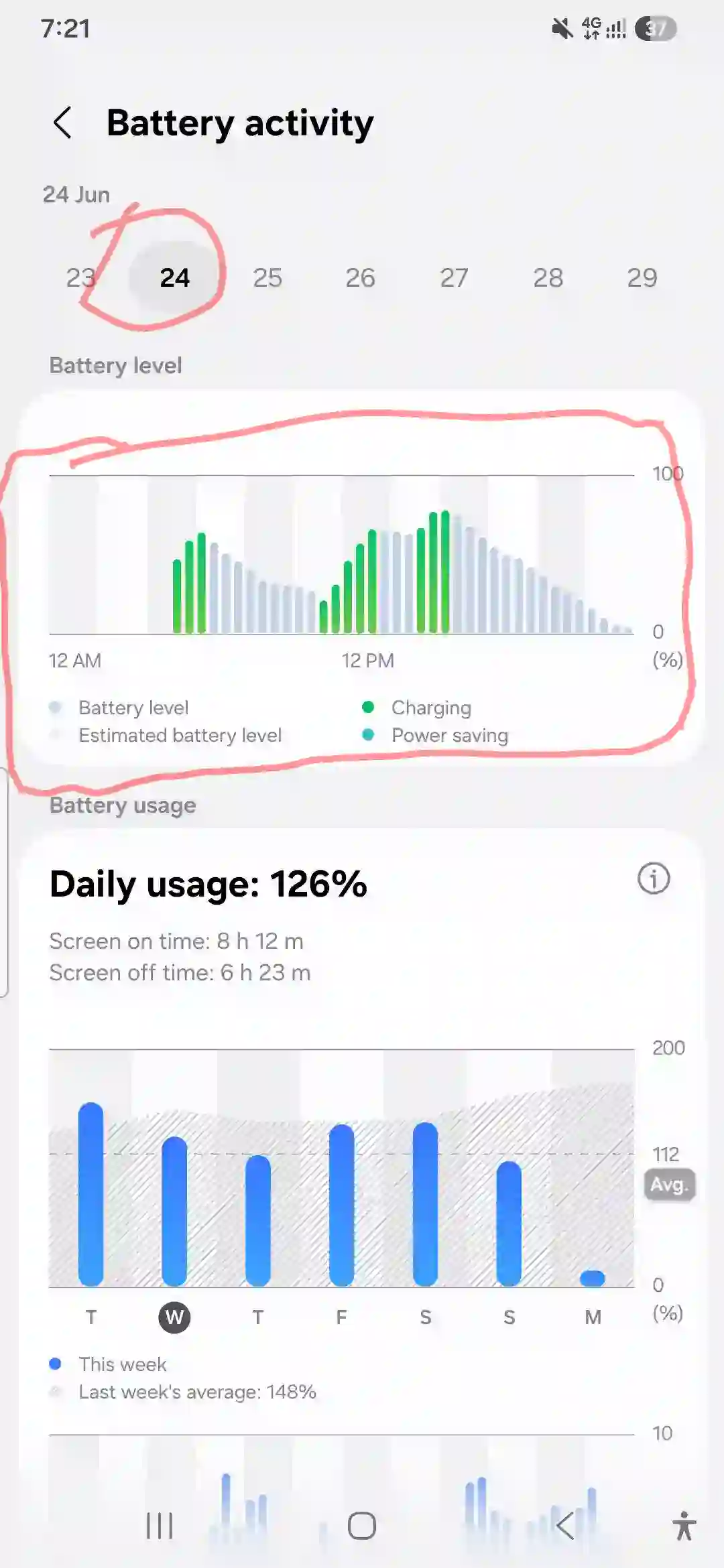
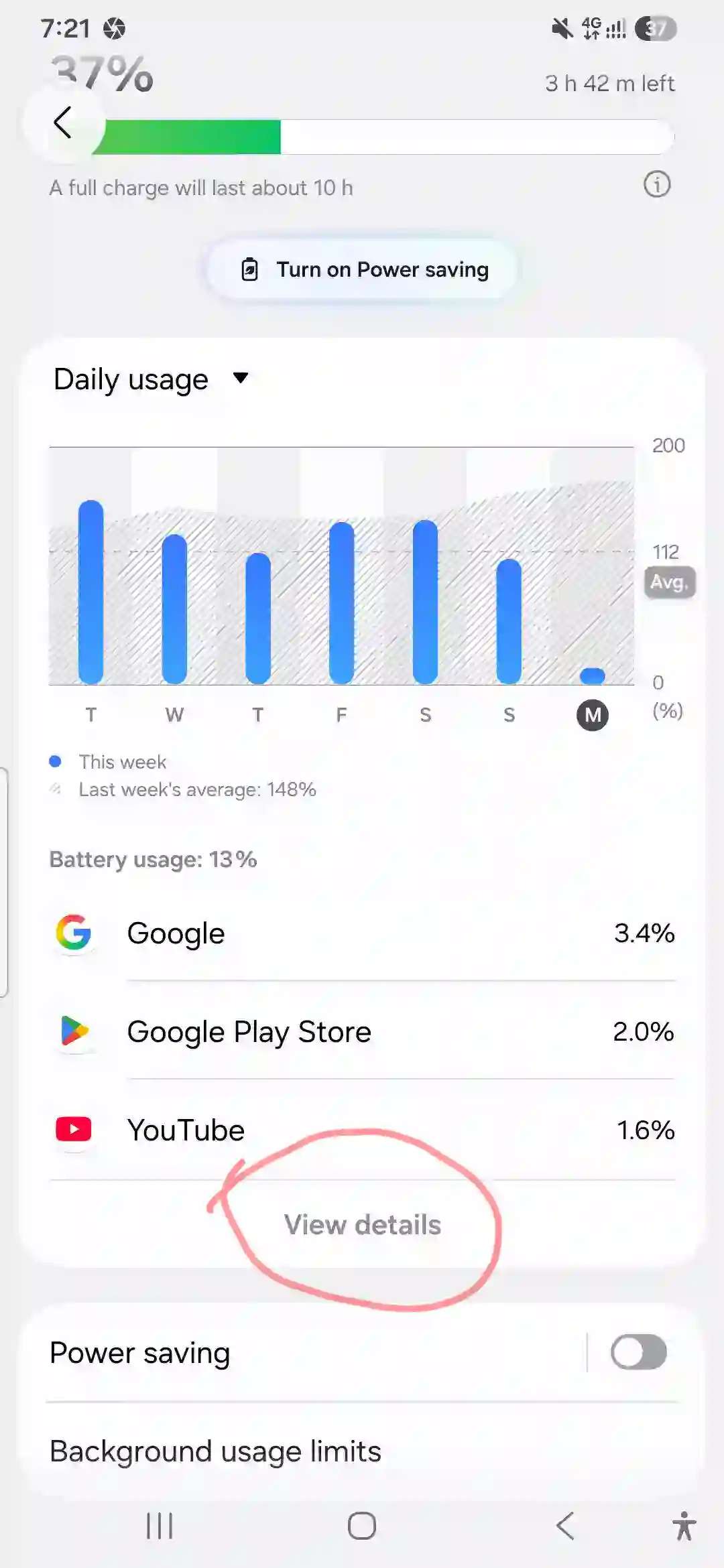
Step 1: Check what’s actually draining your battery
This sounds obvious, but most people skip straight to “restart and hope.” Don’t. The phone tells you exactly what’s eating power if you look.
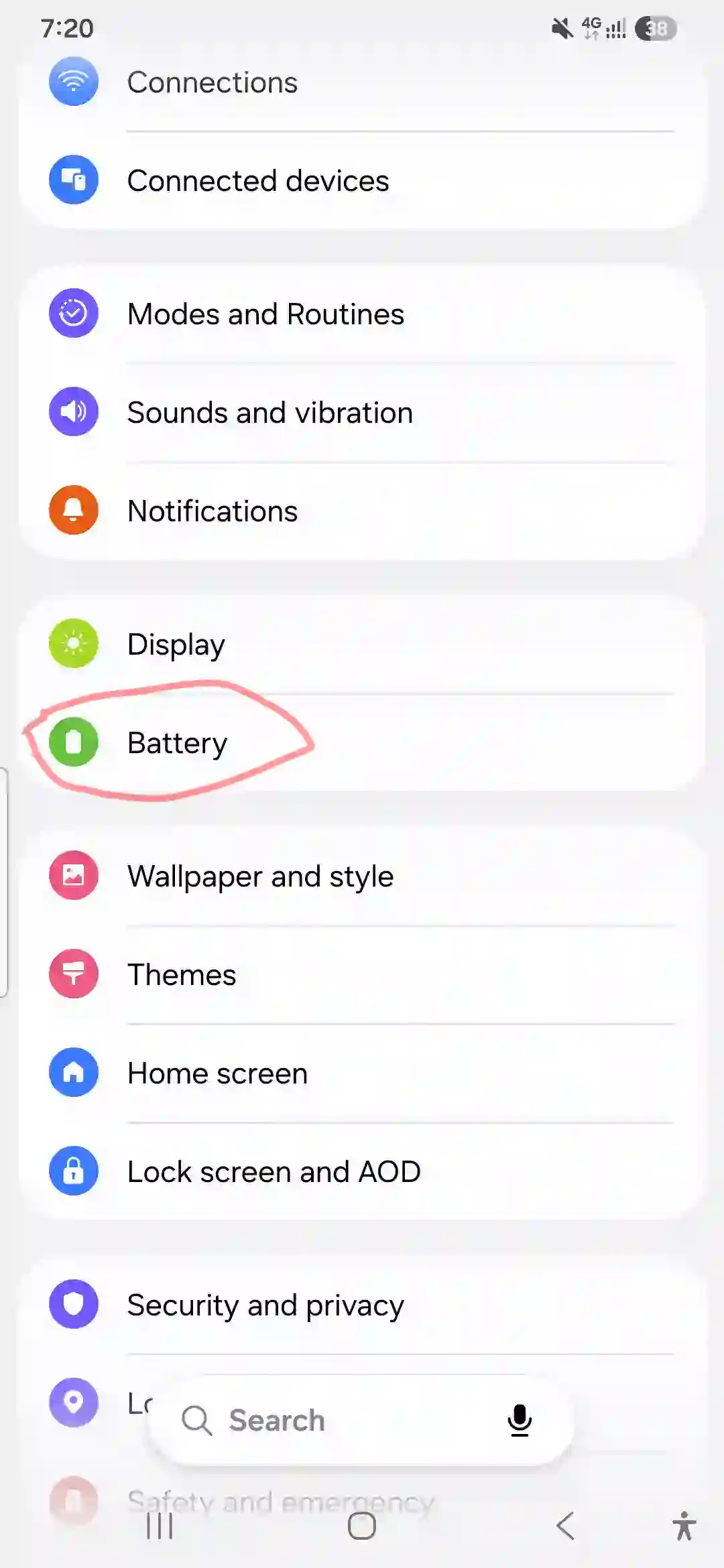
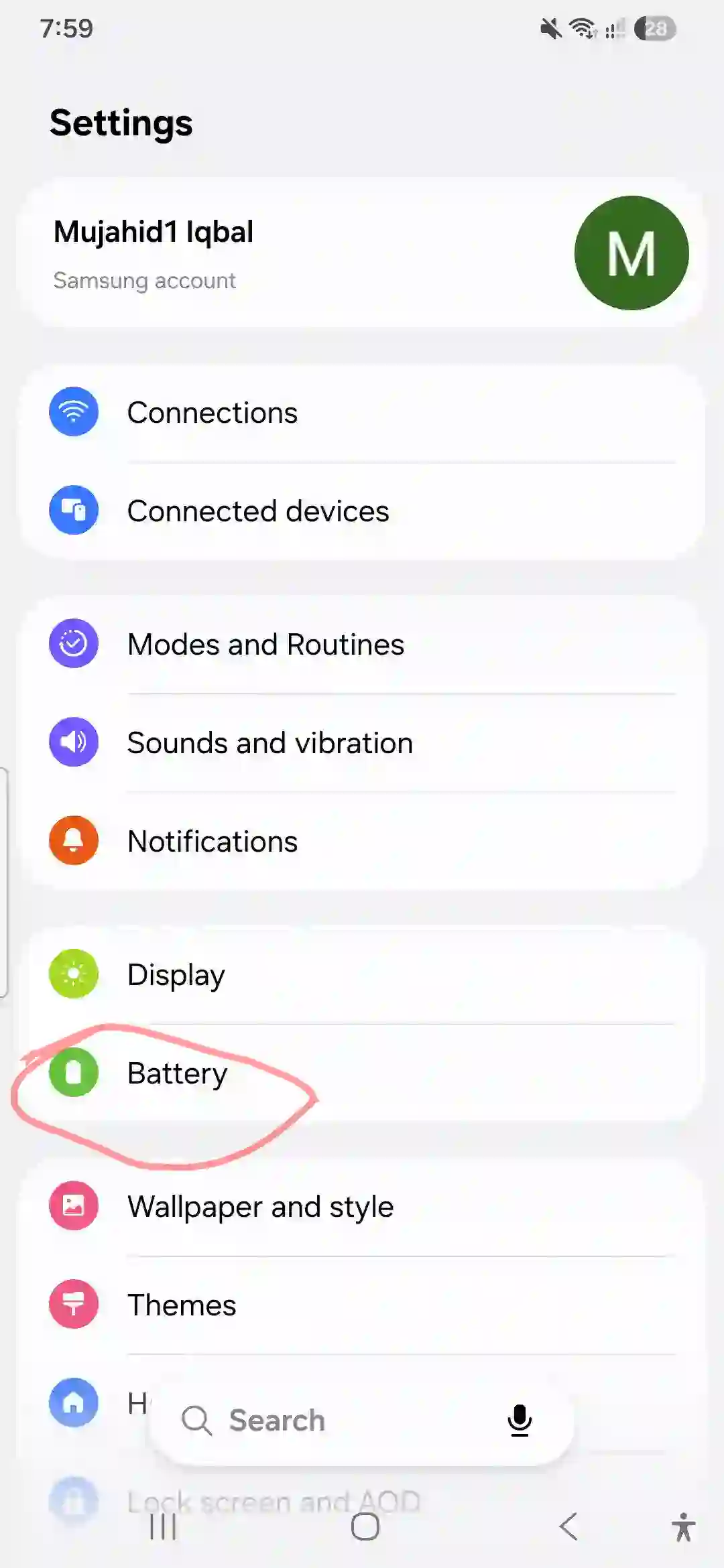
Go to Settings > Battery and device care > Battery > Battery usage. Tap on “Usage since last full charge” or switch it to the last 24 hours.
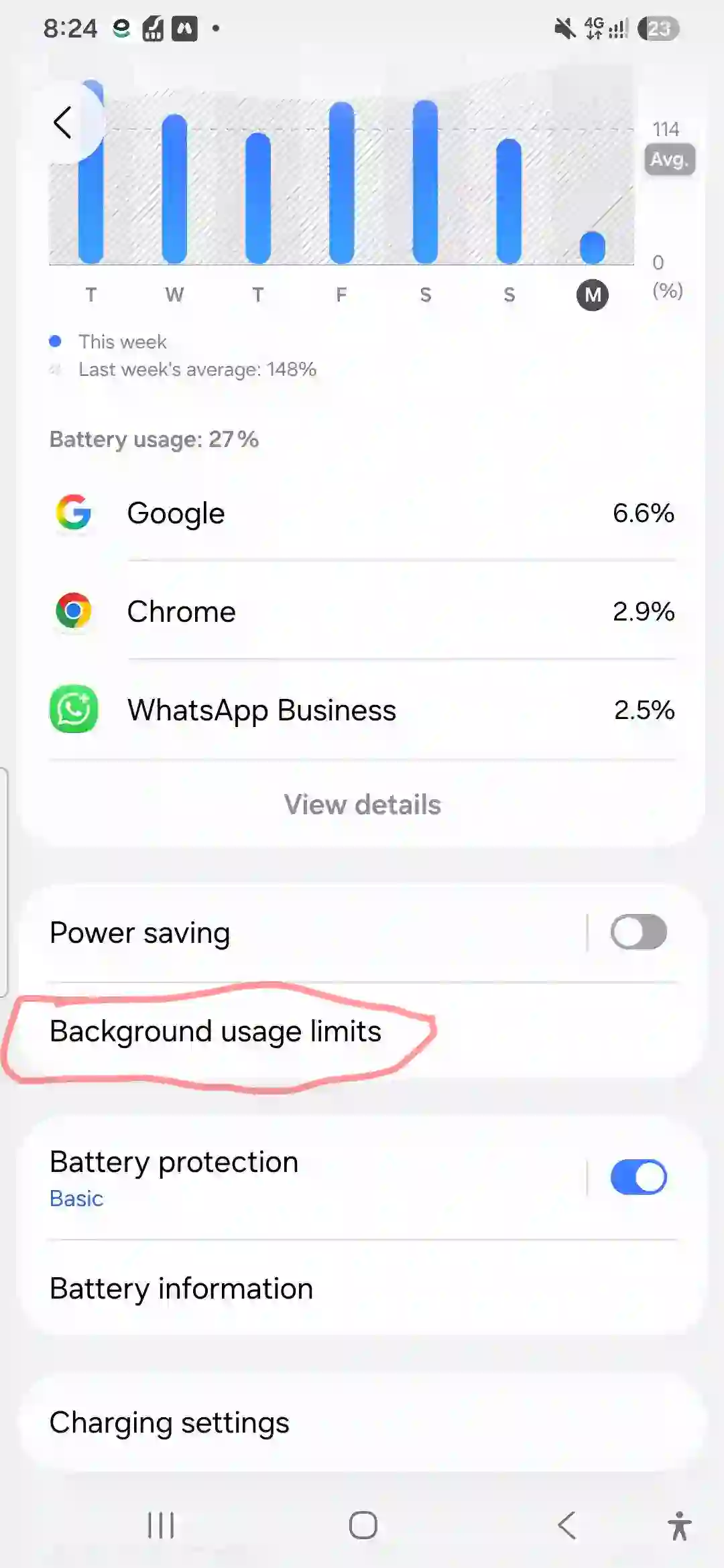
In my case, this is where I found my answer. One app I barely used — a fitness tracker I’d installed and forgotten about — was sitting at the top of the list, running in the background constantly even though I hadn’t opened it in over a week.
Step 2: Restrict background activity for power-hungry apps
Once you’ve identified the culprit (or culprits), don’t just delete them blindly — restrict them first and see if that’s enough.
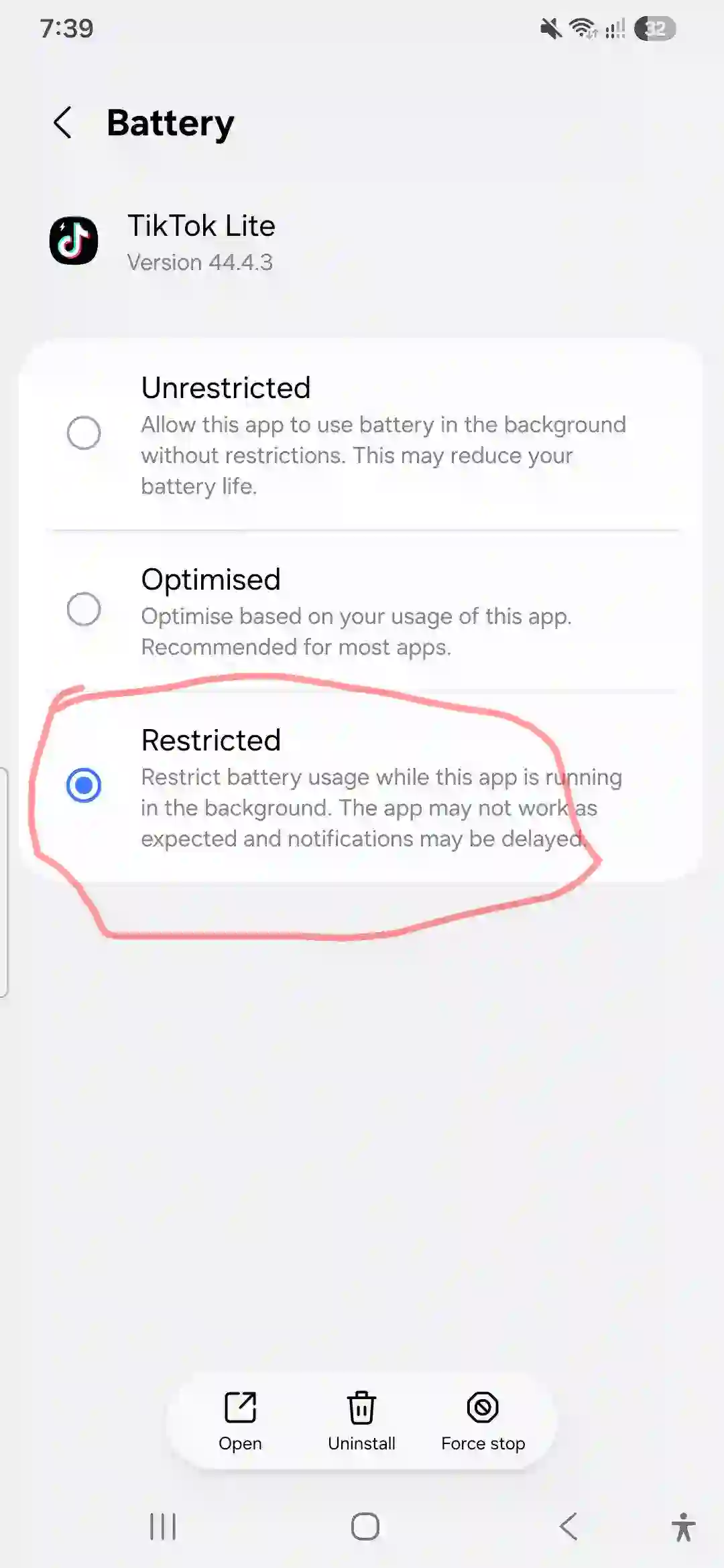
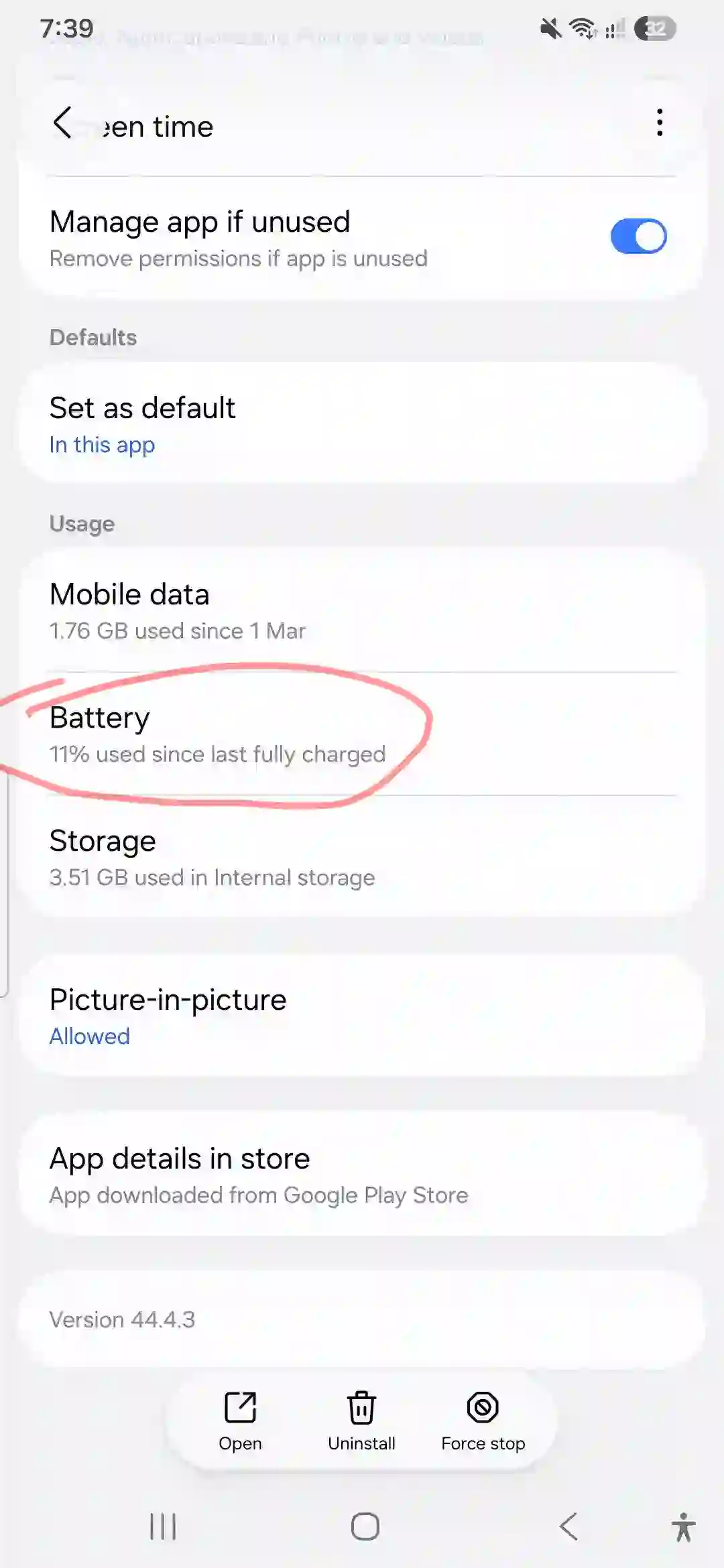
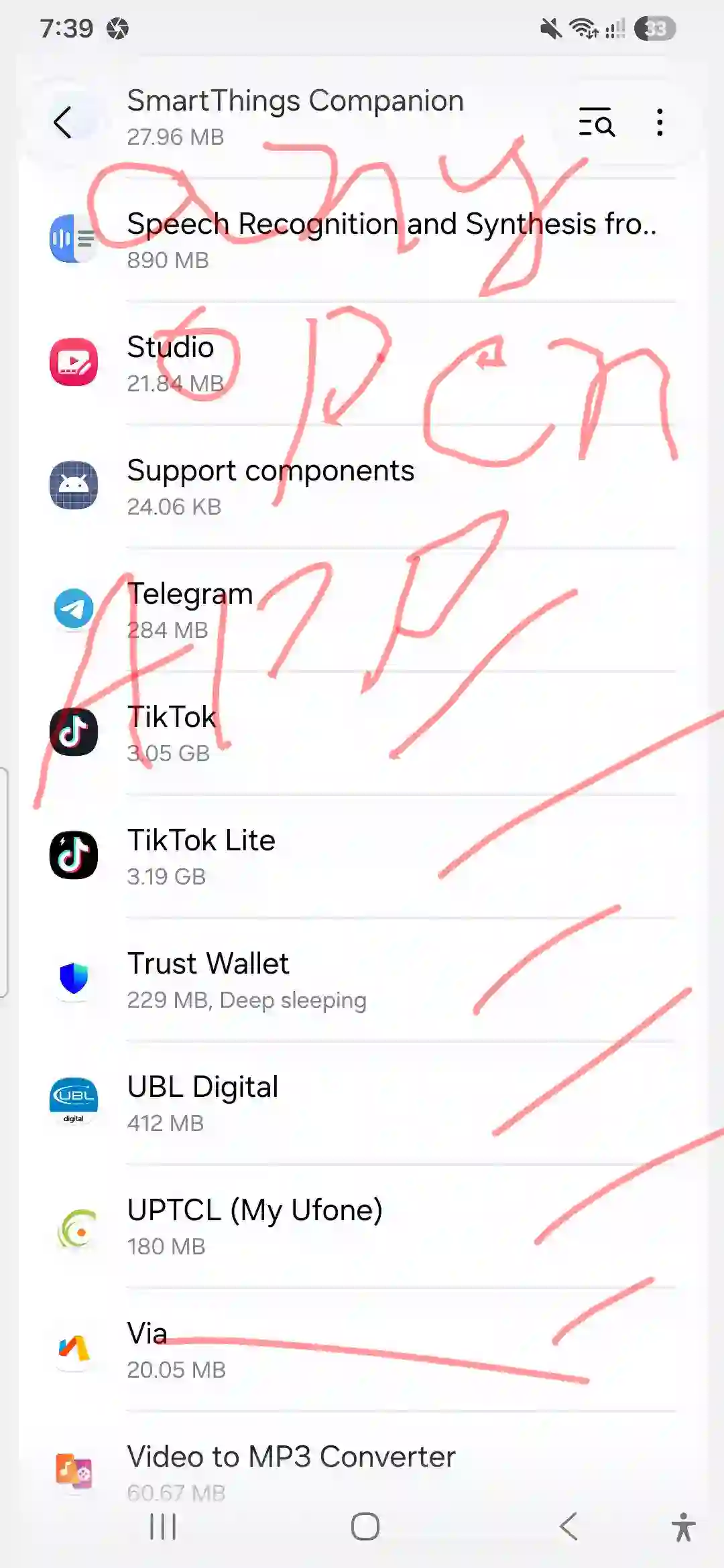
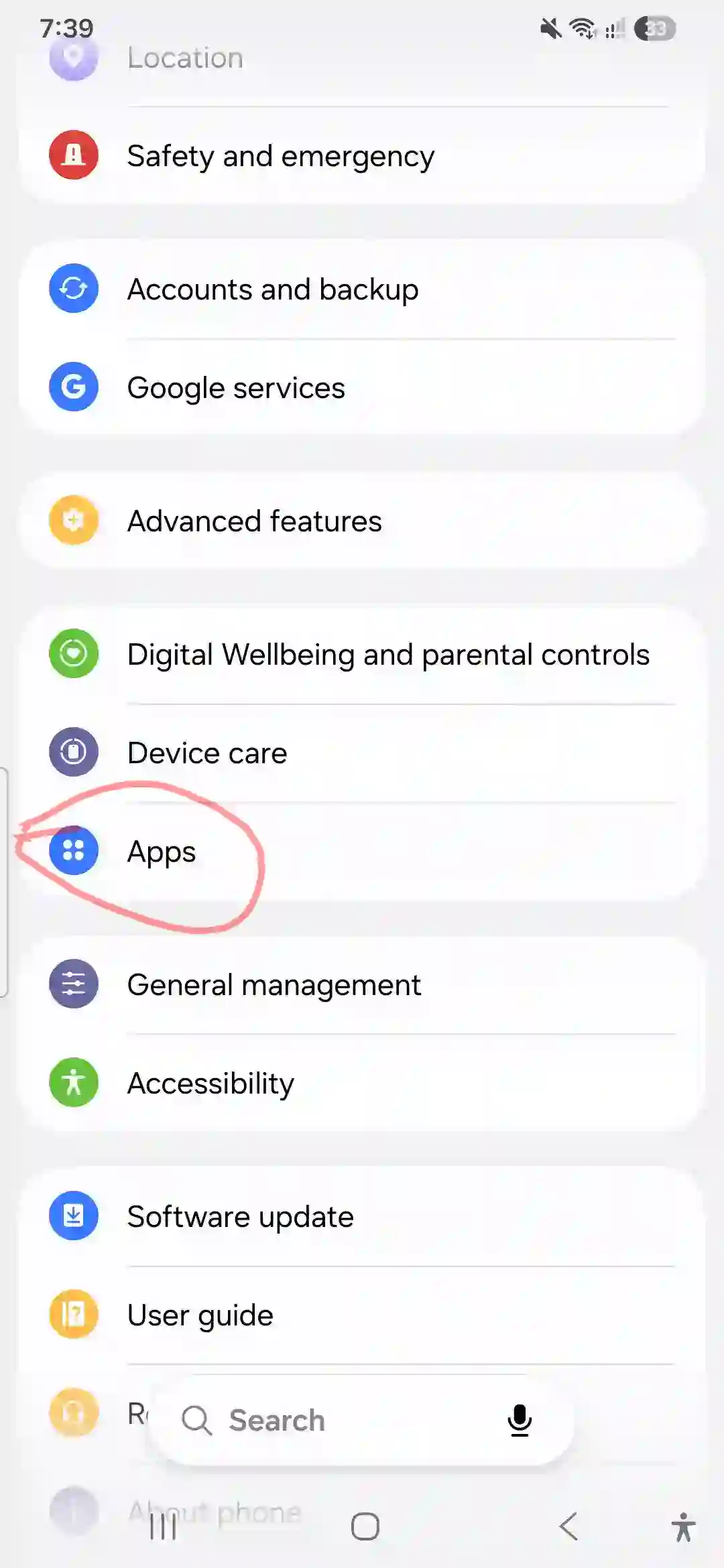
Go to Settings > Apps > [App Name] > Battery, and set it to Restricted. This stops the app from running background processes when you’re not actively using it.
For me, restricting that fitness app alone cut my overnight drain almost in half. It went from losing 30%+ overnight to losing about 8-10%, which is much closer to normal standby behavior.
Step 3: Clear the cache partition
This one feels like an old-school fix, but it genuinely helped after my software update. Cached system data can get corrupted or outdated during an update, and that can cause background processes to behave oddly.
Here’s how to do it on the A56:
- Power off the phone completely.
- Press and hold Volume Up and the Power/Side key at the same time.
- When the Android logo appears, let go of both buttons.
- Use Volume Down to highlight “Wipe cache partition” and press the Power key to select it.
- Confirm with Yes, then let the phone restart normally.
This doesn’t touch your photos, apps, or personal data — it only clears temporary system files. Totally safe, and worth doing right after any major software update going forward.
Step 4: Turn on Adaptive Battery and check power saving modes
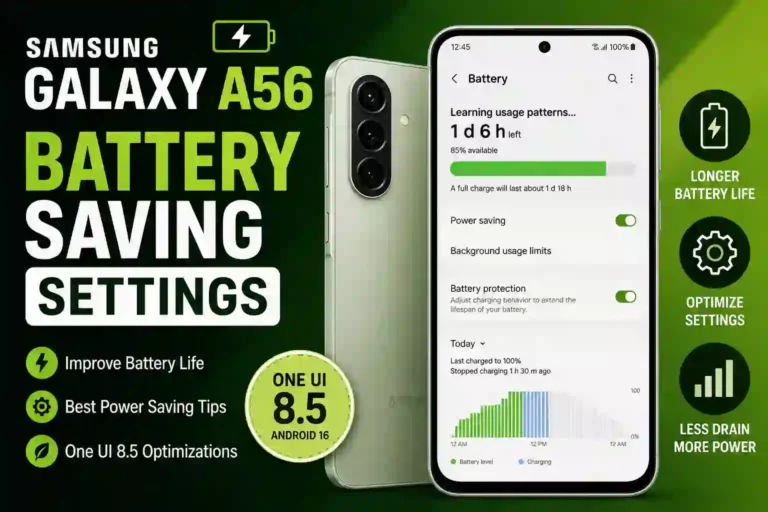
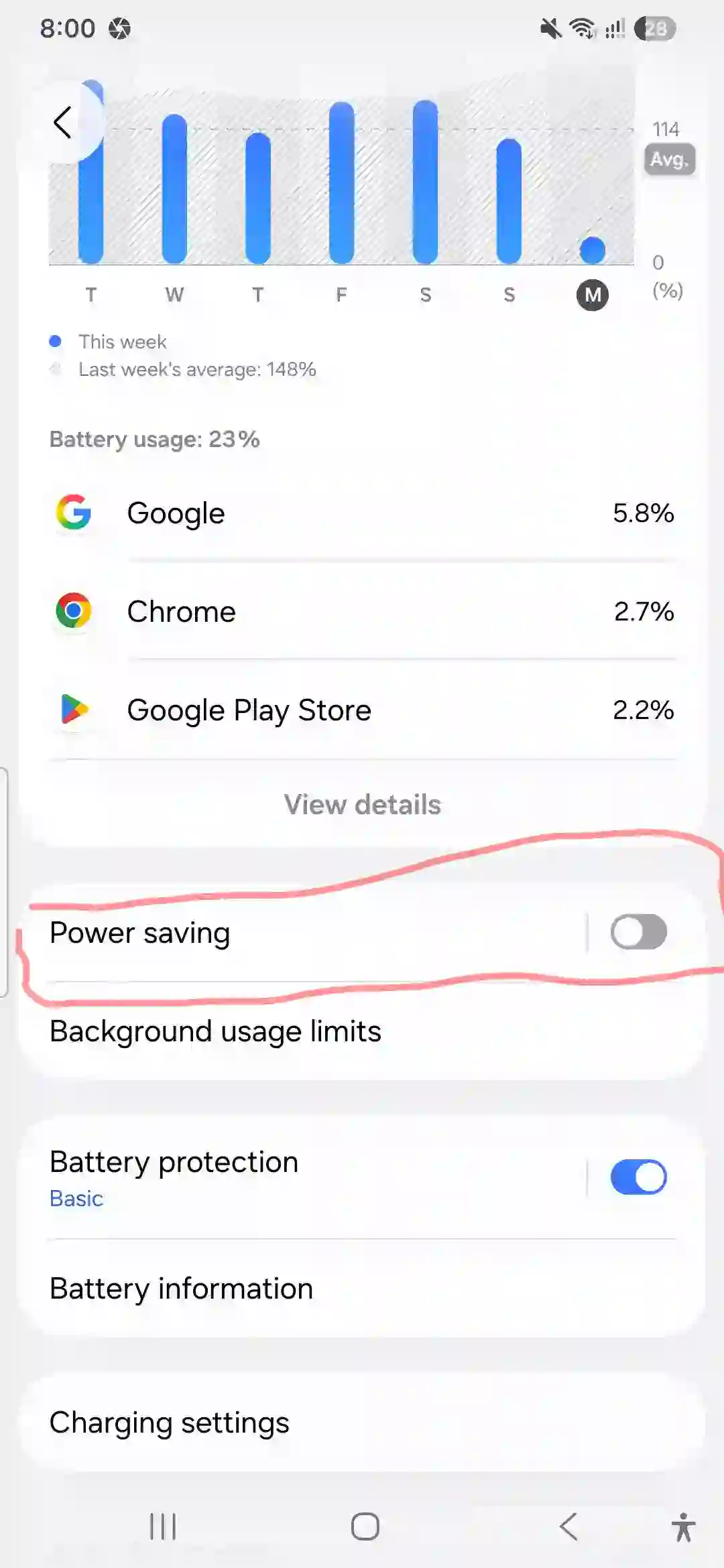
Go to Settings > Battery and device care > Battery, and make sure Adaptive Battery is switched on. This lets the phone learn your usage patterns and limit resources for apps you rarely touch, instead of treating every app like it’s equally important.
While you’re there, try toggling on Light power saving mode for a day and see how much of a difference it makes. If you want to get more aggressive, Adaptive power saving mode automatically kicks in stricter limits when the system predicts you won’t make it to your next charge.
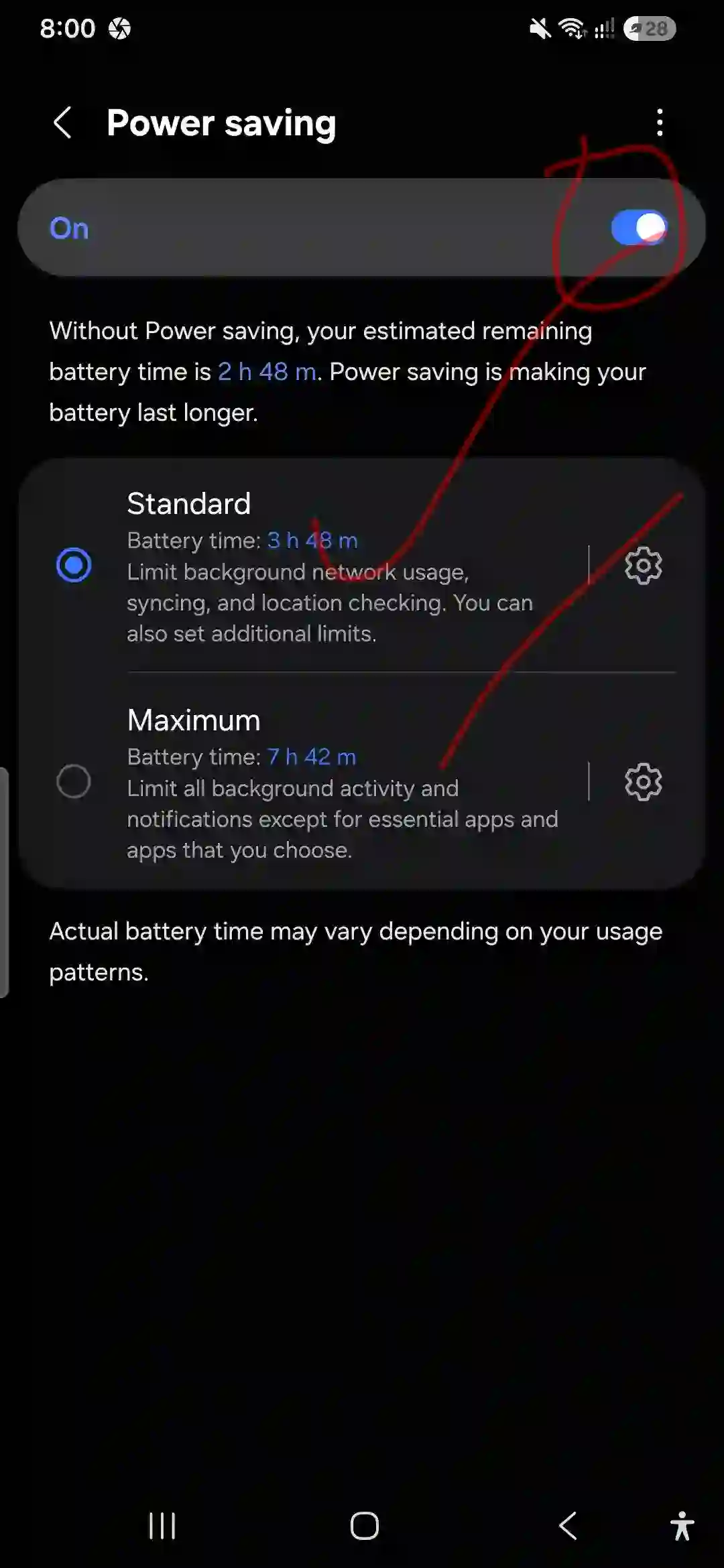
I run mine with Adaptive Battery always on, and Light power saving mode active during work hours when I’m not gaming or using GPS. These battery modes are just the tip of the iceberg; there are several other hidden menus in One UI 7 that we’ve uncovered in our [Samsung Galaxy A56 Hidden Features] guide.
Step 5: Check your charger and cable
This one’s easy to overlook. The A56 doesn’t come with a charger in the box anymore, which means a lot of people (myself included) end up using whatever charger was lying around — often an older one, or a third-party brick that isn’t rated for the right wattage.
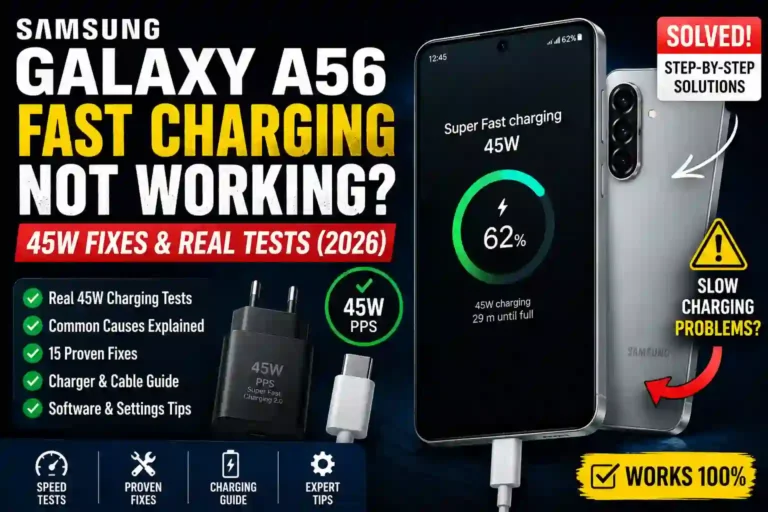
The A56 supports up to 45W fast charging, but you need a USB-PD 3.0 charger with PPS support and a proper 5A-rated cable to actually hit that speed. If you’re using an old 15W charger, charging will still work, it’ll just be a lot slower — and if the cable or charger is genuinely faulty or underpowered, you can sometimes get inconsistent charging behavior that looks like drain but is really a charging problem.
I was using a random USB-C cable I’d had for years. Swapping to a proper Samsung 45W-rated cable made charging noticeably more consistent.
Step 6: Test in Safe Mode
If you’ve done all of the above and something is still off, boot into Safe Mode to rule out a problematic third-party app entirely.
- Press and hold the Power button until the power menu shows up.
- Long-press Power off until you’re prompted to switch to Safe Mode.
- Tap Safe Mode to restart.
In Safe Mode, only pre-installed apps run — no third-party apps function at all. If your battery behaves normally here, you know for certain it’s an app causing the issue, and you can start uninstalling recent installs one at a time until you find the one responsible.
Step 7: Reset settings (not your whole phone) as a last resort
If nothing above helps, try Settings > General management > Reset > Reset all settings. This won’t touch your photos, messages, or installed apps — it just reverts system toggles (Wi-Fi passwords, Bluetooth pairings, display settings, etc.) back to default. It’s a good in-between step before considering a full factory reset.
A full factory reset should genuinely be your last resort, and only after backing everything up through Samsung Smart Switch.
Settings I Wish I’d Changed on Day One
A few things I only discovered after the fact, that I now set up immediately on any new Samsung phone:
- Turn off auto-sync for accounts you don’t need constantly updated. Settings > Accounts and backup > Manage accounts, then toggle off sync for secondary email accounts or social apps you check manually anyway.
- Set refresh rate to Standard (60Hz) instead of Adaptive if you’re not gaming much. Settings > Display > Motion smoothness. This alone added a couple of extra hours for me in testing.
- Limit notifications from apps that don’t need them. Every notification wakes the screen briefly, and that adds up more than people expect.
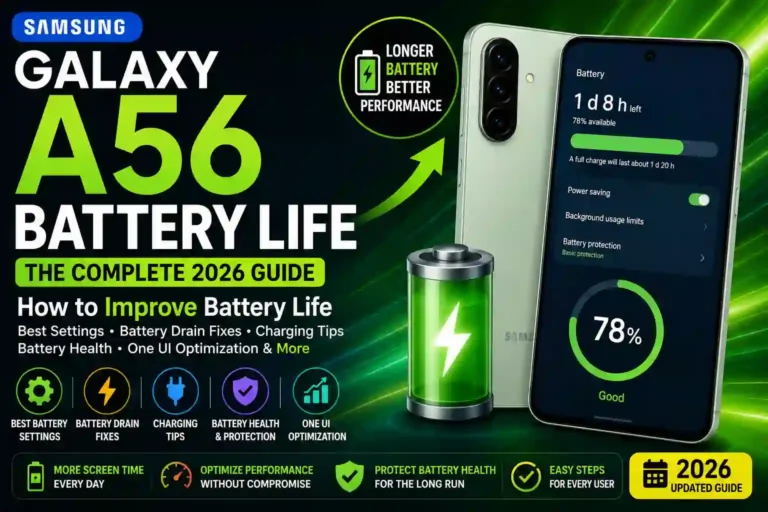
- Set a charging limit of 85% under Battery and device care > Battery protection, if you mainly charge overnight. It’s better for long-term battery health, even if it doesn’t directly fix drain. If you want to optimize your phone even further for performance and battery, check out our comprehensive guide on [Samsung Galaxy A56 Tips and Tricks].
Mistakes I Made (So You Don’t Have To)
- I blamed the battery before checking the software. Jumping straight to “the battery is bad” cost me time I could’ve spent actually fixing the real issue.
- I ignored the software update notes. There was a changelog mentioning battery optimization changes, and I skimmed right past it.
- I restricted apps randomly instead of checking usage stats first. I almost restricted an app I actually needed running in the background (my banking app’s notification service) before realizing the real offender was something else entirely.
- I didn’t test with one charger at a time. I kept switching between two different chargers while troubleshooting, which made it impossible to tell what was actually helping.
Quick Specs Table
| Spec | Detail |
|---|---|
| Battery capacity | 5,000 mAh (typical), 4,905 mAh rated minimum |
| Charging speed | 45W wired (Super Fast Charging) |
| Charging time (45W) | ~65% in 30 minutes, full charge in around 1 hour 8–13 minutes |
| Charging time (15W, no box charger) | Roughly 1 hour 34 minutes, 20% to 100% |
| Chipset | Exynos 1580 (4nm) |
| Display | 6.7″ FHD+ Super AMOLED, 120Hz adaptive refresh |
| Software (at launch) | Android 15, One UI 7 |
| OS update support | Up to 6 years of Android & security updates |
| Charger in box | Not included — sold separately |
How to Check Your A56 Battery Health (Without a Repair Shop)
Before doing any of the steps above, it’s worth knowing whether your battery is already degraded. Samsung hides a free battery diagnostic inside the Samsung Members app.
- Open the Samsung Members app (pre-installed on all A56 devices).
- Tap Get Help > Interactive Checks > Battery.
- It will show you battery life and capacity readings.
A healthy A56 battery should read close to its rated 4,905 mAh minimum. If it’s reading below 80% of that, the battery itself may be the issue regardless of software fixes, and a Samsung Service Center replacement is worth considering.
Pros & Cons of the A56’s Battery Setup
Pros:
- 5,000 mAh capacity is generous for a mid-range phone
- 45W fast charging is a real upgrade over the A55’s charging speeds
- Adaptive Battery and power saving modes genuinely help when used
- Most drain issues are software-related and fixable without a repair visit
- Long software support window (6 years) means future updates can keep improving efficiency
Cons:
- No charger included in the box, which leads people to use underpowered or incompatible chargers
- Software updates have occasionally introduced temporary battery regressions
- 120Hz Adaptive refresh rate noticeably shortens battery life compared to Standard 60Hz
- Heat buildup during heavy use (gaming, navigation) can accelerate drain
- Diagnosing the exact cause takes a bit of digging — there isn’t always one obvious culprit
FAQs
Is my Galaxy A56 battery actually damaged, or is this a software issue?
In most cases, it’s software — background apps, sync settings, or a recent update. Genuine battery degradation this early is uncommon unless your phone is well over a year old or has had heavy daily fast-charging cycles.
Why did my battery get worse right after a software update?
This happens because updates sometimes re-optimize how apps run in the background, and occasionally introduce bugs that temporarily affect power management. It’s frustrating, but it’s usually fixed in a follow-up patch, and the steps above can help in the meantime.
Does turning off 120Hz refresh rate really make a difference?
Yes, noticeably. Switching from Adaptive to Standard (60Hz) under Display settings can add a couple of extra hours of screen-on time, based on independent battery testing as well as my own experience.
Should I use a third-party charger to save money?
You can, but make sure it supports USB-PD 3.0 with PPS and is rated for at least 25-45W if you want proper fast charging. A mismatched or cheap charger won’t damage the battery in normal cases, but it can lead to slower or inconsistent charging that feels like a drain problem.
How do I know if a specific app is the problem?
Check Settings > Battery and device care > Battery > Battery usage first. If one app stands out, restrict it and monitor for 24 hours. If you’re still unsure, Safe Mode testing isolates third-party apps completely.
Will a factory reset definitely fix battery drain?
Not always, and it should be your last step, not your first. Most drain issues get resolved through app restrictions, cache clearing, and settings adjustments. Reserve the factory reset for when everything else has failed.
Is it bad to charge my A56 overnight every night?
It won’t damage it overnight occasionally, but doing it constantly can mildly accelerate long-term battery wear. Using the 85% charge limit feature under Battery protection is an easy way to reduce that wear without changing your routine much.
My phone gets hot while charging and gaming at the same time — is that normal?
Some warmth is expected, especially with 45W fast charging combined with demanding apps. But if it gets uncomfortably hot to hold, ease off on simultaneous charging-and-gaming, and check if a case is trapping heat.
Final Thoughts
Battery drain issues have a way of making a perfectly good phone feel broken, even when nothing is actually wrong with the hardware. My A56 went from feeling like a dying phone to lasting a full day again, and the fix wasn’t dramatic — it was checking usage stats, restricting one app, clearing a cache partition, and adjusting a couple of settings I’d never bothered to touch.
If you’re dealing with this right now, give yourself an evening to work through the steps above before assuming the worst. There’s a good chance your phone is fine — it just needs a little cleanup after an update shook things up. And if you do end up needing service support after trying everything, at least you’ll know you’ve ruled out the easy stuff first.