Samsung Galaxy A56 Storage Full? 10 Safe Ways to Free Up Space
The moment I remember most clearly with a Samsung Galaxy A56 storage full notification wasn’t dramatic. I was at a family gathering, my cousin’s kid did something adorable, and I raised the phone to record it. The camera stalled, then a banner slid down telling me there wasn’t enough space. By the time I’d deleted a random old video to make room, the moment was over.
If your Galaxy A56 is throwing low storage warnings, you’re not alone, and it’s almost never as hopeless as it feels. The A56 takes sharp photos, records high-resolution video, and runs demanding apps—all of which add up fast. Because the phone has no microSD card slot, learning proper Galaxy A56 storage management is essential to keeping your device running smoothly.
This guide walks through how to free up storage on Samsung Galaxy A56 safely, in the order that gets results fastest, while avoiding common mistakes that cause data loss.
Quick Specs Table
Here is what matters for internal memory and space management on this phone. Storage options vary by country and carrier, so check your own model rather than assuming.
| Detail | What to Know |
|---|---|
| Phone | Samsung Galaxy A56 5G |
| Storage Options | Typically 128GB or 256GB |
| microSD Card Support | No expandable storage slot |
| Where to Check Storage | Settings > Battery and device care > Storage |
| Built-in Cleanup Tool | Device care (Storage section) |
| File Manager | My Files app |
| Deleted Photo Safety Net | Gallery Recycle Bin |
| Cloud Storage Options | Google Photos, Microsoft OneDrive, Google Drive |
Note on Usable Capacity: The “128GB” advertised on the box is not what you can actually use. System files, One UI, and preinstalled apps consume a significant portion out of the box. Your usable space will always be less than advertised. If you are comparing models, see our Samsung Galaxy A56 vs A35 comparison to decide on the right baseline storage size.
First, See What’s Actually Eating Your Storage
Before deleting anything, find out why your Galaxy A56 storage is full. Spending an hour clearing app caches to recover 400MB is frustrating if a single forgotten video folder holds 30GB.
- Open Settings.
- Tap Battery and device care.
- Tap Storage.
You’ll see a color-coded breakdown showing categories such as Images, Videos, Audio, Documents, Apps, and System.
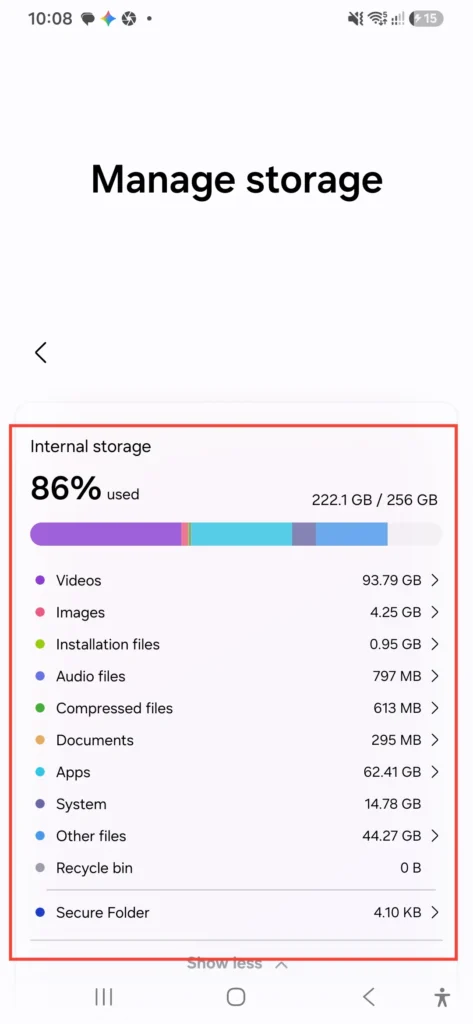
Typically, space issues stem from three primary areas:
- Photos and Videos: Especially 4K video clips or old screen recordings taking up Galaxy A56 video storage.
- WhatsApp and Messaging Junk: Received media builds up quietly in the background.
- Large Games & Apps: Installed packages often download multi-gigabyte secondary updates.
The System slice will look large, but you cannot shrink it. Focus strictly on user-managed categories.
Step 1: Use Samsung’s Built-In Storage Tools
Before downloading third-party tools, use the native features built into One UI to clean storage on Galaxy A56.
Run Device Care Cleanup
- Navigate to Settings > Battery and device care > Storage.
- Review suggestions like Recycle bin, Duplicate files, Large files, and Unused apps.
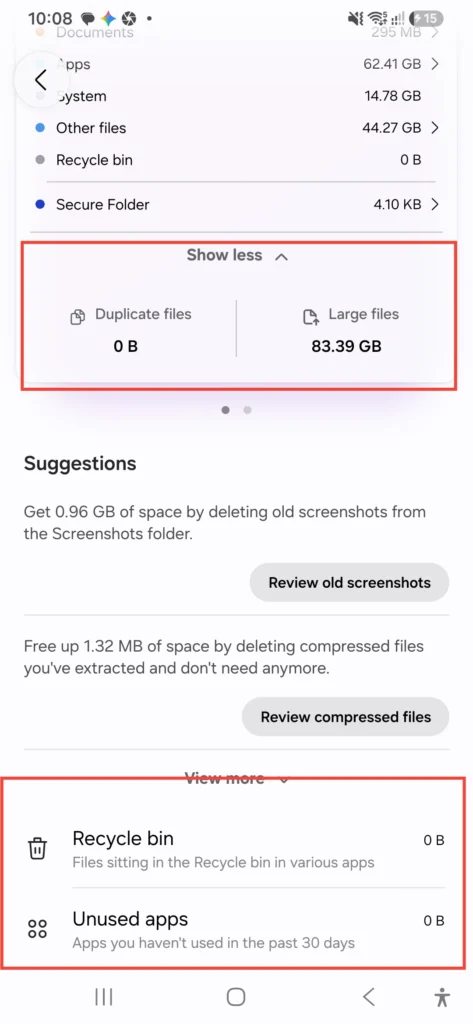
Pro Tip: Review each suggestion manually instead of using automatic cleanup buttons. “Unused apps” may include critical tools you only open occasionally, like banking or travel applications.
Empty the Recycle Bin
Deleted items land in the trash before being permanently removed:
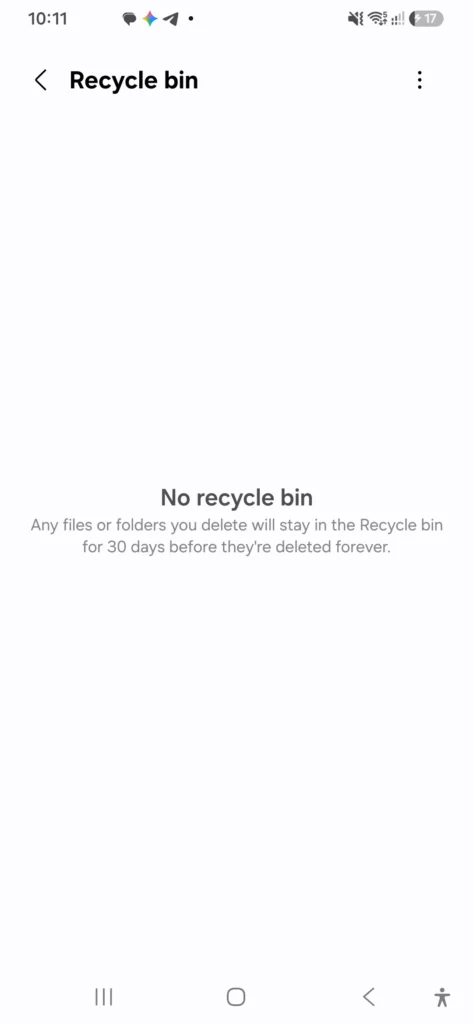
- Open the Gallery app, tap the menu icon, and select Recycle bin.
- Open the My Files app and check its Recycle bin as well.
- Confirm there are no important files, then tap Empty.
Check My Files for Large Files
- Open the My Files app and select Internal storage.
- Filter by file size to locate old ZIP archives, redundant PDF documents, or obsolete APK installer files.
Step 2: Deal With Photos and Videos (Usually the Biggest Win)
If your Galaxy A56 photos are taking up too much storage, this section offers the highest space savings.
Back Up First, Then Free Up Space
The safest way to free up space without deleting photos on Galaxy A56 is offloading them to cloud services.
- Open Google Photos and verify backup is fully synced over Wi-Fi.
- Tap your profile picture in the top right corner.
- Select Free up space.
- Confirm the prompt to remove locally stored copies that are already backed up safely.
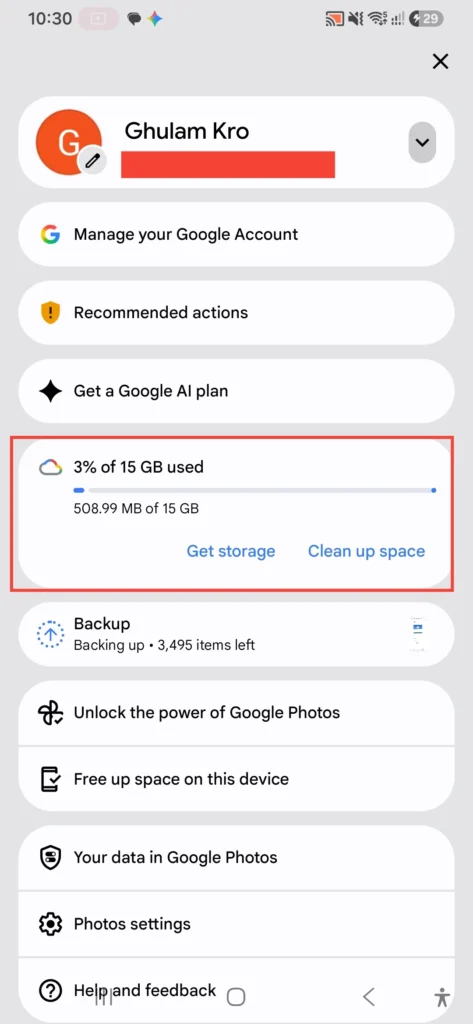
If you prefer offline backups, connect your Galaxy A56 to a PC or Mac using a USB cable. Open the phone’s DCIM folder, transfer your photos to your computer’s hard drive, and verify the transfer before removing local files from the phone.
Manage High-Resolution Camera Settings
You can prevent Samsung A56 storage problems in advance by adjusting camera defaults. If you want to optimize your camera setup further, check out our guide on best Samsung Galaxy A56 camera settings.
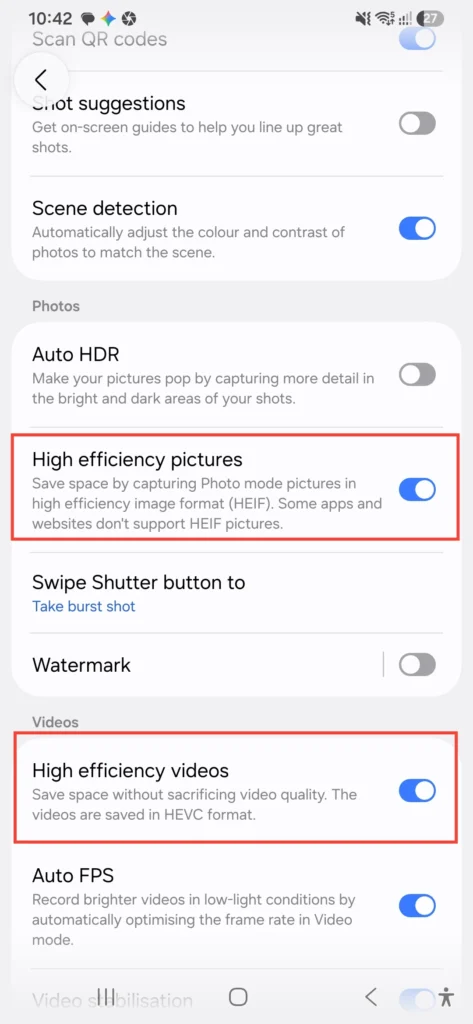
- Lower Video Resolution: Change default recording from 4K at 60fps to 1080p at 30fps for everyday clips.
- Enable High-Efficiency Formats: Go to Camera Settings > Advanced picture options > turn on High efficiency pictures (HEIF) and High efficiency video (HEVC).
Step 3: Clear WhatsApp and Messaging Junk
Messaging applications are a leading reason why Galaxy A56 storage fills up automatically.
Clean WhatsApp Media
- Open WhatsApp and tap the three dots menu > Settings.
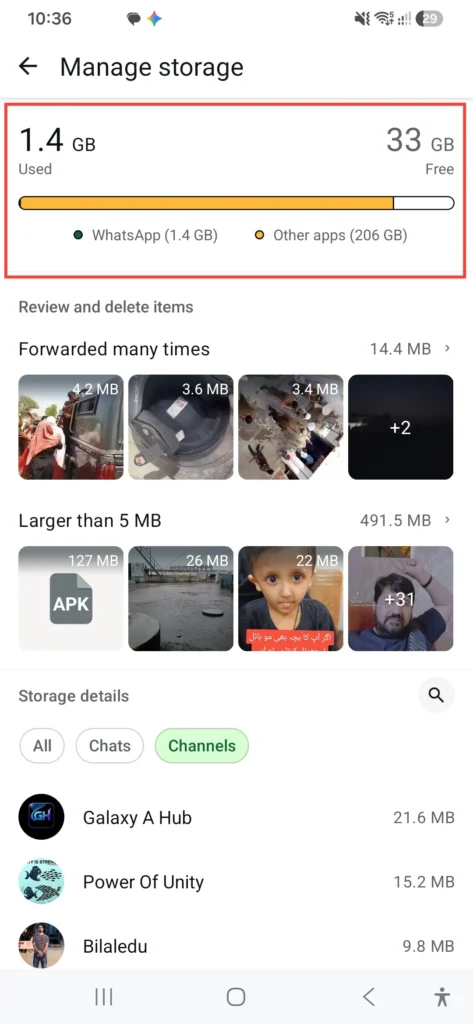
- Go to Storage and data > Manage storage.
- Review items in the Larger than 5 MB and Forwarded many times categories.
- Select and delete unwanted videos, memes, and large documents.
Stop WhatsApp from Auto-Downloading Media
To prevent recurring storage warnings:
- Go to WhatsApp Settings > Storage and data.
- Under Media auto-download, set all options (When using mobile data, When connected on Wi-Fi) to No media.
Telegram users can set media retention limits under Telegram Settings > Data and Storage > Storage Usage.
Step 4: Trim Your Apps and Clear Cache
When Samsung A56 memory is full, large installed applications and accumulated data caches are often the culprit.
Identify Unnecessary and Heavy Apps
- Go to Settings > Apps.
- Sort the list by Size or Least used.
- Select unused apps or games and tap Uninstall.
If an app cannot be uninstalled, tap Disable to prevent it from accumulating background data.
Clear App Cache vs. Clear App Data
Understanding the difference between cache and data prevents accidental file loss:
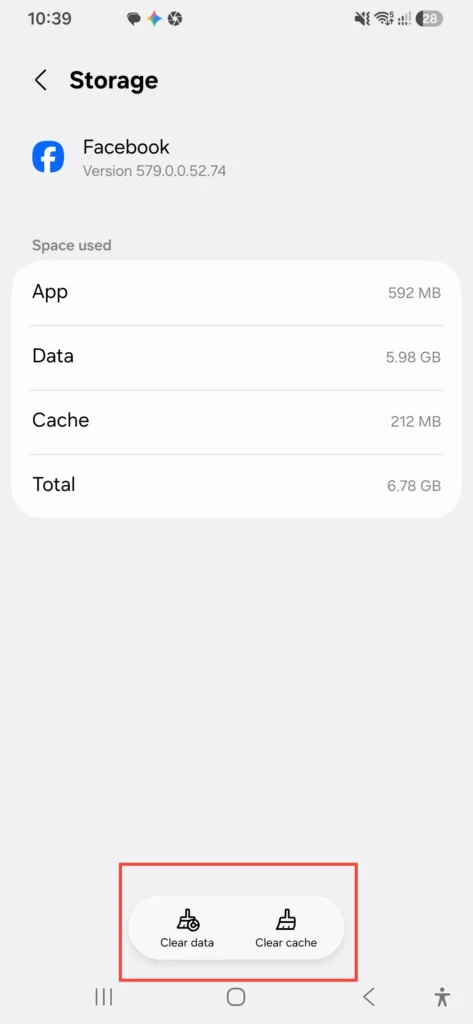
- Clear Cache (Safe): Removes temporary files like buffered images. It frees up storage without logging you out or resetting settings.
- Clear Data (Caution): Resets the app to factory conditions. It deletes local databases, login credentials, and unsaved progress.
To clear cache: Go to Settings > Apps > [Select App] > Storage > Clear cache.
If app performance issues persist after clearing cache, you can explore fixes in our tutorial on how to solve Galaxy A56 lagging issues.
Step 5: Check Downloads and Offline Content
Streaming applications silently occupy gigabytes of space through offline downloads.
- Netflix / Prime Video: Open the app settings, check the Downloads section, and remove watched movies or series.
- Spotify / YouTube Music: Go to your offline library and delete downloaded playlists you no longer listen to regularly.
- System Downloads Folder: Open My Files > Downloads, sort by file size, and remove outdated PDFs or attachments.
Step 6: Stop the Problem From Coming Back
Maintaining free internal memory requires simple preventative habits:
- Maintain a 10-15% Space Buffer: Keeping at least 15GB to 20GB of free space ensures stable One UI performance and prevents system update failures.
- Schedule Monthly Checks: Set a calendar event to review Settings > Battery and device care > Storage once a month.
- Utilize External Storage: Connect a USB-C flash drive or external SSD directly to your Galaxy A56 to offload large files without using a PC.
If you are setting up your phone for long-term health, view our recommended first things to do on Samsung Galaxy A56.
Common Mistakes to Avoid
- Installing Third-Party “Cleaner” Apps: Many third-party booster apps contain aggressive ads and waste battery life. Samsung’s built-in Device care tool handles all necessary tasks safely.
- Deleting System or Android Folders: Never manually delete root folders inside My Files > Internal Storage > Android. Doing so can corrupt app configurations.
- Confusing Clear Data with Clear Cache: Always double-check before tapping “Clear Data” to avoid losing app configurations or local files.
- Ignoring the Recycle Bin: Remember that deleting a file in Gallery sends it to the Recycle Bin first. It continues to use internal storage until the trash is permanently emptied.
Pros and Cons of Storage Management Approaches
| Method | Pros | Cons |
|---|---|---|
| Cloud Backup (Google Photos / Drive) | Automatic background sync; keeps files accessible anywhere. | Free storage tiers fill up; requires internet connection. |
| External SSD / PC Offloading | High storage capacity; no recurring subscription costs. | Requires manual transfer steps and external hardware. |
| Uninstalling Unused Apps | Reclaims storage space instantly; improves overall battery efficiency. | Requires re-downloading if you need the app later. |
| Clearing App Cache | Completely safe; loses no personal files or login info. | Temporary fix; cache rebuilds over time through normal app use. |
Frequently Asked Questions
Does the Samsung Galaxy A56 have a microSD card slot?
No, the Samsung Galaxy A56 5G does not feature a microSD card slot. Internal storage cannot be expanded physically, making active file management important.
Why is my Galaxy A56 storage full even after deleting files?
Most deleted items remain in the Gallery Recycle bin or My Files Recycle bin for up to 30 days. To free up space immediately, open both apps and manually empty their respective Recycle bins.
Is it safe to use Google Photos “Free Up Space”?
Yes. The “Free up space” feature only deletes local copies from your phone after verifying that the media has been successfully uploaded to your cloud account.
How much free storage space should I keep on my Galaxy A56?
It is recommended to keep at least 10% to 15% of your total storage free. Leaving insufficient space can slow down app processing and prevent Android system updates from installing.
Will clearing app cache delete my photos or app accounts?
No. Clearing cache only removes temporary files used to speed up loading times. Your personal data, accounts, and saved files remain untouched.
Wrapping Up
Resolving a Samsung Galaxy A56 storage full issue comes down to a clear routine: check your storage breakdown, offload photos and videos to cloud or external drives, adjust messaging media downloads, and clear heavy app caches.
Taking a few minutes every few weeks to monitor internal storage will keep your device running fast and ensure your camera is ready when you need it. If you continue to encounter general software or system issues after freeing up space, refer to our guide on how to soft reset or hard reset the Galaxy A56.