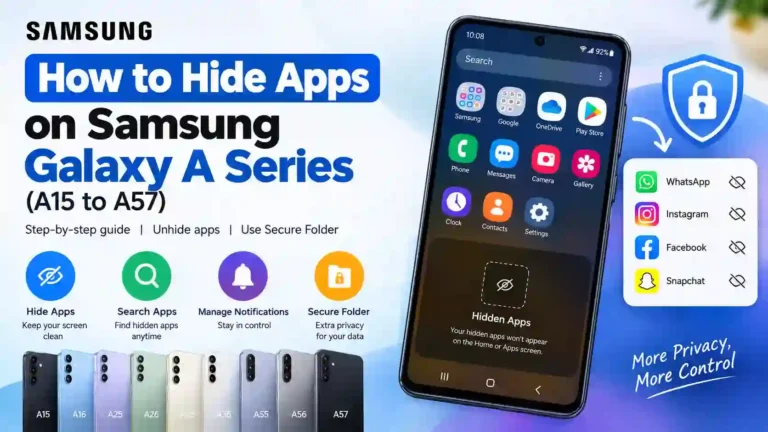
How to Hide Apps on Samsung Galaxy A Series (A15 to A57): Complete Guide
People hide apps for plenty of ordinary reasons: a cleaner home screen, keeping banking or shopping apps out of casual view, or stopping a pre-installed app from cluttering the drawer. Knowing how to hide apps on Samsung Galaxy A Series phones is essential for maintaining privacy and control over your device. Samsung Galaxy A Series phones include a built-in Samsung Hide apps on Home and Apps screens feature, and it takes under a minute to set up.
Hiding an app isn’t the same as securing it, though. The standard One UI hide apps method removes the icon from normal view, while Samsung Secure Folder gives you a separately protected space on supported devices. This comprehensive guide covers both, along with how to unhide apps, manage app notifications, search behavior, troubleshooting, and what to expect across models from the Galaxy A15 to the A57.
Note: Menu names and available options may vary slightly depending on your Galaxy model and One UI version.
Can You Hide Apps on Samsung Galaxy A Series?
Yes. Samsung provides a built-in Samsung Hide apps on Home and Apps screens feature across its entire Galaxy lineup.
- It removes the selected app’s icon from the normal Samsung Galaxy Home screen settings and Apps drawer.
- It does not uninstall the app.
- The app and its personal data remain completely intact on the phone.
- The exact menu location can vary depending on your One UI version and Galaxy model.
That is the short answer. The sections below cover the step-by-step methods and the privacy limits of this feature.
Hide Apps vs Secure Folder
These are two distinct features designed for different user privacy needs.
| Feature | Hide Apps | Samsung Secure Folder |
|---|---|---|
| Primary Function | Removes the app icon from normal Home and Apps screens | Creates a separately protected sandboxed environment |
| Uninstalls the app? | No | No (it can hold a separate isolated copy) |
| Separate Lock? | No | Yes: PIN, password, pattern, or biometrics |
| Can hold other content? | No, apps only | Apps, photos, videos, files, and private documents |
| Best For | Decluttering and casual Samsung app privacy | Sensitive content you want behind dedicated hardware security |
| Availability | Built into One UI hide apps settings on all models | Varies by device tier and One UI version |
If you want a tidier screen, use Samsung Galaxy hide apps. If you want personal banking or social media apps behind a secondary lock, set up Samsung Secure Folder.
How to Hide Apps on Samsung Galaxy A Series (Step-by-Step)
Whether you want to know how to hide apps on Samsung Galaxy A15, A16, A25, A35, A55, A56, or A57, this default method works across all supported One UI devices.
Method 1: From Settings
- Open Settings.
- Scroll down and tap Home screen.
- Tap Hide apps on Home and Apps screens.
- Select the apps you want to hide from the list.
- Tap Done at the bottom of the screen to save your changes.
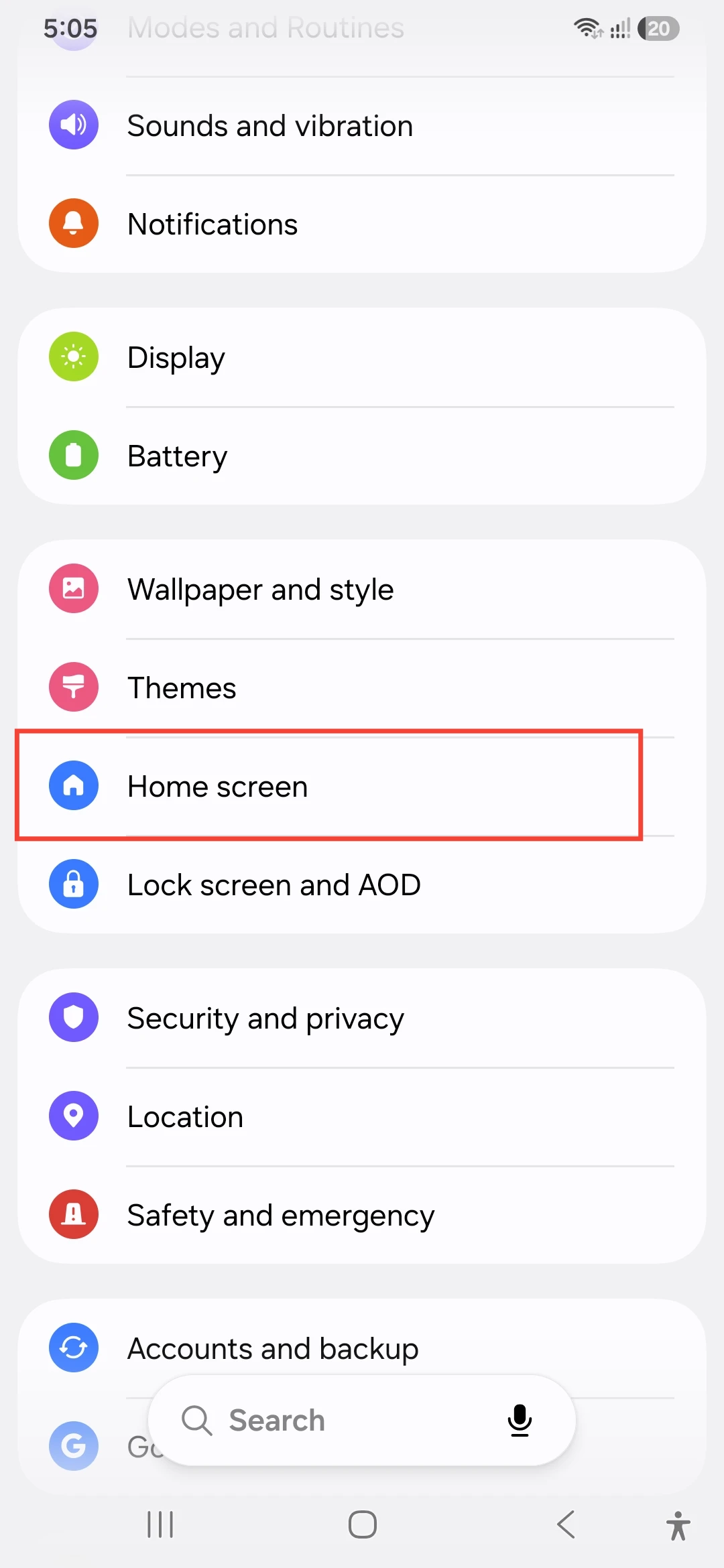
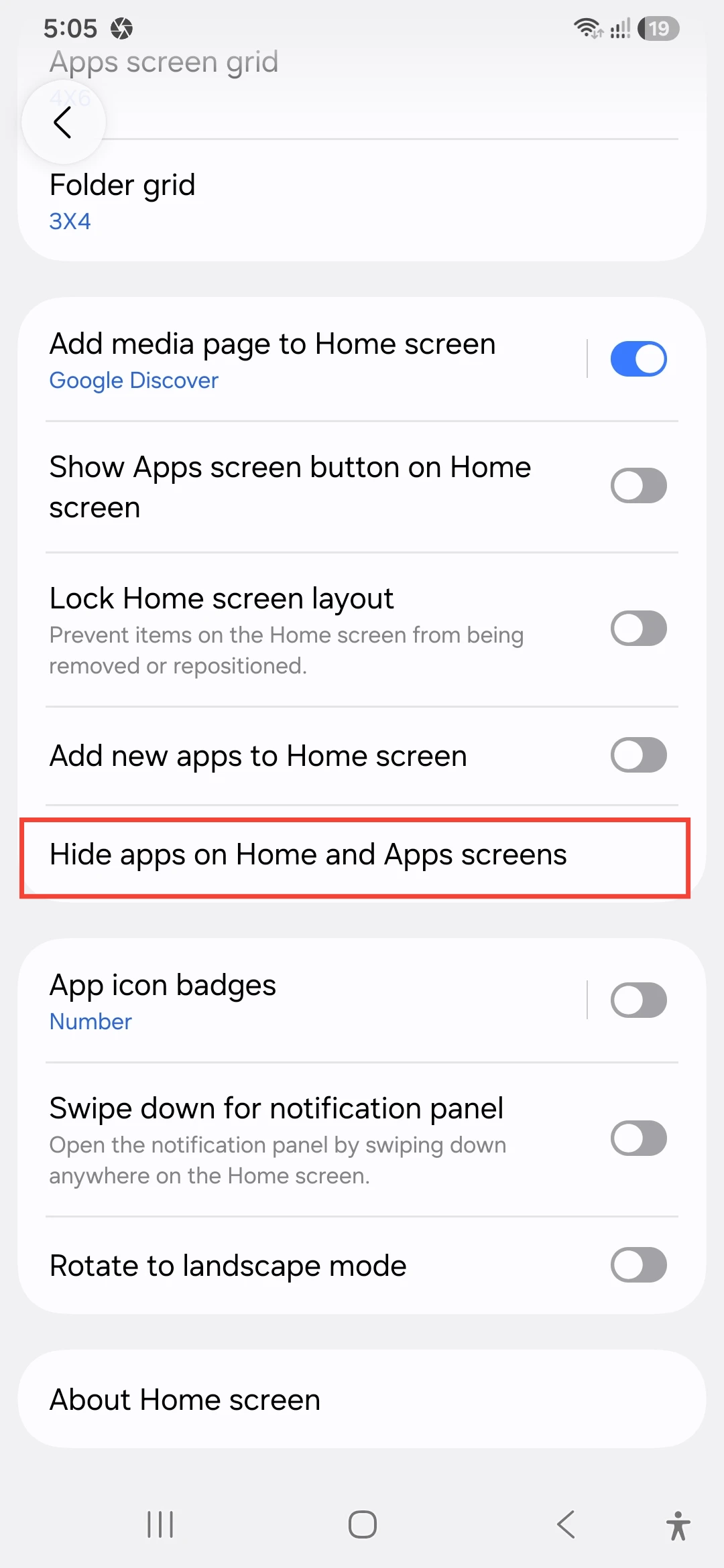
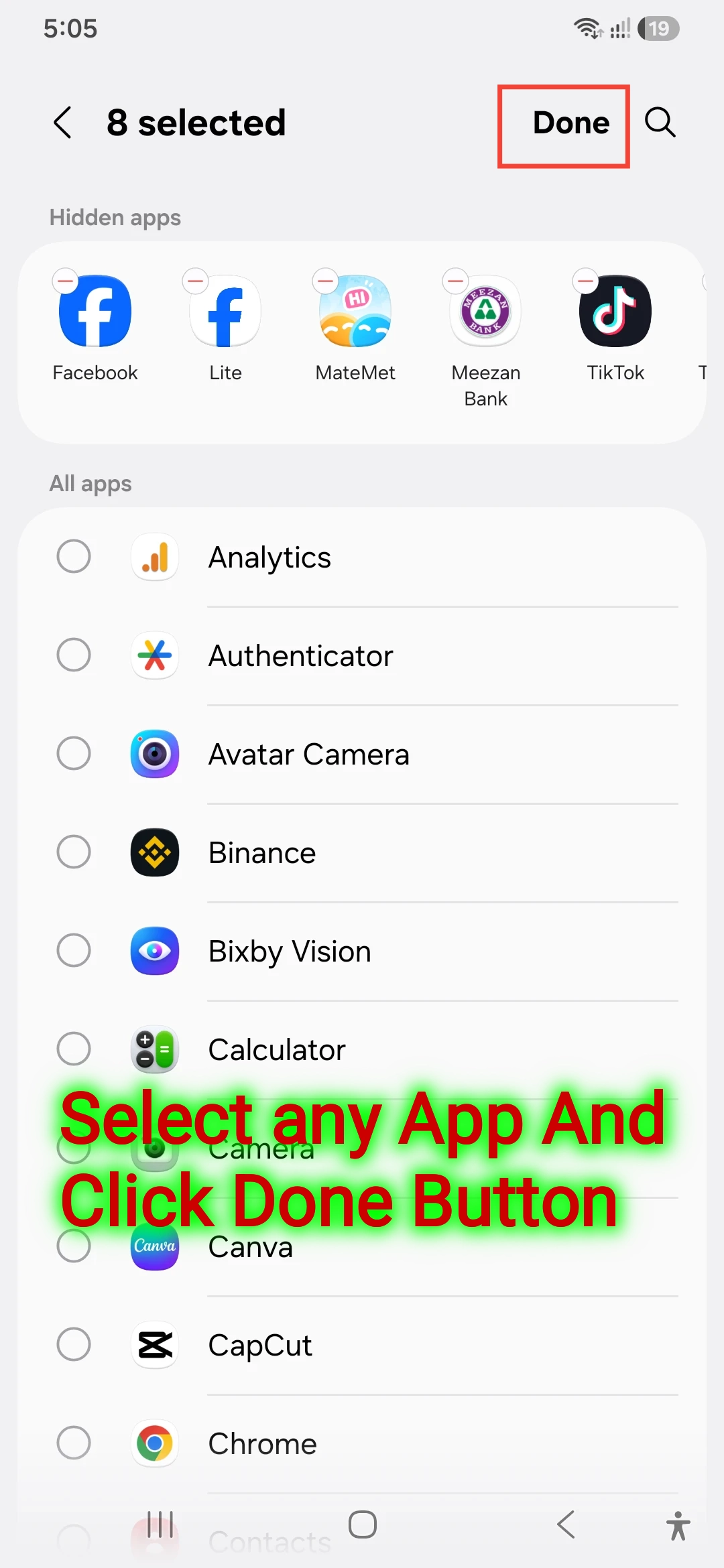
Visual Reference: On your Galaxy device, go to Settings > Home screen > Hide apps on Home and Apps screens.
The selected icons will disappear instantly from your Home screen and Apps drawer. If a hidden app had a shortcut on your main screen, that shortcut is hidden as well. When you unhide the app later, you may need to drag it back onto the Home screen manually. Taking a quick screenshot of your home layout beforehand can save time rebuilding it later.
Alternative Way to Access One UI Hide Apps Settings
On supported One UI versions, you can reach the exact same screen directly from your app drawer:
- Swipe up to open the Samsung Galaxy Apps screen.
- Tap the More options menu (three vertical dots in the top right corner).
- Select Settings.
- Tap Hide apps on Home and Apps screens.
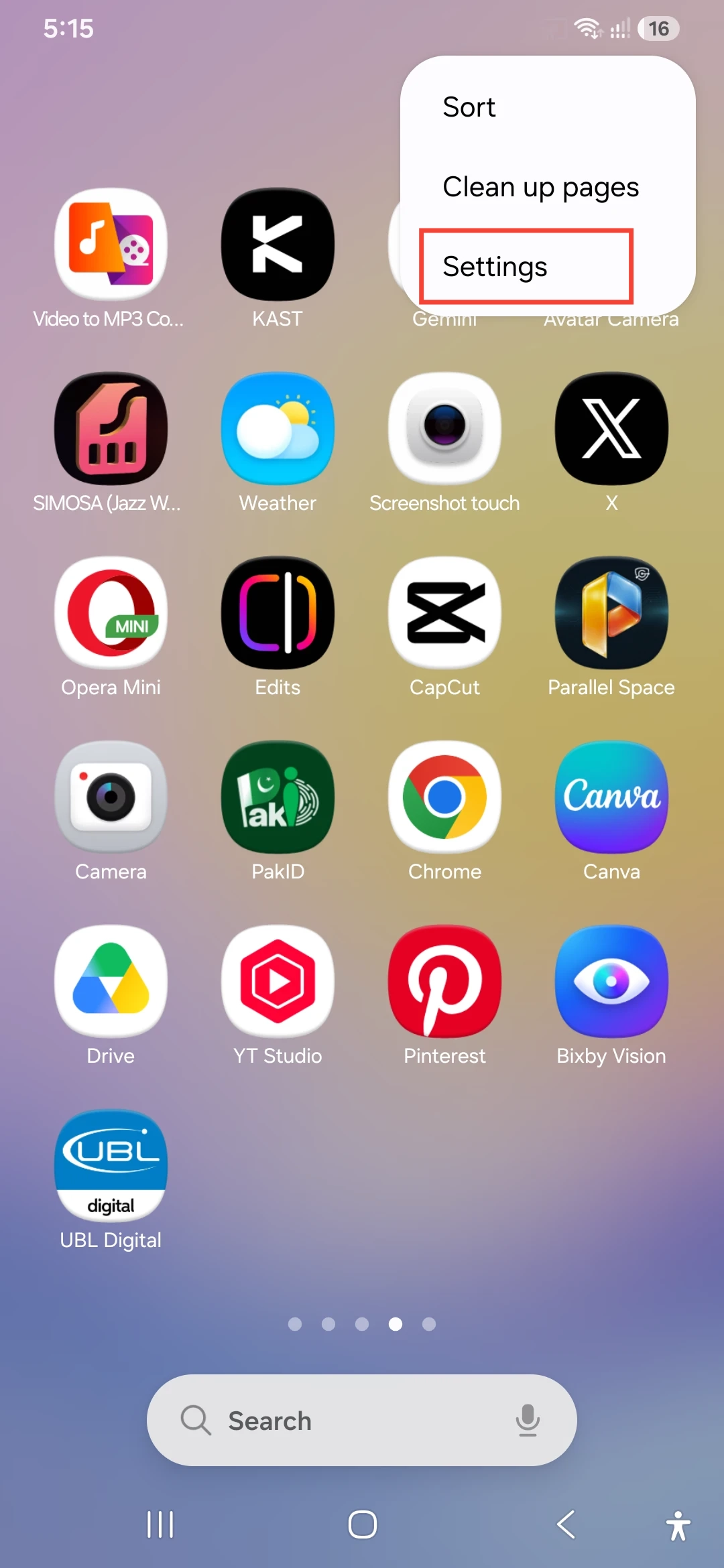
This shortcut is handy if you are already organizing your app drawer and do not want to navigate through the main Settings app.
How to Unhide Apps on Samsung Galaxy
If you ever need to access a hidden app directly from your icon grid, follow these steps on how to unhide apps on Samsung Galaxy:
- Navigate to Settings > Home screen > Hide apps on Home and Apps screens (or use the Apps screen menu route above).
- Look at the top section labeled Hidden apps.
- Tap the red minus (
-) icon on the apps you want to bring back. - Tap Done.
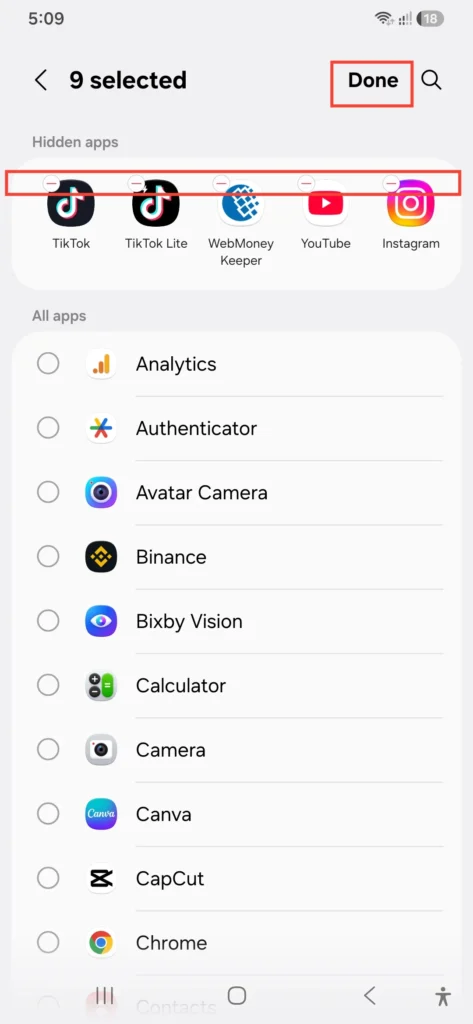
The unhidden apps will return to the Samsung Galaxy Apps screen. Note that they will re-appear at the end of your app list rather than their original Home screen positions.
Can Hidden Apps Still Be Searched on Samsung Galaxy?
Hiding an app icon is not the same as making the application completely invisible to the system.
Depending on your software version, an app hidden from the Apps screen may still be discoverable through system search (Finder) or other administrative areas of the phone. On several One UI releases, searching the exact name of a hidden app in the Apps screen search bar can still surface the app icon.
To verify how your specific model handles this, test it yourself: hide a non-essential app, search for its name in the system search bar, and see if it appears in the results.
How to Hide App Notifications on Samsung Galaxy
A hidden app can still send notifications to your status bar and lock screen unless you adjust its alerts. To master how to hide app notifications on Samsung Galaxy:
Disable Notifications for a Specific App
- Open Settings > Notifications > App notifications.
- Scroll down to find the hidden app.
- Toggle the switch to Off.
Hide Notification Previews on the Lock Screen
- Open Settings > Notifications > Lock screen notifications.
- Choose Hide content so personal previews do not display while the screen is locked.
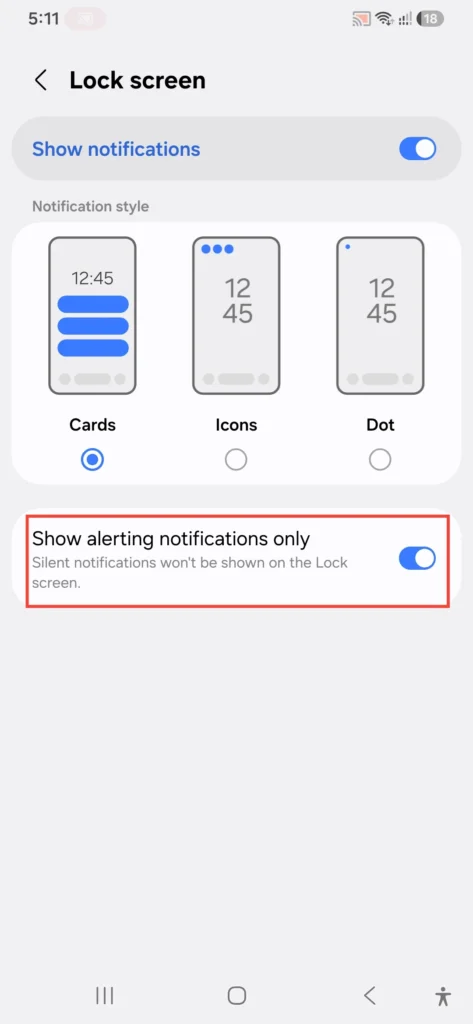
For deeper lock screen privacy options, check out our guide on Samsung Galaxy lock screen customization.
How to Use Samsung Secure Folder for Stronger Privacy
For apps containing financial or personal data, standard icon hiding is insufficient. Samsung Secure Folder leverages defense-grade Samsung Knox security to create an encrypted space.
Setting Up Secure Folder
- Open Settings.
- Tap Security and privacy.
- Tap More security settings, then select Secure Folder.
- Sign in with your Samsung account and grant the necessary permissions.
- Set a unique lock method: PIN, Password, Pattern, or Fingerprint.
(You can also refer to the official Samsung Support Guide on Secure Folder for detailed Knox device requirements.)
How Apps Work Inside Secure Folder
When you add an app to Secure Folder, One UI creates an independent, cloned copy inside the encrypted space. This cloned app operates with its own separate account data.
If you want the app to exist only inside Secure Folder, uninstall or remove the original version outside the folder. Ensure you have backed up any critical local data before deleting the outer instance.
How to Hide Secure Folder on Samsung Galaxy
To keep your privacy setup completely discrete, you can hide the Secure Folder icon itself from your app drawer.
- Open Settings > Security and privacy > Secure Folder.
- Authenticate with your lock method.
- Toggle off Add Secure Folder to Apps screen (or Show Secure Folder).
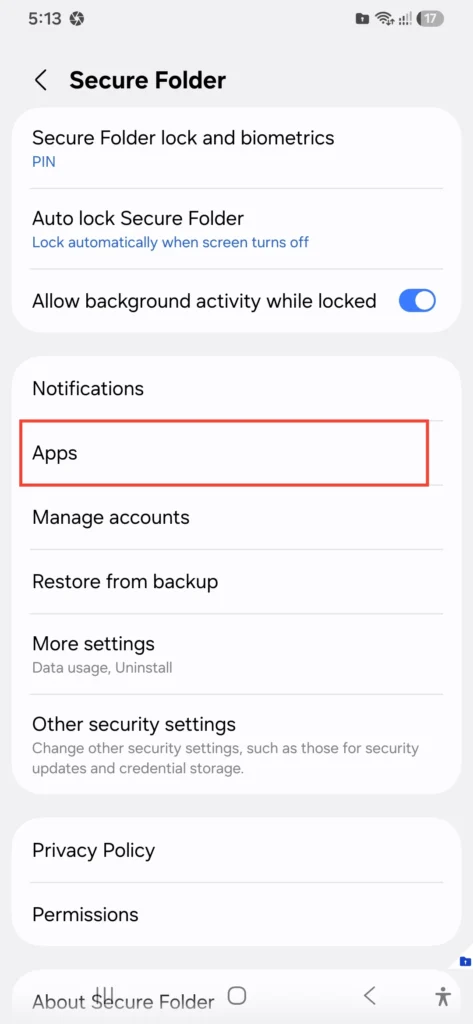
On newer One UI releases, you can also toggle the Secure Folder tile directly from your Quick Panel (swiping down from the top of the screen) to hide or unhide the folder instantly.
Hide Apps vs Disable Apps
Users often confuse hiding an app with disabling it. Here is how they differ:
- Hide Apps: Keeps the app active in the background, consuming normal resources, but removes its icon from the interface.
- Disable Apps: For supported pre-installed bloatware, disabling stops the app from running background services, frees up system memory, and removes it from the launcher.
To disable a pre-installed app:
- Open Settings > Apps.
- Select the app you wish to turn off.
- Tap Disable at the bottom. (If the option is greyed out, the app is required by Android system operations).
Hiding an App vs Removing Its Home Screen Icon
Removing an icon from your main desktop view is not the same as hiding it.
- Removing a Shortcut: Long-pressing an icon and selecting Remove clears it from the Home screen but leaves it visible in the main Apps drawer.
- Hiding an App: Removes the icon from both the Home screen and the Apps drawer simultaneously.
What Hidden Apps Can Still Reveal
Even with Samsung Galaxy privacy settings active, hidden apps may leave traces across One UI:
- Lock Screen Notifications: Banners will pop up unless explicitly turned off.
- Settings > Apps Menu: The complete system app list will always display hidden applications.
- Battery & Memory Usage: System diagnostics under Device Care will show app activity.
- Recent Apps View: If an app was recently opened, it will show up in the multi-tasking view until cleared.
What to Do If “Hide Apps” Is Missing
If you cannot locate the option on your Samsung device, run through these troubleshooting steps:
- Use Settings Search: Open Settings, tap the magnifying glass icon, and search directly for
"Hide apps". - Check Third-Party Launchers: If you are using launchers like Nova or Lawnchair, Samsung’s native One UI menu will be replaced by the launcher’s own settings.
- Verify One UI Version: Go to Settings > About phone > Software information. Ensure your device is running official Samsung One UI.
- Update System Software: Check Settings > Software update > Download and install to ensure you are on the latest build.
Galaxy A15–A57 Model and One UI Differences
While Samsung’s core software experience remains consistent, hardware features and software tiers differ across the Galaxy A lineup. For instance, comparing entry and mid-range devices like the Samsung Galaxy A16 vs Galaxy A25 shows variations in processing capabilities and hardware Knox support.
| Model Tier | Models Included | Hide Apps Availability | Secure Folder Support | Key Considerations |
|---|---|---|---|---|
| Entry-Level | Galaxy A15, A16 | Supported via One UI Settings | Software-based Knox / Model Dependent | Check specific model software specs |
| Mid-Range | Galaxy A25, A26 | Supported via One UI Settings | Full Support | Great balance of performance & privacy |
| Upper Mid-Range | Galaxy A35, A36 | Supported via One UI Settings | Full Knox Hardware Vault | Includes enhanced Knox Vault security |
| Premium Mid-Range | Galaxy A55, A56, A57 | Supported via One UI Settings | Full Hardware Knox Vault | Comprehensive privacy & flagship options |
When upgrading across generations, explore our in-depth comparisons such as the Samsung Galaxy A56 vs A57 comparison and the Samsung Galaxy A56 vs A55 comparison. For more privacy configurations, consult our guide to the best One UI settings for Samsung Galaxy devices and explore Samsung Galaxy A56 hidden features. If you have just unboxed a device, see the first things to do on your Samsung Galaxy.
Common Mistakes
- Assuming Hiding Equals Locking: Hiding an icon does not add password or biometric protection.
- Forgetting to Silence Notifications: Leaving notification previews enabled can reveal sensitive app activity on your lock screen.
- Confusing “Remove” with “Hide”: Removing an icon from the home screen leaves it broad daylight inside the app drawer.
- Disabling Unknown System Services: Disabling essential system processes inside Settings > Apps can cause device instability.
Samsung Galaxy Privacy Settings & Tips
- Set Up Content Hiding: Keep lock screen notification content set to Hide content.
- Use Strong Secondary Auth: Protect your Secure Folder with a PIN or pattern distinct from your main lock screen password.
- Clear Recents Frequently: Close sensitive apps from the multi-tasking screen once finished.
- Audit Installed Apps: Regularly inspect Settings > Apps to delete unused software.
Frequently Asked Questions (FAQs)
How to hide apps on Samsung Galaxy A15?
Go to Settings > Home screen > Hide apps on Home and Apps screens, select the apps you want to hide, and tap Done.
How to hide apps on Samsung Galaxy A57?
Navigate to Settings > Home screen > Hide apps on Home and Apps screens, pick your target applications, and confirm by tapping Done.
Can hidden apps still be searched on Samsung Galaxy?
Yes, on certain One UI versions, searching the app’s exact title in the Apps screen search bar may still reveal the application. Test your specific model build to verify.
How do I unhide apps on Samsung Galaxy?
Revisit Settings > Home screen > Hide apps on Home and Apps screens, remove the app from the upper Hidden apps section, and tap Done.
Does hiding an app uninstall it or delete data?
No. Hiding an app simply removes its shortcut icon from view. All data, settings, and accounts stay intact on your phone.
Can I hide Secure Folder on Samsung Galaxy?
Yes. You can disable its icon from Settings > Security and privacy > Secure Folder or toggle off the Secure Folder icon in your Quick Panel.
Conclusion
For everyday screen organization and quick privacy, the native Samsung Hide apps on Home and Apps screens feature is the fastest solution. Simply head into Settings > Home screen > Hide apps on Home and Apps screens, select your apps, and mute their lock screen notification previews. When stronger protection is needed for confidential files or banking tools, turn to Samsung Secure Folder to guard your data behind dedicated biometric security.