I almost returned my Galaxy A56.
Not because the phone was bad — it wasn’t. But three days in, I recorded my nephew’s birthday party, watched the footage back that night, and just sat there disappointed. The video looked soft. Colors were flat. Every time someone walked past a window, the exposure jumped around like the camera couldn’t make up its mind. I remember thinking, “this doesn’t look like a phone that costs this much.”
Turns out, the problem wasn’t the phone. It was me. I’d been recording on default settings, the same way I’d used every phone before it. Once I actually sat down and went through the Galaxy A56 camera settings properly — resolution, frame rate, stabilization, focus, HDR, audio, all of it — the difference was honestly kind of embarrassing. Same phone, completely different results. Discovering how to optimize these controls is easily one of the first things to do on Samsung Galaxy A56 after unboxing it.
While I was digging through this, I also ran into a bunch of conflicting information online. Samsung’s own spec sheet, some retailer listings, and a few review sites all say slightly different things about what this camera can actually do — especially around Galaxy A56 4K 60fps recording, which turns out to be a genuinely confusing topic. So along with the settings walkthrough, I went and cross-checked the real numbers against Samsung’s support pages, official retailer specs, and actual Samsung Community threads from A56 owners, instead of just repeating whatever the marketing copy says. I’ll flag exactly where the confusion comes from.
That’s what this guide is. Everything I wish someone had told me before I almost gave up on this camera. No fluff, no “as we all know” filler — just what actually works when you’re holding this phone and trying to get decent footage out of it. If you want to dive deeper into general device optimization later, explore our guide on the best Samsung Galaxy A56 settings.
Quick Specs Table
| Feature | Details |
|---|---|
| Rear cameras | 50MP main (OIS, f/1.8), 12MP ultra-wide (f/2.2), 5MP macro (f/2.4) |
| Front camera | 12MP (f/2.2), supports 10-bit HDR video |
| Max video resolution | 4K at 30fps (main, ultra-wide, and front cameras) |
| 1080p frame rates | 30fps and 60fps |
| 24fps availability | Not in native Video or Pro Video mode; available via third-party apps |
| Stabilization | OIS + EIS (standard), Super Steady (FHD/QHD only, ultra-wide based) |
| HDR10+ video | Yes, toggle in Advanced video options; disabled with Super Steady |
| Video formats | HEVC (H.265) “High efficiency,” or standard bitrate H.264 |
| Slow-motion | Up to 240fps at HD |
| Hyperlapse | Yes, auto and manual speed |
| Chipset | Exynos 1580 (upgraded from A55’s Exynos 1480) |
| Mic input | Internal only, no 3.5mm jack; USB-C & Bluetooth LE (Galaxy Buds) supported |
| Storage | No microSD expansion (unlike A55) |
| Software support | 6 years of Android OS upgrades and security updates |
Note: Menu names shift slightly between One UI versions, but the core settings and locations covered here have held consistent through One UI 7 and the One UI 8.5 update in 2026.
Getting to the Video Settings (Where Everything Actually Is)
If you’ve never dug into a Samsung camera app before, it’s a little scattered. Things aren’t all in one menu, which trips people up.
Here’s the layout, step by step:
- Open the Camera app and swipe to Video mode (not Photo).
- Tap the Gear icon (top corner) — this opens the main Settings menu.
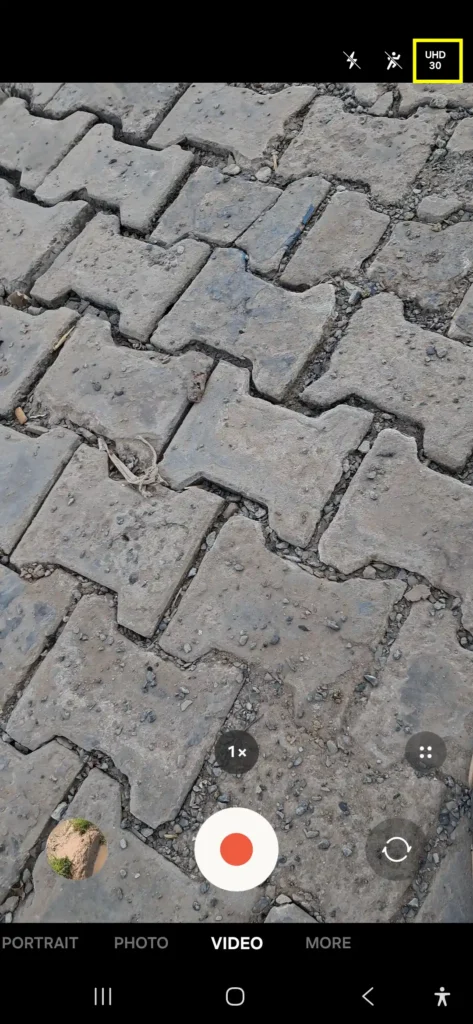
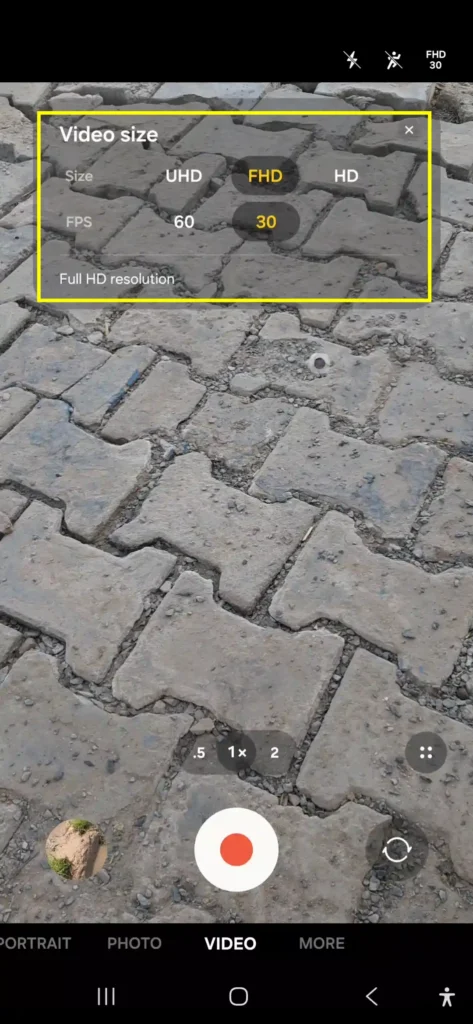
- Separately, tap the small resolution/fps indicator near the top of the viewfinder while in video mode — this is where resolution and frame rate live, and it’s easy to miss because it doesn’t look like a button.
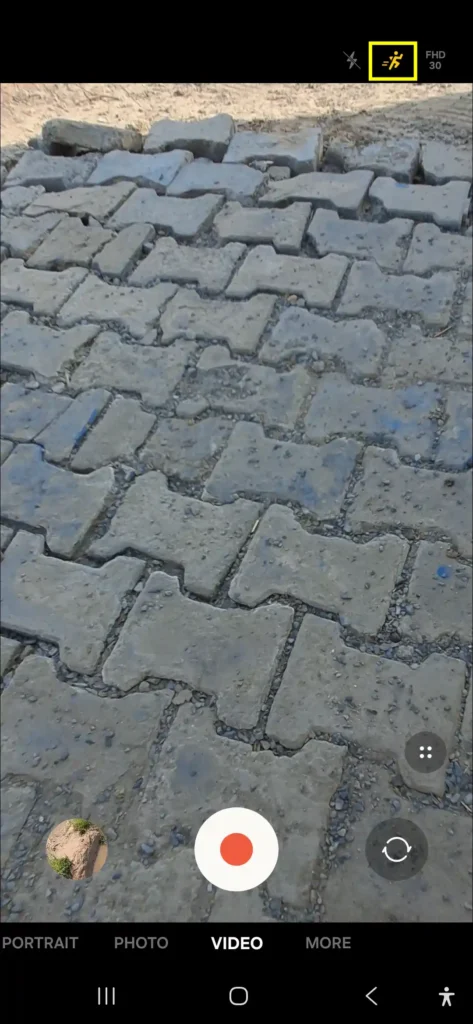
- Stabilization and Super Steady toggles appear as icons directly on the viewfinder, not buried in settings.
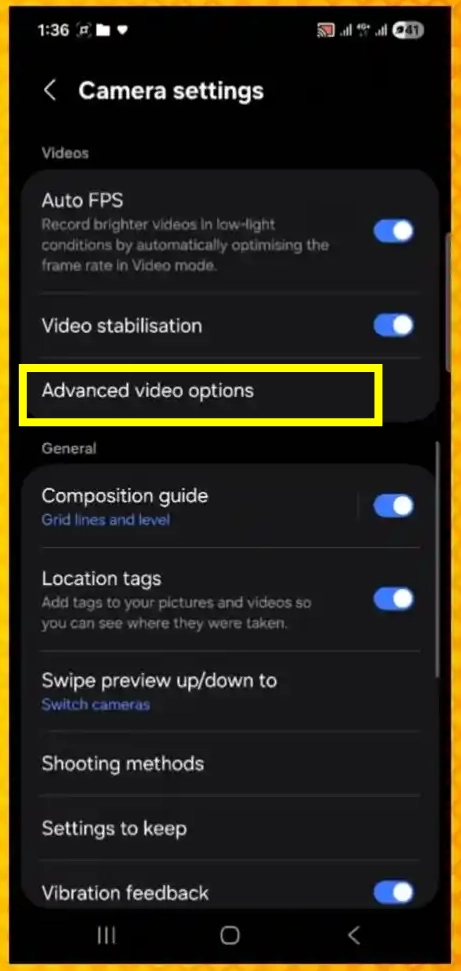
- Inside the gear icon settings, look for Advanced video options — this is where HDR10+, High efficiency videos, High bitrate videos, Zoom-in mic, and 360 audio recording all live together.
I genuinely didn’t realize the resolution selector was tappable for almost two weeks. I thought it was just a label. It’s not — tap it. And Advanced video options is the one menu almost nobody finds on their own, which is a shame because it controls some of the most critical options if you want to improve Samsung Galaxy A56 camera quality.
The 4K/60fps Confusion, Finally Sorted Out
This one’s worth addressing head-on, because if you’ve searched this before landing here, you’ve probably seen contradictory answers regarding Galaxy A56 4K video recording.
Here’s what’s actually going on: the Galaxy A56 max video resolution is 4K at 30fps. That applies across the board — the main rear camera, the ultra-wide, and the front camera. If you want 60fps, you have to drop down to 1080p 60fps (FHD), where both 30fps and 60fps are available.
So where does the Galaxy A56 4K 60fps confusion come from? A couple of places:
- Some retailer and comparison listings blur the line between “supports 4K” and “supports 60fps” as if they’re the same spec, when really they’re two separate numbers that top out differently on this phone.
- Samsung itself has floated 4K/60fps as a feature it hopes to bring to future mid-range phones, which sometimes gets misquoted as something the A56 already has.
- A handful of AI-generated “review” articles online simply guess or copy specs incorrectly, and those get indexed and repeated.
I checked this against Samsung’s official Community support forum, where a representative confirmed the same 4K/30fps ceiling on mid-range devices, matching independent hands-on reviews of the A56. So if you’re chasing Galaxy A56 4K 30fps vs 60fps at 4K, 60fps at 4K simply isn’t there — not through the native camera app, and not through a hidden settings toggle either. If 4K at high frame rates is critical for you, consider reviewing our Samsung Galaxy A56 vs A36 comparison or looking a tier up.
Choosing the Right Resolution and Frame Rate
This is where most of the “why does my video look bad” problems start. By default, the device usually records at FHD (1080p) 30fps. That’s fine for casual clips, but it’s not using the phone’s full capability.
Here is how to choose the right Galaxy A56 video resolution options:
- 4K at 30fps (2160p): Sharpest option available. Great for footage you plan to edit or crop into later. The tradeoff: bigger files, and Super Steady stabilization isn’t available at this resolution.
- FHD at 60fps (1080p): This became my go-to choice. 60fps gives you smoother motion, which matters if you’re filming kids, pets, sports, or walking shots. It also allows smooth slight slow-motion in post-editing.
- FHD at 30fps (1080p): The safe default. Smaller files, looks fine on most phone screens, and suitable for simple social updates.
- HD (720p): Only useful if storage space is critically tight or bandwidth is limited.
Recommendation: Shoot in 4K/30 for static or high-detail shots, and FHD/60 for movement. Switch based on the scene instead of picking one setting forever.
Why There’s No 24fps in the Native App (and How to Get It Anyway)
If you look through community feedback, aspiring filmmakers often ask: Does Galaxy A56 support 24fps? Even though the phone records 4K at 30fps, the native Video and Galaxy A56 Pro Video mode do not offer a 24fps option.
24fps is standard for a cinematic look because of how natural it renders motion blur. The omission in Samsung’s native app appears to be a software segmentation decision rather than a hardware limitation.
How to get 24fps on Galaxy A56:
- Download a third-party camera application such as Open Camera on Google Play or Filmic Pro that exposes manual frame rate controls.
- Select your resolution and set the frame rate manually to 24fps.
- Tradeoffs: Third-party apps may not fully utilize Samsung’s multi-frame computational processing pipeline or specialized image stabilization, so color and processing output may differ slightly from the native app.
Stabilization Settings That Actually Matter
The A56 uses multiple stabilization layers:
- OIS (Optical Image Stabilization): Hardware-based, built into the 50MP main lens, always active.
- EIS (Electronic Image Stabilization): Software-based digital smoothing, enabled by default in standard modes.
- Super Steady Mode: An explicit mode designed for intense movement.
How to enable Super Steady:
- In the Camera app, swipe to Super Steady or tap the Super Steady icon on the viewfinder.
- Frame your shot (note that the field of view widens and shifts processing to the ultra-wide lens).
- Start recording.
Use this for active walking or tracking shots. For stationary or tripod shots, turn Super Steady off to preserve main-sensor resolution and dynamic range.
Super Steady vs. Standard Stabilization: What’s the Real Difference?
Galaxy A56 Super Steady mode and standard Galaxy A56 OIS EIS video stabilization operate differently:
- Standard Stabilization (OIS + EIS): Operates on the main 50MP sensor. Preserves max resolution (up to 4K/30) and natural background blur.
- Super Steady: Utilizes the 12MP ultra-wide sensor with severe cropping to compensate for heavy movement.
Key Restrictions of Super Steady:
- Capped at FHD/QHD resolution (no 4K support).
- Cannot be used simultaneously with Galaxy A56 HDR10+ video.
- Requires adequate lighting; low-light use can introduce shutter artifacts, motion blur, and image noise.
- Maintain at least 1 meter distance from your subject to avoid close-up distortion.
Focus Settings: Auto vs Manual, and When to Switch
While autofocus on the main sensor is responsive, focus hunting can occur in tricky conditions (filming through glass, low light, or macro distances).
- Tap-to-Focus: Tap your subject on the screen to lock focus to that area.
- AF/AE Lock: Tap and hold on a subject until the yellow padlock icon appears. This locks both focus and exposure, preventing sudden brightness jumps when lighting changes behind your subject.
- Tracking Auto-Focus: Enable Tracking auto-focus inside Advanced video options. Tap a subject, and the camera will continuously track it as it moves across the frame.
HDR10+ Video: Setup, Limitations, and Why It Sometimes Disappears
Galaxy A56 10-bit HDR recording captures wider dynamic range, protecting highlights in skies while shadow detail remains visible.
How to enable HDR10+ video:
- Open Camera Settings (gear icon).
- Select Advanced video options.
- Toggle on HDR10+ videos.
Important Notes:
- Incompatibility: HDR10+ cannot be used at the same time as Super Steady mode. Enabling Super Steady will automatically grey out the HDR10+ option.
- Playback Compatibility: HDR footage requires HDR-compatible displays. On older screens, raw HDR10+ clips might appear flat or washed out.
- Converting HDR to SDR: Open the clip in Samsung Gallery \rightarrow tap Edit (pencil icon) \rightarrow tap the Three Dots menu \rightarrow select Size and format \rightarrow convert output format to SDR.
Advanced Video Options, Explained One by One
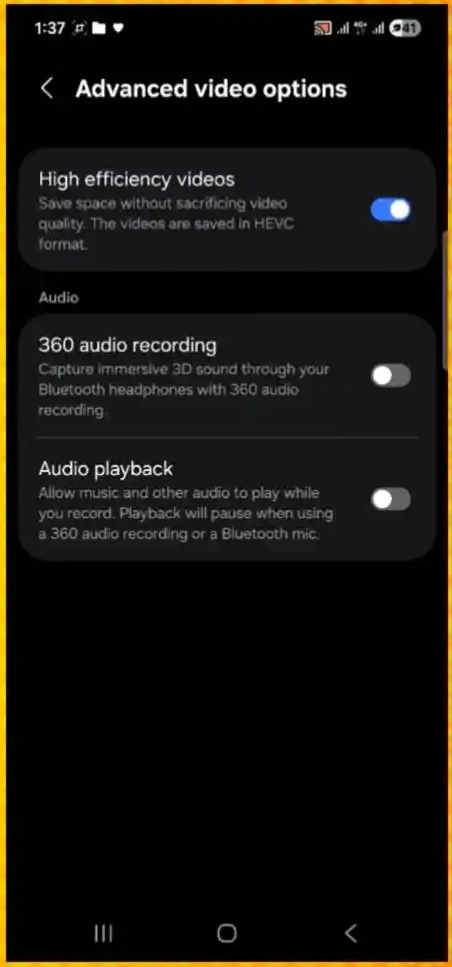
Here is what each toggle inside the Advanced video options menu actually does:
- High Efficiency Videos (HEVC / H.265): Encodes video using H.265 compression instead of H.264. Reduces file sizes by 15–30% with minimal loss in visual quality.
- High Bitrate Videos: Increases data rate per second for cleaner detail in complex motion scenes (water, foliage). Forces HEVC encoding and increases overall file sizes.
- Reduce File Size: Applies heavier compression algorithms to save maximum storage, though fine details in motion may show artifacts.
- Zoom-In Mic: Directs audio capture towards the direction of optical/digital zoom, helping isolate far-away audio sources.
- 360 Audio Recording: Captures binaural spatial audio using paired Galaxy Buds.
Storage and File Size: The Actual Numbers
Because the A56 lacks a microSD card slot, monitoring your Galaxy A56 video file size is essential. Below are average storage estimates per minute:
| Video Setting | Estimated Size Per Minute |
|---|---|
| 4K at 30fps (Standard Bitrate) | ~130 – 170 MB |
| 4K at 30fps (High Bitrate) | ~250 – 350 MB |
| FHD at 60fps | ~90 – 130 MB |
| FHD at 30fps | ~60 – 90 MB |
| FHD at 30fps (HEVC / High Efficiency) | ~45 – 70 MB |
| HD at 30fps | ~30 – 45 MB |
On a 128GB model (with ~110GB free user space), you can store roughly 10–12 hours of standard 4K/30 footage before space is exhausted. If you take a lot of video, manage your storage carefully or explore our guide on how to improve Samsung Galaxy A56 battery life and storage efficiency.
Getting Better Audio: Zoom-In Mic and 360 Audio Recording
Good audio is essential for high-quality video production.
Using 360 Audio Recording:
- Connect compatible Galaxy Buds (such as Galaxy Buds2 Pro or newer) via Bluetooth. If you experience connection drops, refer to our troubleshooting guide for Samsung Galaxy A56 Bluetooth problems.
- Open Galaxy Wearable app and confirm 360 audio is enabled.
- Open Camera Settings \rightarrow Advanced video options \rightarrow toggle 360 audio recording.
- The viewfinder will display a 360 MIC indicator during recording.
Note: Enabling 360 Audio automatically disables the Zoom-In Mic feature.
Auto FPS in Low Light — What It’s Really Doing
In low-light scenes, the camera needs longer exposure windows per frame to gather light. Auto FPS dynamically lowers frame rates in dim conditions (e.g., dropping from 30fps down toward 24fps or lower internally) to keep the image bright and reduce noise, while outputting a standard video file.
- Result: Brighter, less grainy footage in low light.
- Tradeoff: Fast-moving objects may display motion blur or smearing.
- For dedicated night photography and low-light tips, check out our Samsung Galaxy A56 night mode guide.
Pro Mode and Video: Should You Bother?
Galaxy A56 Pro Video mode offers manual parameter overrides:
- ISO Settings
- Shutter Speed
- White Balance Lock
- Manual Focus Peaking
When to use Pro Video Mode:
- Low-Light Control: Lock ISO manually to prevent digital noise from fluctuating.
- Fixed Lighting Environments: Lock White Balance so color warmth doesn’t shift when subjects move around.
For everyday spontaneous recording, Auto mode reacts faster and handles exposure changes reliably.
What One UI 8.5 Actually Changed in 2026
The Galaxy A56 One UI 8.5 camera update rollout (Android 16 QPR2 stream) brought systemic UI polish, new control center toggles, and expanded “Awesome Intelligence” AI features across the system.
Regarding native video capabilities, One UI 8.5 retains the core 4K/30fps hardware limit and menu layout. For a full breakdown of non-camera optimizations introduced in this update, see our breakdown of Samsung Galaxy A56 One UI hidden features and the best One UI settings for Samsung A56.
How the A56 Stacks Up Against the A55 (Real Test Data)
When analyzing Galaxy A56 vs A55 video quality, empirical testing from lab benchmarkers like PhoneArena reveals subtle trade-offs:
- Dynamic Range & Exposure: The Exynos 1580 on the A56 handles high-contrast, strongly backlit scenes significantly better than the A55’s Exynos 1480, drastically reducing exposure hunting or “flicker.”
- Front Camera Upgrade: While front camera resolution changed to 12MP (down from 32MP on paper), the A56 sensor adds 10-bit HDR video, resulting in better color depth for vloggers.
- Overall Detail: Sharpness on main rear sensors remains comparable between generations.
For a broader evaluation of performance, displays, and build quality, read our full Samsung Galaxy A56 vs A55 comparison.
Recording Inside Other Apps (WhatsApp, Instagram, Video Calls)
When recording directly inside third-party platforms (Instagram Reels, TikTok, WhatsApp Video):
- Apps bypass Samsung’s primary processing pipeline, capping resolutions and applying aggressive real-time compression.
- Best Practice: Film clips using Samsung’s native Camera app first at 4K/30 or FHD/60, then import the saved file into Instagram or TikTok for posting.
Best Settings for Common Situations
- Daylight Outdoor / Travel Vlogs: 4K at 30fps, Standard Stabilization, High Efficiency (HEVC) enabled.
- Action / Walking / Sports: FHD at 60fps or FHD at 30fps with Super Steady enabled.
- Dim Indoor Events / Parties: FHD at 30fps, Tap-and-Hold AE/AF Lock, Super Steady disabled.
- Talking Head / Selfies: 4K at 30fps (Front Camera) with 10-bit HDR enabled.
Common Mistakes to Avoid
- Leaving the camera on default FHD/30 for memorable events where 4K/30 detail is beneficial.
- Forgetting to lock exposure (AE Lock) when filming near bright windows or shifting light sources.
- Attempting to use Super Steady in dark environments, which leads to soft, noisy video.
- Ignoring storage limits prior to long 4K sessions on 128GB variants.
- Recording directly inside social apps instead of importing pre-recorded high-bitrate video clips.
Helpful Tips From Actual Use
- Clean your camera lenses: Fingerprint grease creates prominent light streaks across video footage.
- Check device temperature: Extended 4K recording in direct sunlight may trigger thermal protection, automatically dimming the screen or pausing recording.
- Use Hyperlapse: Access built-in speed modes for smooth motion-timelapse clips without extra editing software.
Pros and Cons of A56 Video Recording
Pros
- Crisp, detailed 4K/30 output on main and front sensors.
- Reliable OIS + EIS handheld stabilization.
- Front camera supports 10-bit HDR recording.
- Greatly improved exposure control in high-contrast scenes compared to previous models.
- Innovative 360 Audio capture via supported Galaxy Buds.
Cons
- No 4K recording at 60fps.
- Native camera app lacks a 24fps frame rate toggle.
- Super Steady is restricted to FHD/QHD resolutions and disables HDR10+.
- Lacks microSD card slot for expanding video storage.
Frequently Asked Questions
Can Galaxy A56 record 4K at 60fps?
No. The maximum supported frame rate at 4K resolution across all cameras is 30fps. 60fps recording is available at 1080p (FHD) resolution.
Does Galaxy A56 support 24fps video?
The native Samsung Camera and Pro Video modes do not include a 24fps setting. However, you can achieve 24fps by using third-party manual camera apps like Open Camera.
How do I enable HDR video on Galaxy A56?
Navigate to Camera Settings \rightarrow Advanced video options \rightarrow toggle on HDR10+ videos. Note that HDR10+ is unavailable while Super Steady mode is active.
How do I reduce video file size on Galaxy A56?
Inside Advanced video options, turn on High efficiency videos (HEVC) or enable Reduce file size to apply space-saving compression.
What is Super Steady on Galaxy A56?
Super Steady is an ultra-smooth stabilization mode that utilizes the 12MP ultra-wide camera and digital cropping to simulate gimbal-like stabilization during intense movement.
Final Thoughts
The Galaxy A56 is a capable video performer once configured properly. By matching your resolution, frame rate, focus lock, and audio settings to your environment — rather than relying strictly on factory defaults — you can achieve clean, stable, and well-exposed video footage across a wide variety of shooting conditions.