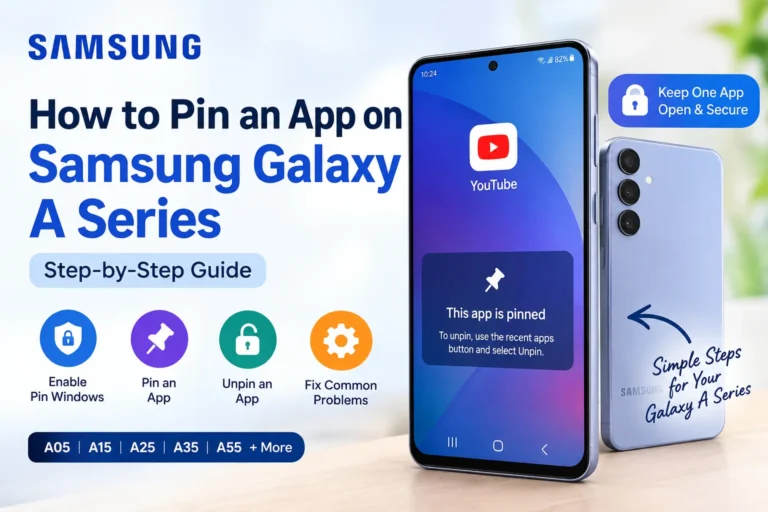
How to Pin an App on Samsung Galaxy A Series (Step-by-Step)
A few months ago, I handed my Galaxy A-series phone to a relative so she could look at a photo gallery. Thirty seconds later, she was poking around in my messages. If you have ever experienced something similar, learning how to pin an app on Samsung Galaxy A series phones is the ultimate fix.
Samsung provides a built-in security feature called Samsung Pin Windows (also referred to as Samsung screen pinning). Once activated, Samsung app pinning locks your phone screen to a single application, preventing anyone from navigating away to your photos, messages, or home screen. Whether you want to know how to pin an app on Samsung devices for child safety or to lend your phone to a friend, this guide covers everything—including how to enable Pin Windows and how to unpin an app on Samsung phones in seconds.
This tutorial applies to the entire Galaxy A lineup (A05, A15, A25, A35, A55, A56, and similar models) running Samsung’s One UI interface. In fact, setting up screen pinning Samsung tools is one of the most practical Samsung Galaxy hidden features available out of the box.
What “Pinning an App” Actually Does (Samsung Screen Pinning)
Samsung screen pinning locks your device display to one specific application. While a Samsung pinned app is active, traditional home button taps, back swipes, and notification bar pulls stop working normally. The phone stays locked inside that specific app until you enter the correct unpin command.
It is helpful to clear up a common point of confusion: learning how to pin apps on Samsung Galaxy phones for screen security is not the same as pinning an icon to your home screen or dock. Instead, Pin Windows Samsung Galaxy functionality serves as a temporary privacy vault. If you searched for a way to stop kids from leaving YouTube Kids or to let a colleague place a call without browsing your private files, you are in the right place.
If your goal is simply to keep an app running in the background so Android doesn’t close it, that requires a different setting covered later in this guide. For overall device optimization, exploring the best One UI settings will also help you get the most out of your phone.
Quick Specs: Pin Windows Samsung Galaxy Overview
| Feature name | Pin Windows (Samsung Screen Pinning) |
|---|---|
| Supported devices | Samsung Galaxy A series running One UI (Android 9 and newer) |
| Where to enable Pin Windows | Settings > Security and privacy > More security settings > Pin windows |
| How to pin an app on Samsung | Open Recents view, tap the app icon above the card, select “Pin this app” |
| How to unpin (Button nav) | Press and hold Back + Recents buttons simultaneously |
| How to unpin (Gesture nav) | Swipe up with two fingers and hold |
| Security enhancement | Require PIN, pattern, or password prior to unpinning |
| Cost / Extra requirements | Free, built into One UI (No third-party app needed) |
If you cannot locate the exact menu names listed above, type “pin” directly into the Settings search bar. That is always the quickest shortcut across all Samsung One UI versions, as detailed in Official Samsung Support documentation.
Step 1: How to Enable Pin Windows on Samsung Galaxy A Series
Before you can use Samsung app pinning, you must activate the feature in your settings menu. Skipping this step is the primary reason users cannot find the “Pin this app” option when opening Recents.
Follow these exact steps for how to enable Pin Windows on your phone:
- Open the Settings app on your device.
- Scroll down and select Security and privacy (on older One UI builds, this may appear as Biometrics and security).
- Tap on More security settings (or Other security settings).
- Locate Pin windows near the bottom of the list and tap it.
- Toggle the main switch to On.
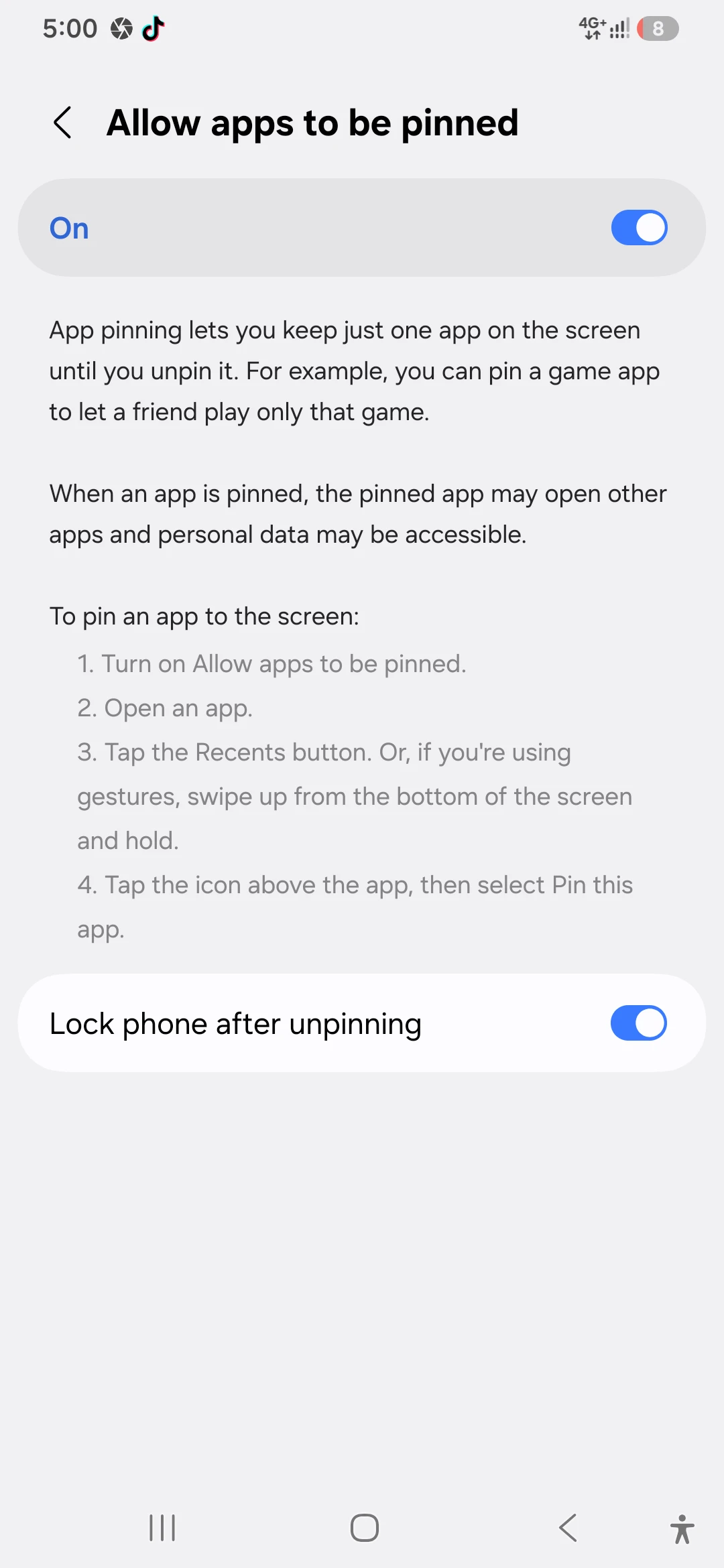
Enabling this setup should be among the first things to do on your Samsung Galaxy device to protect your privacy immediately.
Should you require a PIN before unpinning?
Yes. Right below the main toggle, enable the option labeled “Ask for PIN before unpinning.” Without this safeguard enabled, anyone who knows the standard two-button or swipe gesture can easily unpin the screen. Requiring a lock code ensures that only you can release the device from the pinned screen.
Make sure you have an active screen lock configured under Settings > Lock screen & AOD. You can further adjust your security preferences by exploring lock screen customization options.
Step 2: How to Pin an App on Samsung Galaxy A Series
Once you have configured the initial toggle, learning how to pin an app on Samsung Galaxy A series phones takes less than ten seconds. The precise method depends on whether your phone uses standard button navigation or full-screen gestures.
Method A: Using 3-Button Navigation Bar
- Open the app you wish to pin and navigate to the exact screen you want visible.
- Tap the Recents button (the icon with three vertical lines at the bottom left).
- Locate the app’s card in the task view. Tap the small app icon centered directly above the card preview.
- Select Pin this app from the pop-up menu.
- Confirm the on-screen prompt by tapping Start or OK.
Method B: Using Full Gesture Navigation
- Launch your target app and open the desired view.
- Swipe up from the bottom of your screen and hold finger briefly to trigger the Recents view.
- Tap the app icon located at the top of the app preview card.
- Choose Pin this app and confirm when prompted.
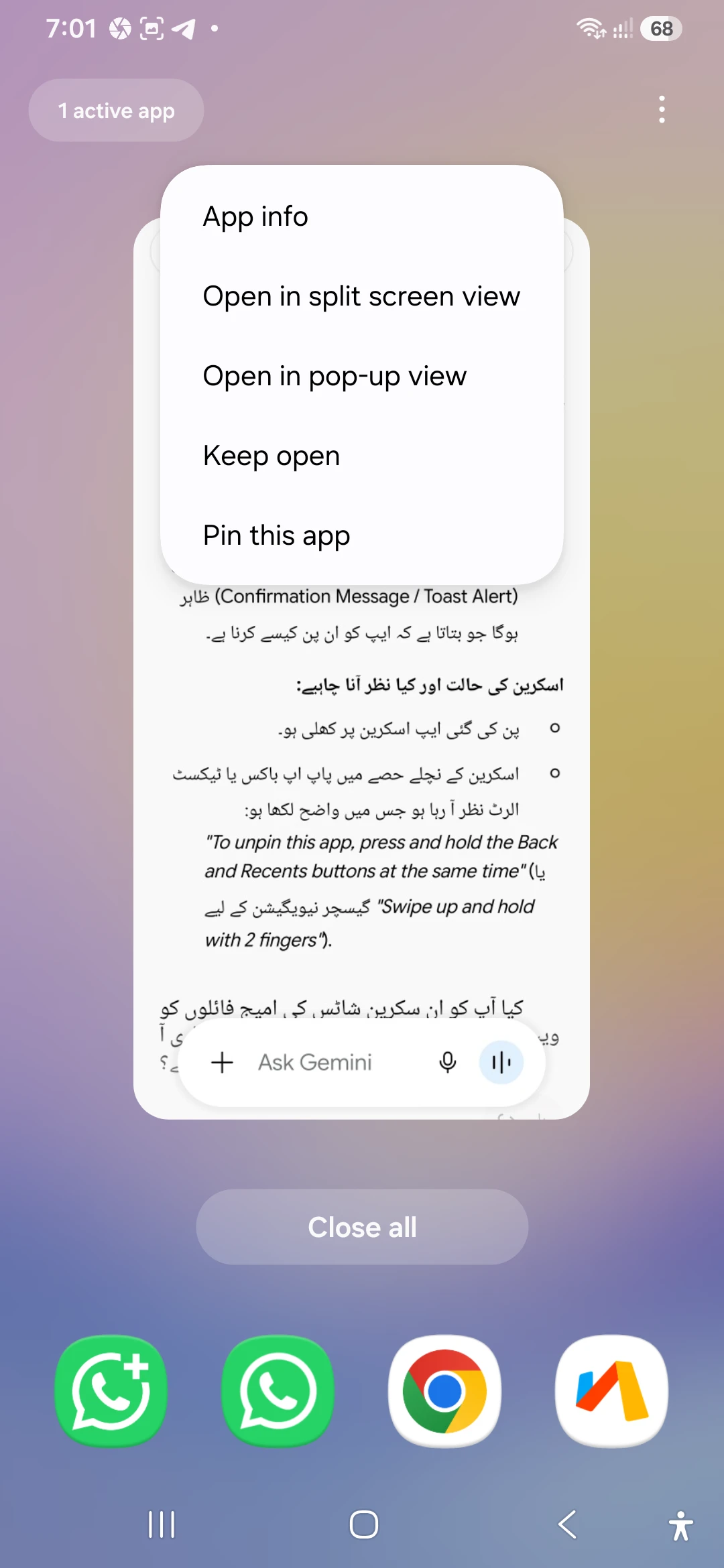
If you only see options like “Open in split screen view” or “Open in pop-up view,” double-check Step 1. It means Pin Windows Samsung Galaxy settings are currently disabled.
Step 3: How to Unpin an App on Samsung Galaxy Devices
Knowing how to unpin an app on Samsung phones is essential so you don’t feel locked out of your own phone after turning the feature on.
Unpinning with 3-Button Navigation
Press and hold the Back button and Recents button simultaneously for about two seconds. Releasing them at the same time releases the pinned state.
Unpinning with Gesture Navigation
Swipe up from the bottom edge of the display using two fingers and hold for a brief moment. On some software versions, a single-finger swipe-and-hold works; your phone will show a quick confirmation message explaining the exact gesture required.
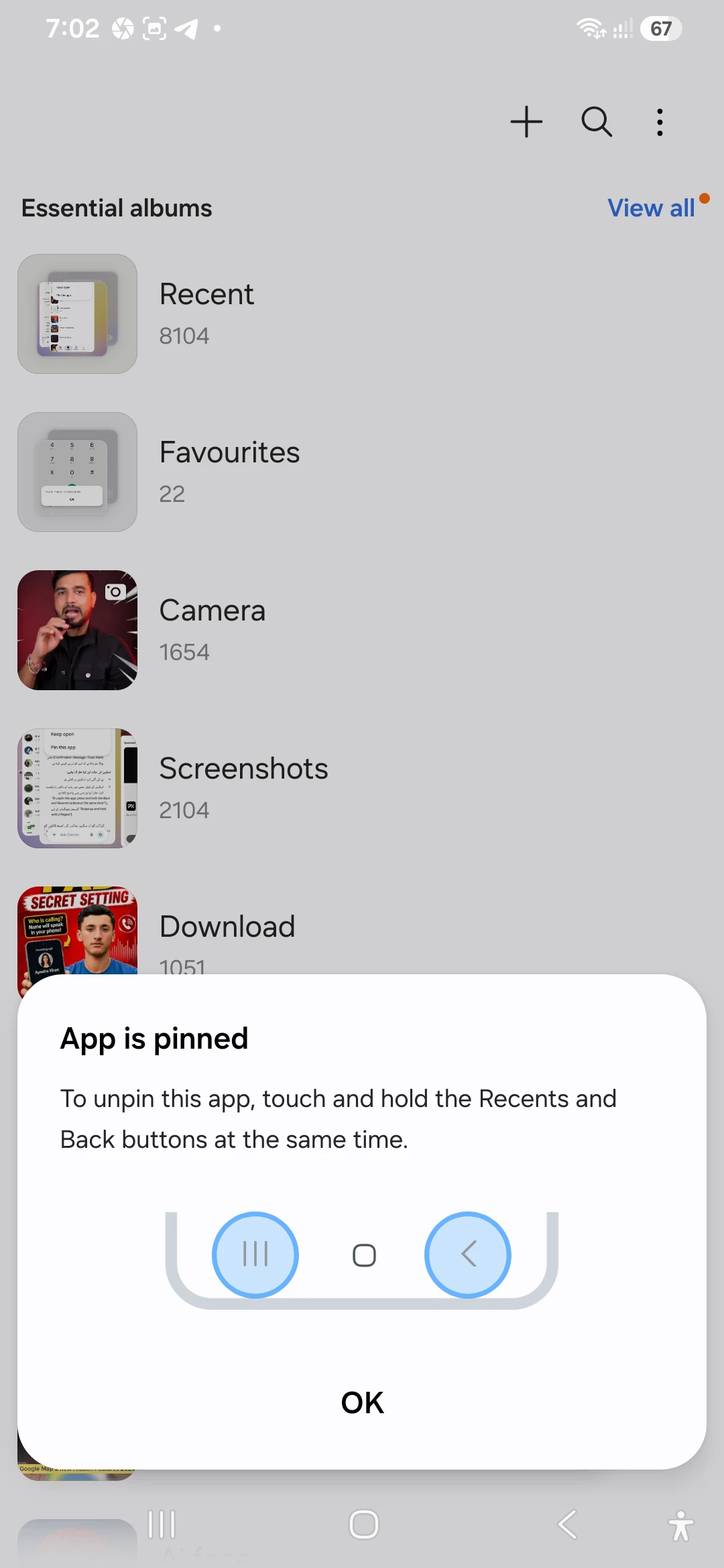
Entering Your Lock Code
If you enabled the recommended PIN security prompt, the screen will lock instantly upon unpinning. Enter your standard pattern, PIN, or fingerprint to regain full access to your home screen.
Real-Life Situations for Samsung Galaxy App Pinning
Understanding practical use cases highlights why Samsung app pinning is such a valuable feature:
- Handing your phone to children: Pin a game or video app so kids cannot accidentally make phone calls, open web browsers, or delete important files.
- Lending your phone for a quick call: Open the Phone app, pin it, and pass it over. The user can dial numbers but cannot access your photo gallery or chats.
- Showing off photo albums: Pin the Gallery app to a specific album when passing your device around at family gatherings.
- Following kitchen recipes: Pin your browser or cooking app so accidental touches don’t close your recipe halfway through meal prep.
Common Mistakes When Learning How to Pin Apps on Samsung Galaxy
- Forgetting to turn on the setting first: You cannot pin an app until you enable the feature in Settings.
- Tapping the preview card instead of the top icon: Tapping the card preview simply opens the app; you must tap the small round icon at the top of the card.
- Failing to test the unpin gesture: Always practice unpinning once or twice so you know the gesture before handing the device to someone else.
- Assuming pinned apps hide internal data: Pinning keeps users inside the current app, but it does not hide messages or photos stored within that specific app.
Helpful Tips for Managing a Samsung Pinned App
- Activate Do Not Disturb: Enable Do Not Disturb prior to pinning an app so incoming notification banners do not reveal personal messages.
- Set display timeout limits: Ensure your screen timeout under Settings > Display is set long enough if someone is watching a lengthy video.
- Combine with Airplane Mode: When letting children play offline games, toggle Airplane Mode on first to block pop-up ads and accidental in-app purchase prompts.
- Explore broader device tips: For more productivity hacks, check out our comprehensive Samsung Galaxy tips and tricks guide.
When Samsung Screen Pinning Isn’t Enough
While learning how to pin an app on Samsung Galaxy A series phones solves quick sharing dilemmas, other built-in utilities work better for long-term protection:
Samsung Secure Folder
If you want to keep sensitive files, banking applications, and private photos protected behind biometric authentication, use Secure Folder (located under Settings > Security and privacy).
Samsung Kids Mode
For parents needing strict screen-time limits, app permissions, and curated content filters, Samsung Kids mode provides a dedicated sandbox environment superior to basic screen pinning.
Preventing Background App Closure
If your goal is simply to prevent Android from closing an active background application to conserve RAM, open Recents, tap the app icon, and choose Keep open instead of “Pin this app.”
Pros and Cons of Samsung Pin Windows
Pros
- Free, built-in system feature requiring no extra downloads
- Quickly locks users into a single application in seconds
- Prevents accidental app switching and notification access
- Optionally enforces PIN or fingerprint verification to exit
- Works smoothly across all Galaxy A-series models
Cons
- Disabled by default deep inside privacy menus
- Gesture unpin commands require brief practice to master
- Does not restrict access inside the pinned application itself
- Not a substitute for comprehensive parental control suites
Frequently Asked Questions (FAQs)
1. Why can’t I see the “Pin this app” option on my Samsung Galaxy A phone?
The Pin Windows Samsung Galaxy feature is turned off by default. Go to Settings > Security and privacy > More security settings > Pin windows, switch it On, and then try tapping the app icon in Recents again.
2. Is Samsung screen pinning available on all Galaxy A models?
Yes. Samsung Galaxy app pinning is available across all A-series models running One UI based on Android 9 or newer. Minor menu label variations may exist across different software versions.
3. How do I unpin an app if the touch gestures don’t respond?
If gesture navigation fails, try holding the Back and Recents areas simultaneously, or perform a forced restart by holding the Volume Down + Side Key until the Samsung logo appears.
4. Does pinning an app protect my private messages inside that same app?
No. Samsung app pinning keeps the user confined to the active app, but they can still interact with everything inside that app. For full privacy, store sensitive apps inside Secure Folder.
5. Will phone calls or alarms interrupt a pinned app screen?
High-priority system alerts like incoming calls and alarms will still register, but navigating away to other background apps remains restricted until the device is unpinned.
Mastering how to pin an app on Samsung Galaxy A series devices gives you complete control over your privacy whenever you hand your phone to someone else. By taking a few moments to enable Pin Windows, practice the unpin gesture, and require your lock screen PIN, you can comfortably share your display without worrying about prying eyes.
Take a minute to turn on Samsung Pin Windows today. The next time a friend asks to borrow your device or a child wants to play a quick game, you will be able to lock the screen down securely in seconds!