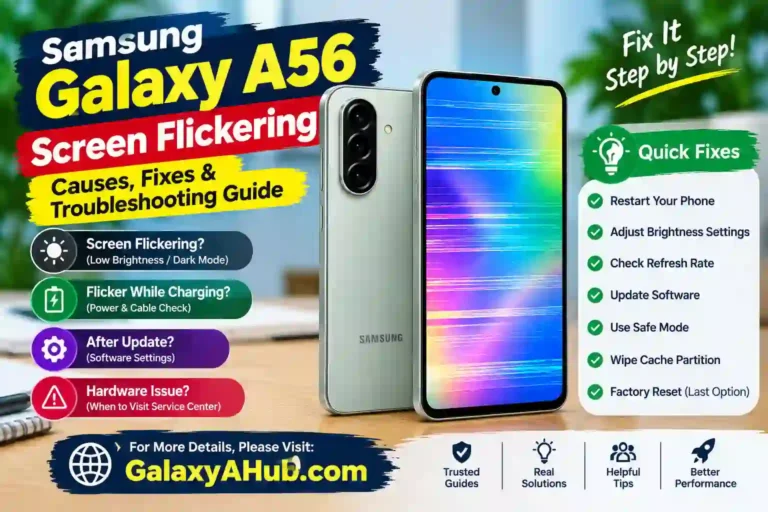
Samsung Galaxy A56 Screen Flickering: 10 Fixes & Causes
It’s 11 pm and you’re in bed with the brightness turned down so you don’t wake anyone. You scroll a dark-mode page and the screen seems to shimmer, just a little. You blink and look again. Now it’s fine. Two minutes later it happens again, and you start wondering why is my Samsung Galaxy A56 screen flickering and whether your new phone is already dying.
If that sounds familiar, take a breath. Samsung Galaxy A56 screen flickering is one of those display problems that looks scary but usually has a simple cause. Sometimes it’s a setting, sometimes a software update that didn’t sit well with a wallpaper, and only occasionally a real hardware fault. The trick is testing things in the right order so you don’t wipe your phone when a single toggle would have provided a complete Samsung A56 screen flicker fix.
This guide walks through that order, from two-minute checks to the “take it to a service center” stage.
Quick Specs: What Your Galaxy A56’s Display Actually Is
Knowing what you’re dealing with makes understanding Galaxy A56 display flickering fixes much easier.
| Feature | Galaxy A56 5G |
|---|---|
| Display type | Super AMOLED |
| Size | 6.7 inches, flat |
| Resolution | 1080 x 2340 (FHD+) |
| Refresh rate | Up to 120Hz (Adaptive or Standard 60Hz) |
| Peak brightness | Roughly 1,200 nits in auto mode |
| Glass | Gorilla Glass Victus+ |
| Chipset | Exynos 1580 |
| Software at launch | Android 15 with One UI 7 |
GSMArena‘s testing found the Super AMOLED panel stays in the mid-400 nit range in manual mode but reaches about 1,213 nits in auto mode. That gap matters later, because auto adaptive brightness is one of the main suspects when experiencing a Samsung Galaxy A56 screen problem.
First, Figure Out What Kind of Flicker You Have
“Flickering” covers a lot of different Samsung Galaxy A56 display problems, and each points to a distinct troubleshooting step. Before touching any settings, watch your screen for a minute and see which of these matches:
- Galaxy A56 flickering at low brightness: A soft shimmer, mostly in dark rooms or when using Samsung Galaxy A56 screen flickering in dark mode.
- Auto-brightness hunting: Screen brightness that jumps up and down on its own, especially when the phone is resting on a flat surface.
- Samsung Galaxy A56 green screen flickering: Flashing on the edges or a colored flash (green is a common complaint) when opening apps or switching windows.
- Samsung Galaxy A56 screen flickering on home screen: Icons or animations stuttering or flashing in one specific place, like the home launcher or a particular app.
- Display artifacts: Colored lines, bands, or persistent blocks across part of the screen.
- Samsung Galaxy A56 flickering while charging: Flashing or jitter only when connected to a power source.
- Camera shutter artifact: A dark bar rolling across a video you recorded, which looks like a Samsung Galaxy A56 flickering screen issue but isn’t.
That last one trips people up. Samsung Support explains that under certain indoor lighting, a very fast camera shutter speed (like Super Steady mode or short shutter speeds in Pro Video) captures the light bulb’s refresh pulse as a moving black bar. That is your camera reacting to ambient light, not a Galaxy A56 screen flashing defect. Turn off Super Steady or adjust room lighting.
For all other issues, continue reading below.
Common Causes of Samsung Galaxy A56 Screen Flickering
- Samsung Galaxy A56 screen flickering after update: This is the most frequently reported trigger. Samsung community forums feature threads from owners describing a Samsung A56 screen flickering issue right after a major system patch. One user reported a Galaxy A56 green screen flicker where the display edges flashed green when opening apps from the home screen, particularly with lighter wallpapers. Another noted icons flashing while using Gemini after updating One UI. When a Samsung Galaxy A56 screen flicker starts immediately after a firmware update and affects specific UI elements, software optimization is usually the primary cause.
- Adaptive brightness misbehaving: The auto-brightness sensor reads light levels continuously. If the ambient sensor gets confused, the screen brightness hunts up and down unexpectedly.
- Samsung Galaxy A56 screen flickering when brightness is low: AMOLED panels typically dim screen brightness using Pulse-Width Modulation (PWM), rapidly cycling pixels on and off. When screen brightness is extremely low, sensitive eyes can perceive this rapid cycling as Samsung Galaxy A56 screen flickering at low brightness.
- Motion smoothness transition: The A56 flips dynamically between 120Hz and Standard 60Hz refresh rate modes to save battery. Occasionally, sudden refresh rate switching appears as a Samsung Galaxy A56 screen flashing on and off.
- Misbehaving app or overlay: A badly optimized app, live wallpaper, or widget can cause Samsung Galaxy A56 screen flashing effects across the interface.
- Charging quirks: If you encounter Samsung Galaxy A56 screen flickering while charging, poor voltage regulation or damaged charging accessories may be interfering with the display digitizer. Check out our guide on Samsung Galaxy A56 fast charging troubleshooting for related power fixes.
- Heat buildup: Excessive heat from intensive gaming, fast charging, or direct sunlight degrades OLED stability. If your device gets unusually hot, consult our guide on solving Samsung Galaxy A56 overheating issues.
- Physical screen damage: Internal pressure or minor impacts can damage the display panel without cracking the top glass, causing persistent Galaxy A56 display flickering.
Step-by-Step Fixes for Samsung Galaxy A56 Screen Flickering
Here is how to fix Samsung Galaxy A56 screen flickering using a methodical, step-by-step process. Test your screen after each step.
Step 1: Force Restart the Phone
A simple reboot refreshes background threads, but a forced restart resets stuck hardware controllers:
- Press and hold the Volume Down + Side Key simultaneously for roughly 10 seconds.
- Release when the Samsung logo appears.
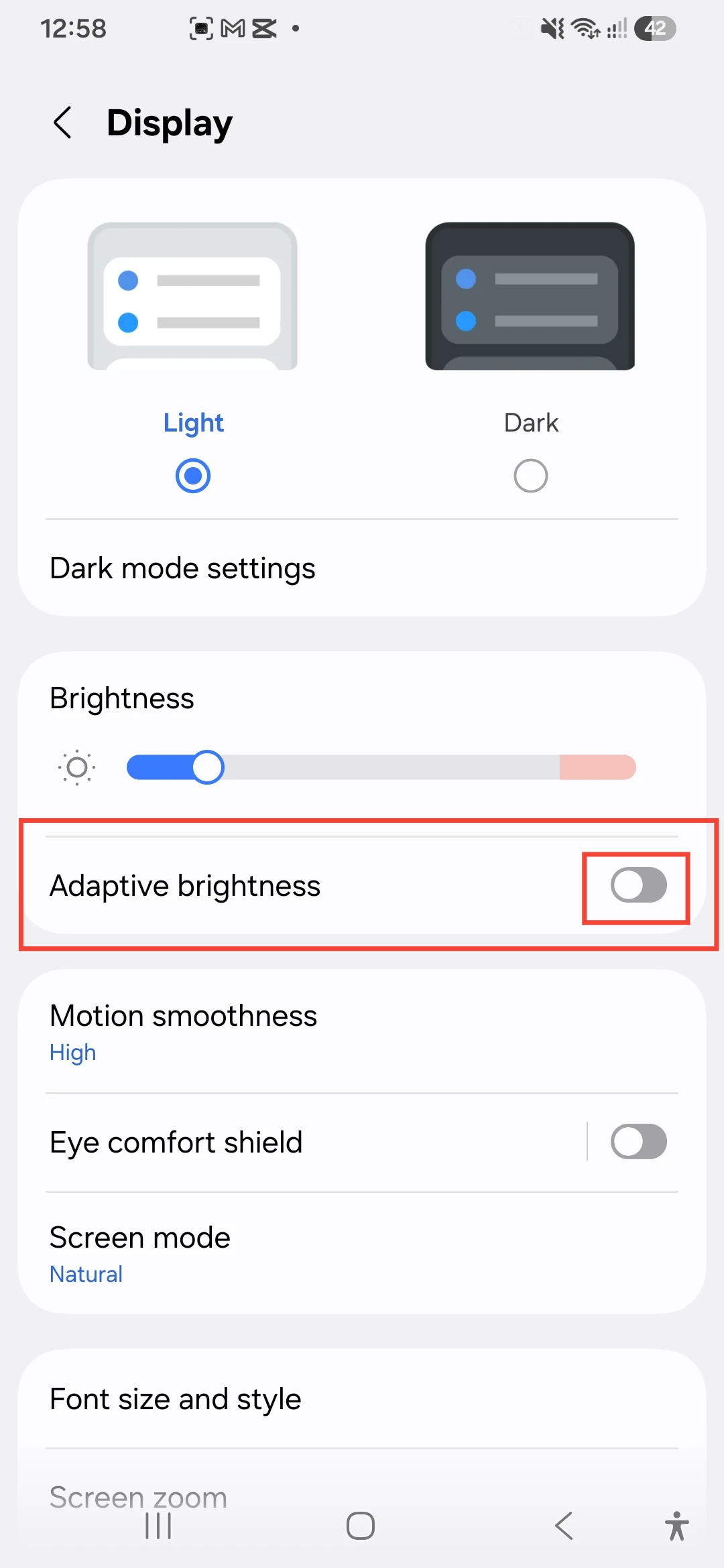
Step 2: Turn Off Adaptive Brightness
- Navigate to Settings > Display.
- Toggle off Adaptive brightness.
- Set manual brightness to a comfortable level.
If this stops the Samsung Galaxy A56 display flickering, the light sensor software or calibration was the cause. You can adjust screen brightness manually, or check your best Samsung Galaxy A56 display settings to optimize your viewing experience.
Step 3: Adjust Motion Smoothness (Refresh Rate)
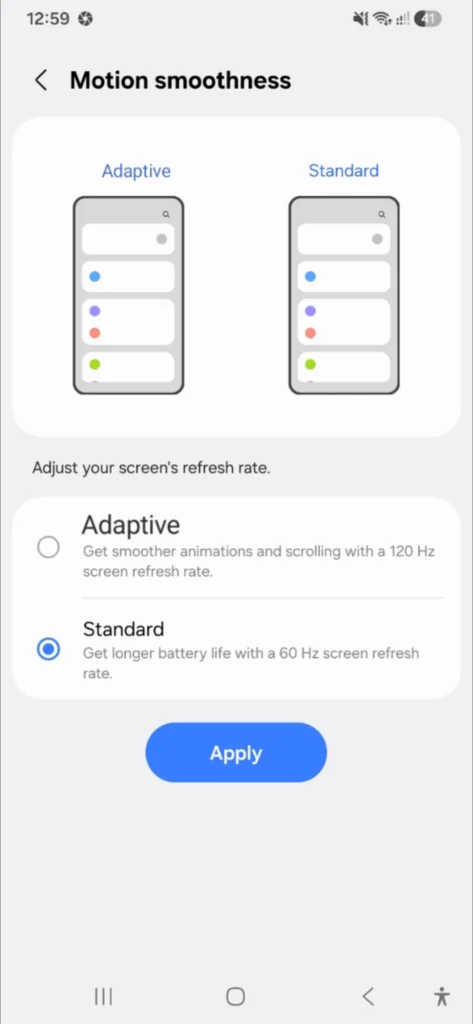
- Go to Settings > Display > Motion smoothness.
- Switch from Adaptive to Standard (locks display to 60Hz).
- Observe if the Samsung Galaxy A56 screen flicker disappears.
If locking to Standard 60Hz resolves the problem, the issue stems from dynamic refresh rate scaling.
Step 4: Toggle Screen Resolution & Color Profile
In Settings > Display, select a different resolution or display mode (e.g., Vivid vs. Natural). Forcing a display profile switch resets the GPU rendering pipeline and can eliminate software-driven Galaxy A56 screen flashing.
Step 5: Disable Eye Comfort Shield & Extra Dim
Head to Settings > Display > Eye comfort shield and turn it off. Similarly, check your quick panel toggles for Extra Dim. Color temperature shifts and low-level software dimming filters can interact unexpectedly with hardware PWM dimming.
Step 6: Reset Wallpaper, Theme, and Launcher
If your Samsung Galaxy A56 screen flickering on home screen persists:
- Apply a default, static wallpaper.
- Disable third-party launchers, custom icons, or live themes.
- Review our One UI customization tips for Galaxy A56 to ensure layout settings aren’t corrupt.
Step 7: Install the Latest Software Update
Go to Settings > Software update > Download and install. If a previous patch caused your Samsung Galaxy A56 screen flickering after update, Samsung frequently issues follow-up maintenance releases to patch display driver bugs.
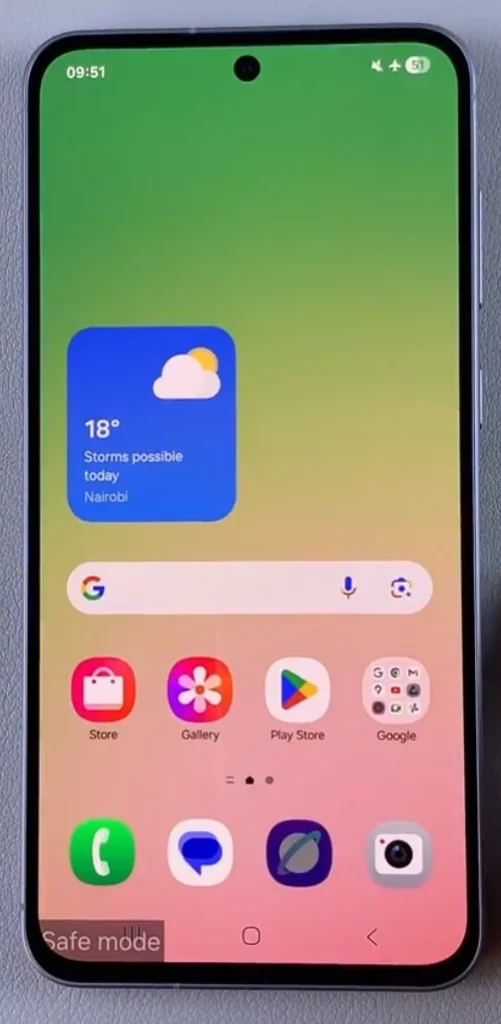
Step 8: Boot Into Safe Mode (Isolate Third-Party Apps)
Safe Mode disables all third-party applications:
- Press and hold Volume Down + Side Key until the power menu displays.
- Tap and hold the Power off icon until Safe mode appears.
- Tap Safe mode to restart.
- Flicker stops in Safe Mode: A third-party app is causing the glitch. Uninstall recent display overlays, dark mode managers, or battery tools.
- Flicker continues in Safe Mode: The issue is rooted in system software or hardware.
Step 9: Wipe Cache Partition
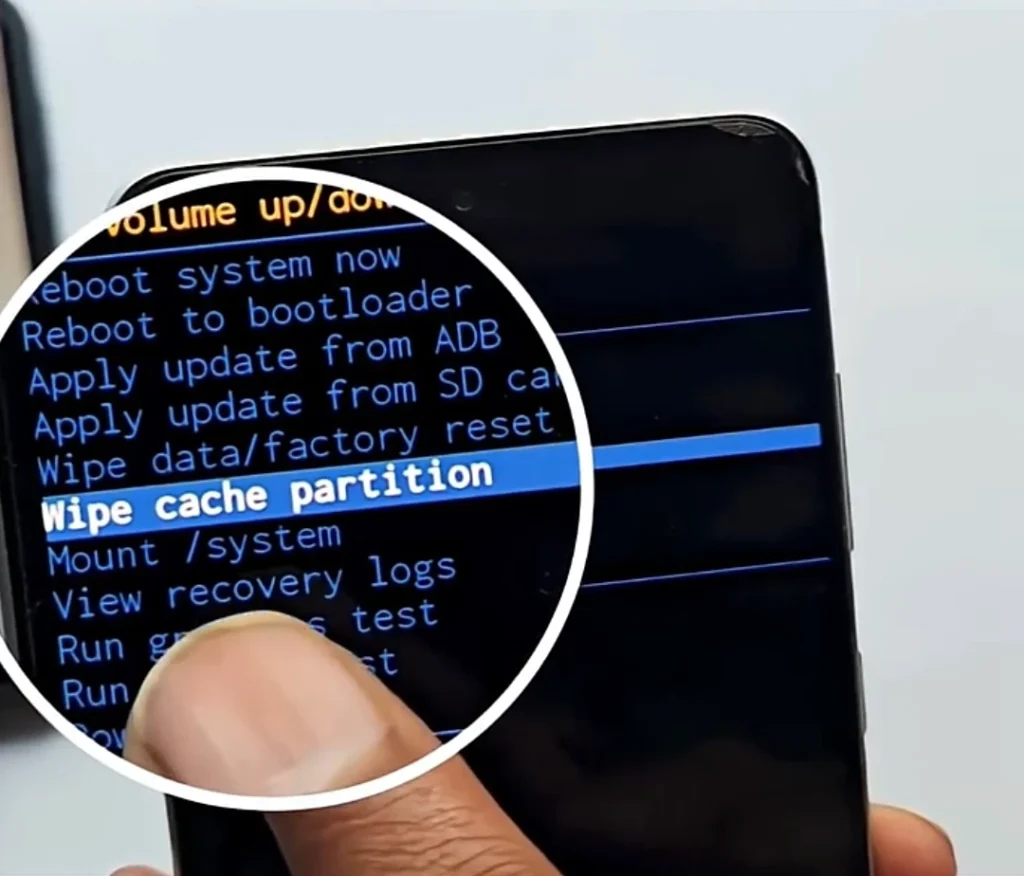
Clearing cached system files can deliver a reliable Samsung Galaxy A56 display flickering fix without erasing personal data:
- Power off the phone completely.
- Connect the phone to a computer using a USB-C cable.
- Press and hold Volume Up + Side Key until the Samsung recovery screen appears.
- Use volume keys to highlight Wipe cache partition and confirm with the Side Key.
- Select Reboot system now.
Step 10: Perform a Factory Data Reset
If all else fails, a complete software reset is the final step before seeking physical repair.
- Back up all personal files and accounts.
- Navigate to Settings > General management > Reset > Factory data reset.
- Follow our comprehensive Samsung Galaxy A56 reset guide for detailed instructions.
How to Tell Software From Hardware
Determining whether Samsung Galaxy A56 screen flickering hardware or software is the culprit saves unnecessary repairs:
- The Screenshot Test: Take a screenshot while the screen is visibly flickering. View the screenshot on another device or zoom into it. If the flicker or green line appears inside the saved image file, it is 100% a software rendering bug. If the saved image looks crystal clear but your physical screen flickered, it points toward a hardware or display panel issue.
- Safe Mode Isolation: As tested in Step 8, persistent flicker inside Safe Mode rules out third-party application conflicts.
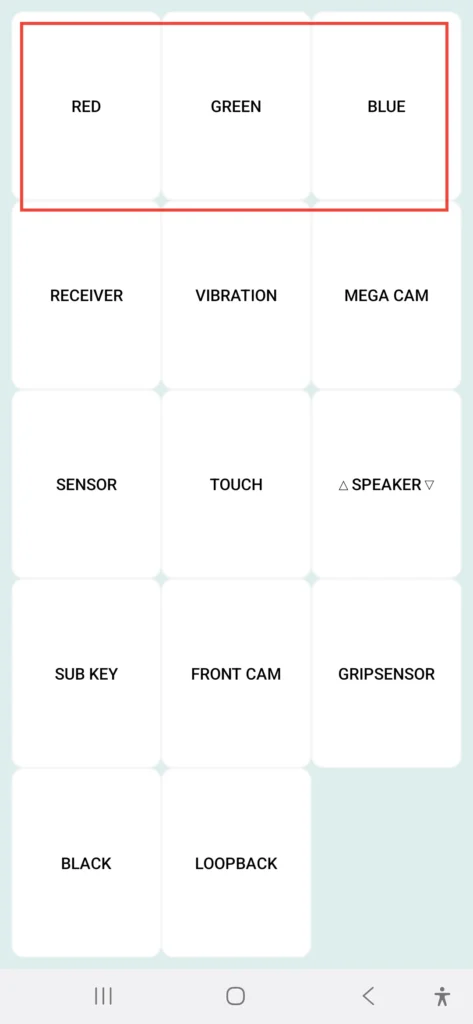
- Built-in Hardware Diagnostic Menu: Open your phone dialer and enter
*#0*#to access Samsung’s secret diagnostic panel (for more codes, see our guide to Samsung A56 secret codes). Tap RED, GREEN, and BLUE tiles to run a full display test. Solid color screens make dead pixels, hardware flickering, and OLED tinting immediately visible. You can also run the display test inside the official Samsung Members app.
- Thermal & Physical Pressure Sensitivity: If the display only flickers when you flex the chassis, press near the bezel, or when the device gets hot, physical connector looseness or screen damage is likely present.
Common Mistakes That Waste Your Time
- Changing multiple display toggles at once: Adjusting refresh rate, dark mode, and adaptive brightness simultaneously makes it impossible to identify which setting provided the fix.
- Performing an immediate factory reset: Jumping straight to wiping your phone is unnecessary when turning off adaptive brightness or wiping system cache resolves most cases.
- Ignoring software update history: If Samsung Galaxy A56 screen flickering began immediately after an OTA update, noting this detail helps Samsung support agents escalate driver bug reports faster.
- Confusing camera shutter lines with screen flicker: Black bars appearing in recorded video under LED lighting are caused by camera shutter speeds, not a broken Super AMOLED display.
- Installing unverified screen fix apps: Third-party “screen repair” apps on the Play Store cannot fix hardware PWM or system display drivers and often contain invasive ads.
Practical Tips for Everyday Use
- Keep manual brightness slightly higher at night: If low-brightness PWM shimmer bothers your eyes in pitch dark, raise the brightness slider slightly and enable Samsung Galaxy A56 Night Mode features.
- Utilize Extra Dim properly: Instead of pulling the brightness slider to 0%, use the native Extra Dim toggle in Quick Settings for gentler luminance reduction.
- Avoid thermal strain on OLED: Do not leave your phone charging under pillows or in direct sunlight. Keep your device running smoothly by applying essential Samsung Galaxy A56 tips and tricks.
- Use high-quality power delivery accessories: Prevent charging flicker by using official or certified USB-C cables and power adapters.
- Schedule weekly auto-restarts: Regular restarts clear memory leaks before they manifest as screen jitter.
Pros and Cons of the Galaxy A56 Display
Pros
- Bright, vibrant Super AMOLED panel with excellent outdoor clarity.
- High peak brightness (reaching over 1,200 nits in auto mode).
- Smooth 120Hz refresh rate capability.
- Durable Corning Gorilla Glass Victus+ protection.
- Rich array of One UI display customization settings.
Cons
- Manual brightness cap is significantly lower than auto outdoor boost.
- Occasional post-update software display bugs reported by users.
- Low-frequency PWM dimming at minimum brightness may affect sensitive users.
- Dynamic refresh rate switching can occasionally stutter in unoptimized apps.
FAQs
Samsung Galaxy A56 screen flickering a common problem?
It affects a small percentage of users, typically triggered by specific One UI software builds, miscalibrated adaptive brightness, or low-brightness PWM perception, rather than widespread hardware defects.
Will a software update fix my flickering screen?
Yes, if the issue stems from display driver conflicts following a patch. Samsung regularly delivers maintenance updates to address reported UI glitches.
Why is my Samsung Galaxy A56 screen flickering at low brightness?
Super AMOLED panels use Pulse-Width Modulation (PWM) to control brightness. At low levels, pixels pulse rapidly, which can appear as a subtle shimmer or cause eye strain in dark environments.
Does 120Hz Motion Smoothness cause screen flashing?
120Hz itself does not cause flickering, but the background transition between 120Hz and 60Hz in adaptive mode can occasionally register as a brief display hitch in certain apps.
Can a tempered glass protector cause screen flickering?
flickering directly. However, an improperly installed protector covering the top proximity/light sensor can cause adaptive brightness to fluctuate wildly. If you suspect your protector, consult our guide on choosing a proper Samsung Galaxy A56 screen protector.
Will wiping the cache partition delete my photos or apps?
No. Wiping the cache partition only clears temporary system logs and system cache files. Personal data, photos, and installed applications remain completely intact.
When should I take my Galaxy A56 to a Samsung service center?
Seek official repair if flickering persists after a full factory reset, if physical lines/colored blocks appear, or if the screen flickers in response to physical pressure or drop impact.
Can screen flickering cause eye strain or headaches?
Yes, rapid display pulsing at low brightness levels can cause fatigue or headaches for PWM-sensitive individuals. Increasing brightness slightly and using ambient lighting helps minimize strain.
Last Thoughts
Most Samsung Galaxy A56 screen flickering problems turn out to be software settings, launcher bugs, or temporary update glitches rather than a defective AMOLED panel. By systematically testing force restarts, adaptive brightness toggles, motion smoothness options, and Safe Mode, you can resolve the issue without unnecessary stress or data loss.
If hardware tests confirm physical display damage or persistent panel defects, contact Samsung Support or visit an authorized service provider to claim warranty coverage.