Samsung Galaxy A56 Battery Saving Settings: 15+ Tips for Better Battery Life (One UI 8.5)
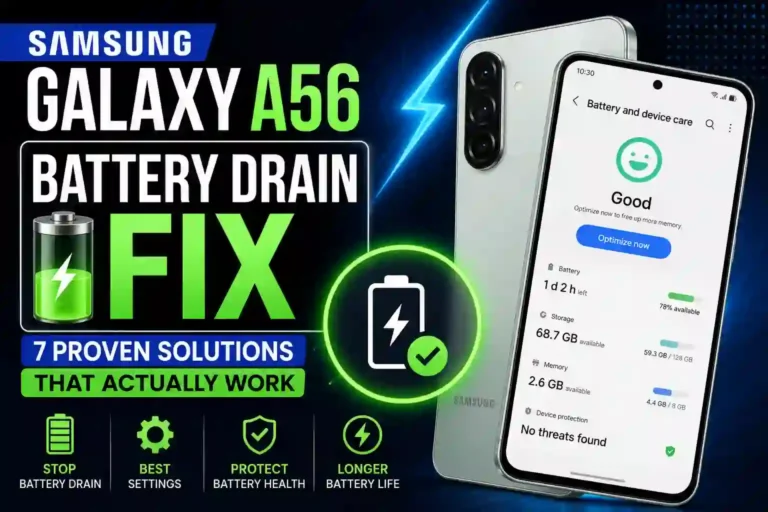
My Galaxy A56 hit 20% battery by 3 PM on the third day I owned it. I remember standing in a parking lot, phone dying, GPS open, genuinely annoyed because I’d just switched from an iPhone and expected better. So I spent the next few weeks doing what any stubborn tech person does — digging through every settings menu, testing combinations, undoing changes that made things worse, and slowly figuring out which Samsung Galaxy A56 Battery Saving Settings actually move the needle and which ones are just placebo.
Then, months later, right after updating to One UI 8.5, the same thing happened again — except this time it wasn’t a “new phone, wrong settings” problem. Galaxy A56 battery draining after update issues overnight became a major headache, and I went down a whole new rabbit hole trying to figure out why. This article covers both: the fundamentals that work on any A56 to maximize Galaxy A56 battery life, and the specific Galaxy A56 One UI 8.5 battery drain fix steps that changed with the Android 16 update, since that’s where a lot of the real confusion is right now.
This isn’t a copy-paste list from Samsung’s support page. It’s what I found after living with the phone daily, tracking screen-on time, comparing before-and-after numbers, and reading through a genuinely embarrassing number of Samsung community threads where people are still getting told to “give it time to adapt.” If you’re wondering how to save battery on Galaxy A56 or setting up your device for the first time, check out our guide on first things to do on Samsung Galaxy A56 alongside this walkthrough.
Quick Specs Snapshot
| Spec | Detail |
|---|---|
| Battery Capacity | 5,000mAh |
| Charging Speed | Up to 45W wired (Super Fast Charging 2.0) |
| Display | 6.7″ FHD+ Super AMOLED, up to 120Hz, up to 1,200 nits |
| Chipset | Exynos 1580 |
| OS (current) | One UI 8.5, based on Android 16 |
| On-device AI suite | Awesome Intelligence (not full “Galaxy AI”) |
| Battery Modes | Standard and Maximum power saving, plus Adaptive Battery |
Quick clarification before we go further, because I see this mixed up constantly online: the A56 runs Awesome Intelligence, Samsung’s lighter AI feature set for the A-series, not the full Galaxy AI suite you’ll find on S-series and foldables. Features like Now Brief simply aren’t available on this phone at all, no matter what setting you toggle. More on this in the AI section below. If you want to compare how this hardware holds up against other models, read our full Samsung Galaxy A56 vs A36 comparison or look back at the Samsung Galaxy A56 vs A55 comparison.
What Changed in One UI 8.5’s Battery Settings
If you’ve owned the A56 since launch and just updated to the Galaxy A56 One UI 8.5 update battery layout, the Galaxy A56 battery settings changed One UI 8.5 interface is noticeably different now, and it’s genuinely a nice change.
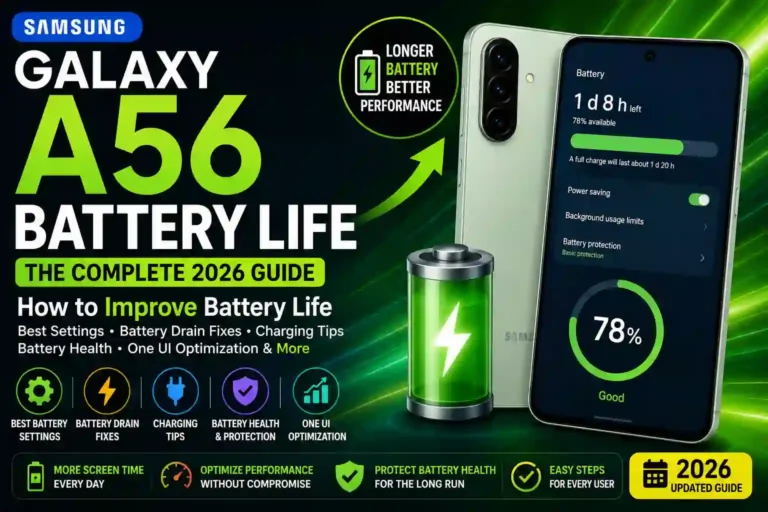
Go to Settings > Battery and you’ll see the Galaxy A56 One UI 8.5 new battery UI dashboard has been redesigned. It now shows your estimated remaining time up front, current charging status, and a full week of daily Battery Usage Since Last Full Charge history in one scrollable view, instead of the old single-day snapshot buried a tap deeper in Device Care. I actually use this now, where before I mostly ignored the battery screen because it took too many taps to see anything useful. To dive deeper into system options, see our guide on the best One UI settings for Samsung A56.
Galaxy A56 power saving mode also got simplified. Where older One UI versions had three tiers (Optimized, Medium, Max), One UI 8.5 now offers two: Standard, which gives moderate savings with customizable limits you can adjust yourself, and Maximum, which disables all non-essential features in one go. Fewer options, but honestly more useful, since Standard now lets you pick exactly which limits apply instead of guessing what “Medium” used to restrict.
None of this fixes drain issues on its own, but it makes diagnosing problems considerably easier, since you can actually see day-by-day patterns instead of just today’s number. For additional system tweaks, browse our curated best Samsung Galaxy A56 settings.
Why Battery Drain Gets Worse Right After a Software Update
This is the part almost nobody explains properly, and it’s the single biggest source of frustration I’ve seen from other A56 owners asking: “Why does my Galaxy A56 battery die so fast after update?” So let’s actually go through it instead of just saying “give it time.”
After updating to One UI 8.5 (or if you previously experienced Galaxy A56 battery drain One UI 7 releases), a lot of A56 users — myself included — noticed battery life get noticeably worse, sometimes needing a charge twice a day where once was normal, occasionally paired with Galaxy A56 overheating and battery drain even during light use. When people report this to Samsung support, the standard reply is that after a major update, the device may temporarily consume more power while performing background optimization, app updates, and usage pattern learning, and that battery performance may differ from normal during this period. That’s a real explanation verified in Android System Developer Documentation, not just corporate deflection — it does happen — but it’s incomplete, and it doesn’t help if your battery is still bad two weeks later.
Here’s what I actually did to sort real post-update drain from temporary adjustment drain:
- Clear the One UI Home cache. The launcher accumulates temporary files that can trigger excess background activity after an update. Go to Settings > Apps, search for One UI Home, tap Storage, then Clear Cache. This alone fixed a chunk of my post-update drain within a day.
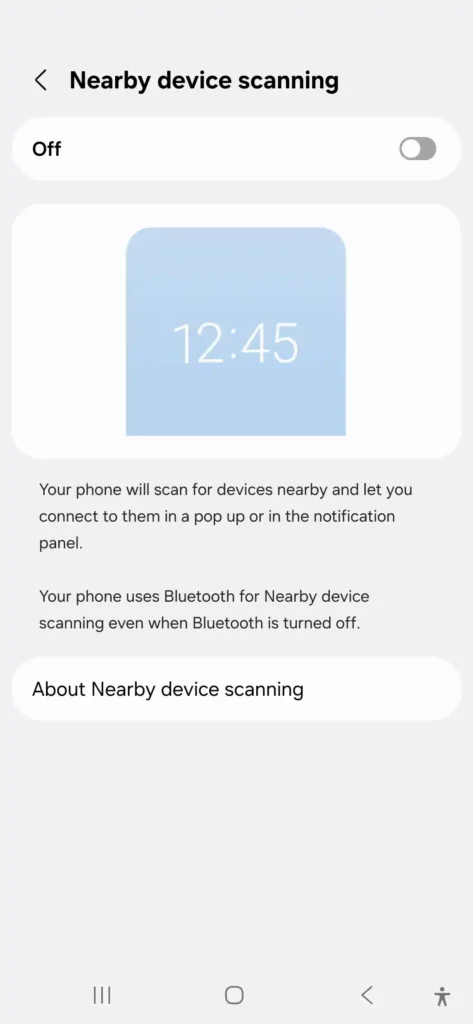
- Turn off Nearby Device Scanning. This feature constantly searches for nearby Samsung devices like Buds or a Watch, running in the background even if you’re not using any accessories. Go to Settings > Connections > More connection settings, and toggle it off. It won’t affect manually connecting Bluetooth devices, it just stops the constant passive scanning.
- Update your keyboard app. This one sounds unrelated but genuinely isn’t — an outdated Samsung Keyboard version has been linked to unnecessary battery drain after major updates. Check the Galaxy Store for a Samsung Keyboard update and install it if available.
- Check for a corrupted app rather than assuming it’s the OS. Go to Settings > Battery and look at the usage breakdown by app over the past several days using the new week-view. If one specific app spikes right after the update while everything else looks normal, that app — not the update itself — is usually the actual problem. Force stop it, clear its cache, and see if the drain follows.
- Give it a genuine week before concluding it’s permanent. Adaptive Battery and background learning really do need time to recalibrate after a big OS change, so if none of the above shows an obvious culprit, a week of normal use before judging is fair. But two weeks with zero improvement and no identifiable app usually means it’s a real bug, not adjustment. At that point, a full cache partition wipe (via Recovery Mode) or, worst case, performing a soft or factory reset on the Galaxy A56 backed up through Smart Switch tends to resolve it when nothing else does. For more details on stopping idle loss, read our targeted Samsung Galaxy A56 battery drain fix guide.
The Settings That Actually Made a Difference for Me
I tested a lot of things that didn’t do much — closing apps manually from recent apps, for example, barely made a dent because Android already manages that reasonably well. Here’s what genuinely helped for best battery settings Galaxy A56 2026 configuration, ranked roughly by impact.
1. Switching Refresh Rate to Standard (Not Adaptive) When Needed
I know this sounds counterintuitive since Adaptive is supposed to be the smart choice. The A56’s display defaults to Adaptive, meaning it dynamically switches up to 120Hz depending on content. In practice, evaluating Galaxy A56 Motion Smoothness battery impact showed that high refresh rates trigger more often than you’d expect — home screen, Chrome, Instagram scrolling all fire off 120Hz. On longer battery days, manually dropping to Standard (60Hz) gave me close to an extra hour of screen-on time in my own side-by-side testing, checked over several days using the new weekly usage view.
2. Turning Off Always-On Display Entirely, or Switching to Tap to Show
I didn’t disable it permanently because I do like glancing at notifications without unlocking. Setting it to Tap to show instead of Show always (Settings > Lock screen > Always On Display) saved a chunk of battery I wasn’t expecting, and checking my stats afterward showed AOD had quietly accounted for 30–45 minutes of “screen on” time daily before the change.
3. Using Deep Sleeping Apps Instead of Restricting Manually One-by-One
This replaced most of what I used to do app-by-app. More detail in the Exynos section below, but configuring your Galaxy A56 Deep Sleeping Apps setting is the single most effective set-and-forget change I made.
4. Disabling RAM Plus
Genuinely surprised me. More on this below too, but disabling this virtual RAM feature improved both fluidity and battery consistency on the Exynos 1580. For a complete collection of user tips, visit our Samsung Galaxy A56 tips and tricks hub.
Step-by-Step: Setting Up Battery Optimization Properly
Here’s exactly how I’d set up an A56 from scratch today on Galaxy A56 Android 16 battery settings:
[Step 1: Check Baseline] ──> [Step 2: Enable Adaptive Battery] ──> [Step 3: Select Power Saving]
                                                                             │
[Step 6: Disable RAM Plus] <── [Step 5: Configure Deep Sleep] <── [Step 4: Motion Smoothness]
         │
         ▼
[Step 7: Always On Display] ──> [Step 8: Permission Manager] ──> [Optimized A56]
- Check your current battery baseline: Go to Settings > Battery. The redesigned dashboard shows remaining time and a week of usage history right away — note your current screen-on time average for comparison later.
- Turn on Adaptive Battery: Go to Settings > Battery > More battery settings > Adaptive Battery. Enable it and give it about a week before judging results.
- Pick a power saving mode you’ll actually use: Go to Settings > Battery > Power saving and choose Standard for daily use with customizable limits, or Maximum only when you need to stretch a nearly-dead battery through the rest of your day.
- Adjust the refresh rate: Go to Settings > Display > Motion smoothness. Standard for battery savings, Adaptive if smoothness matters more day-to-day.
- Set up Background usage limits: Go to Settings > Battery > Background usage limits. This is where Sleeping Apps and Deep Sleeping Apps live.
- Disable RAM Plus: Go to Settings > Battery > Memory (or Settings > Battery > More battery settings, depending on your region’s menu layout) > RAM Plus. Toggle off and restart.
- Review Always-On Display: Go to Settings > Lock screen > Always On Display > switch to “Tap to show.”
- Check Permission Manager: Go to Settings > Security and privacy > Permission manager.
For further details on maximizing overall device endurance, check out our dedicated guide on how to improve Samsung Galaxy A56 battery life.
Exynos 1580-Specific Fixes: RAM Plus and Deep Sleeping Apps
Most battery guides give you the same generic Android advice regardless of chipset. But the Galaxy A56 Exynos 1580 battery optimization process requires understanding a couple of hardware quirks worth addressing directly, because the default settings aren’t necessarily doing you favors here.
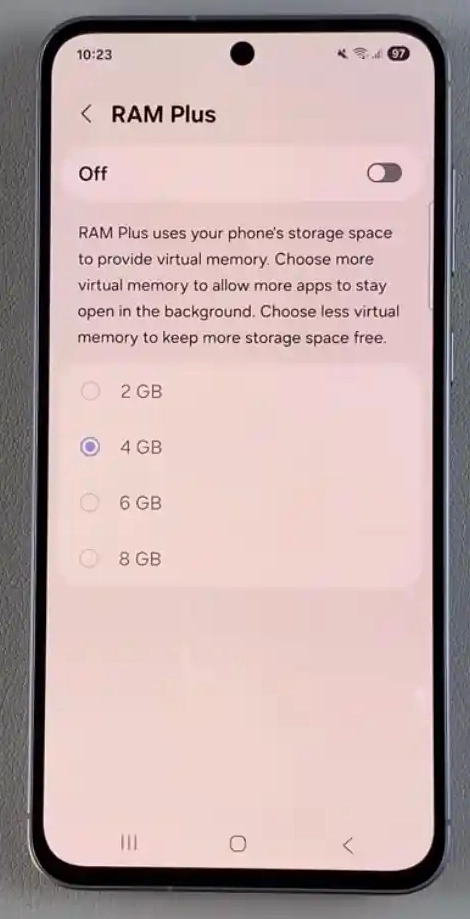
Galaxy A56 RAM Plus battery draw can be surprising. RAM Plus lets the phone use part of your internal storage as virtual memory, in theory letting more apps stay cached in the background so they reopen faster. The problem is that storage-based virtual memory is meaningfully slower than physical RAM, and on the A56 it can end up working against you — more background caching means more background power draw, for a fluidity benefit that’s honestly hard to notice in daily use. I disabled mine (Settings > Battery > Memory > RAM Plus > toggle off > Restart) and didn’t lose anything I actually cared about. If you don’t like the abrupt change, you can also just lower the amount of storage allocated instead of switching it off entirely.
┌────────────────────────────────────────────────────────────────────────┐
│                        BACKGROUND USAGE LIMITS                         │
├──────────────────┬─────────────────────────────────────────────────────┤
│ Sleeping Apps    │ Background activity limited, but occasional syncs   │
│                  │ allowed (e.g., Weather, News).                      │
├──────────────────┼─────────────────────────────────────────────────────┤
│ Deep Sleeping    │ Background activity completely BLOCKED until app is │
│ Apps             │ manually opened (e.g., Games, Shopping).            │
├──────────────────┼─────────────────────────────────────────────────────┤
│ Never Sleeping   │ Full background execution allowed without limit     │
│ Apps             │ (e.g., WhatsApp, Gmail, Banking).                   │
└──────────────────┴─────────────────────────────────────────────────────┘
Background Usage Limits, found under Settings > Battery > Background usage limits, is the feature I now use instead of manually restricting apps one at a time:
- Sleeping apps: Background activity is limited but not fully blocked.
- Deep sleeping apps: Background activity is blocked entirely until you open the app yourself.
- Never sleeping apps: Apps you specifically want to keep fully active in the background, like a messaging app you need instant alerts from.
I put almost everything I use less than a few times a week into Deep Sleeping — old shopping apps, an airline app, a couple of games I open once in a blue moon, plus a handful of preinstalled Samsung apps I can’t uninstall but never actually use. Everything I check daily but don’t need instant alerts from (news, weather) went into regular Sleeping. Messaging, banking, and email stayed in Never Sleeping.
Note: Right after disabling RAM Plus, my phone actually felt slightly rougher for about a day — a touch of lag, marginally warmer than usual. That settled down within 24–48 hours as the system adjusted, which lines up with what other Exynos A-series owners have reported too. If you try this and it feels off initially, give it a day or two before assuming something’s wrong.
Adaptive Battery, Properly Explained
Galaxy A56 Adaptive Battery not working is a common complaint among new owners, largely because how it works gets mentioned constantly in passing and almost never actually explained.
- What it does: It learns which apps you use often and which ones you rarely touch, gradually restricting background activity for the rarely-used ones without you having to manually manage every app yourself.
- How long it takes to learn: In my experience, roughly a week of fairly normal, varied usage before it starts making noticeably smarter decisions. It’s not instant — it needs to actually observe a pattern across different days, including weekends versus weekdays, since usage habits often shift.
- How to check what it’s restricting: Settings > Battery > More battery settings > Adaptive Battery doesn’t give you a detailed breakdown by default, but you can cross-reference this with Settings > Battery and the app usage list in the weekly view — apps showing minimal background activity despite being installed for a while are usually the ones it’s already limiting.
- How to override it for a specific app: If Adaptive Battery restricts something you actually need running (I had this happen with a package tracking app that was delaying delivery notifications), go to Settings > Battery > Background usage limits > Never sleeping apps, and add it there manually. This tells the system to leave that app alone regardless of how rarely you open it.
Security Settings That Quietly Save Battery
This connection doesn’t get made often, but it’s real: apps with more permissions than they need tend to run more background processes, and more background processes mean more battery drain. Reframing your security settings as a battery step killed two birds for me.
Permission Manager
Go to Settings > Security and privacy > Permission manager, and go through camera, microphone, and especially location access. I found two apps with “Allow all the time” location permissions I’d completely forgotten granting, neither of which needed constant background location for what I actually use them for. Switching both to “While using the app” stopped a slow, steady drain I’d never have traced back to permissions otherwise.
Auto Blocker
Found under Settings > Security and privacy > Auto Blocker. Galaxy A56 Auto Blocker battery protection benefits are real: this feature blocks unauthorized software commands and installs from outside official app stores. As of One UI 8.5, it also added a temporary disable option with an automatic 30-minute re-enable timer, so if you need to sideload something briefly, you’re not left exposed indefinitely. Keeping this on doesn’t just protect you from malicious software — it also prevents rogue background processes from unauthorized sources that could otherwise be silently draining power.
Awesome Intelligence and AI Features: What’s Actually Costing You Battery
I want to correct something related to Galaxy A56 Galaxy AI battery drain that I see repeated a lot online: the A56 does not have full “Galaxy AI,” and features like Now Brief are genuinely not available on this device at all — Samsung confirmed this directly in their official release details, as noted on Samsung Official Support. Now Brief is exclusive to devices like the S24 FE and above. So if you’re hunting through settings trying to disable Now Brief specifically to save battery on an A56, you can stop looking; it isn’t there to begin with.
What the A56 does have is Awesome Intelligence, a lighter on-device AI suite built for the A-series. The battery-relevant features worth knowing about:
- Circle to Search: This only activates when you actively invoke it (long-press the home button or navigation bar), so it isn’t running in the background draining anything on its own. No action needed here. To discover similar shortcuts, check out our guide on Samsung Galaxy A56 hidden features.
- Photo and image editing AI features (object eraser, style filters, etc.): These only run when you’re actively using the camera or gallery app to edit something, so again, not a background drain concern. (For camera setup tips, see our Samsung Galaxy A56 camera settings guide).
The actual AI-adjacent battery drain I’ve seen reported isn’t from Awesome Intelligence itself, but from background refresh features on the lock screen and in Samsung Free/Samsung News, which do exist on the A56 in a more limited form and refresh content periodically even when you haven’t opened them. If you don’t use the Samsung Free panel (swipe right from your home screen), you can disable it entirely: long-press the home screen, swipe to the Samsung Free panel, and toggle it off at the top. This stopped a small but consistent background refresh I hadn’t noticed before checking. Discover more visual settings in our One UI customization guide.
App-Specific Battery Fixes
This is where I found the most personalized savings, because everyone’s app usage is different.
┌────────────────────────────────────────────────────────────────────────┐
│                        APP BATTERY OPTIMIZATION                        │
├──────────────────┬─────────────────────────────────────────────────────┤
│ App Category     │ Recommended Action                                  │
├──────────────────┼─────────────────────────────────────────────────────┤
│ Social Media     │ Add to Deep Sleeping Apps (prevents background      │
│ (IG, Facebook)   │ wakelocks & auto-refresh).                          │
├──────────────────┼─────────────────────────────────────────────────────┤
│ Navigation       │ Set Location permission to "While using the app";   │
│ (Google Maps)    │ close fully after navigation stops.                 │
├──────────────────┼─────────────────────────────────────────────────────┤
│ Essential        │ Place in Never Sleeping Apps (ensures real-time    │
│ (Email, Banking) │ notification delivery without delays).              │
└──────────────────┴─────────────────────────────────────────────────────┘
- Social Media (Instagram & Facebook): For me, Instagram and Facebook were the biggest offenders outside of system-level stuff causing Galaxy A56 losing battery while idle and unwanted Wakelock events. Rather than restricting them individually through each app’s Battery settings, I now just add them to Deep Sleeping Apps, which achieves the same result through one central menu instead of hunting through each app separately.
- Navigation (Google Maps): Google Maps I don’t restrict at all since I need real-time location for driving, but I do make sure to fully close it after use rather than leaving it running in the background, since GPS remains one of the heaviest battery draws on any phone regardless of settings.
- Essential Apps (Banking & Email): Banking and email apps went into Never Sleeping Apps, since I do want those notifications promptly and don’t want Adaptive Battery quietly limiting them without me noticing.
Display Tweaks That Save Real Power
Since the AMOLED screen is one of the biggest power draws on this phone, small display changes add up more than people expect.
- Manual Brightness Control: Dropping brightness from auto to a manual setting around 50–60% indoors made a visible difference in my daily percentage drop. Auto-brightness on the A56 tends to run brighter than strictly necessary in mixed indoor lighting, especially given the panel supports up to 1,200 nits peak brightness.
- AMOLED Dark Mode: Dark mode helps too, and not just marginally — because it’s an AMOLED panel, black pixels use less power than white ones (Settings > Display > Dark). I switched my wallpaper to a darker image as well, since even the home screen background affects power draw slightly on OLED-type displays.
- Screen Timeout: Screen timeout is another easy one. I had mine set to 2 minutes out of habit; dropping it to 30 seconds under Settings > Display > Screen timeout saved more than I expected, mostly because I tend to leave my phone face-up on the desk without realizing the screen’s still on.
Troubleshooting Fast Charging & Common Mistakes
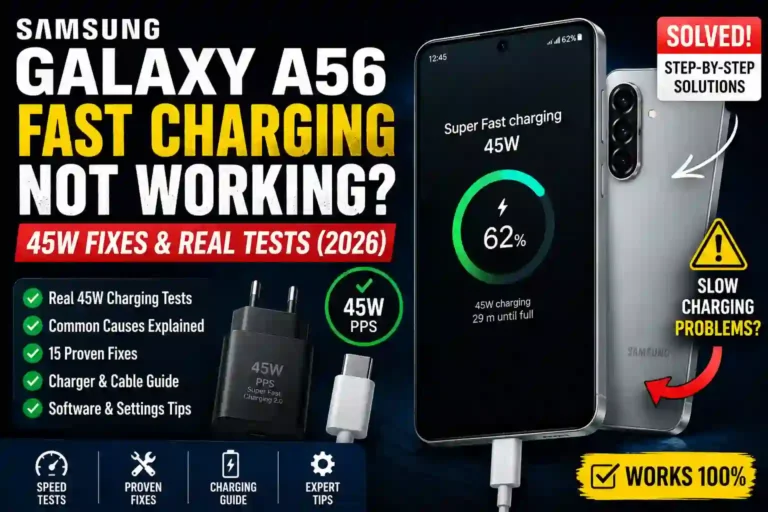
If you are encountering issues where samsung galaxy a56 fast charging not working as expected, it can severely compound your daily battery battery management issues. The Galaxy A56 supports Super Fast Charging up to 45W wired (Super Fast Charge 2.0), but getting those maximum speeds requires specific hardware and settings alignment.
┌────────────────────────────────────────────────────────────────────────┐
│                   FAST CHARGING TROUBLESHOOTING FLOW                   │
├────────────────────────────────────────────────────────────────────────┤
│ 1. Verify Fast Charging Toggle ──> Settings > Battery > More battery   │
│    settings > Enable "Fast charging".                                  │
│ 2. Check Adapter Hardware      ──> Must support USB-PD 3.0 with PPS    │
│    (Programmable Power Supply) at 45W.                                 │
│ 3. Inspect Cable Rating        ──> Requires 5A-rated USB-C cable for   │
│    full 45W Super Fast Charge 2.0.                                     │
│ 4. Clear Port & Cool Down      ──> Inspect USB port for lint; allow    │
│    device to cool down if thermal throttling is active.                │
└────────────────────────────────────────────────────────────────────────┘
If your charging rates feel painfully slow or your phone displays “Charging” instead of “Super Fast Charging 2.0”, check these key elements:
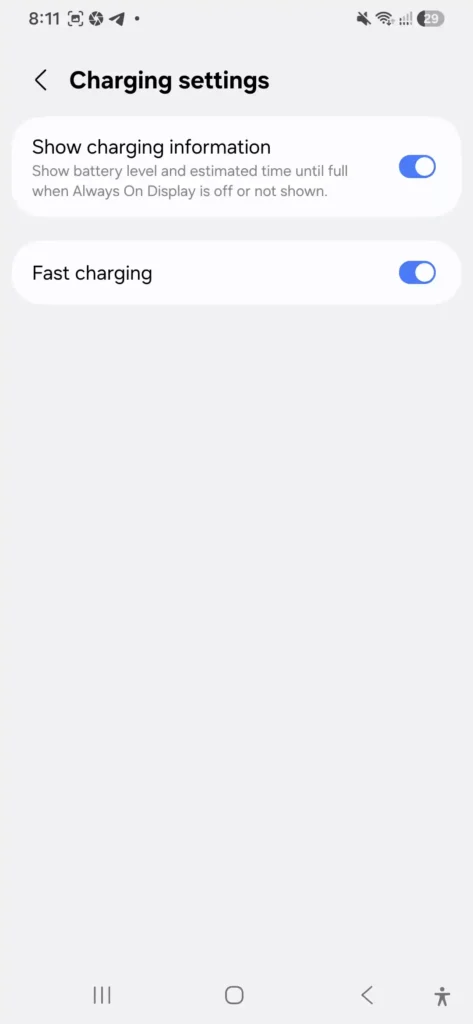
- Verify Software Toggles: Ensure fast charging is enabled in software (Settings > Battery > More battery settings > Fast charging).
- Power Delivery & PPS Support: Make sure you are using a USB-PD 3.0 charger that explicitly supports PPS (Programmable Power Supply) rated for 45W. Older charging bricks without PPS will default to standard 15W charging, even if they claim high overall wattage.
- Cable Rating: You must use a 5A-rated USB-C to USB-C cable for 45W charging; standard 3A cables cap out at 25W.
- Thermal Throttling: If the phone is hot, the Exynos 1580 thermal protection will throttle charging speeds down automatically to prevent Standby Drain and battery degrade.
For detailed hardware fixes, read our complete guide on Samsung Galaxy A56 fast charging not working fix.
Other Common Mistakes to Avoid
- Force-closing apps constantly: This doesn’t help and can actually hurt battery life, since apps have to fully reload and re-establish background processes when reopened, which uses more power than letting the system manage them normally.
- Setting Maximum power saving mode permanently: It’s tempting because the battery numbers look great, but it disables so much at once — dimmed screen, restricted background activity across the board, disabled non-essential features — that daily use starts feeling noticeably limited. It’s meant for stretching a dead battery through the end of a day, not everyday use.
- Assuming post-update drain will just fix itself with no action: As covered above, sometimes it genuinely does resolve on its own within a week. But plenty of the time it’s a specific corrupted cache or a single problem app, and waiting around indefinitely without checking wastes days of poor battery life for no reason.
- Ignoring app updates: A buggy app version can silently drain battery through background processes that get fixed in later updates. I had one app running a battery-draining bug for almost two weeks before an update patched it.
- Leaving RAM Plus and Deep Sleeping Apps on default settings: They work reasonably well out of the box, but a few minutes of manual configuration based on your actual usage does noticeably better than the defaults alone.
- Poor Charging Habits & Battery Protection: Letting the battery repeatedly drop to near 0% before charging isn’t great for long-term health. Consider using Battery Protection / Optimized Battery Charging features under settings to keep charge limits healthy over time.
Updated Verified Checklist
A lot of the “quick fix” advice floating around for older One UI versions gets repeated blindly without anyone checking whether the menu paths still apply on One UI 8.5. Here’s what I personally verified still works, as of this update:
- [x] Disable Nearby Device Scanning: Settings > Connections > More connection settings — still applies.
- [x] Clear One UI Home cache: Settings > Apps > One UI Home > Storage > Clear Cache — still applies.
- [x] Deep Sleeping Apps: Settings > Battery > Background usage limits — still applies, though the menu wording has shifted slightly from older versions.
- [x] RAM Plus: Now sits under Settings > Battery > Memory in most regional builds rather than a separate Device Care menu.
- [x] Auto-sync per account: Settings > Accounts and backup > Manage accounts > select account > toggle sync — still works, though I’d only recommend this if you genuinely don’t need real-time updates from that account.
- [x] Weather widget auto-refresh: This is now tied to the widget’s own settings (long-press the widget > settings icon) rather than a global toggle — worth checking if you use a heavy weather widget.
- [x] Facebook/YouTube autoplay: Still app-level settings within each app, not something One UI controls directly, but disabling autoplay reduces background video buffering and is worth doing regardless.
My Real-World Results
Before making these changes, I was averaging around 4.5 hours of screen-on time with moderate use — browsing, messaging, some video. After implementing the settings above, including the RAM Plus and Deep Sleeping Apps changes, I’m consistently getting 6 to 7 hours of screen-on time on a single charge, sometimes more on lighter days.
Battery Screen-On Time (SOT) Comparison:

Before Optimization  [████████░░░░░░░░░░] 4.5 Hours
After Optimization   [██████████████░░░░] 6.5 - 7.0 Hours
After updating to One UI 8.5 specifically, I did see a temporary dip for about four days, but clearing the One UI Home cache and disabling Nearby Device Scanning brought things back to normal faster than just waiting it out would have. That’s a realistic, honest improvement based on actual daily use, not a synthetic lab test.
Pros & Cons of Aggressive Battery Saving
Pros
- Noticeably longer screen-on time, often an extra 1.5–2 hours in my case
- Less anxiety about finding a charger during the day
- Better long-term battery health from avoiding extreme charge cycles
- Adaptive Battery and Deep Sleeping Apps genuinely improve after the learning period
- Disabling RAM Plus can improve both consistency and battery life on the Exynos 1580
Cons
- Deep Sleeping apps mean delayed notifications for anything you forget to exclude
- Maximum power saving mode noticeably limits the everyday experience
- Manually adjusting refresh rate means giving up some smoothness on demand
- Takes about a week of adjustment before Adaptive features and RAM Plus changes settle in fully
- Post-update troubleshooting takes some manual digging rather than a single toggle fix
FAQs
Why is my samsung galaxy a56 fast charging not working properly?
If fast charging fails or runs slowly, verify that Fast charging is toggled on in Settings > Battery > More battery settings. Ensure you are using a 45W-capable USB-PD charger that explicitly supports PPS (Programmable Power Supply) alongside a 5A USB-C cable. If the device is warm, thermal protection will temporarily throttle charging speeds until it cools down.
Does turning off 120Hz refresh rate really save that much battery on the Galaxy A56?
Yes, in my testing dropping from Adaptive to Standard (60Hz) added close to an hour of screen-on time on average days. It’s one of the most impactful single changes you can make.
My battery got worse right after updating to One UI 8.5 — is this normal, and will it fix itself?
It’s a genuinely common report. Samsung’s background optimization and usage-pattern relearning after a major update can temporarily increase power use. Sometimes it resolves within a week on its own. But if it doesn’t improve, clearing the One UI Home cache, disabling Nearby Device Scanning, and checking for a rogue app usually fixes the root cause.
Should I disable RAM Plus on the Galaxy A56?
It’s worth trying. On the Exynos 1580, RAM Plus’s virtual memory can end up costing more in background battery use than it gives back in multitasking speed. Expect a day or so of minor roughness after disabling it before things settle.
What’s the difference between Sleeping apps and Deep Sleeping apps?
Sleeping apps have limited but not fully blocked background activity. Deep Sleeping apps are blocked from running in the background entirely until you manually open them. Use Deep Sleeping for apps you rarely touch but still want installed.
Is it bad to charge my A56 overnight regularly?
No — the A56 runs Awesome Intelligence, a separate, lighter AI suite for the A-series. Now Brief and full Galaxy AI features are exclusive to higher-tier devices like the S24 FE and above, so there’s no setting to disable on the A56 because the feature isn’t present.
Is it bad to charge my A56 overnight regularly?
Occasional overnight charging is fine since the phone has overcharge protection, but doing it constantly over a long period can contribute to gradual capacity loss. Utilizing Battery Protection to cap charging at 80% or 85% is a great habit for preserving long-term battery health.
Why does my battery drain fast even with power saving mode on?
Usually it’s one specific app causing a Wakelock or excessive background sync rather than the mode itself. Check the weekly usage view under Settings > Battery to identify the culprit.
Does using dark mode actually save battery on this phone?
Yes, because the A56 has an AMOLED display, dark mode genuinely reduces power draw compared to light mode, especially when paired with darker wallpapers.
How long should Galaxy A56 battery last on one charge?
With the Galaxy A56 battery mAh capacity set at 5,000mAh and reasonable settings enabled, expecting 6 to 7 hours of screen-on time under moderate daily use is realistic based on my post-optimization testing on One UI 8.5.
None of these settings are magic fixes — they’re small, sensible adjustments that add up over a full day of use, plus a few targeted fixes for the specific mess One UI 8.5 introduced for some users. The Galaxy A56 has a solid battery on paper, and most of the complaints I’ve seen come down to either default settings that aren’t optimized for real usage, or post-update quirks that just need two or three right tweaks. Give these steps a try, remain patient during the learning period, and you should notice a real difference in daily endurance.