Samsung Galaxy A56 lagging Problem 100% Solved!
I still remember the exact moment I got annoyed at my phone. I was in the middle of replying to a WhatsApp voice note, tried to swipe over to check a notification, and the phone just froze. Not crashed, not restarted — just hung there for a solid two seconds like it was thinking really hard about whether it wanted to cooperate with me that day. If you’ve experienced this, you’re dealing with the classic Samsung Galaxy A56 lagging problem.
If you’re reading this, chances are you’ve had a similar moment. Maybe it happened while gaming, maybe while switching between apps, or maybe just scrolling Instagram while noticing your Samsung Galaxy A56 lagging and freezing. You’re probably wondering: why is my Galaxy A56 running slow? Did you get a “bad unit,” did Samsung mess up the software, or do you just need to accept that a mid-range phone is going to feel sluggish forever?
Before jumping into drastic measures, it helps to review the first things to do on Samsung Galaxy A56 to ensure basic settings aren’t slowing you down. I’ve spent a good few weeks living with this phone daily, testing different theories, undoing my own settings changes, and talking to other owners in community forums. This guide covers everything I found — the real root causes and step-by-step fixes for how to fix Samsung Galaxy A56 lagging problem without relying on generic advice you’ve already tried five times.
Quick Specs Table
| Spec | Detail |
|---|---|
| Processor | Exynos 1580 (4nm) |
| RAM | 8GB / 12GB variants |
| Storage | 128GB / 256GB (UFS 2.2) |
| Display | 6.7″ Super AMOLED, 120Hz |
| Battery | 5,000mAh |
| Software | One UI (Android 15 base, upgradeable) |
| Common Complaint | Samsung Galaxy A56 stuttering, Samsung Galaxy A56 app switching lag, occasional freeze during gaming |
This isn’t a budget phone in the “cheap and slow” sense — the Exynos 1580 is actually a decent chip on paper. Which is exactly why Galaxy A56 performance issues feel so confusing. If the hardware isn’t the bottleneck most of the time, something else is going on.
Is the Galaxy A56 Lagging Problem Common?
Yes, and you’re not imagining it. It’s not on the level of an “unusable phone,” but Samsung Galaxy A56 slow performance is a real, documented pattern that shows up on Reddit, Samsung community boards, and tech forums. Most users report Samsung Galaxy A56 performance problems in three specific situations:
- Right after unboxing, during the first week of setup and app installs
- Experiencing a Samsung Galaxy A56 lagging after update scenario
- After the phone has been used heavily for 3–6 months without basic maintenance
That middle one — experiencing a Samsung Galaxy A56 slow after software update patch — is probably the most common trigger, and it’s also the one people misunderstand the most. A software update is supposed to make things better. Sometimes, as highlighted in user discussions across Samsung Community performance threads, an update introduces heavy background indexing processes that hammer the CPU for a day or two while system files compile.
Knowing that this lag has specific, identifiable triggers will save you a lot of frustration.
Why the Samsung Galaxy A56 Lagging Problem Happens: The Real Causes
Let’s skip the surface-level stuff and get into why is my Samsung Galaxy A56 lagging under the hood.
1. One UI Is Heavier Than the Hardware Budget Allows
One UI is genuinely one of the best-looking Android skins out there, but it’s resource-hungry. Samsung designs it primarily around flagship S-series chips, then adapts it down for mid-range models. The visual effects and background services weren’t built with a mid-tier chip as the top priority. Adjusting your setup using the best One UI settings for Samsung A56 helps reduce this background strain significantly.
2. RAM Management (RAM Plus) Working Against You
Samsung’s “RAM Plus” feature borrows internal storage to treat it as virtual memory. On paper, that sounds great. In practice, this leads to Samsung Galaxy A56 RAM Plus lag. Borrowed storage is vastly slower than physical RAM. When the system relies on virtual memory too often, you get Samsung Galaxy A56 stuttering instead of smoothness, especially on 8GB RAM variants.
3. Background App Buildup
Every app you install adds background processes, notification listeners, and sync services. Three or four apps running quietly isn’t a problem, but thirty apps doing it creates Samsung Galaxy A56 apps lagging system-wide.
4. Storage Getting Too Full
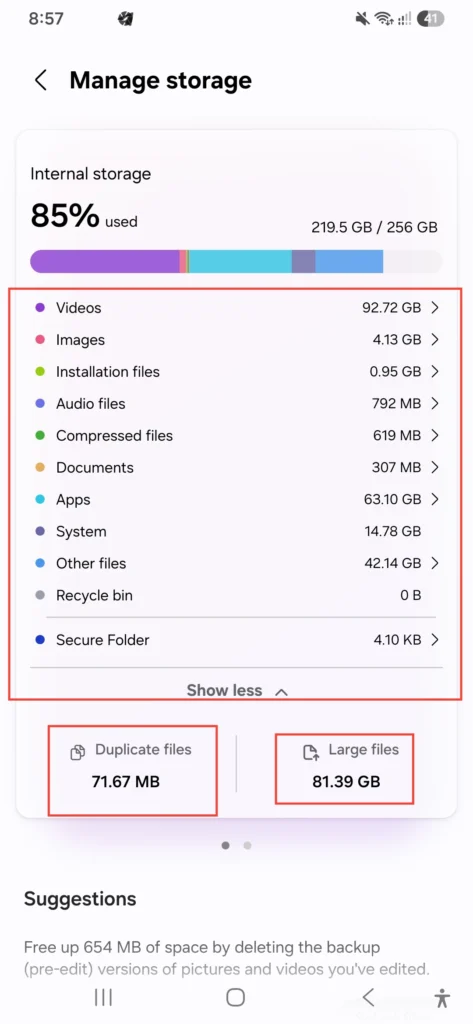
The A56 uses UFS 2.2 storage, which needs breathing room to read and write efficiently. Once your storage crosses roughly 85–90% capacity, read/write speeds noticeably drop, causing Samsung Galaxy A56 slow operation. As noted in official Samsung support documentation for device care, keeping storage clean is vital for maintaining app responsiveness.
5. Thermal Throttling During Heavy Tasks
During extended sessions, you might encounter Samsung Galaxy A56 lagging while gaming. Because mid-range devices lack massive vapor chamber cooling systems, the chip heats up after 30+ minutes of gaming, leading to Samsung Galaxy A56 overheating and lagging as the processor throttles itself to prevent thermal damage. If your device regularly runs hot, read how Samsung Galaxy A56 overheating problem solved techniques can help manage heat output.
6. Corrupted Cache or Buggy App Updates
Sometimes it’s genuinely just one rogue application. A social media or messaging app gets a buggy update and causes Samsung Galaxy A56 freezing while using apps by eating CPU cycles in the background.
7. Heavy Launchers and Live Widgets
Using third-party launchers or home screens filled with live animated widgets causes constant background rendering, directly triggering Samsung Galaxy A56 app lag.
Step-by-Step Fixes: How to Fix Samsung Galaxy A56 Lagging Problem
Here is the step-by-step Samsung A56 lagging and freezing fix routine, ordered from the fastest, least intrusive options to full system resets.
Step 1: Perform a Full System Reboot
Locking your screen overnight is not a reboot. A full restart clears temporary memory leaks and frozen system tasks.
- Press and hold Power + Volume Down.
- Tap Restart.
- Allow the phone to fully boot before opening apps.
Step 2: Check What’s Eating Resources
Before guessing, look at your usage metrics:
- Navigate to Settings > Battery and device care > Battery.
- Check Background usage to identify rogue apps.
- If you notice heavy battery drain alongside performance drops, apply the steps in our Samsung Galaxy A56 battery drain fix guide.
Step 3: Turn Off RAM Plus
Disabling virtual RAM is one of the most effective methods for how to fix slow performance on Samsung Galaxy A56.
- Open Settings > Battery and device care > Memory.
- Tap RAM Plus.
- Toggle it Off (or set it to the lowest value available) and restart your device.
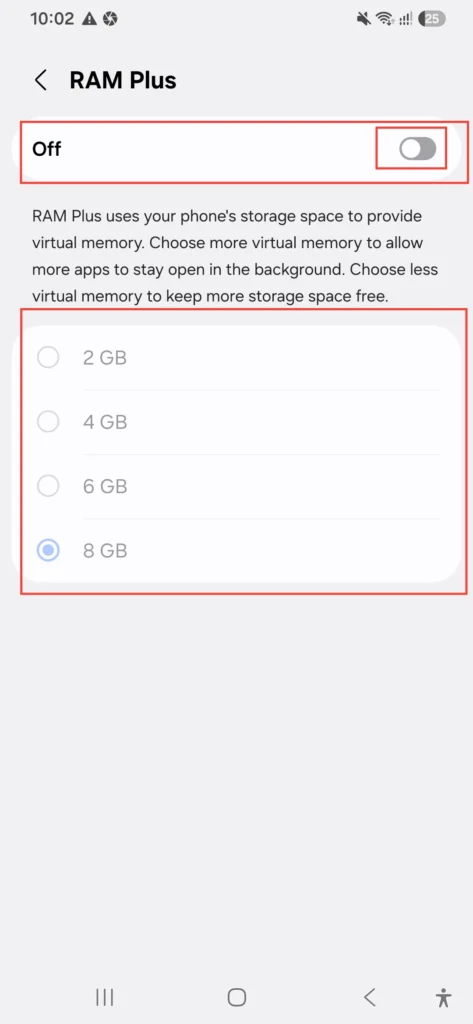
Physical RAM is significantly faster than virtual storage memory, and turning this off eliminates virtual memory stutter.
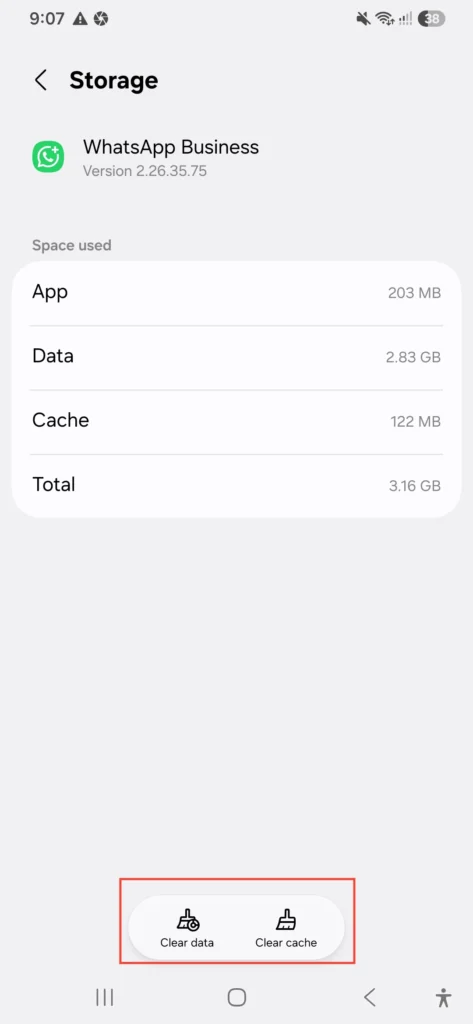
Step 4: Clear Cache for Problematic Apps
Target individual apps that crash or stutter:
- Go to Settings > Apps.
- Select the stuttering app, then tap Storage.
- Tap Clear cache (do not select Clear Data unless you want to log out).
Step 5: Free Up Storage Space
Keep your total storage utilization below 85% to maintain UFS 2.2 read/write speeds:
- Go to Settings > Battery and device care > Storage.
- Use Clean now for automatic cleanup suggestions.
- Clear out heavy media folders in WhatsApp and Downloads.
Step 6: Reduce Animations for Instant Speed
If you are wondering how to make Samsung Galaxy A56 faster, trimming visual overhead is key:
- Go to Settings > Accessibility > Visibility enhancements.
- Enable Remove animations.
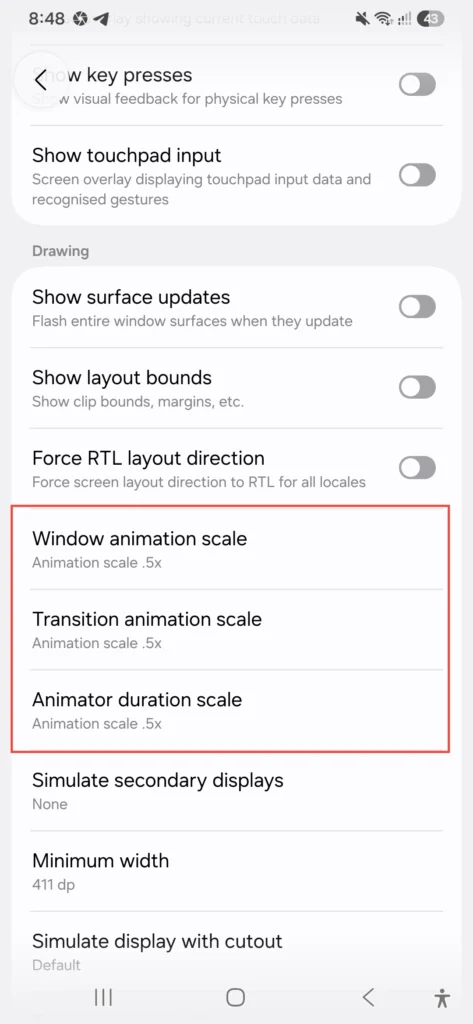
- Alternatively, unlock Developer Options and set Window animation scale, Transition animation scale, and Animator duration scale to 0.5x.
Step 7: Check for Software Updates
If your Samsung Galaxy A56 keeps freezing and lagging after a major patch, check for follow-up updates:
- Go to Settings > Software update > Download and install.
- Samsung frequently releases smaller stability patches to fix performance regressions from prior updates.
Step 8: Limit Always-On Display and Live Wallpapers
Dynamic wallpapers constantly demand GPU cycles:
- Go to Settings > Lock screen > Always On Display and switch to Tap to show.
- For more display tweaks, check out our guide on Samsung Galaxy A56 lock screen customization.
Step 9: Reset App Preferences
If background permission conflicts are causing Samsung Galaxy A56 freezing problem glitches:
- Navigate to Settings > Apps.
- Tap the three-dot menu icon in the top right.
- Tap Reset app preferences.
Step 10: Factory Reset (Last Resort)
If you’ve tried everything and the Samsung Galaxy A56 slow behavior persists, back up your data and restore factory settings:
- Open Settings > General management > Reset.
- Tap Factory data reset.
- Follow our comprehensive Samsung Galaxy A56 reset guide to ensure a safe backup before wiping your device.
Real-Life Scenarios and What Helped
- Scenario 1: Lag right after buying the phone This is background indexing. Samsung’s system is cataloging photos, syncing accounts, and setting up system databases. Give it 48 to 72 hours of normal use to settle.
- Scenario 2: Galaxy A56 gaming lag This is thermal throttling. Remove heavy phone cases during gaming sessions, avoid playing while fast-charging, and cap graphics settings to medium-high instead of max.
- Scenario 3: Lag that appeared suddenly after weeks of smooth use This usually traces back to a single corrupted app update. Check your recently updated apps in the Google Play Store and clear their cache.
- Scenario 4: Lag only during app switching Address Samsung Galaxy A56 app switching lag by disabling RAM Plus and lowering animation scales to 0.5x in Developer Options.
Common Mistakes People Make
- Installing “RAM Booster” or “Cleaner” apps: These third-party apps run continuous background services, killing necessary processes and forcing apps to cold-restart, which causes more lag and battery drain.
- Force-closing apps constantly: Android manages RAM automatically. Force-closing every app forces the CPU to reload them from scratch every time you open them.
- Ignoring storage until it reaches 98%: Operating near maximum storage capacity degrades flash memory speeds significantly.
- Blaming the processor immediately: The Exynos 1580 is plenty capable; most Samsung A56 slow and lagging reports stem from software misconfigurations and filled storage.
Helpful Long-Term Tips
- Reboot your phone at least once a week.
- Keep total storage usage below 85% at all times.
- Review installed apps every couple of months and delete unused ones.
- Stick with the default One UI launcher for optimal system integration.
- Fine-tune overall performance by following the best Samsung Galaxy A56 settings for everyday speed and stability.
Pros & Cons of the Galaxy A56
Pros
- Vibrant 120Hz Super AMOLED display
- Excellent battery life for everyday tasks
- Premium build quality and long-term software support commitment
- Strong daylight camera output
Cons
- Occasional Samsung Galaxy A56 lagging problem before software optimization
- RAM Plus reliance can degrade multitasking speed on 8GB models
- Susceptible to thermal throttling during heavy gaming sessions
- One UI visual effects can strain mid-range hardware if not tuned
If you are evaluating whether to keep or upgrade your current device, explore our detailed Samsung Galaxy A56 vs A55 comparison to see how raw performance holds up against the previous generation.
FAQs
Is the Samsung Galaxy A56 lagging problem a hardware defect?
No. For the vast majority of users, it is a software optimization and storage management issue rather than a faulty processor or hardware defect.
Will a software update fix Samsung Galaxy A56 slow performance permanently?
In most cases, yes. Samsung routinely releases stability patches to address performance drops or UI stutter introduced in earlier updates.
Does turning off Samsung Galaxy A56 RAM Plus actually help?
Yes. Disabling RAM Plus prevents the phone from using slower internal storage as virtual memory, directly eliminating UI stutter during multitasking.
Should I buy the 8GB or 12GB version to avoid lag?
If heavy multitasking and gaming are important to you, the 12GB version provides more headroom and relies less on virtual memory swapping.
Does a factory reset provide a complete Samsung A56 lagging and freezing fix?
A factory reset wipes corrupted system files and misconfigured settings, serving as an effective last-resort fix if step-by-step optimizations don’t resolve the issue.
Is it safe to use third-party RAM cleaner apps?
No. Third-party cleaner apps interfere with native Android memory management, leading to higher battery consumption and extra lag.
Why is my Samsung Galaxy A56 overheating and lagging during gaming?
This is thermal throttling. When internal temperatures rise during long gaming sessions, the system reduces CPU and GPU clock speeds to prevent hardware damage.
How do I fix Samsung Galaxy A56 app switching lag?
Turn off RAM Plus, reduce animation scales to 0.5x in Developer Options, and clear the cache of your most frequently used apps.
Final Thoughts
The Galaxy A56 remains a solid mid-range smartphone with a great screen and dependable battery life. However, like many Android devices, it requires proper software configuration to prevent background bloat from impacting day-to-day performance. By managing RAM Plus settings, trimming animation scales, keeping storage clear, and applying software updates, you can resolve the Samsung Galaxy A56 lagging problem and keep your phone running smoothly.